Nomid
Android QR Enrollment Not Working: No Welcome Screen, Six Taps, afw#setup and Uncertified Devices
Six taps do nothing, afw#setup fails, or the tablet never shows a welcome screen. Work through the reset, the enrollment method and Google certification, in that order.
Table of Contents
You have a tablet that needs to be enrolled. You tap the welcome screen six times and nothing happens. Or you "reset" it and it boots straight back to the home screen with its old apps. You may have typed afw#setup into the Google sign-in field and got an error, or you may never have seen a welcome screen at all.
This runbook takes you through the problem in order. It explains what Android Enterprise enrollment needs, how to tell a restart from a real factory data reset, and how to use the two manual enrollment methods: six taps for the QR scanner, and afw#setup with an enrollment token. It also shows you how to check whether the device is Play Protect certified. If the device is not certified, you will be able to tell your directors plainly that it cannot be enrolled, so you do not spend an afternoon or a pilot budget on it.
What you need before you start:
- The device, charged or on a charger, and with a working camera if you will scan a QR code
- A Wi-Fi network that reaches Google services without a captive portal or sign-in page
- Access to your MDM console, with the policy you want to apply already created and its current QR code or enrollment token at hand
- The device PIN, if you will reset it from Settings, and the credentials of any Google account that was previously signed in on the device, in case Factory Reset Protection appears
What Android Enterprise Enrollment Needs
Every standard Android Enterprise enrollment method for company-owned devices depends on the same three conditions. This includes the QR code from six taps, afw#setup, zero-touch, and Samsung Knox Mobile Enrollment on Samsung hardware.
- A Google-certified device. The device must have passed Google's certification program. You will see this shown as "Play Protect certified".
- Google Play on the device. Enrollment downloads Google's Android Device Policy app through Google Play services. If there is no Google Play, there is nothing to deliver the management agent.
- The setup wizard after a factory data reset. The device has to be at its first-run welcome screen. Fully managed enrollment cannot be applied once someone has finished setup and reached the home screen.
If even one of these is missing, enrollment fails, and the error message does not always say why. The table below matches the symptom you are seeing to the most likely cause.
What you see | What it most likely means | Go to |
|---|---|---|
Device boots to the home screen with the old apps after a "reset" | It was restarted or had its settings reset. It was not factory reset. | Step 1 |
Welcome screen appears, but six taps do nothing | Taps were in the wrong place or too slow, or the device is on a later setup screen | Step 2, then Step 3 |
afw#setup is rejected or nothing downloads | Wrong field, no network path to Google, or no Google Play services | Step 3, then Step 4 |
A real factory reset still never shows a welcome screen | Likely uncertified, or a vendor-customised build | Step 4 |
No Google Play Store anywhere on the device | Almost certainly uncertified | Step 4 and the uncertified section |
Note: If the device still reaches its home screen, run the certification check in Step 4 before you wipe it, while its Play Store still works. If it has no Play Store at all, treat it as uncertified. Wiping a device that cannot be enrolled gains you nothing.
Step 1: Make Sure You Did a Factory Data Reset, Not a Restart
When a tablet seems to skip the setup wizard, this is usually the cause. "Restart", "Reboot", "Reset settings", "Reset network settings" and "Reset app preferences" all leave your data and the completed setup state in place. Only a factory data reset erases the device and brings back the welcome screen. If the device comes back to its apps, it was not factory reset.
You can do a factory data reset in two ways. Use Settings when you can, and use recovery mode when you cannot get into Settings.
Warning: A factory data reset permanently erases everything on the device's internal storage. Back up anything you need first. If the device belongs to a user, confirm with them before you wipe it.
1a. Factory data reset from Settings (preferred)
- Open Settings.
- If you can, go to the accounts section and remove every Google account on the device. This prevents Factory Reset Protection from asking for those credentials after the wipe.
- Find the factory reset option. Menus vary by manufacturer. If you cannot find it, use the search bar in Settings and type factory.
- Confirm the reset. Enter the device PIN if you are asked for it.
Expected result: The device shows a wipe or erase progress screen, restarts, and opens on a welcome screen. This is usually a language picker or a "Hi there" or "Start" screen. Your old apps and accounts are gone.
1b. Factory data reset from recovery mode
Use recovery mode when the device is locked, you cannot reach Settings, or a previous MDM policy has blocked the Settings reset.
- Power the device off completely.
- Hold the recovery key combination for your model until a menu appears. On many devices it is Power + Volume Up or Power + Volume Down. The combination varies by manufacturer, so check the maker's support documentation for your model.
- If the menu does not appear, follow the manufacturer's documentation for your model; the steps differ between brands.
- Use the keys the menu describes to select the factory reset option, and confirm when you are prompted.
- When the wipe finishes, select the reboot option.
Expected result: The device reboots to the welcome screen.
Note: A reset from recovery mode is treated as untrusted. If a Google account was still on the device, Factory Reset Protection will ask for that account's credentials during setup. Have them ready. If you do not have them, you will need the original owner's help or the manufacturer's support.
Step 2: Open the QR Scanner with Six Taps on the Welcome Screen
If six taps do nothing, check where and when you are tapping first. The six taps only work on the very first screen of the setup wizard, before you select a language, connect to Wi-Fi or tap Start.
- In your MDM console, generate the enrollment QR code for the policy you want to apply, and display it on a screen or print it.
- On the device's welcome screen, tap six times quickly on the same spot. Choose an empty area of the screen, not a button.
- If the device asks you to connect to Wi-Fi first, connect it. On some older Android versions, the device has to download its QR reader before it can scan.
- Point the camera at the QR code and hold it steady until the code is read.
Expected result: A camera viewfinder opens. After the scan, the device shows that it is setting up a work device or that it belongs to your organisation, downloads the management components, and then applies your policy.
Note: If you have already moved past the first screen, go back with the back arrow until you return to it, then try the taps again. If you cannot get back to it, do the factory data reset in Step 1 again.
Step 3: Use afw#setup with the Policy's Enrollment Token
Use afw#setup as your fallback when the camera is damaged, the QR code will not scan in poor light, or the six taps simply do not respond. A common mistake is typing it in the wrong place, such as a browser or search bar instead of the setup wizard's sign-in field.
- Start from the welcome screen after a factory data reset. Go through the setup wizard and connect to Wi-Fi.
- Stop when you reach the Google account sign-in screen, where you would normally type an email address.
- Type afw#setup in the email field exactly as shown, with no spaces, then tap Next.
- Accept the prompts to install Android Device Policy.
- When you are asked for an enrollment code, enter the enrollment token for your policy. Copy it from your MDM console exactly, and check for characters that look alike, such as 0 and O.
Expected result: Android Device Policy installs, accepts the token, and enrolls the device under the policy the token belongs to. After that, the device appears in your console.
Note: For large deployments you can avoid six taps and afw#setup altogether. With zero-touch enrollment, devices bought through a participating reseller are assigned to your organisation and enroll themselves the first time they connect. Samsung devices can use Knox Mobile Enrollment in the same way. Both methods have the same three requirements: a certified device, Google Play, and the setup wizard. Nomid MDM supports QR code enrollment (company-owned, or with personal use allowed), zero-touch and Knox Mobile Enrollment. You can use whichever method fits the way you buy devices.
Step 4: When the Welcome Screen Never Comes, Check Google Certification
Suppose you have done a real factory data reset from Settings or recovery mode, and the device still goes past any welcome screen, has a setup flow with no Google sign-in step, or has no Play Store. In that case, stop wiping it and check whether it is certified.
- If the device has a Play Store, open it.
- Open the Play Store's Settings.
- Open About.
- Find Play Protect certification.
Expected result: The entry says either "Device is certified" or "Device isn't certified".
Use the result like this:
- Certified: Go back to Steps 1 to 3. The cause is the reset, the timing or the network. Use the FAQ below.
- Not certified: Android Enterprise enrollment is not supported on this device. Go to the next section.
- No Play Store at all: Treat the device as uncertified. Certified devices ship with Google Play.
Note: The Play Store layout changes between versions and manufacturers, so the menu may look different on your device. If you cannot find the About entry, Google publishes a list of Play Protect certified partner brands at android.com/certified/partners. Bear in mind that a brand appearing on that list does not mean every model it makes is certified. The check on the device itself is the reliable one.
Uncertified and Generic Tablets: Stop Here
An uncertified tablet lacks what Android Enterprise enrollment needs: Google's certification and, usually, the Google Play services that deliver Android Device Policy. Some uncertified tablets do show a setup wizard, but enrollment still fails. No combination of resets will change that, because the missing pieces come from the firmware the manufacturer shipped.
Nomid MDM does not support Android devices without Google certification yet. If your device failed the check in Step 4, Nomid cannot enroll it today. It is better for you to know that now than to find out halfway through a pilot.
Before you buy anything, use this checklist:
- Ask the vendor in writing whether the exact model and SKU is Play Protect certified, and whether it ships with Google Play.
- Get one sample unit before you place a volume order. Factory reset it, confirm that the welcome screen appears, and run the Play Store certification check.
- Test your actual enrollment method on the sample. Try six taps and afw#setup, plus zero-touch if your reseller supports it.
- Check regional variants. The same model name can be sold with different firmware in different markets, so test the variant you will actually receive.
- Ask your MDM vendor to confirm support for the model before you sign. You need a confirmation for the specific model, not a general claim that "Android is supported".
PICO VR headsets are set up differently: Nomid provisions supported PICO models with its desktop USB tool, not the six-tap QR flow.
Troubleshooting FAQ
I did a reset and the device still went to the home screen. Why?
You restarted the device, or used "Reset settings", "Reset network settings" or "Reset app preferences". None of these erase the device. Do the factory data reset in Step 1a or 1b.
Six taps worked yesterday on another unit but not on this one.
Make sure you are on the first welcome screen, that you are tapping one spot quickly, and that you are not tapping a button. Then run the Play Store certification check. Two tablets that look the same can still run different firmware.
afw#setup says the account doesn't exist or isn't recognised.
Check that you entered it in the setup wizard's Google sign-in field, not a browser, and that there are no spaces. Also check that the Wi-Fi network reaches Google without a captive portal. If it still fails on a certified device, factory reset it and try again from the beginning. If afw#setup works but the enrollment token is rejected, copy the policy's current token from your console again: a token that was regenerated no longer works.
The device asks for a previous Google account after the reset.
This is Factory Reset Protection. It appears after a reset from recovery mode when a Google account was still on the device. Enter that account's credentials. Next time, remove the accounts in Settings before you reset.
The reset option is greyed out or blocked.
A previous management policy may be restricting it. Ask the previous administrator to release or wipe the device from their console first. If that is not possible, use recovery mode (Step 1b).
After a factory reset, the device enrolls into a different organisation.
The device is probably still registered for zero-touch, or for Knox Mobile Enrollment on Samsung, under the previous owner or reseller. Ask them to remove the device from their configuration, then factory reset it again.
The QR code scans but enrollment stalls while downloading.
Usually the network is the cause. Firewalls or proxies may be blocking Google endpoints. Test the device on a different network to see whether the problem moves with it.
Can I sideload Google Play onto an uncertified tablet to make it work?
No. That does not make the device certified, and the result is not a supported basis for Android Enterprise. Replace the device with a certified model.
Next Steps
Here is the whole runbook in short. Android Enterprise enrollment needs three things: a certified device, Google Play, and the setup wizard. If the device boots to its apps, it was not factory reset, so reset it from Settings or recovery mode. Then enroll with six taps on the welcome screen, or with afw#setup and your policy's enrollment token. If the welcome screen never appears, check Play Store > Settings > About > Play Protect certification before you spend more time on the device. If the device is not certified, do not buy more of that model.
If you are evaluating an MDM for a fleet of certified Android devices, you can try the process yourself. Nomid MDM has a free plan for up to 10 devices with no time limit, which is enough to test your sample units with a QR code and afw#setup before you commit. Remote access and the API are not included in the free plan. Check your models first, enroll one certified sample, and you will have tested evidence to bring to your directors.
Try it yourself — start free
Put these steps into practice on Nomid MDM's free plan for up to 10 devices.
Start for FreeRelated Articles
View all posts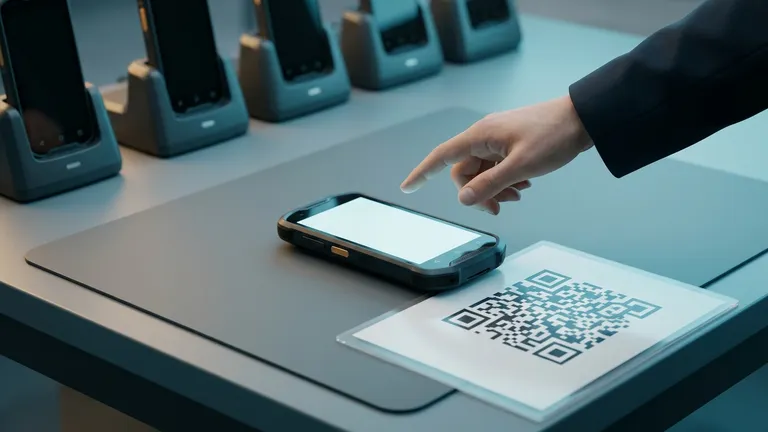
Android Enterprise QR Code Enrollment: What's Inside, How to Guard It
What an Android Enterprise QR code actually contains, why its enrollment token and Wi-Fi password need the care of a key, and what to do when a code leaks.
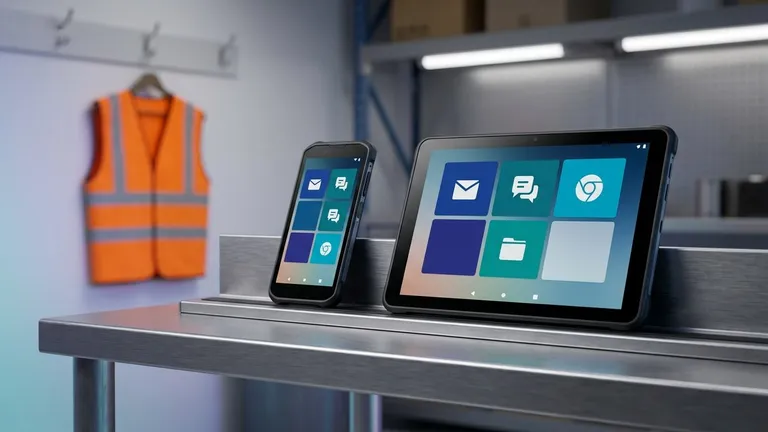
Outlook, Teams and Edge on company Android without Intune
Most Outlook, Teams and Edge settings on company Android reach the app through managed configurations, which any Android Enterprise MDM can send. Here is what you can set without Intune, what still needs Intune App Protection, and how to move your settings over.