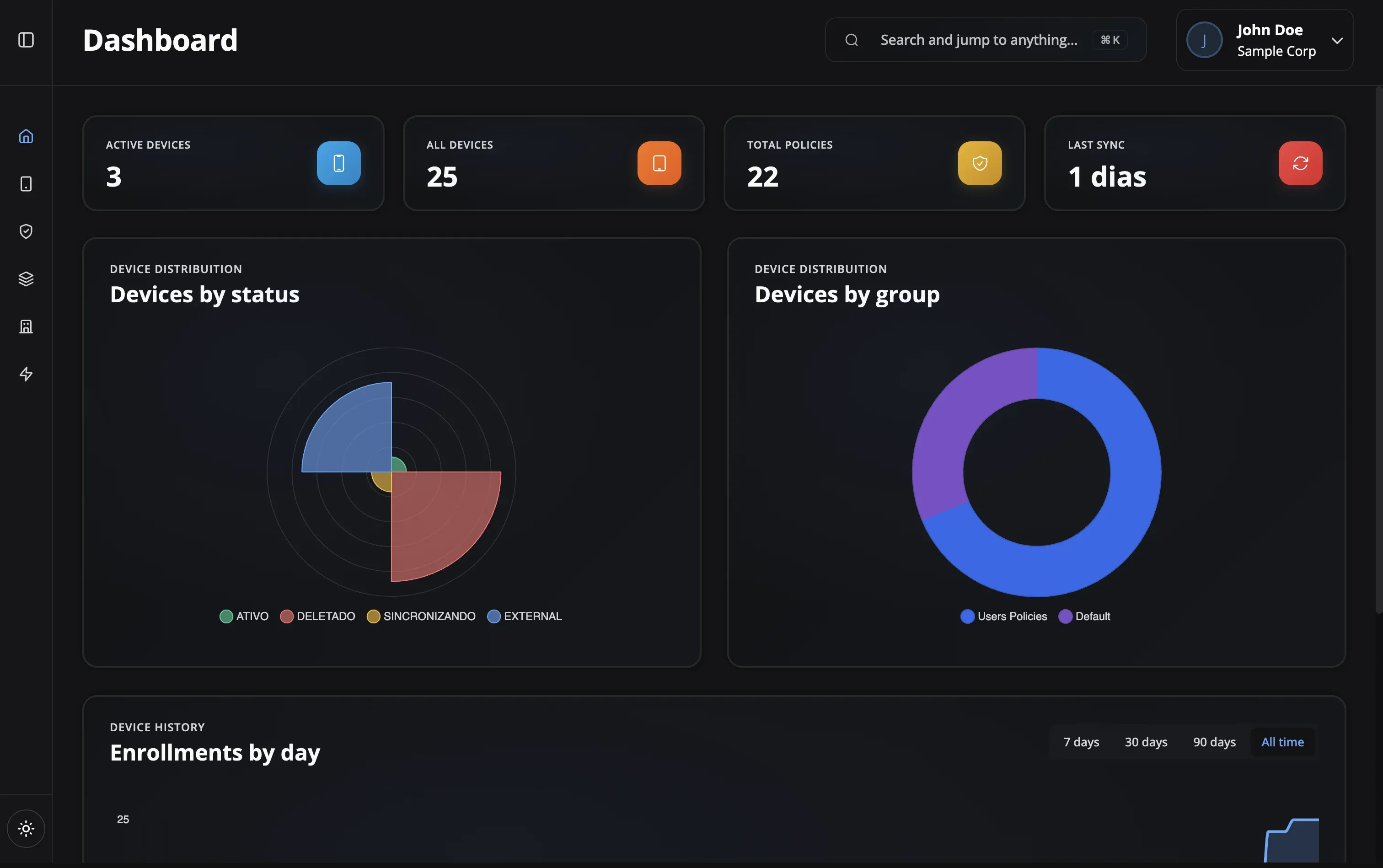
Real-Time Inventory
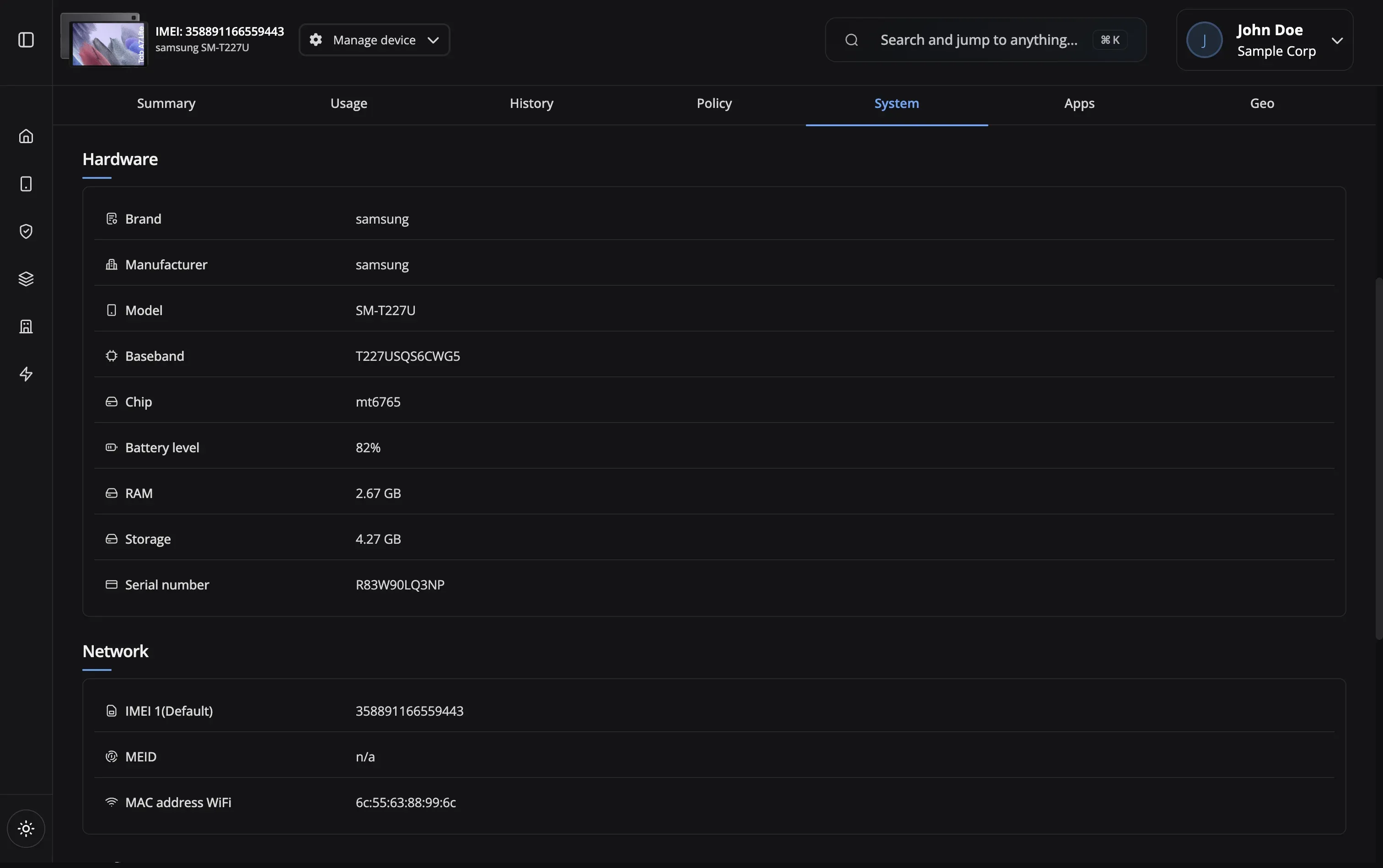
Track all device hardware and software details including model, OS version, installed apps, battery status, storage, and network information in real-time.

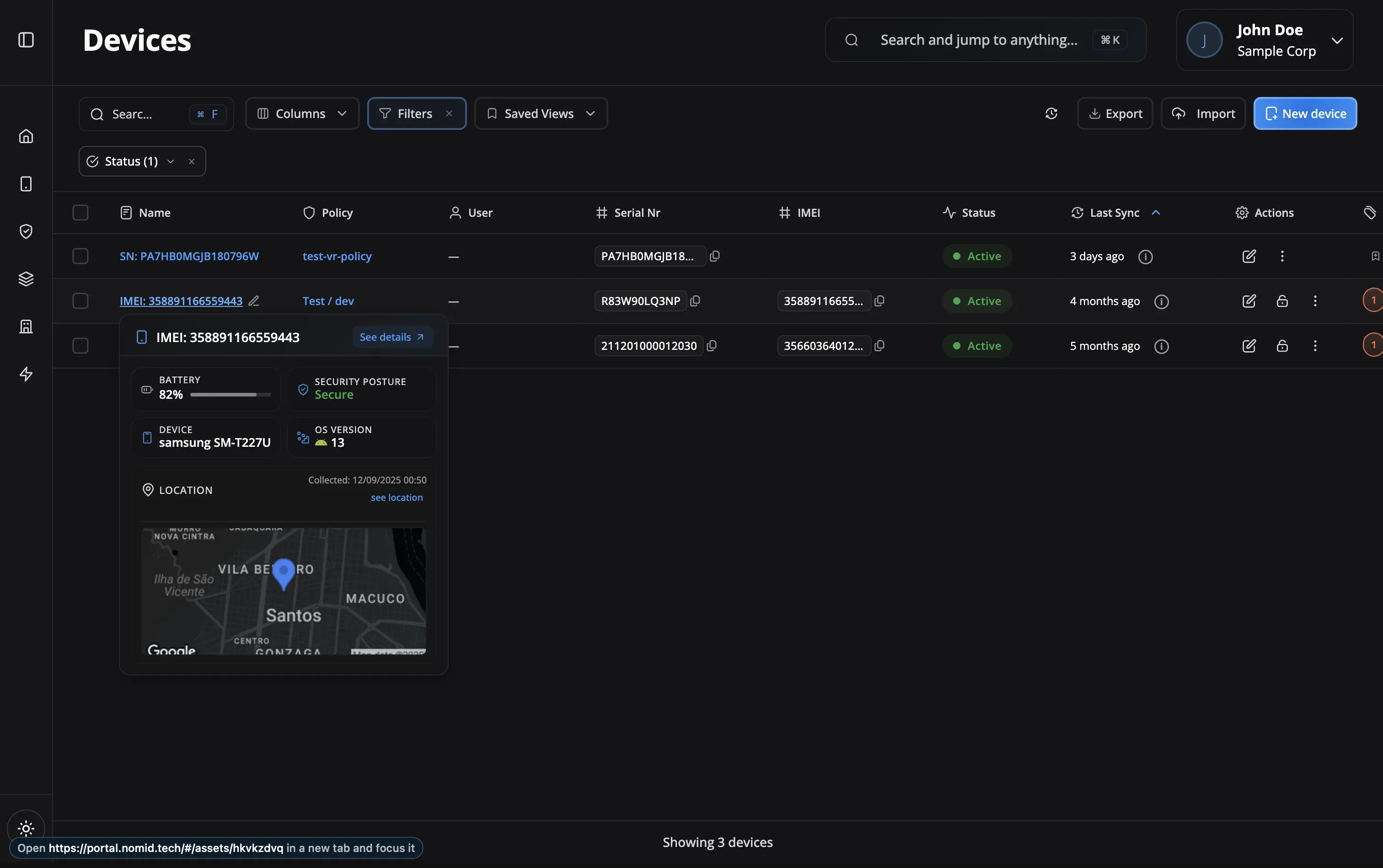
Search by name, serial, or user. Click into any device to see hardware, software, usage, commands, location, and policy status across 8 organized tabs.
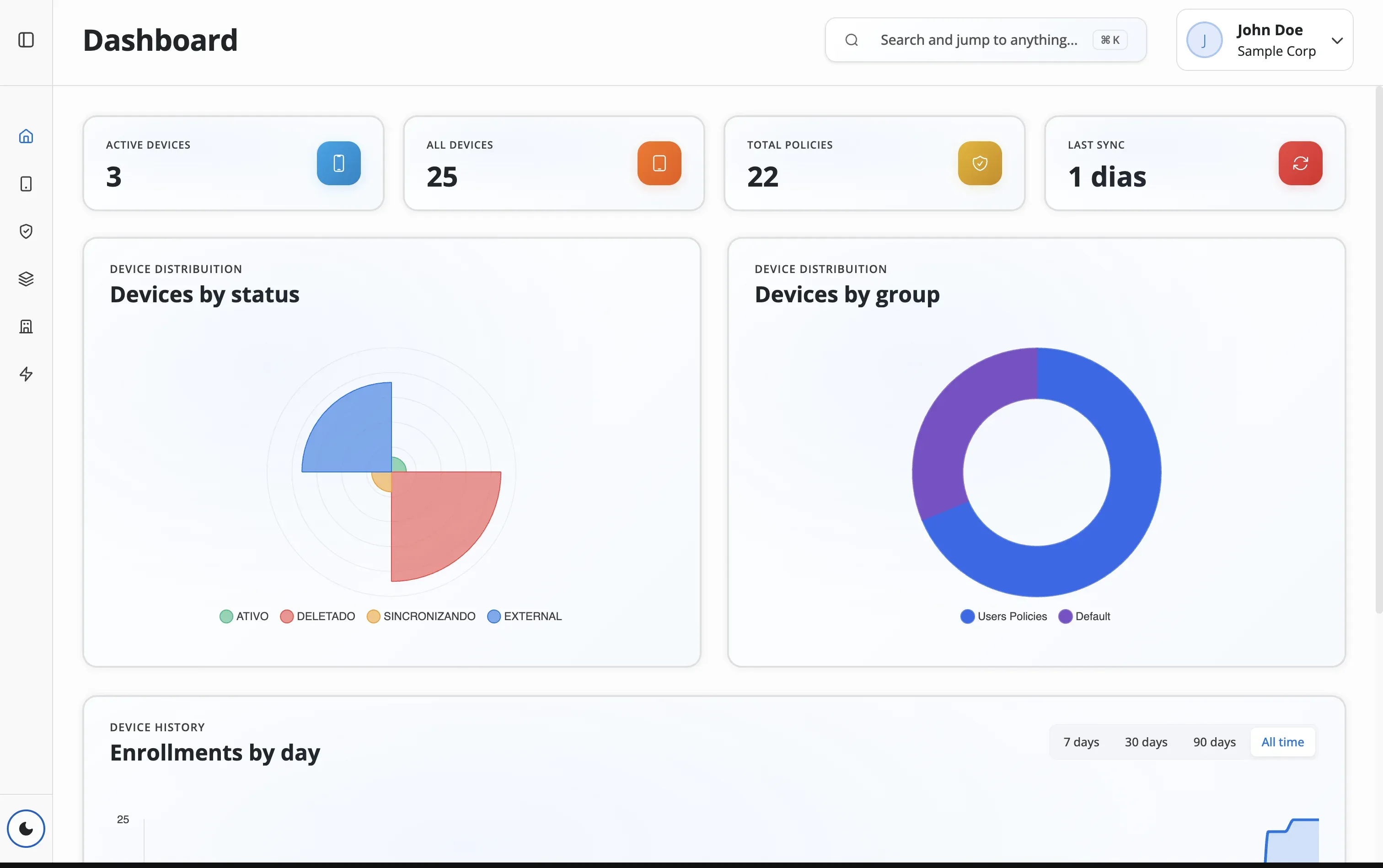
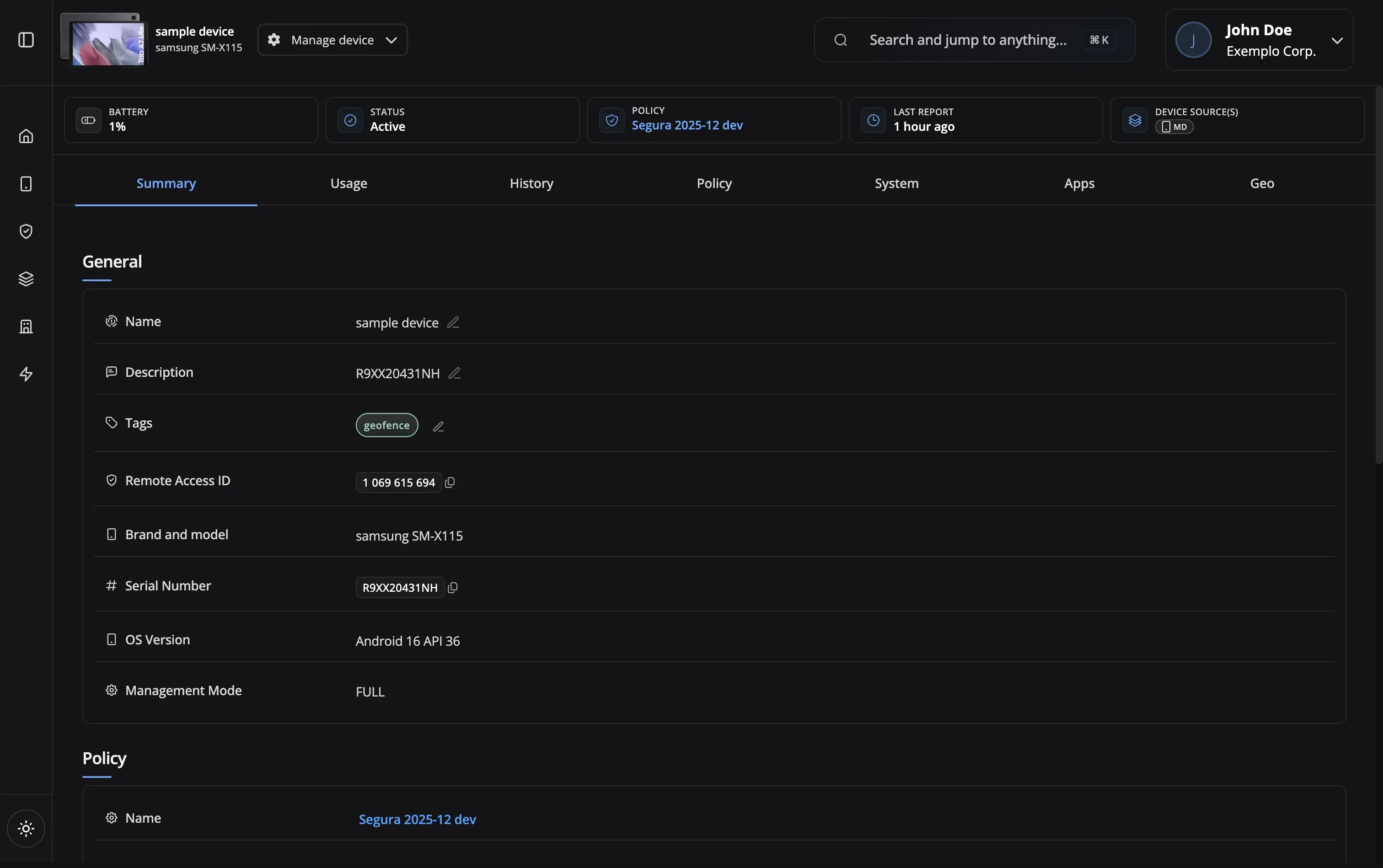
Fleet Management is your device-level command center. Search and filter across your entire fleet, then drill into any individual device to see its full picture: hardware specs, installed apps, app usage stats, command history, assigned policy, geolocation, and activity logs. Take action directly from the detail view — send a command, reassign a policy, or export data for a report.
Track all device hardware and software details including model, OS version, installed apps, battery status, storage, and network information in real-time.
Centrally manage device settings, policies, and configurations. Push updates instantly to individual devices or groups across your entire fleet.
Receive real-time notifications about device status changes, policy violations, security threats, and compliance issues to respond quickly.
Manage devices throughout their entire lifecycle from enrollment and provisioning to retirement and data wiping.
Detailed tracking of device models, serial numbers, IMEI, storage capacity, battery health, and more
Complete visibility into installed applications, OS versions, security patches, and system updates
Execute commands remotely including lock, wipe, reboot, screenshot, and location tracking
Apply and enforce security policies, compliance rules, and configuration settings automatically
Organize devices into groups for easier management and targeted policy deployment
Manage shared devices with multiple user profiles and separate work/personal data
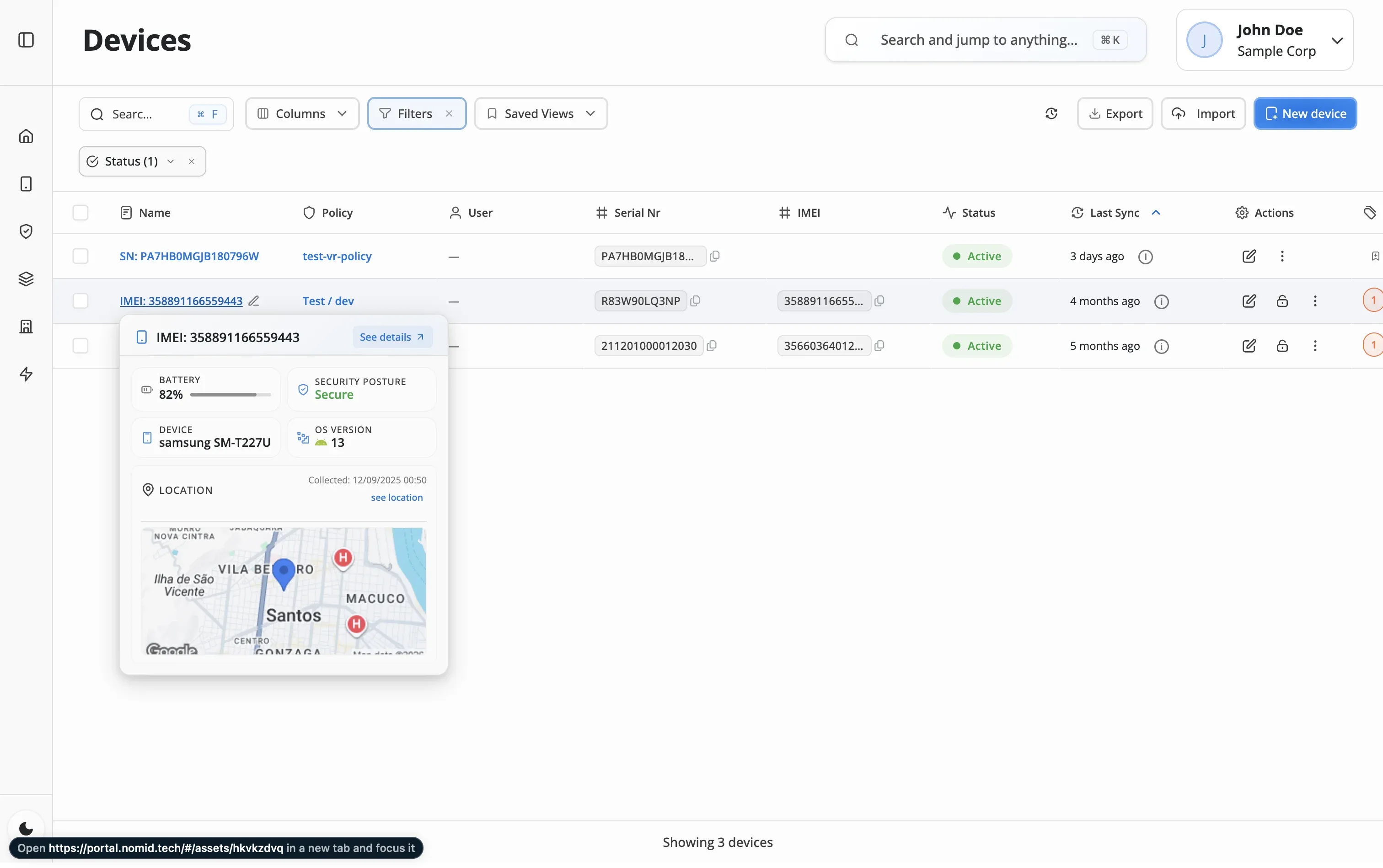
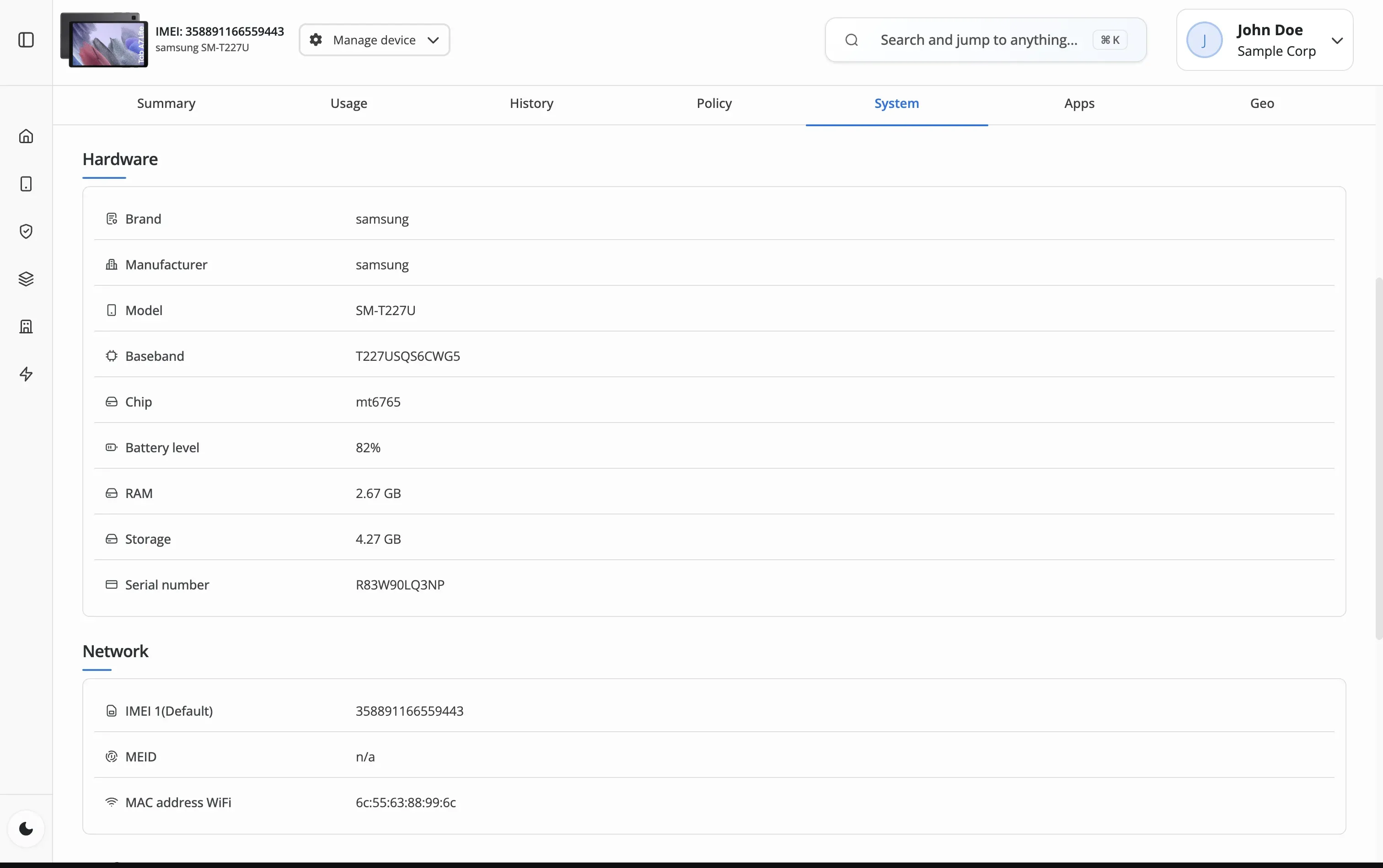
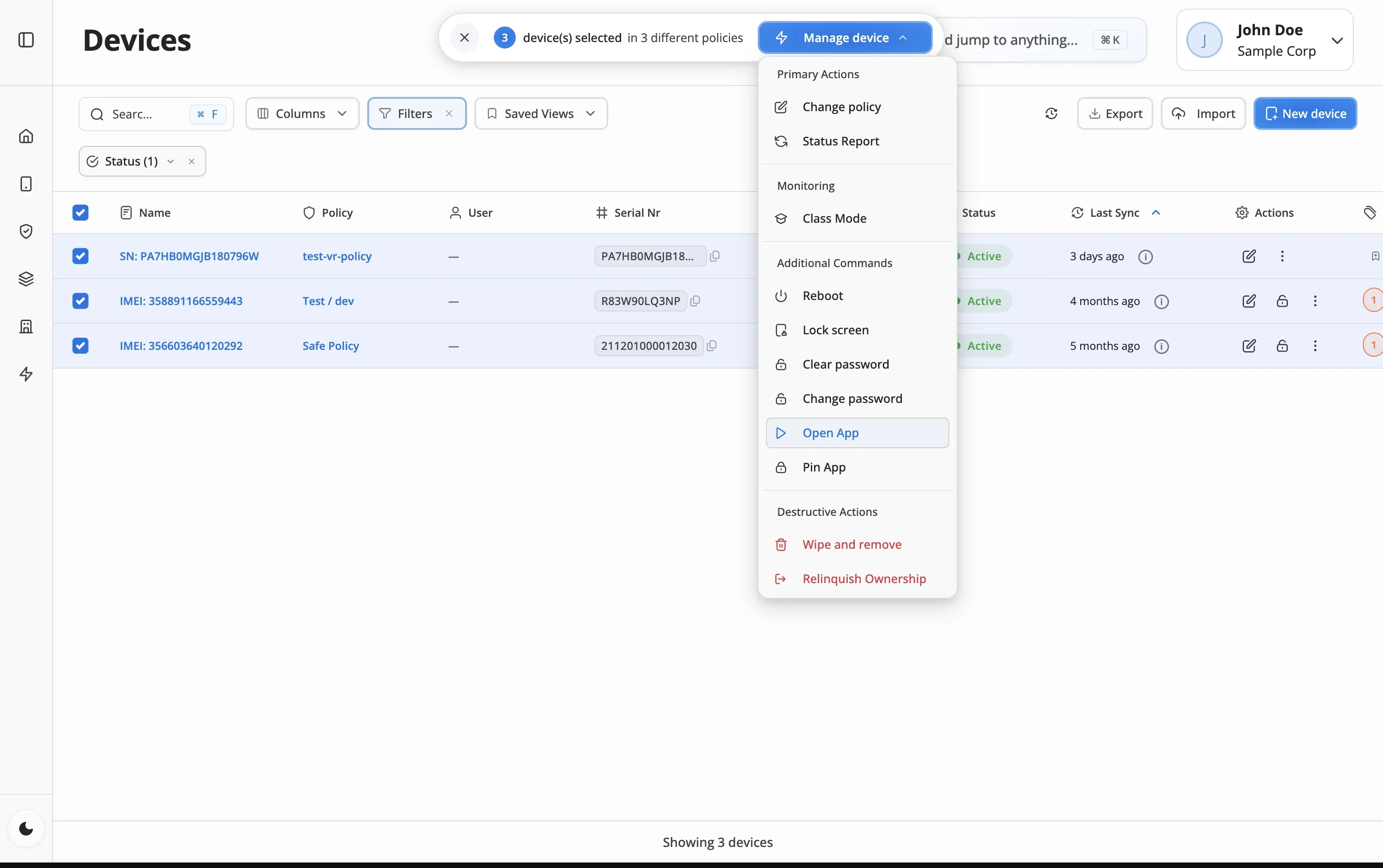
Use powerful search and filters to find specific devices. Search by name, serial number, assigned user, or any device attribute.
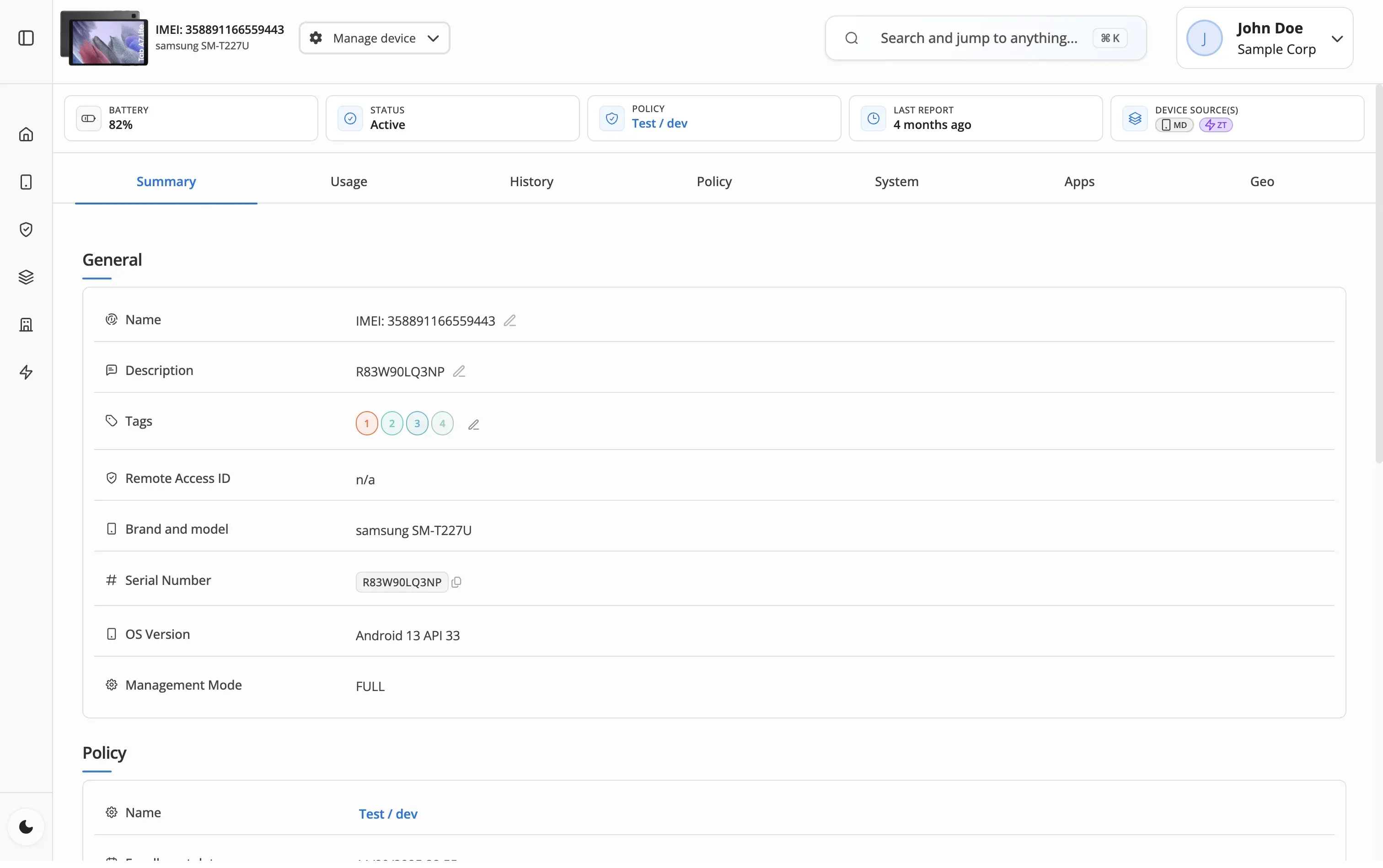
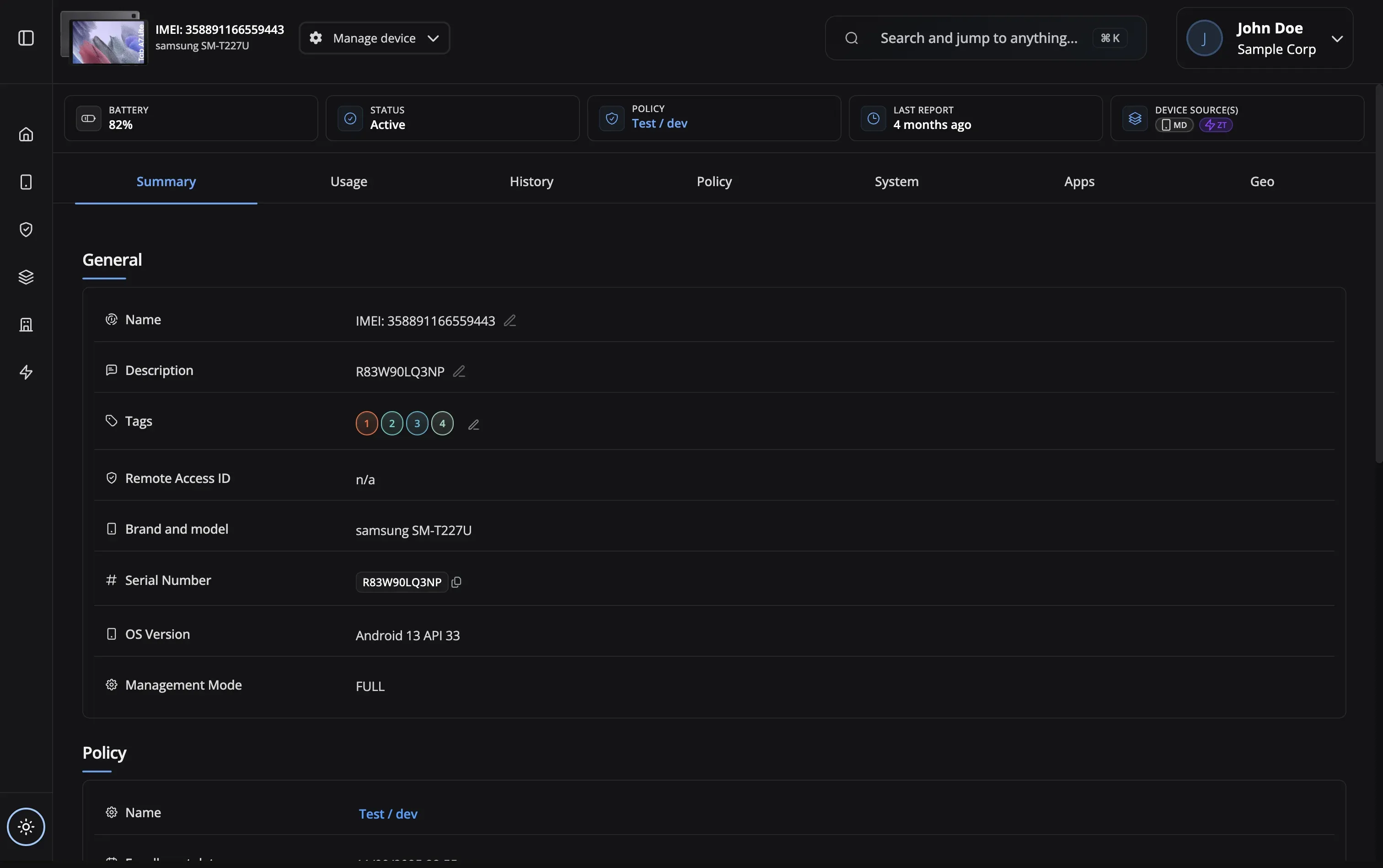
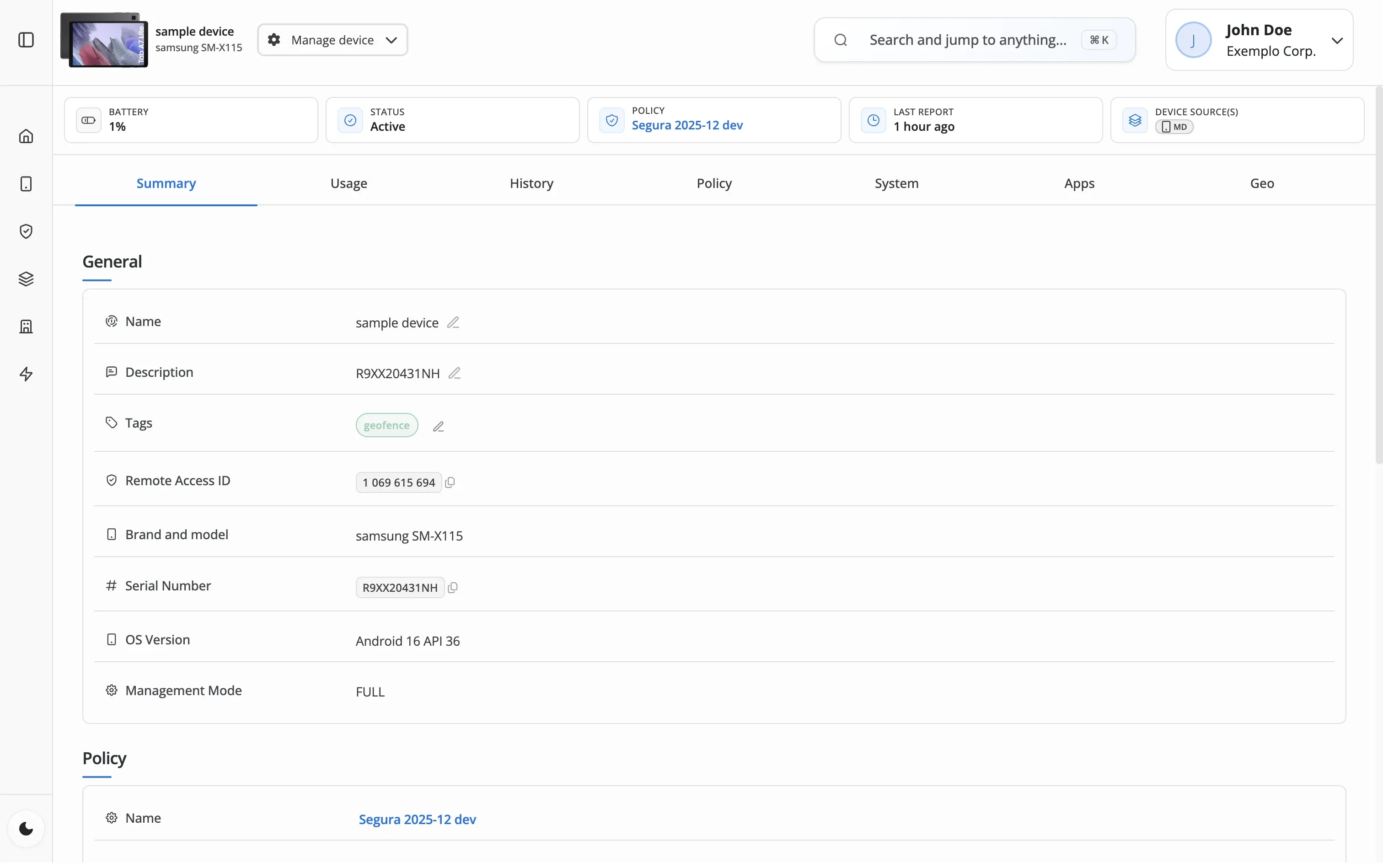
Click any device to open its detailed view. Navigate through 8 tabs covering all aspects of the device.
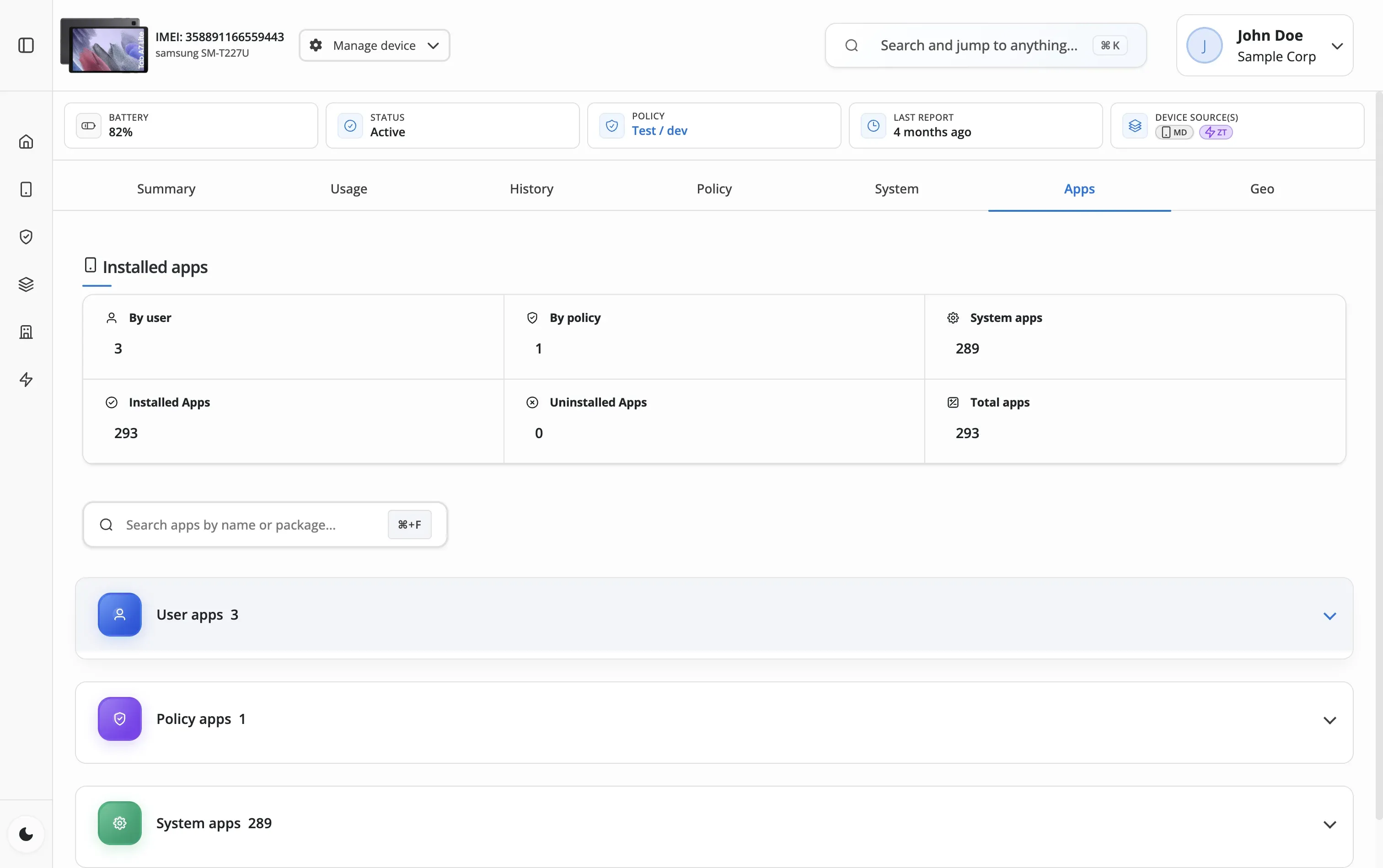
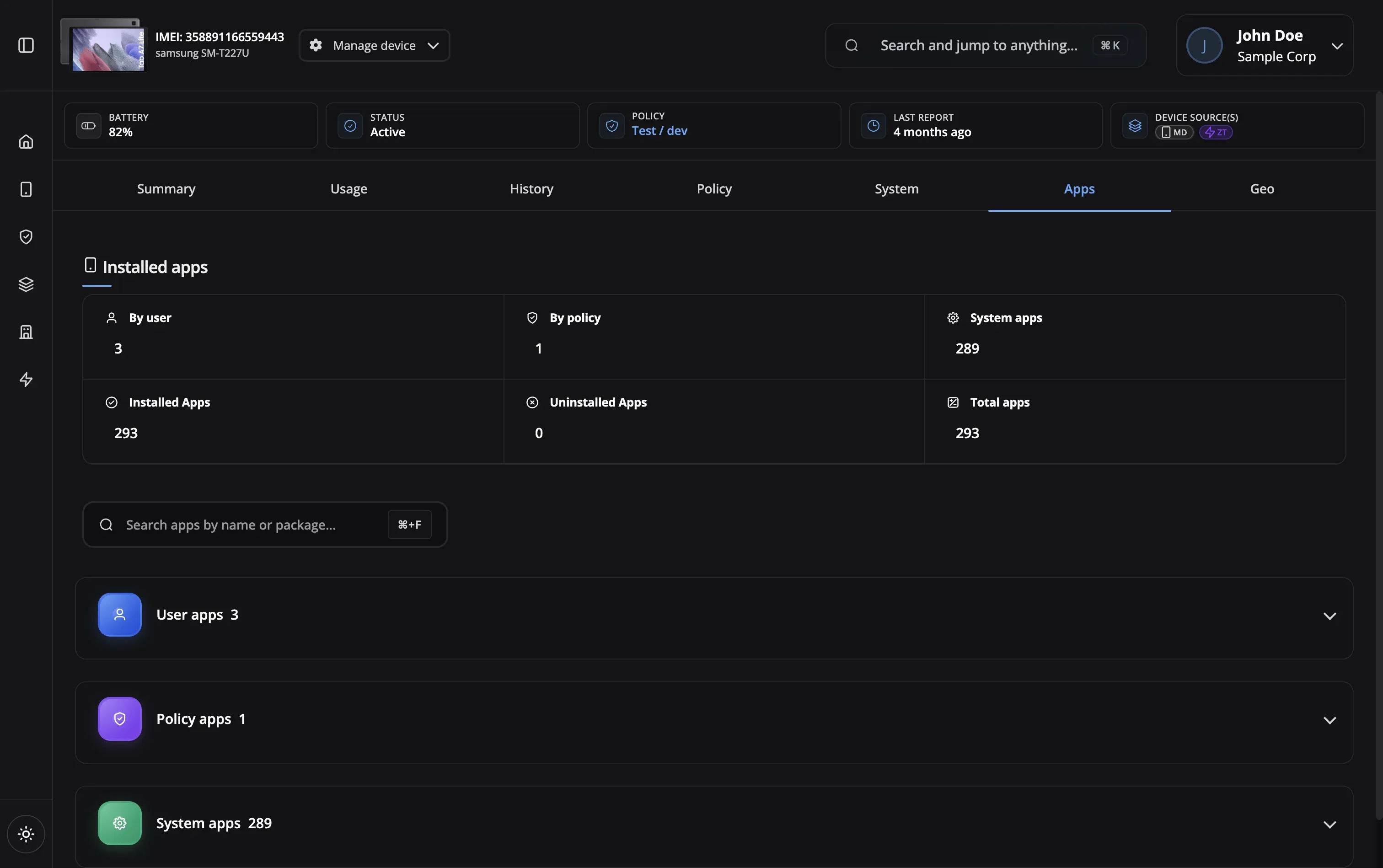
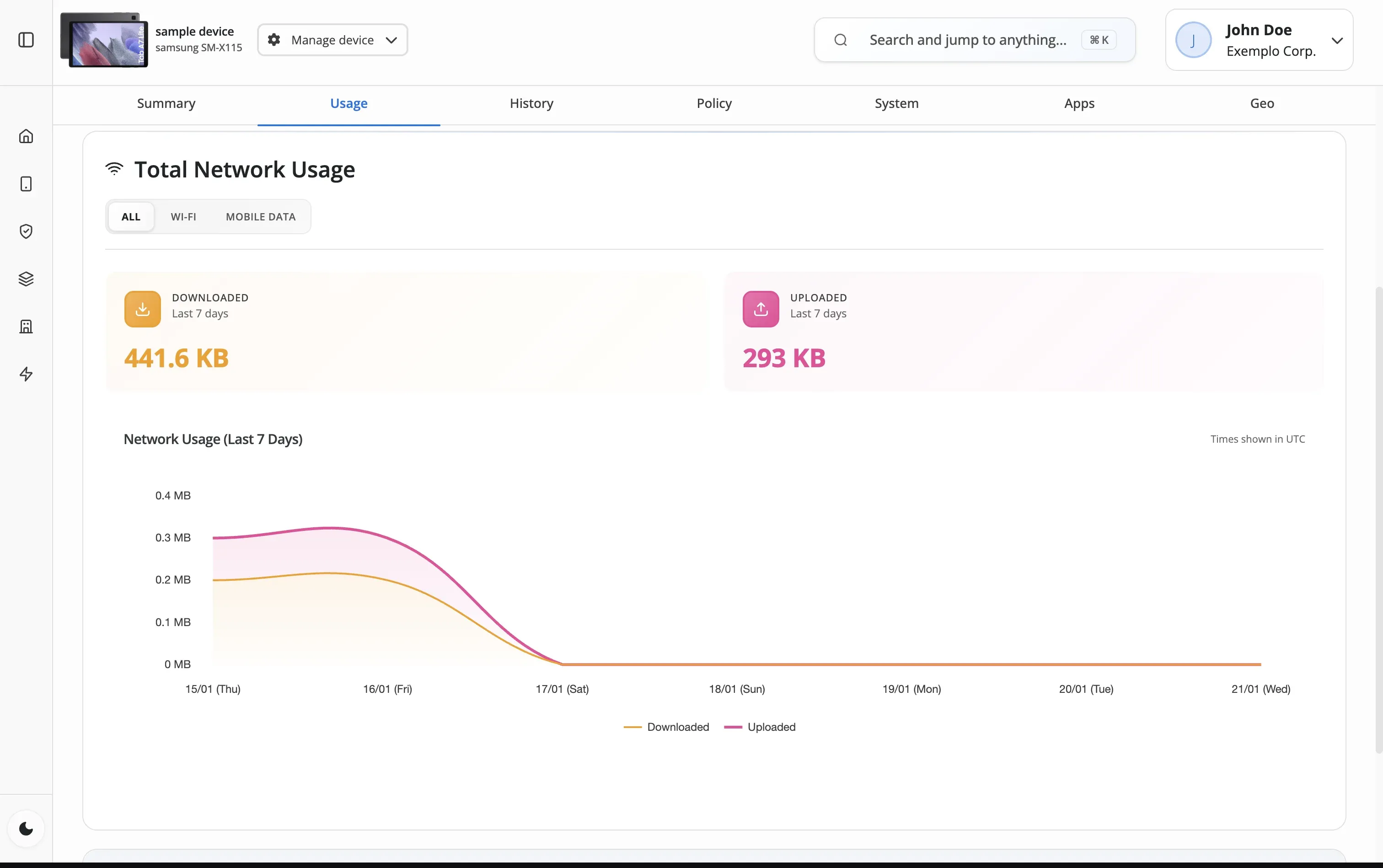
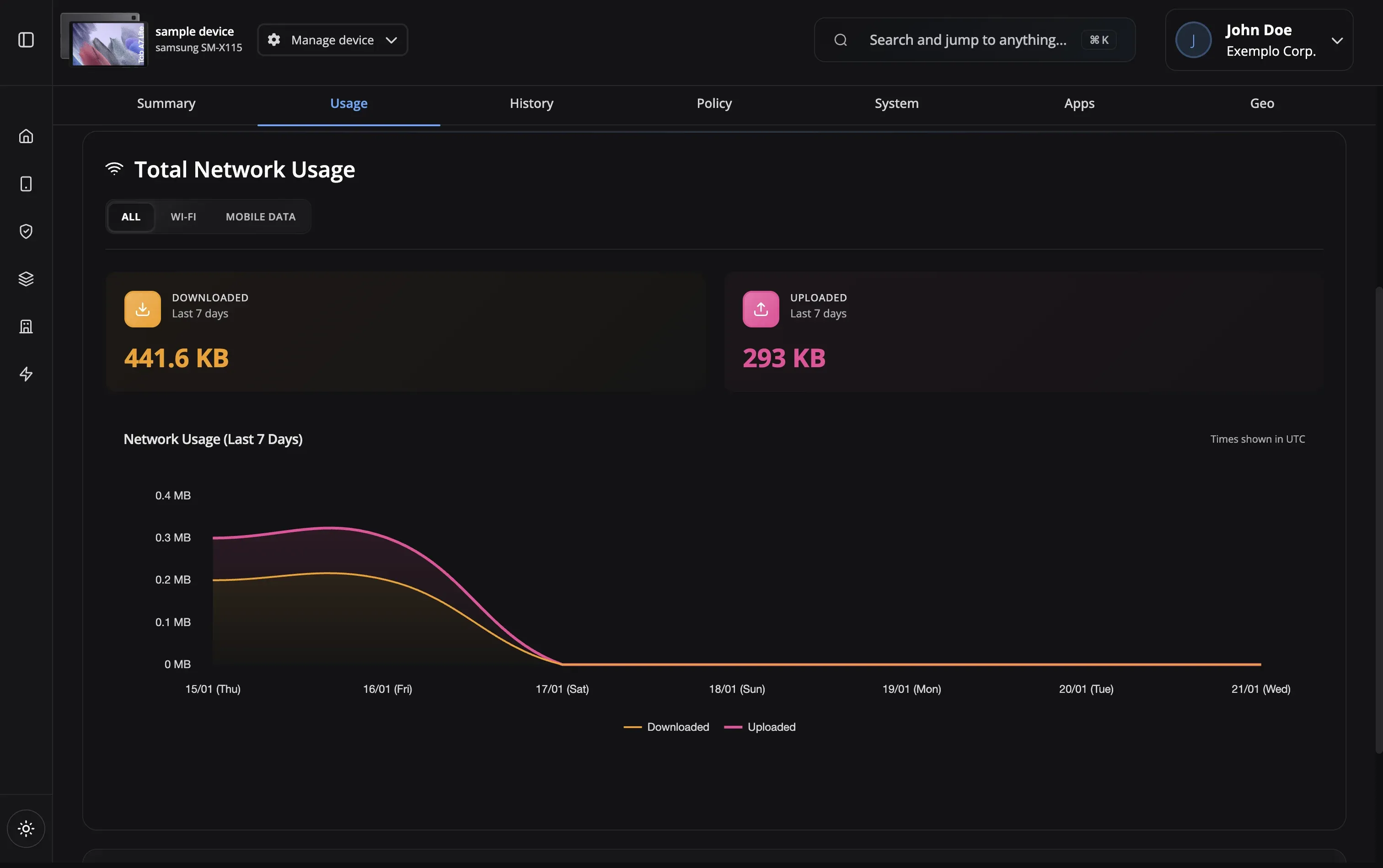
Check hardware info, installed apps, usage statistics, command history, assigned policy, and current location.
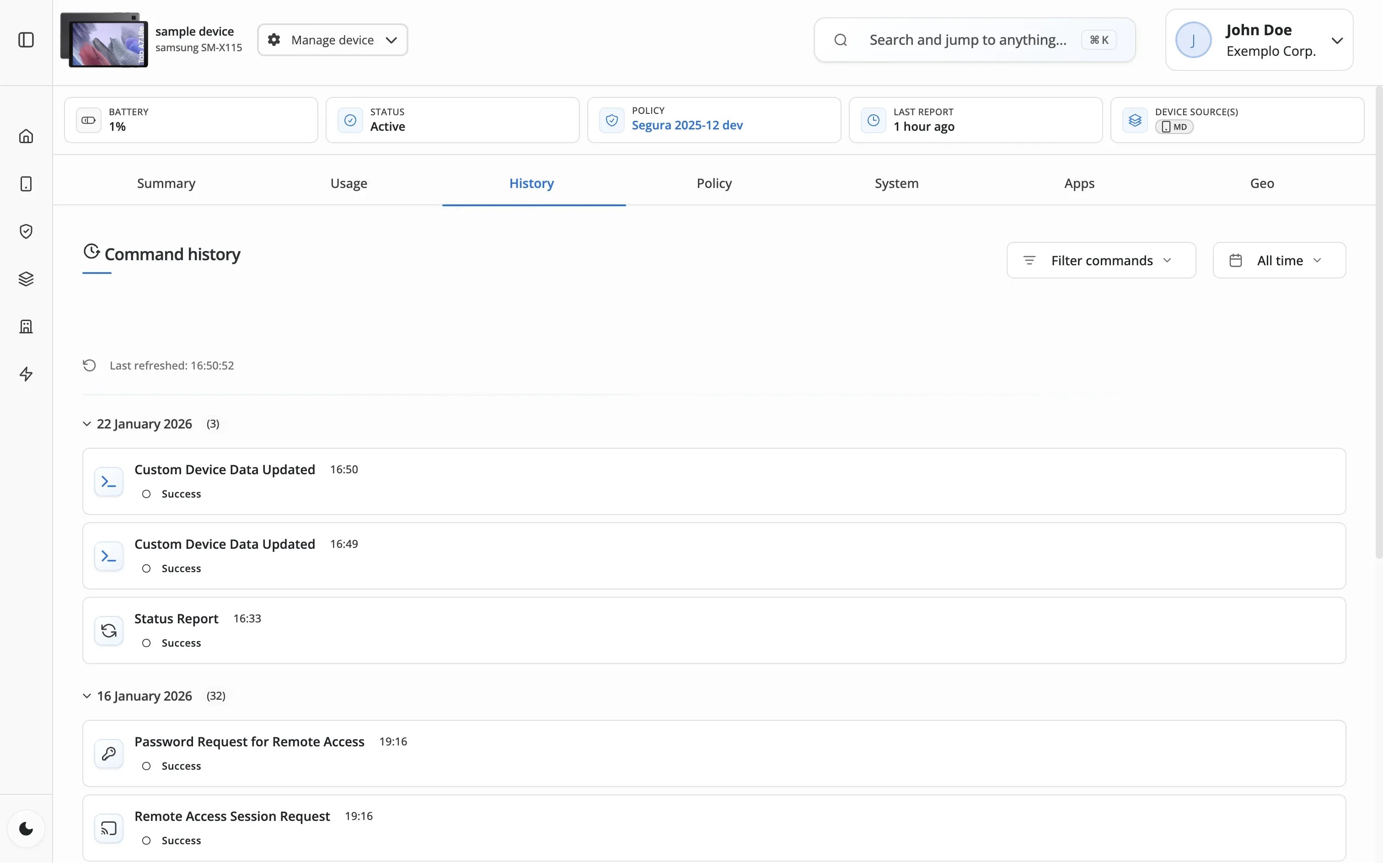
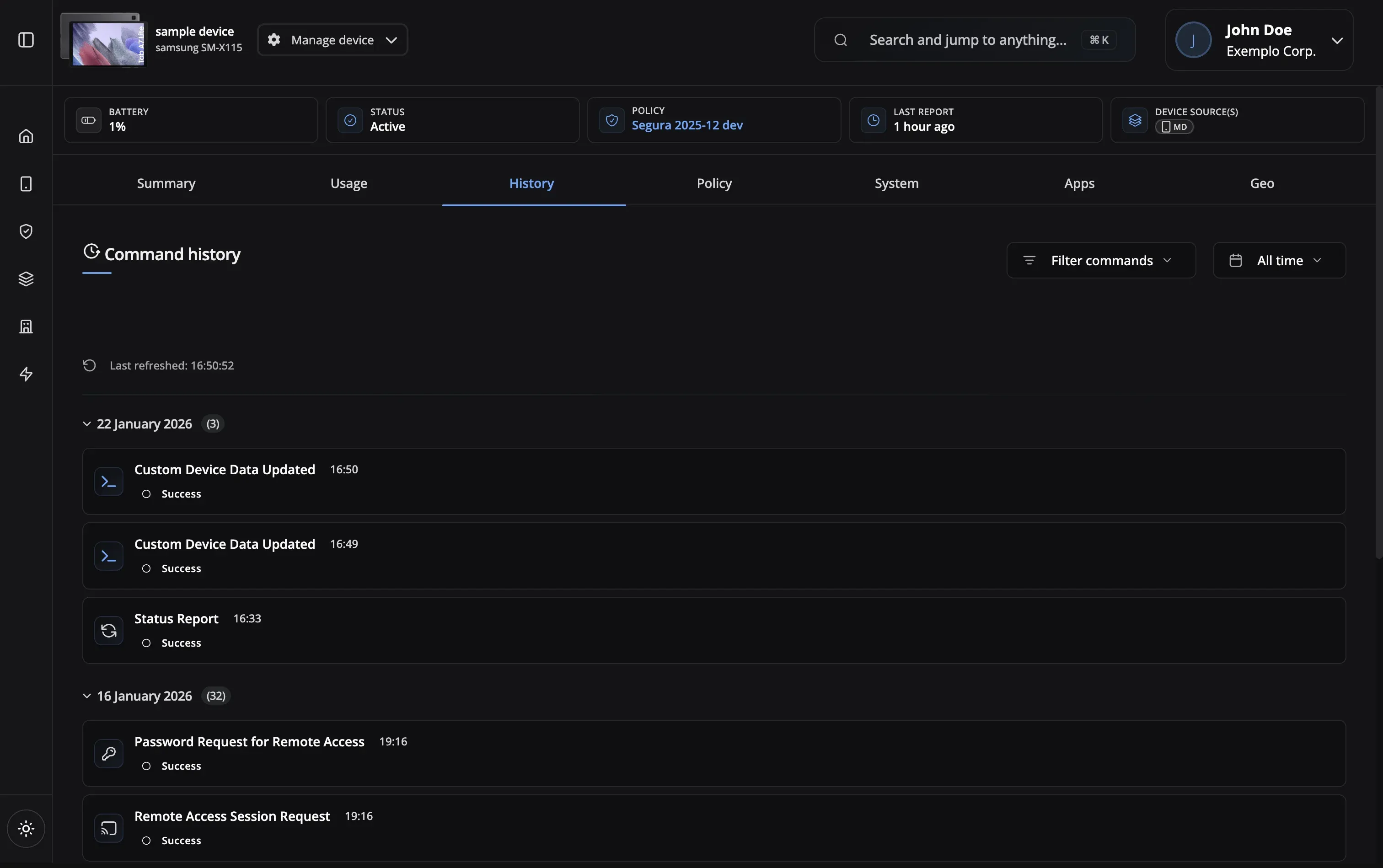
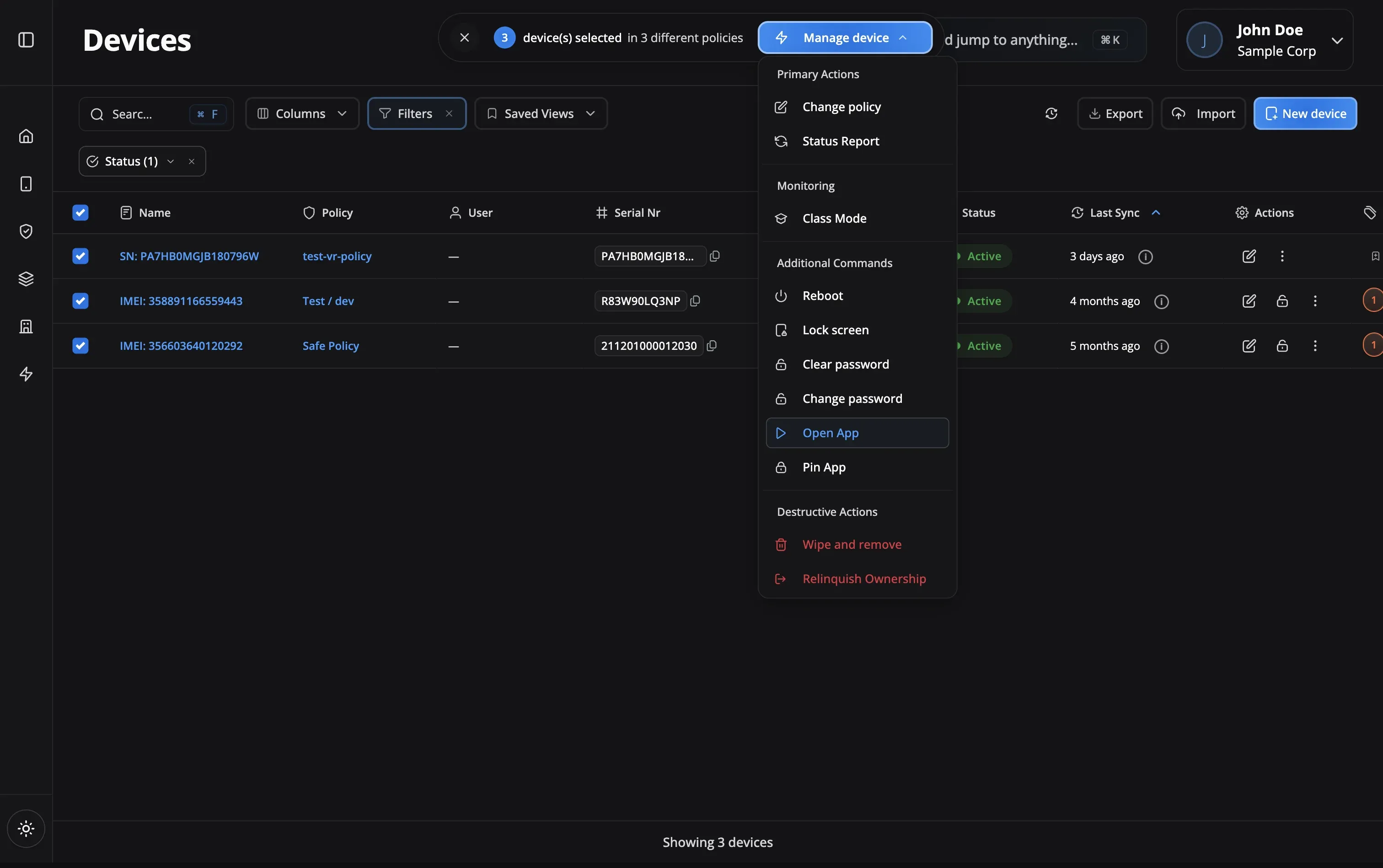
Send commands, update policy assignment, or export data directly from the device detail view.
Check which apps are installed on devices
Review multiple devices at once
See what commands were sent and their results
Verify device compliance during audits
Quickly locate any device by user, serial, or name
Diagnose problems by inspecting device state
Everything you need to find and inspect any device
Advanced Search
Find any device instantly
Bulk Selection
Multi-device operations
Command History
90-day retention
Detailed View
Complete device information
8-Tab Layout
Organized device data
Export Data
CSV exports
Filter & Sort
Find devices your way
Real-Time Sync
Live device updates
Advanced Search
Bulk Selection
Command History
Detailed View
8-Tab Layout
Export Data
Filter & Sort
Real-Time Sync
Yes! Use the checkboxes to select multiple devices, then apply bulk actions like sending commands, changing policy assignment, or exporting data. Selections persist across pages.
Command history is retained for 90 days by default. You can see all commands sent, their execution time, and whether they succeeded or failed.
The 8 tabs are: Summary (basic info), Usage (app usage stats), Commands (command history), Policy (assigned policy), System (hardware/OS info), Apps (installed apps), Geolocation (location data), and History (activity log).
Select the devices you want to export, then click the Export button. You can export to CSV format with customizable columns.
Use the search bar to find devices by name, serial number, assigned user, or any device attribute. You can also apply filters for status, policy, or location to narrow results.
For offline devices, you'll see the last known state from when the device was last connected. The interface clearly indicates when data was last updated.
Nomid MDM scales from small teams to enterprise deployments. Our platform can manage unlimited devices, with pricing tiers based on your fleet size. We have customers managing anywhere from 10 to 10,000+ devices.
Nomid MDM supports Android 5.0 (Lollipop) and above. For full feature support including Android Enterprise, we recommend Android 8.0 (Oreo) or later. We continuously update our platform to support the latest Android releases.
Yes! Nomid MDM supports multiple enrollment modes including fully managed (company-owned), work profile (BYOD), and dedicated devices (kiosk mode). You can mix different management modes within the same organization.
Most organizations are up and running within hours. The initial setup takes about 15-30 minutes, and enrolling devices can be done in under 2 minutes per device using QR codes or zero-touch enrollment.
Policies and configurations remain enforced on offline devices. When the device reconnects, it will sync with the server, apply any pending updates, and report its current status. You'll see the last known state in the dashboard.
Absolutely! We offer a 30-day free trial with full feature access. No credit card required. You can enroll up to 10 devices during the trial to fully evaluate the platform.
Our support team is here to help you get the most out of Nomid MDM.
Contact SupportFull fleet inspection on every plan. Free plan — up to 10 devices, no credit card required.