 Nomid
Use a VR/Pico 2.0 policy to manage settings for assigned headsets. This page covers identification, summary, content, networks, protection, remote access, reports, history, and saving the policy. Names and figures in the screenshots are examples from a demonstration company.
Sign in to the Nomid Portal, check the company, open Policies, and select the VR/Pico policy. Check the 2.0 indicator in the header. The 2.0/Classic selector changes editing interfaces without applying configuration itself; resolve pending edits before leaving. The Classic editor has a different layout; see VR/Pico policies — Classic if you use that interface.
Identify the policy
Search settings — Policy name — The header name identifies the policy you are viewing or editing. Check this name and the company before taking action, especially when policies have similar names. The tabs organize settings and reports: Summary, Content & launcher, Connectivity, Security & access, Insights, and Activity.
Access: rename: [Edit policy]. Click the name or its adjacent edit control, enter 1–20 characters, and press Enter or leave the field to incorporate the name into the form. Escape cancels only the current field input. This does not save the name: choose Save, review, and confirm the policy, unlike the description, which is saved separately. Renaming changes policy identification without reassigning its devices.
Use Find a setting in the header, or the magnifying glass when search is collapsed, to locate a setting in this policy. Enter a term and select a result: the Portal opens the tab and reveals the relevant control; for Content, it may open the containing panel. Selecting a result neither changes nor saves the option. This search is separate from device search and catalog app search.
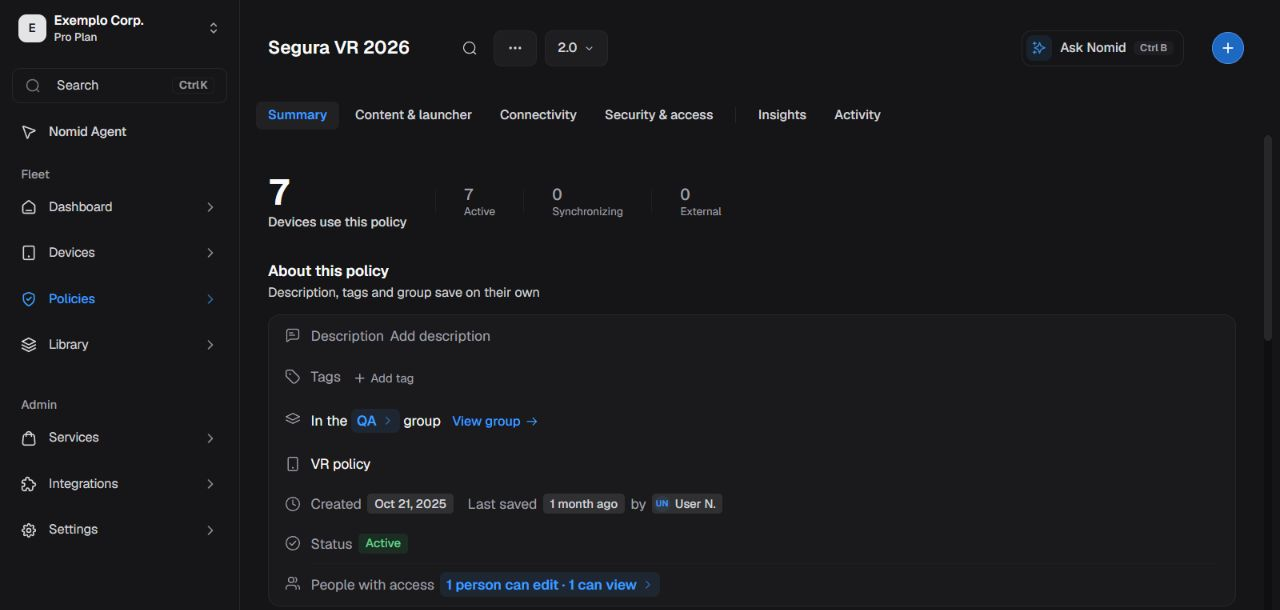
Figure 1. Check the company, policy, and 2.0 indicator before continuing.
Changing a setting edits the unsaved form. Switching tabs keeps those changes; it neither saves nor discards them. Choose Save, review the differences, and confirm to store the configuration. After a successful save, synchronization and application on a headset still depend on communication and device support. Test network, access, or restriction changes on a pilot headset before expanding their scope.
Description, tags, and group are saved separately. Discarding configuration changes does not undo these operations. Closing a panel is also no guarantee that changes were canceled; check for pending changes before leaving or repeating an operation.
Summary
Devices using the policy
The total includes records associated with the policy. Active, Synchronizing, and External divide these records by the status reported by the service. External identifies a device manually imported for inventory, without MDM control through that flow. It may have a target policy assigned in advance for provisioning; appearing in this count does not mean it is already enrolled, receiving, or applying the policy. Check its record and complete compatible provisioning before treating it as a managed headset ready for use. Active does not mean the headset is connected right now; Synchronizing indicates that it is still receiving the policy version. Check the last contact as well before considering a device ready for use.
To view assigned devices, choose See devices with policy under Actions. Device lists and commands are covered in Devices.
About this policy
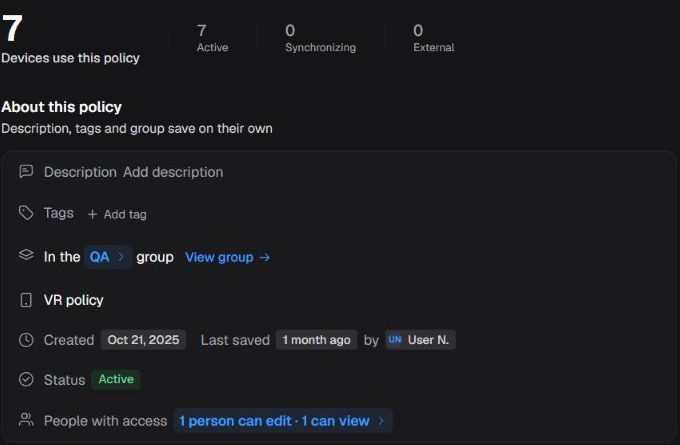
Figure 2. Check the scope and organizational information before editing.
Access: edit description, tags, and group: [Edit policy]. Assigning a group also requires authorization for the selected destination.
- Description: record the policy's purpose. Pressing Enter or leaving an edited field can save the text without using the configuration Save action.
- Tags: classify the policy to make it easier to identify. Adding or removing a tag can save immediately; check your choice before acting.
- Group: organizes the policy and contributes to its access scope. View group opens the assigned group; to move the policy, choose Change group under Actions and resolve pending changes first.
- Type, creation, last saved, and status: help identify the policy and its administrative record. The save time does not tell you when each headset applied the configuration.
- People with access: summarizes who can view or edit according to policy access. Opening this information does not grant new rights. Viewing names also depends on access to company user information.
When the notice for a saved description/tag offers Undo, it performs another metadata transaction with the previous value and version checking; it is not global Discard and does not erase history.
If saving this information reports a conflict, check the current content before retrying. Do not assume that repeating an action reverses the previous one. To review account permissions, see Settings; a role name alone does not determine access.
Configuration
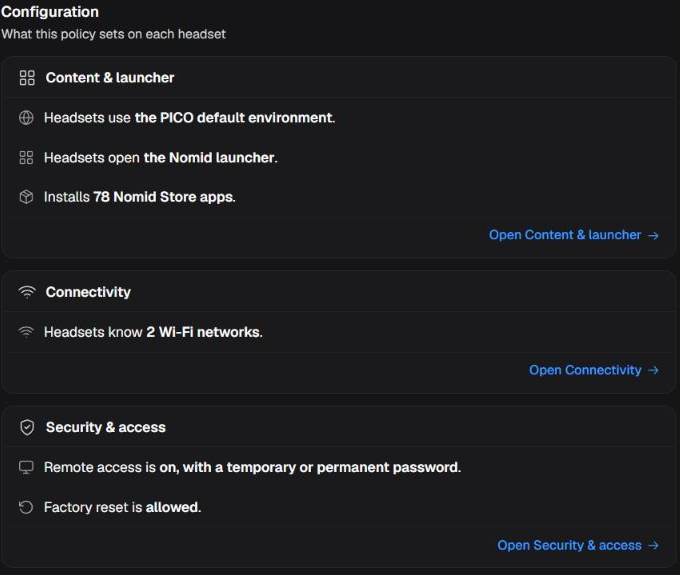
Figure 3. Open the area that contains the setting you want to change.
- Content & launcher: summarizes the PICO environment, home screen, and assigned apps. Open Content & launcher takes you to these settings. The app count represents policy configuration; it does not confirm completed installation on every headset.
- Connectivity: summarizes configured Wi-Fi networks. Open Connectivity takes you to the policy's networks. A listed network does not confirm association or internet access on a device.
- Security & access: summarizes rules such as remote access and permission to perform a factory reset. Open Security & access takes you to those controls. Allowing factory reset does not send a wipe command; enabling remote access does not open a session by itself.
The summary follows the form, including unsaved changes. Before checking the result on a device, finish saving the configuration, check the Portal response, and then verify the headset. Do not treat a summary sentence alone as confirmation that settings were applied.
Headset readiness
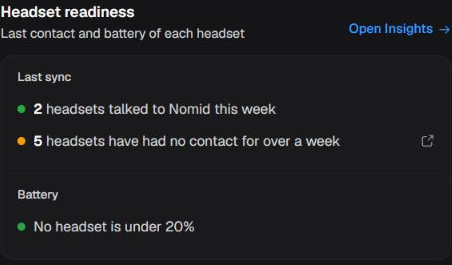
Figure 4. Use reported contact and battery data to decide which headsets need checking.
Last sync groups headsets by their last contact: within the past seven days, over seven days ago, or no recorded contact. This week means the past seven days. This is neither live presence nor student attendance. Open Insights lets you examine the reports further.
Battery helps identify devices that need charging. Consider the last contact and any partial-coverage or missing-data notices before deciding. No reading does not mean a battery level of 0%, and an old reading may not reflect the current charge. The screenshot says “under 20%”; also check headsets at exactly 20% when preparing an activity, rather than relying on this sentence alone.
Access: contact: [View dashboard and usage analytics]; battery: [View device list]. If an access or error notice appears, resolve it before interpreting the result as no devices. The battery card may name up to five low-charge devices and count the rest; check partial-coverage notices. If Recent changes appears in Summary, its Activity entry opens versions/author/date without establishing device execution.
The permission list is available in Settings.
Actions
Open Actions in the policy header; in a compact layout, the control appears as an ellipsis. Opening the menu lets you choose a command. Check its consequence before clicking: some entries start an operation as soon as you select them.
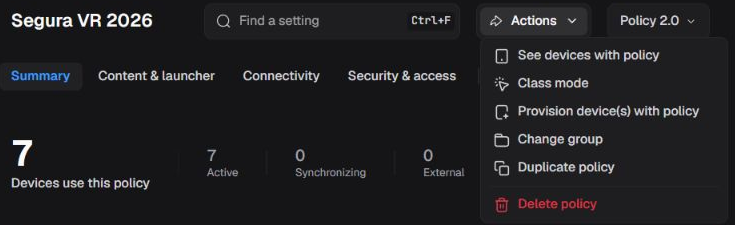
Figure 5. Choose the action for the result you need and check its scope.
See devices with policy
Access: [View device list].
Opens the assigned device list for viewing. Opening the list does not change configuration or send a command. Before acting on individual devices, check names and scope in Devices.
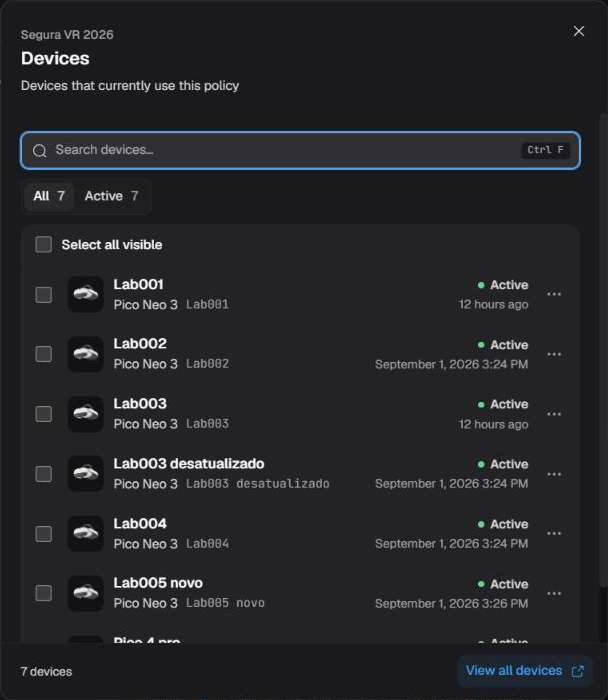
Figure 6. Find a headset by name and check its last contact before continuing.
Use Search devices to find a device and the status filters to narrow the results. The footer total identifies the list's scope; you may need to scroll to see more rows. View all devices opens the Devices area. Selection boxes and per-device menus belong to that area's actions: viewing a row does not authorize commands on that device.
Class mode
Access: [Send command to device]. The company must also have Class mode enabled.
Finds devices assigned to the policy that your account can access and opens the session panel. The scope is the policy, rather than a manual selection of a few devices. Opening it can start interactive communication and request device screenshots. Prepare any content that may be displayed before selecting the action. If the search fails or finds no devices, resolve the notice before continuing.
To monitor only some devices and learn how to end the session, follow Class mode. Do not rely on all effects being automatically reversed when you close the panel or lose the connection.
Provision device(s) with policy
Access: [Enroll policy].
Opens the new-device flow with this policy and the VR device type already supplied. Check the policy in the wizard before continuing. Opening the flow does not enroll a headset; the device must complete provisioning and communicate with the service. Follow New device to complete the enrollment supported for Pico VR.
Change group
Access: [Edit policy], with authorization to assign the destination group.
Opens the change of the policy's assigned group. Save or discard configuration changes and resolve pending information edits before moving. Check the destination and complete the operation in the dialog; after returning, verify the new group in About this policy. The change can affect who has access to the policy and is saved separately. Discarding configuration later does not undo it; another group change requires access to its destination.
Duplicate policy
Access: [Edit policy].
Creates another policy from the saved version and opens the copy with a generated name that distinguishes it. When a policy has no pending changes, clicking starts creation immediately: do not expect a second confirmation. If there are pending edits, the Portal may ask about leaving; do not rely on duplication to preserve changes that have not been saved.
Check the copy's name after the success response. Headsets remain assigned to the previous policy until you use an appropriate assignment flow; duplication does not distribute the copy to devices. If an error occurs, check the policy list before retrying to avoid unnecessary copies.
Delete policy
Access: [Edit policy]. Policies protected for system administration have an additional editing restriction.
Opens the deletion confirmation for the selected policy. Check its name and associations before confirming. Confirmation removes the policy from use and revokes associated enrollment resources and public links; it is not a command to wipe headset data.
Do not rely on automatic recovery of a deleted policy or reversal of actions already applied to devices. If you only need to keep a reference or prepare a replacement, arrange that before deleting. Cancel the confirmation to keep the policy. After successful deletion, the Portal returns to the policy list; if an error occurs, check the current state before trying again.
Content & launcher
Access: change configuration: [Edit policy].
Open this tab to define which apps headsets receive, which home screen they use, and how the launcher presents content. The Launcher preview helps you check the planned layout before saving. Opening an icon in the preview shows app details; it does not launch that app on a headset.
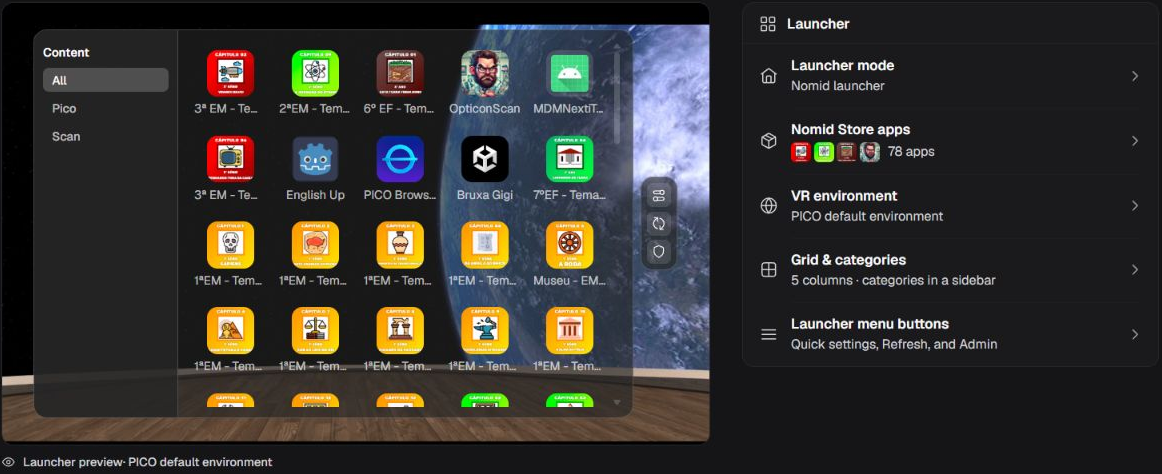
Figure 7. Check the planned layout and open the relevant setting in the Launcher panel.
Preview categories filter apps by their Nomid Store classification. They do not create device groups. Use Edit apps to enter app-removal mode in the preview. Check each removal: it changes the app assignment in the form. Do not treat this mode as drag-and-drop rearrangement.
Choosing a mode, app, environment, grid, or button changes unsaved configuration. Done and closing a panel return to editing; they do not confirm the policy Save action. Review and save the policy before checking application on a headset. Removing apps or blocking packages can interrupt activities; test on a pilot and preserve necessary data before distribution.
Launcher mode
Open Launcher mode in the Launcher panel to choose the home screen that the headset should open.
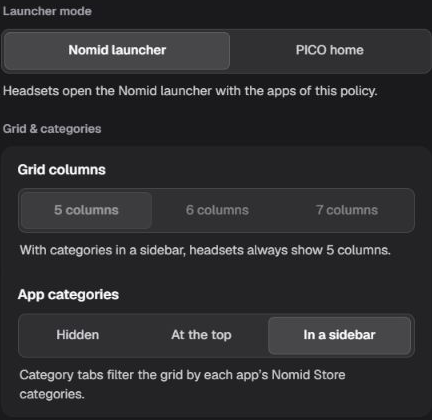
Figure 8. Choose the home screen and app layout; the sidebar keeps five columns.
| Option | Effect |
|---|---|
| Nomid launcher | Requests the Nomid home screen with this policy's apps and lets you configure the grid, categories, and shortcuts. |
| PICO home | Requests the default PICO home screen. Nomid launcher grid, category, and shortcut settings do not configure that screen. |
The Nomid launcher requires the Nomid Settings app in the policy. If the Portal reports it missing, use Add Nomid Settings and check the app before saving; this also changes the form. Choosing PICO home does not remove the assigned Settings app. In the dedicated add-Settings flow, select only the compatible Settings app. If the app is unavailable in the catalog, resolve its availability in the Library, rather than substituting a similarly named package.
Nomid Store apps
Open Nomid Store apps to view and change assigned apps. Use Search apps to find an entry by name; clear the search to return to the list. The number of matching results may be lower than the policy's total app count. Where Show more is offered, use it to reveal further entries; search can also find a package. This does not remove apps.
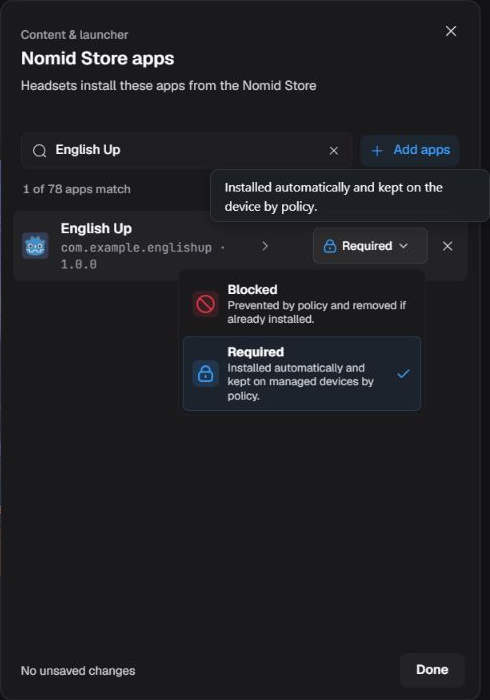
Figure 9. Check the app and installation type before changing its assignment.
| Option or action | Effect |
|---|---|
| Required | Requests automatic installation and retention of the app by policy. Execution depends on saving, synchronization, and agent support. |
| Blocked | Requests that the app be prevented and removed if already installed. Check the package to avoid interrupting a needed app. Protected Nomid system apps cannot be blocked through this flow. |
| Remove app or the entry's X | Removes the assignment from the form. For an app assigned for installation, removal requests uninstallation after saving and synchronization; it does not delete the Library file. |
| Undo in the removal notice | Returns the notice's removed items to the form while the notice remains available. It does not recover device data already lost or reverse completed distribution. |
Protected system apps, such as Nomid Settings and Remote Access, are not removed by this control. Adjust their functions through the policy's dedicated controls.
Add apps
Choose Add apps to open Add Nomid Store apps and view the catalog available to the company. Search, select the apps you need, and check entries already marked Added. Confirm the addition to incorporate them into the form; Cancel abandons the current selection.
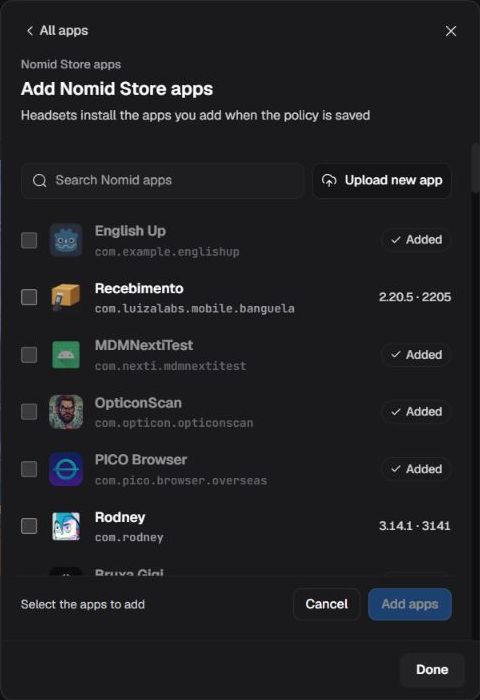
Figure 10. Select only the apps you need before adding them to the policy.
When the flow offers Environment, select the intended app distribution before completing it. Options depend on the catalog and app; do not confuse this channel with the visual VR environment. App names and counts in the screenshots do not represent a fixed catalog.
Access: Upload new app: [Edit Library], or authorized system administration.
Upload new app creates a Library resource through a separate flow. Canceling the policy or discarding its configuration does not delete a completed upload. To prepare or correct a package, follow Library, then check its policy assignment.
Details and managed configuration
Open the app name in the list or its preview icon to check the package, assigned version, and application options. The Installed from the Nomid Store indicator identifies the app's source. The displayed version describes the assignment; it does not confirm which version each headset runs.
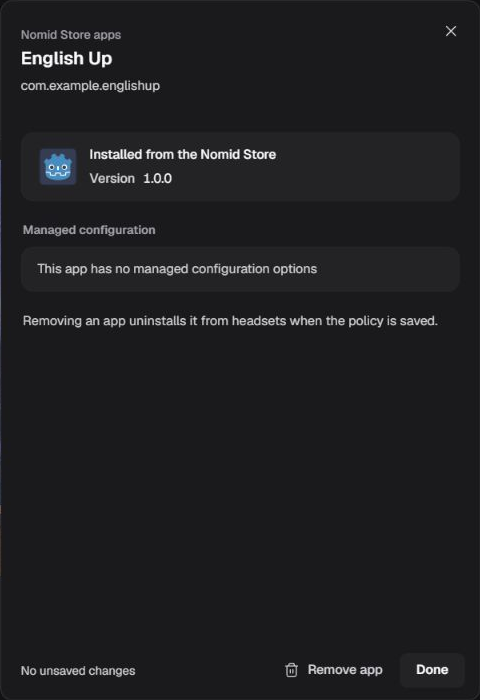
Figure 11. Review app details before editing its options or removing its assignment.
In Managed configuration, the administrator defines values for the selected app itself, to standardize the behaviors that app exposes for administration. These are not general settings for other apps or the headset. Read the field descriptions and developer documentation before choosing values; their effect depends on app support and delivery of the configuration to the device. When options are available, open the editor, fill in only fields you understand, and use its internal Save action to incorporate values into the policy's unsaved configuration. Canceling the internal edit abandons those changes; confirm the policy afterward to request distribution. Fields and validation vary by app and may include sensitive information.
For English Up 1.0.0 in the screenshot, the message says there are no managed configuration options. This applies to the inspected app; other apps may provide options. Do not remove or replace an app just to obtain these fields.
Blocked
The Blocked group also lets you enter a package absent from the Library, such as an app installed over USB. Enter the exact app identifier in Package name and choose Add; a similar display name does not replace the correct package.
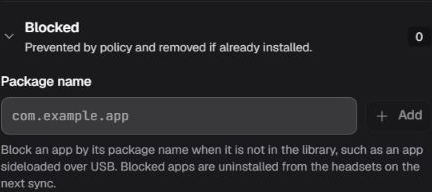
Figure 12. Use the exact package to prepare blocking of an app outside the Library.
The form rejects invalid, duplicate, already Required, or protected internal packages; correct the identifier before adding. Package blocking requires agent support; the stated requirement for this feature is 4.5.20 or later. Check the installed version and test on the headset model in use before expanding distribution. Adding a package changes the form; app removal is requested after saving and synchronization, without a guaranteed deadline or data recovery.
For an app available in the Library, changing Blocked to Required requests installation again. Removing a package from the blocked list only removes that restriction; it does not guarantee reinstallation. A package absent from the Library must become available there before it can be set to Required through this flow. Check the result and use the notice's Undo action, if still available, to correct a removal before saving.
VR environment
Open VR environment, then use Select Environment to choose the visual space around the launcher. Select Device Default or an available resource; the choice enters the form and requires Save for distribution. Choosing the default removes the custom-environment reference from the policy without deleting its Library resource. Thumbnails help identify a resource but do not confirm its rendering on a headset.
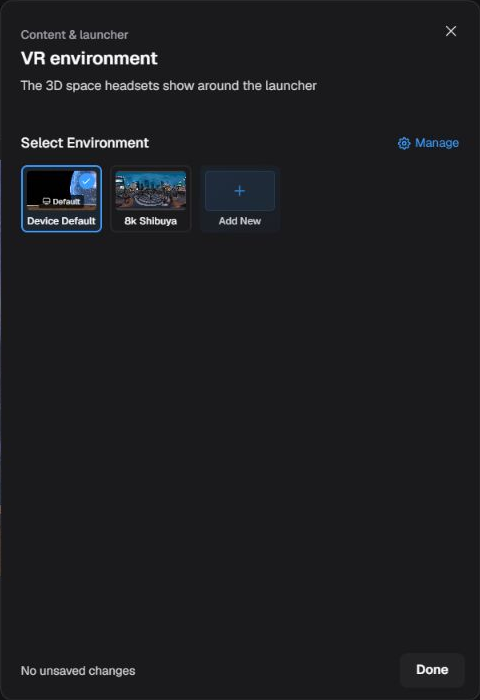
Figure 13. Check the selected environment before saving; resources depend on the company's Library.
Manage opens environment administration in the Library; Add New opens the new-resource flow. Creation requires Edit Library or authorized system administration and is saved separately. Do not rely on the policy Discard action to delete a created resource. Use Library to prepare the environment, then return to the policy to select it. Shortened thumbnail names come from the interface; do not use them as complete file identifiers.
Grid & categories
Open Grid & categories to adjust app layout in the Nomid launcher. Figure 8 shows these controls in the panel.
| Option | Effect |
|---|---|
| Grid columns: 5 columns, 6 columns, or 7 columns | Sets the grid's column count. With sidebar categories, the editor keeps five columns and disables this selector. |
| App categories: Hidden | Hides category navigation; it does not remove assigned apps. |
| At the top | Places categories above the grid to filter apps. |
| In a sidebar | Places categories beside the grid and fixes the column count at five. |
Categories follow the apps' Nomid Store classification. Moving their position does not change the policy group or the app's catalog classification.
Launcher menu buttons
Open Launcher menu buttons to decide which shortcuts appear in the Nomid launcher. Turning an option on or off changes unsaved configuration; it does not execute that shortcut immediately.
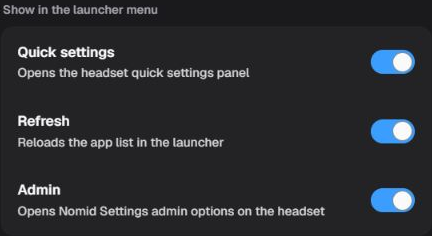
Figure 14. Choose which shortcuts the person can use in the headset menu.
| Option | Function on the headset |
|---|---|
| Quick settings | Provides a shortcut to the headset's quick settings panel. Available settings depend on the device. |
| Refresh | Provides a way to reload the launcher's app list. It does not request app version updates. |
| Admin | Opens local maintenance in Nomid Settings. Depending on options allowed by the policy and installed version, it can provide Wi-Fi, Bluetooth, and brightness settings, diagnostics, and access to system settings. This may allow changes that affect headset networking and use. |
The Settings admin PIN is intended to unlock protected administrative actions in that app. Configure it under Security & access → admin PIN; it accepts 4–32 alphanumeric characters. Apply in the panel only changes the form: save and confirm the policy to request distribution. Without a PIN, do not rely on this barrier to restrict maintenance. This PIN is not a remote-access session password or a guarantee that every system path is blocked. Available functions depend on the Settings version and headset support. Test on a pilot headset which options are offered and which require the PIN before exposing the shortcut to its user.
Turning an option off removes that shortcut from the configured menu; it should not be interpreted as a universal block of the function through every system path. Save the policy and check shortcuts on the pilot headset, including whether administrative access remains appropriate.
Connectivity
Access: change settings: [Edit policy].
Wi-Fi networks
The Wi-Fi networks card lists networks prepared for distribution by the policy. Check the name and security before editing; a listed network does not confirm that a headset is connected to it. Add network starts adding another network to the form. Do not use this entry merely to browse: it already creates a local entry that has not yet been saved to the policy.
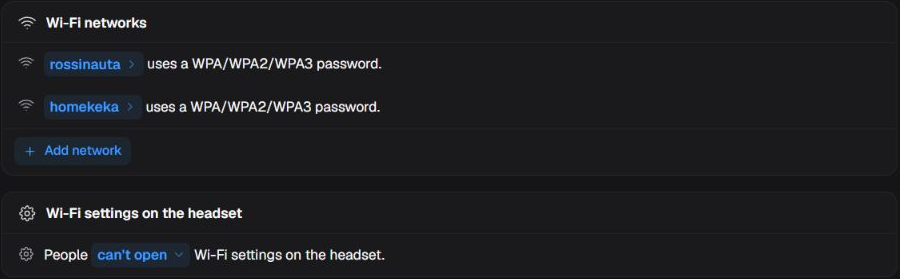
Figure 15. Check the policy networks and whether the person can open Wi-Fi settings.
Network changes must be reviewed and saved before distribution. An incompatible change or removal of the network a headset uses can interrupt contact with the service. Test on a pilot device and keep a recovery path before expanding the scope. Network names in the screenshot are examples; do not include passwords in documents or support requests.
Network parameters
Open a network name to view or edit its parameters. Add network prepares a new, initially empty network with Personal security; enter the authorized network details before saving. The panel edits unsaved configuration without testing a headset connection.
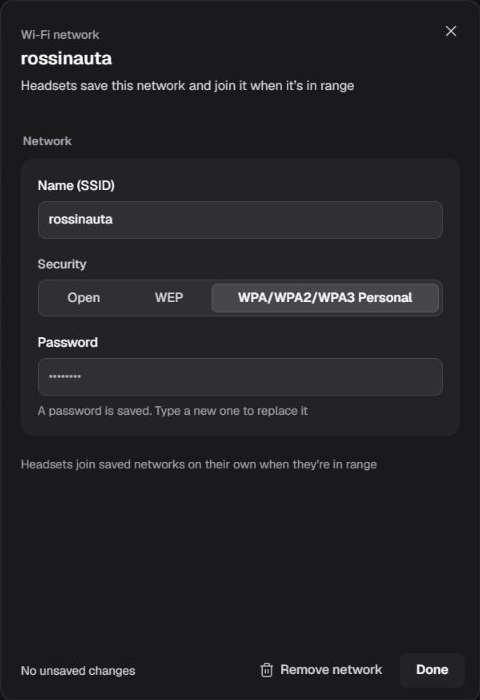
Figure 16. Check SSID and security; the saved password remains protected.
| Field or option | Function and validation |
|---|---|
| Name (SSID) | Identifies the network. It cannot be empty, duplicate another network after trimming and case normalization, or exceed 32 UTF-8 bytes; accented characters may occupy multiple bytes. |
| Open | Prepares a connection without a password; use only for a network of that type. |
| WEP | Uses a key of 5 or 13 ASCII characters. |
| WPA/WPA2/WPA3 Personal | Uses an 8–63 ASCII-character password. The option name does not certify every variant on every firmware. |
| Password | On an existing network, leaving it without new input preserves the saved password. Typing another prepares replacement. The mask cannot recover the stored value. |
| Show password / Hide password, when offered | Shows or hides only the text entered in this opening without changing its value; it does not retrieve the previously saved password. Avoid showing it while sharing your screen. |
An Enterprise/EAP or unknown value may appear only because it was already stored. This does not establish enterprise authentication through this flow: the intended PICO handling may use the password as WPA Personal. Do not prepare an 802.1X network by assumption; confirm support before using that legacy value.
The saved-network/in-range notice describes management intent; it does not provide a priority, schedule, or independent AutoConnect selector. Check association and access on the headset after application. Remove network removes the entry from the form; Undo, while offered, restores that local removal. Saving removal may make the device forget the network and lose contact; local Undo does not recover a connection already lost.
Closing or choosing Done keeps edits in the form. A completely blank new network is the exception: it is removed on close. Correct highlighted errors before the global Save action; an invalid changed network blocks confirmation and may bring you to Connectivity. An unchanged legacy value should not automatically be treated as an invalid new network.
Wi-Fi settings on the headset
This rule determines whether the person can open Wi-Fi settings through the Nomid Settings flow: Allowed provides that access; Blocked restricts that flow. It does not remove policy networks or turn Wi-Fi connectivity off by itself. The control requires the Nomid Settings app in the policy; if unavailable, resolve that condition before trying to configure it.
Changing the rule edits the unsaved form. Check on the pilot headset that settings access fits the activity and intended restrictions; do not interpret blocking this path as a guarantee that every system configuration path is blocked.
Security & access
Access: change settings: [Edit policy].
Device protection
Use this card to decide whether a headset allows factory reset, check administrative protection, and configure first-use hints. Values describe policy configuration; selecting them does not execute those operations immediately.
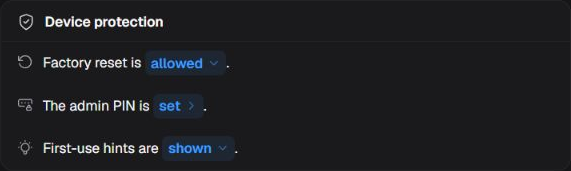
Figure 17. Review protection rules before saving and distributing them.
| Control | Function and consideration |
|---|---|
| Factory reset | Allowed makes reset available subject to device support; Blocked requests a restriction. Selecting Allowed does not send a wipe command. A reset that is actually performed may erase data and require provisioning again; changing the rule afterward does not recover that data. |
| Admin PIN | Indicates whether a PIN has been prepared for protected Settings functions. Set does not reveal its value or show that every headset has received it. Its maintenance purpose is explained under Launcher menu buttons. |
| First-use hints | Show keeps initial guidance; Skip requests its omission in a supported flow. It does not remove mandatory enrollment, authentication, or system-permission steps. |
Saving the policy records configuration and starts synchronization; it does not confirm that restrictions or the PIN reached every device. Check behavior and maintenance access on the pilot before wider distribution.
Settings admin PIN
Open the PIN indicator in Device protection. This secret unlocks protected Nomid Settings actions on the headset and requires that app in the policy; it is not the Remote connection password.
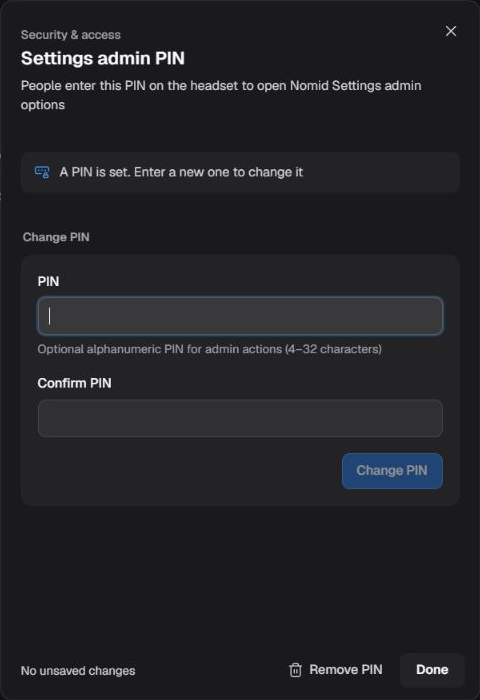
Figure 18. Enter and confirm a new PIN without retrieving its saved value.
Enter 4–32 alphanumeric characters and repeat them in Confirm PIN. Set PIN or Change PIN incorporates the valid value into the form and clears the input fields; the policy still needs Save/review/confirmation. The set indicator does not reveal the current secret. Remove PIN prepares removal of this barrier; after application, maintenance may be accessible without it. Check who can use administrative options before distribution. Closing does not save a new PIN or automatically undo a change already incorporated into the form.
Remote access
Access: configure: [Edit policy]. Configuring Remote does not itself grant permission to start a session; follow Nomid Remote to operate support.
Open the remote-access panel to prepare client behavior on headsets. Choices change the policy form. Enable Remote Access adds the intended managed configuration and helper components; turning it off removes that managed configuration. Neither choice starts a session on click. Save, allow communication, and validate a compatible client on the pilot.
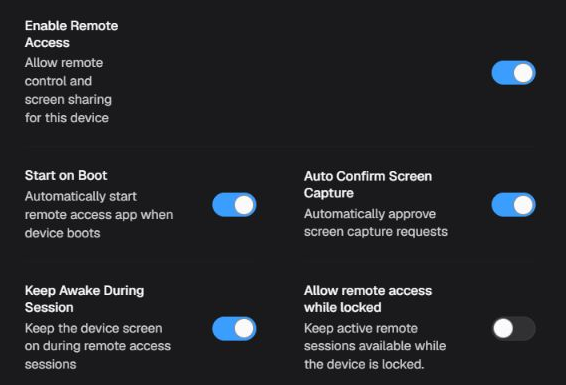
Figure 19. Prepare Remote behavior; switches do not execute a session now.
| Control | Requested effect |
|---|---|
| Start on Boot | Starts the Remote client when the device boots; it does not reboot the headset and may depend on system startup restrictions. |
| Auto Confirm Screen Capture | Requests automatic approval where client/platform support it; it does not guarantee removal of Android privacy dialogs. |
| Keep Awake During Session | Requests an active display during support; it does not guarantee bypass of every power-saving restriction. |
| Allow remote access while locked | Requests session availability while locked; it does not unlock the display or remove required authentication and consent. |
Remote management and offline access
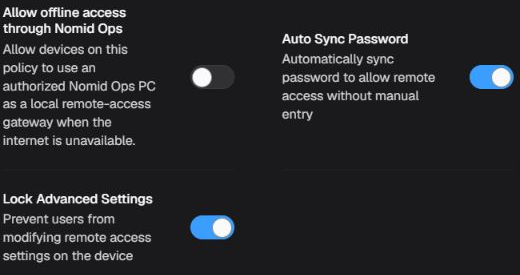
Figure 20. Manage local integration and client settings; offline access is off in this example.
| Control | Function |
|---|---|
| Allow offline access through Nomid Ops | Authorizes the path through a prepared Nomid Ops PC acting as a local gateway when internet is unavailable. The off state does not mean a PC has been prepared or an offline connection established. |
| Auto Sync Password | Requests that Nomid Remote on the headset send its remote-access password to the Nomid service and keep it updated, so the Portal can authenticate authorized support without the operator typing it. |
| Lock Advanced Settings | Requests prevention of local changes to Remote managed settings covered by the option. It does not lock every system setting. |
Synchronization sends the password from the Remote app on the device to the Nomid service. Temporary Password sends the current temporary password; Permanent Password sends the permanent one. With Both, the client prefers the permanent password and uses the temporary one if the permanent password is empty. This is separate from the Settings PIN, the controls PIN, and the Portal account password. When a session opens, the Portal retrieves the available credential and supplies it to the connection. This requires the company feature, synchronization allowed by the effective policy, a completed upload from the app, and the operator's separate permission to retrieve the password, as well as authorization for remote access to the device. If the credential is unavailable, follow the password prompt and the authorized support process; enabling the option does not establish that upload has finished.
Disabling synchronization makes the policy stop authorizing automatic credential retrieval from the service. After receiving the change, a client supporting credential removal requests deletion of the copy it previously synchronized. Delivery and removal can remain pending: disabling does not change the password on the headset or guarantee termination of an already authenticated session. For later support without synchronization, obtain the valid password through the company's secure process and enter it when prompted. Before relying on automatic updates or removal on Pico, confirm that the installed Remote version receives this setting and completes the upload or removal; the value saved in the Portal does not establish those steps.
Offline preparation is a separate computer flow. It requires the feature, Remote/LAN enabled and saved, a known revision, and no save in progress. The account needs authorization for offline preparation or authorized system administration; check the grant in Settings. Seeing the control does not authorize execution.
Saving configuration does not prepare the PC or start a connection. Prepare offline access, when offered, may open Nomid Ops through an external protocol. If it does not open, the notice offers Download Nomid Ops to obtain the installer; downloading/installing is another operation and does not fix policy configuration automatically. Follow Nomid Ops for computer setup. Offline access depends on prepared networking, credentials, and client; do not rely on indefinite validity or automatic recovery after losing contact. Check computer requirements before relying on this path.
Verification method
Use Verification Method to choose how Remote connections authenticate.
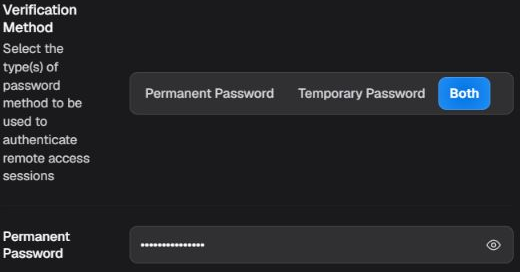
Figure 21. Choose session authentication and keep the credential protected.
| Option | Effect |
|---|---|
| Permanent Password | Uses the managed fixed credential to authenticate access; requires a valid password. |
| Temporary Password | Uses the client's temporary-password method. It does not imply a universal validity period. |
| Both | Allows both methods, not necessarily both at once; it is not two-factor authentication. |
Permanent/Both modes require at least 8 characters, an uppercase letter, and a digit. Changing the password edits the form; showing it changes only Portal visibility and does not grant session authorization. Do not publish the credential or confuse it with the Settings PIN or controls PIN. Check the resulting client configuration before replacing the existing support procedure.
Protect controls with PIN and capabilities

Figure 22. PIN protection is separate from authorization of each Remote capability.
This protection hides input-control, file-transfer, audio-capture, and clipboard settings in Remote until the PIN is entered. When enabled and offered by the client, the PIN accepts 6–12 digits. Adding it neither enables nor disables capabilities, does not replace Android permissions, and is not the Settings admin PIN. The image shows protection off; it does not establish the state of hidden capability policies.
When the version/feature offers capability policies, the modes have these functions:
| Mode | Intended effect |
|---|---|
| Local | Leaves the choice to the local client, subject to its controls and permissions. |
| Disabled | Imposes the capability as disabled in managed configuration. |
| Enabled | Requests the capability enabled, still dependent on client/OS support and required permissions. |
Input control covers session taps/keys, not Class mode commands. File transfer covers the send/receive channel and does not transfer a file when selected. Clipboard covers the copy/paste channel without copying local content on selection. Support may limit formats and operations.
Audio capture allows Remote to share device audio with a compatible support client, so the authorized operator can hear sound during the session, for example when investigating content playback. Enabled enforces availability within system requirements; Disabled blocks its use, including ongoing capture; Local leaves the choice in the app. This capability does not replace session authorization or Android permissions.
On compatible Android clients, ordinary sharing captures audio played by apps, such as media and games, when capture is allowed. Voice calls have a separate flow using voice input; distinguish that operation from app playback. On Pico, confirm the Remote version, permissions and capture consent, receiving-client support and, if a call is needed, its availability and actual voice-input source. Enabling the policy alone does not establish access to every headset sound or to the ambient microphone. Android capture restrictions can also prevent an app's audio from being captured. This option allows sharing during support; it does not itself provide a recording file, Portal storage, or a retention guarantee.
Clear restriction, when offered, returns these four policies to local choice in the form; it is neither a full Remote reset nor file deletion. Fields missing because of version or feature availability do not prove a capability is disabled; preserve existing values and resolve availability before changing them. Every change still requires saving the policy and client validation.
Insights
Access: [View dashboard and usage analytics]. Opening device lists also requires [View device list].
Use reports to find headsets needing attention and review reported usage. About this data explains the meaning and coverage of the data behind the indicators. The scope contains devices associated with the policy; its membership can change between queries. A panel update indicates a query of available data, not live collection or confirmation that policy settings were applied.
Things needing attention
The panel highlights conditions found in reports, such as an old security patch or missing contact. View devices opens details for that criterion to help locate affected devices. A percentage may count only devices reporting that indicator; check the coverage text next to the figure.
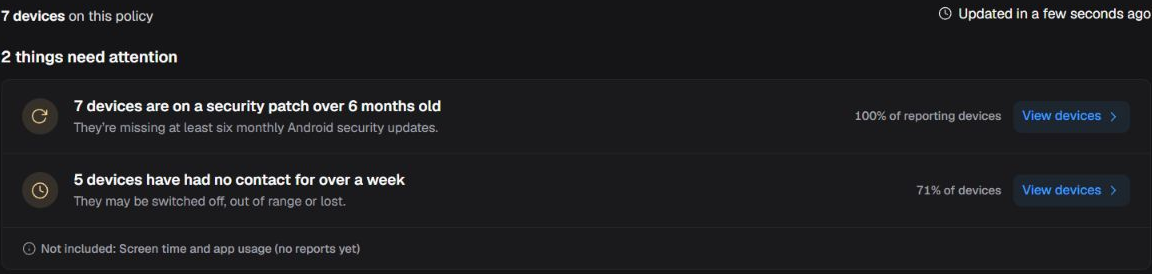
Figure 23. Use notices and their coverage to choose what needs checking.
Not included means an indicator could not contribute to the analysis. Do not interpret missing screen-time or app-usage data as zero use, or the absence of a warning as approval of every device. If an error or access-denied state appears, resolve it before interpreting that indicator.
Fleet health
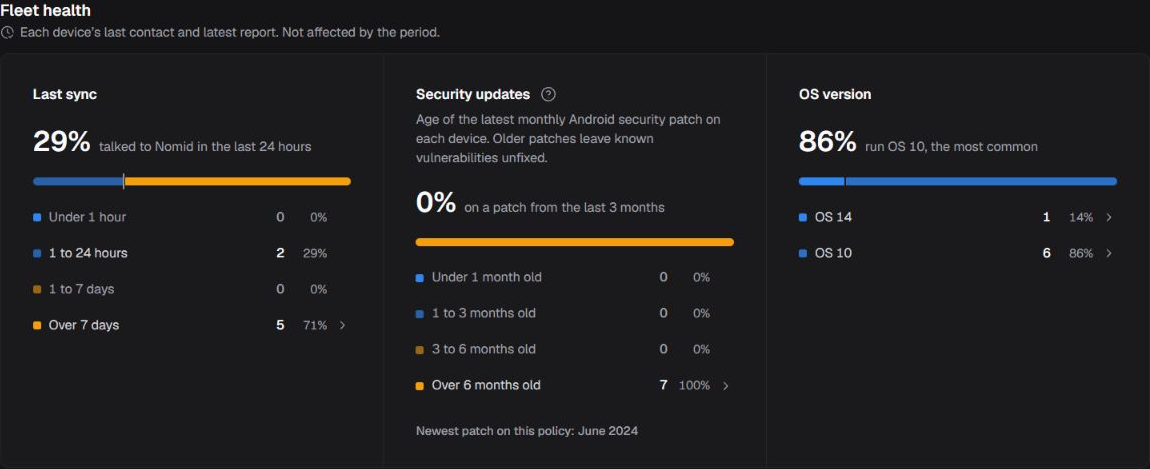
Figure 24. Compare the latest received contact, patch, and operating system information.
- Last sync: groups devices by last contact, from under one hour to over seven days. Old contact needs investigation; it does not prove a device was lost, switched off, or disconnected from its network.
- Security updates: shows the age and age bands of the reported Android patch. Use this to check for a compatible manufacturer update. An old patch alone does not prove every cited monthly update is available for that model; viewing the card does not install updates.
- OS version: groups reported operating system versions and their share of the devices. The most common version describes the fleet; it is neither a recommended version nor a compatibility certification.
These cards use each device's last contact and latest report; they are not scoped by the next section's seven- or thirty-day selector. Numbers and versions in the screenshot are examples of received data.
Usage activity
Under Period, choose 7 days or 30 days to set the activity chart interval. Queries use complete UTC days, shown in the header; the current local day should not be treated as a completed day. Changing the period queries another interval without editing the policy or applying a headset rule.
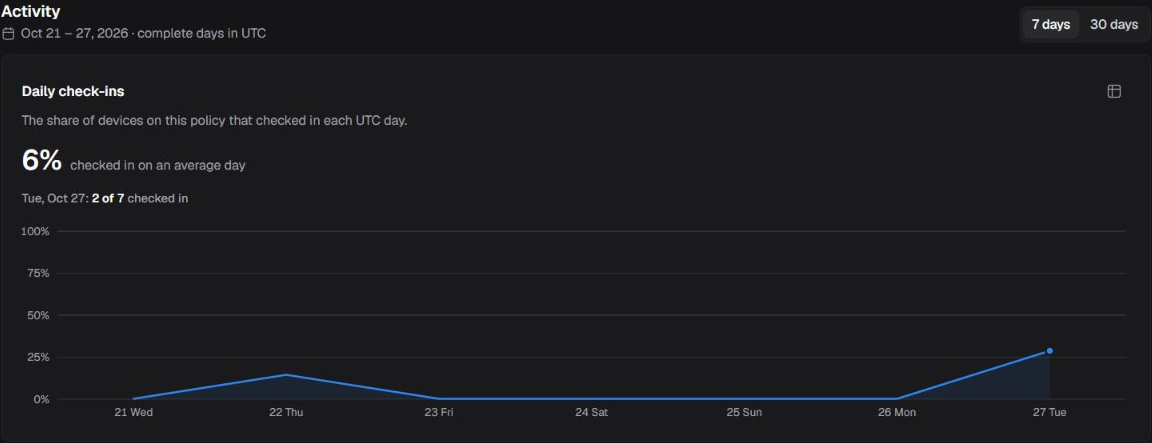
Figure 25. Check the interval and timezone before comparing daily check-ins.
Daily check-ins show the share of the policy's devices that made contact on each UTC day. They are neither student attendance nor confirmation of all-day use. Consider membership changes when comparing periods; days without information should not automatically be read as no activity.
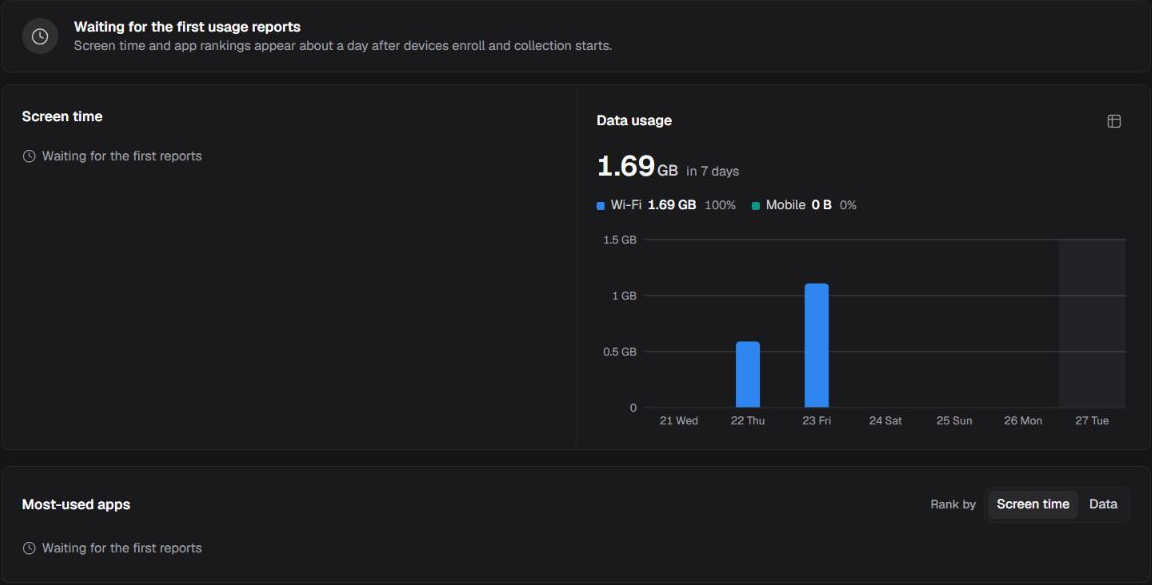
Figure 26. Distinguish indicators with received data from those still awaiting reports.
- Screen time: uses received app foreground durations. The headline is the average per device per reporting day: total received time in the period divided by the sum of the days on which each device reported. It is neither device uptime nor simply time with the display on. Waiting for the first reports means available data is missing, not that time is zero.
- Data usage: shows reported volume for the period, split between Wi-Fi and mobile. Zero for one source does not establish that the entire device was unused; check coverage and queried days.
- Most-used apps: ranks reported apps by Screen time or Data. Screen time aggregates each app's foreground duration across devices reporting in the period; it is the received total per app, not the overall average per device per day. Changing the ranking changes the query, not the policy's apps. Without sufficient reports, the list may remain unavailable.
In the daily Screen time chart, each value is the received time for that day divided by the number of devices reporting that day. The period average uses each device's reporting days; do not treat missing devices or days as zero time. These measures do not establish a person's presence, attention, or participation. Before using them to assess an activity, confirm that the Pico agent version records and sends these durations, and check report coverage.
An assigned-app indication with no recorded opening refers to available reports: it proves neither a nonexistent app nor completed installation. Missing reports or list limits may prevent that conclusion.
Chart table controls let you inspect daily values that may be hard to read from the drawing alone. Notices about when first reports arrive are product guidance, not a guaranteed collection or synchronization deadline. The screenshots use seven days; thirty-day values must be queried for that interval.
View devices behind an indicator
Open View devices on the notice or band you want to investigate. The panel states the criterion and lists matching devices; the screenshot uses last contact over seven days ago.
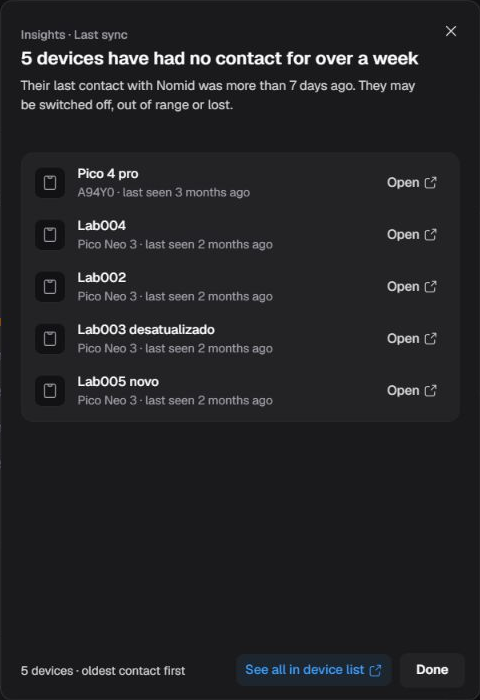
Figure 27. Check the criterion and names before continuing investigation in Devices.
Open on a row opens that device; See all in device list opens the matching set. For commands and device details, follow Devices. Done or closing the panel returns to viewing without changing the policy. A missing-contact notice does not identify its physical cause by itself.
Activity
Access: [View policy history], with access to the policy being viewed.
Use history to understand what was saved, by whom, and when, before continuing an edit or investigating a difference. It is not a report that each headset executed those changes. Times follow the timezone indicated in this area: America/Sao_Paulo in the screenshot, unlike the UTC days in Insights charts.
Filter and load versions
Open Showing all changes to choose a category. All changes keeps the full set; Content, Launcher, Connectivity, Security & access, and Other settings restrict the list to versions with changes in that area. Categories and counts depend on available history; one version can change multiple areas, so do not add category counts as independent sets.
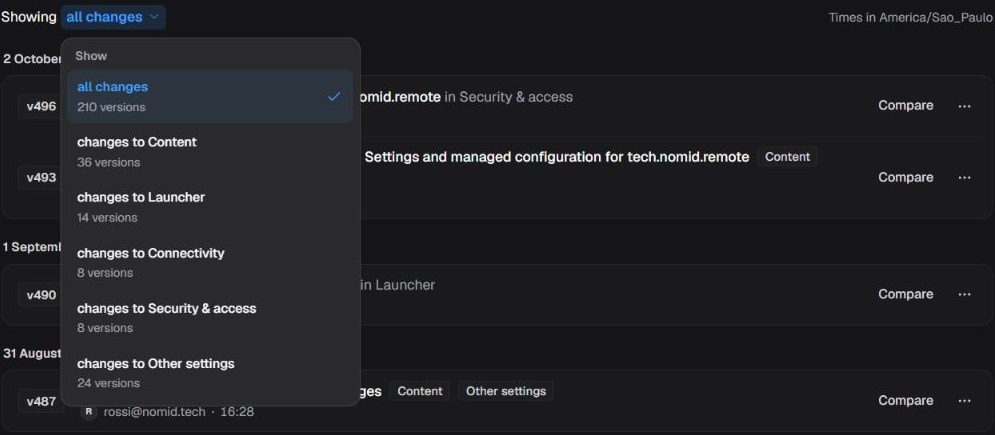
Figure 28. Filter by the kind of change you want to investigate without modifying configuration.
Each entry identifies its version, author, and summary. Compare opens detailed differences. Choosing a category changes only the displayed list; it neither restores nor saves the policy.
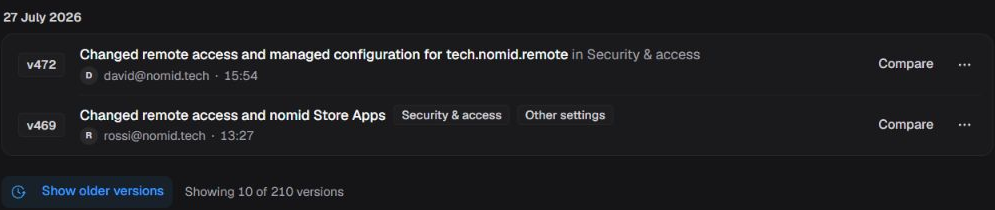
Figure 29. Check the loaded count before concluding that a version does not exist.
Show older versions loads more entries for viewing. The displayed count may be lower than the total; a filter may also hide a version. Check both before considering history missing. If the query fails and offers Retry, use it to query history again; it does not restore a version.
Compare versions
Open Compare on the required version and use Compared with to choose the comparison baseline. Check the direction of before-and-after values. The screenshot compares version 490 with its baseline 487: six to five columns and top categories to a sidebar. Previous version means the selected change's baseline; it need not have the immediately preceding number.
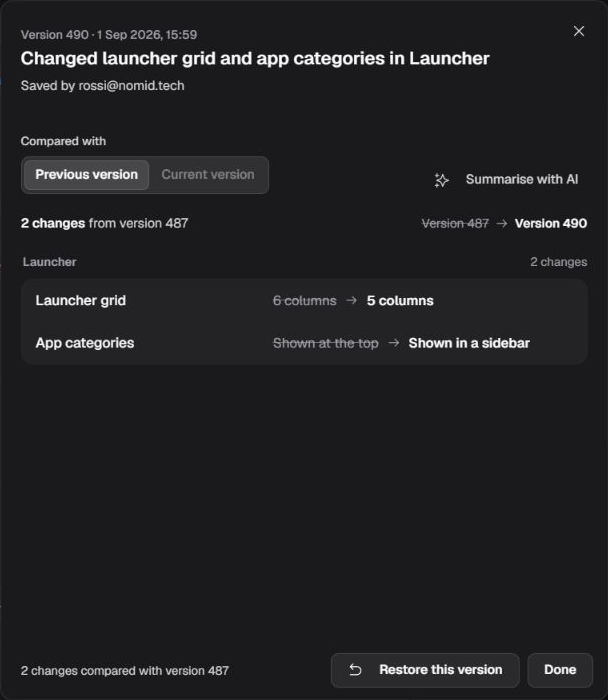
Figure 30. Read both sides of a difference before deciding on another change.
| Control | Function |
|---|---|
| Previous version | Compares the selected version with its previous baseline to show what it changed. |
| Current version | Compares with the policy's current saved version; it does not use the unsaved form as confirmation of state. |
| Summarise with AI | Opens the assistant with a question prepared from the differences. The summary helps reading but does not change the policy or replace checking values. |
| Restore this version Access: [Edit policy], subject to the policy administrative protection. |
Starts a saving flow separate from comparison. Do not use it merely to close the panel or return to the list. |
| Done | Closes the view and returns to history without applying the compared version to devices. |
Comparing does not restore. Differences show configuration recorded in those versions, not physical results on each headset. To investigate only, check values and close the view; do not treat restoration as Undo for an action already executed on a device.
Historical preview and restoration
When an older version offers Preview this version in its menu, the preview opens a historical representation for inspection; it does not create a policy or change the current one. Returning from preview does not undo a completed save.
Restore this version opens confirmation or reports a block from pending edits. It requires Edit policy, policy access, and compliance with administrative protection. Resolve pending edits before proceeding. Cancel closes the question without sending restoration. Confirming restores historical configuration as the current version and may start redistribution; it is not merely viewing or downloading a backup.
Restoration keeps the current description, tags, and group; it does not reinstate old organization shown in history. Check the required configuration, scope, and save result. Restoration neither recovers erased data nor guarantees physical reversal on a headset.
Review, save, and check the result
Access: save configuration: [Edit policy]. Configuration changes share an unsaved form, referred to here as pending edits.
- Check the company, policy name, and affected devices. Save opens Review before saving to check the changes; the first click is not save confirmation. Correct highlighted changed-Wi-Fi errors before continuing.
- Read each change and its impact, especially network/app/PIN removal, blocked apps, factory-reset permission, and Remote changes. Also check any warnings under Needs your attention. An unavailable device count does not mean no targets.
- Use Go to setting when a value needs correction; it closes review and reveals the original tab/panel without saving. Keep editing or closing review retains pending changes. Do not rely on per-item Undo in this VR editor; app removal notices offering Undo are a different function.
- Confirm with Save policy to save the reviewed configuration in the service. Check success or error before retrying. Success confirms persistence and synchronization initiation, not receipt/application on each headset.
- Validate the relevant configuration and subsequent reports on the pilot. Preserve maintenance access and a recovery path before applying networking or restriction changes across the set.
Discard restores confirmed configuration and abandons local edits; it does not undo saved description/tags/group, uploads, or physical effects. Leaving or changing interfaces with pending edits may ask about abandonment: confirming loses those changes; canceling stays in the editor. Information errors or active edits may block leaving. Do not rely on automatic recovery after refresh.
If saving fails, edits may remain for correction; check current state before retrying, without assuming devices were rolled back.
Resolve problems
| Situation | What to check and do |
|---|---|
| Policy/card loading, no access, or error | Wait or use Try again when offered. It repeats reading, not creation of a missing policy or forced headset synchronization. Empty, denied, and failed states differ. |
| No devices or reports | Check assignment, criterion, and permission; no report is not zero. An indicator may represent only data received or the portion queried. |
| App missing from catalog or add/save error | Retry catalog reading where offered, check package/channel, and deliberately remove or replace the invalid assignment. Absence is not successful addition/installation. Details show metadata; they do not edit version/channel/categories there. |
| Remote app/options missing or feature unavailable | Distinguish loading, catalog error, and missing feature. Retry reads the app catalog; it does not start a session. Do not install or change values just to reveal fields. |
| Protection value missing or legacy format | Do not infer Allowed/Blocked from an absent or unknown value. Check existing configuration and support before changing it. |
| Description/tags conflict or save failure | Reload/review the current version indicated by the notice before retrying; do not assume another author's changes can be overwritten. Discarding configuration does not undo this separate transaction. |
| History loading, empty, or failed | Check filter, loaded count, and history rights; refresh/retry, when offered, repeats reading. An empty screen does not prove a newly created policy. |