 Nomid
NomidAccess: view — Admin Editor Analyst Teacher; Custom / company role*. Permission: list devices.
Reading access labels: tags identify standard roles whose definitions include the stated permission. Each action’s availability depends on the user’s effective permissions, company, groups, enabled features and policy restrictions. Custom and company roles depend on assigned permissions. If access is unavailable, ask an administrator to check Settings > Platform Users. A section’s label covers its controls unless an action has its own condition. Viewing does not authorize changes or execution; a label does not guarantee that a command will be accepted or completed.
Use Devices to find equipment, interpret its reported state, open an individual device page, and start actions allowed by your permissions. Values, dates, battery, location, and synchronization represent the moment shown; check freshness before making a decision.
Security: remote actions, policy changes, clearing, and resets can interrupt use or erase data. Review the device, scope, and confirmation before execution. This article does not instruct you to execute destructive actions.
Quick route
- Open the list
- Search, filter, and organize
- Use the map
- Select devices and open actions
- Review an import without completing it
- Summary
- History
- Location
- Apps
- System
- Policy
- Usage
- Allocation
- Resolve common issues
Start here
Prerequisites
- Open https://portal.nomid.tech/ and verify the
portal.nomid.techdomain before entering credentials. - Enter the correct company and have permission to view the required devices.
- To assess whether data is recent, check the displayed last synchronization. An offline or unreachable device may remain visible with older information.
- To enroll equipment, use 8. New device. This article begins after the device appears in the Portal.
Open the list
Access: view — Admin Editor Analyst Teacher; Custom / company role*. Permission: list devices.
- In the side menu, select Devices.
- Check the title, visible count, and List mode.
- Wait for loading to finish before searching or selecting rows.
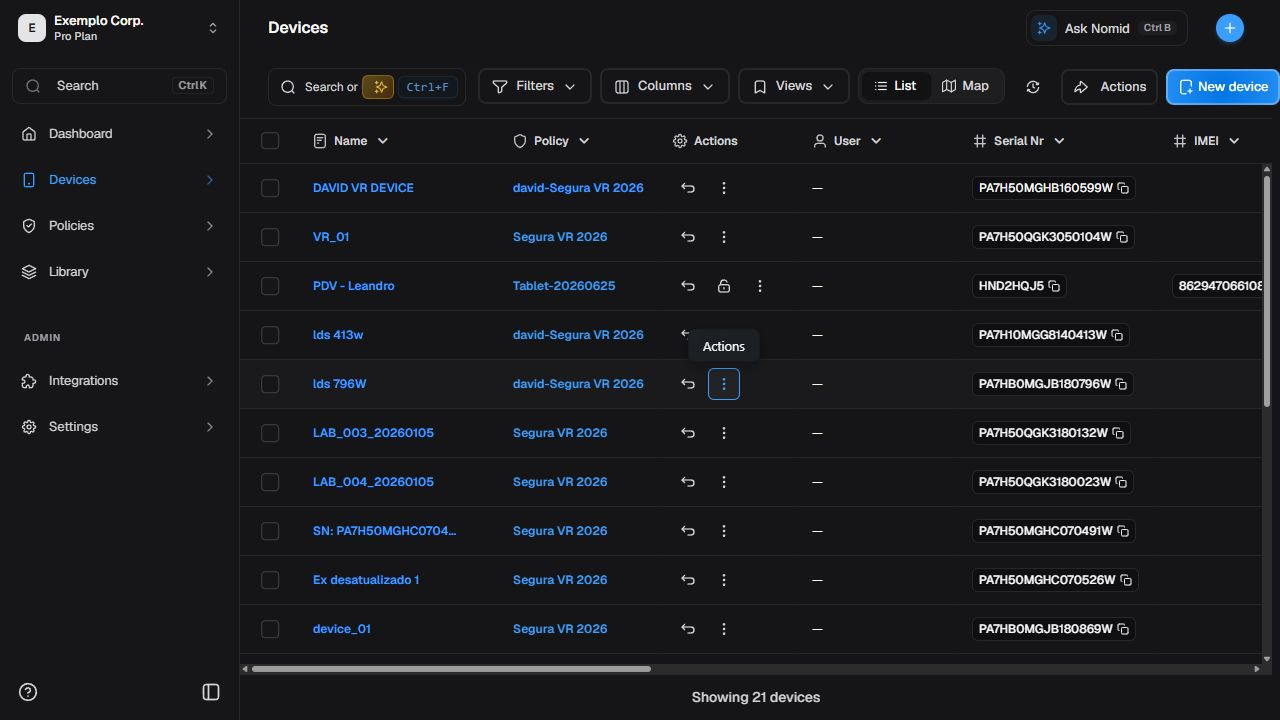 Overview of the device list and the list/map switch.
Each row can show name, policy, state, battery, and last synchronization. Columns depend on the view, platform, and permissions.
Interpret states
Access: view — Admin Editor Analyst Teacher; Custom / company role*. Permission: list devices.
| State | Safe interpretation | Next step |
|---|---|---|
| Active | The device reported an active condition in the current state. | Check the last synchronization before acting. |
| Synchronizing | Synchronization or processing is under way; this does not guarantee completion or indicate failure by itself. | Wait and check history or a later update. |
| Inactive | The device is not active in the current classification. | Check data age, connectivity, and policy. |
| External | The device belongs to a compatible external source or management model. | Expect fewer tabs or actions and verify the source. |
| Deleted | The record is classified as deleted in the current context. | Do not assume physical data has been erased. |
For an aggregate fleet view, see 2. Dashboard. Return here when you need to identify a specific device.
Search, filter, and organize
Access: view — Admin Editor Analyst Teacher; Custom / company role*. Permission: list devices.
Search the list
Access: view — Admin Editor Analyst Teacher; Custom / company role*. Permission: list devices.
- Select the search field above the list.
- Enter a safe term, such as part of an authorized name, model, or identifier.
- Wait for the list to stabilize and check the resulting rows.
- Clear the field to restore the previous set.
 Search applied to the device list and the displayed results.
Results change with data and permissions. No rows does not prove that a device is absent from another company or scope.
AI-assisted search
Access: Based on permissions. Permission: AI enabled; data and actions subject to user permissions.
When the AI control is available, use a short question about visible attributes. Review the generated filters and results before acting: the interpretation is assisted and may be inaccurate.
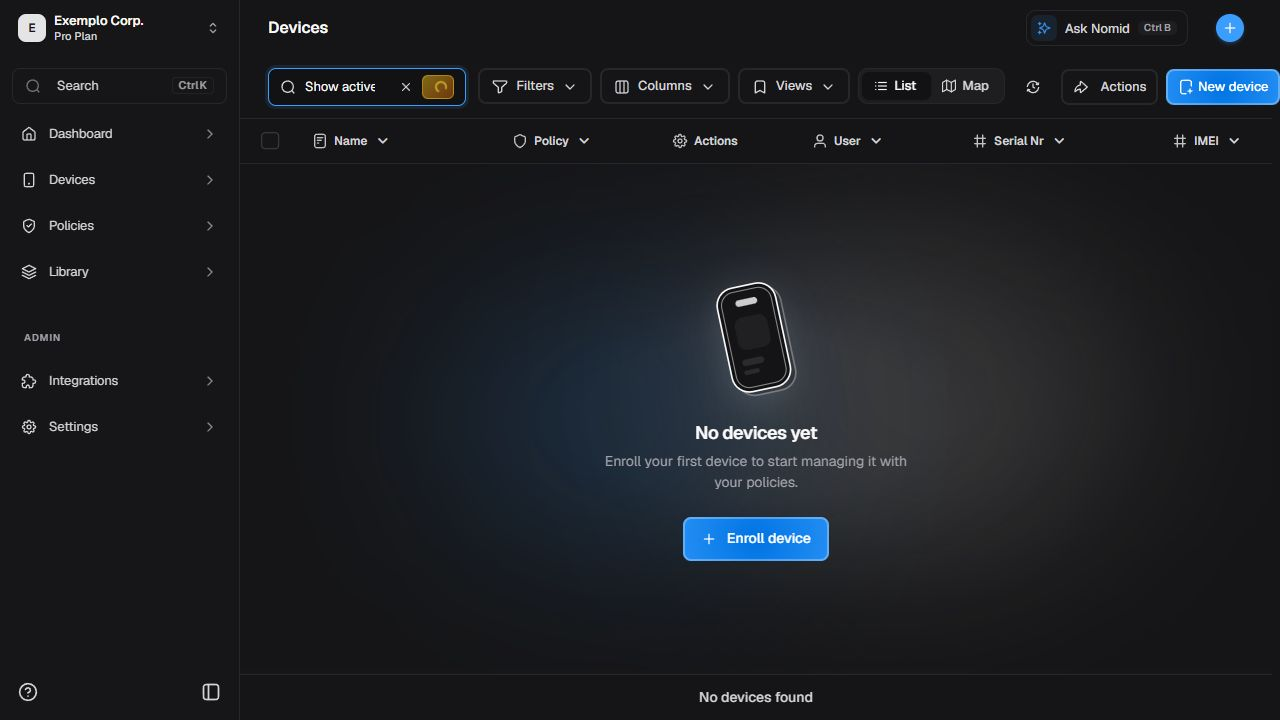 AI-assisted query in the device list.
Do not treat the answer as a normative source or submit secrets. If the control is unavailable, use the visible search and filters.
Apply filters
Access: view — Admin Editor Analyst Teacher; Custom / company role*. Permission: list devices.
- Select Filters.
- Choose only the categories needed for the investigation.
- Check the filter indicator and resulting list.
- Remove the filters to return to the previous set.
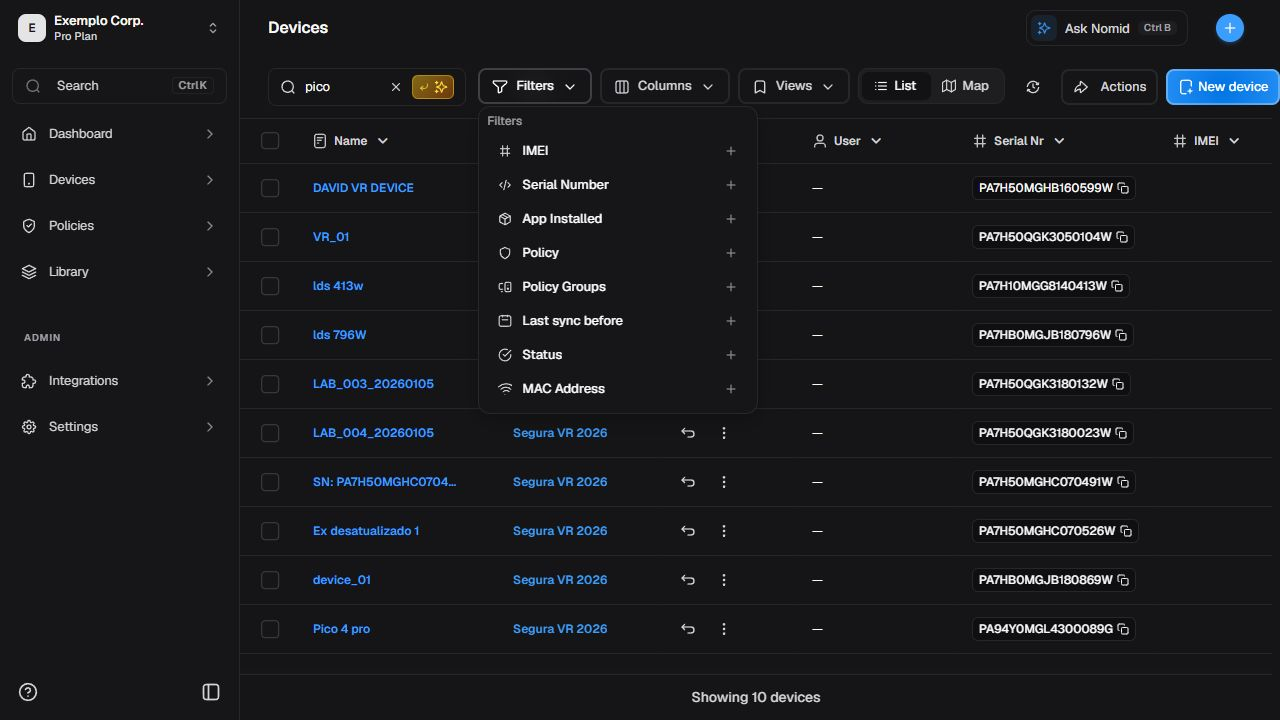 Filters available to narrow the device list.
Categories and counts can vary. Always verify the active filter; do not infer the complete device universe from visible rows.
Columns and views
Access: view — Admin Editor Analyst Teacher; Custom / company role*. Permission: list devices.
Use Columns to choose the fields displayed. The views control may offer existing configurations, but this journey does not guarantee creating, persisting, or deleting a view. Check the immediate result and avoid replacing someone else's configuration.
Context before opening the device page
Access: view — Admin Editor Analyst Teacher; Custom / company role*. Permission: list devices.
Hover over or focus a row trigger. The interface may show only a compact tooltip. Use it as an initial clue and open the device page to check the complete set; do not expect a rich card on every device.
Use the map
Access: view — Admin Editor Analyst Teacher; Custom / company role*. Permission: list devices.
Switch modes and recognize controls
Access: view — Admin Editor Analyst Teacher; Custom / company role*. Permission: list devices.
- On Devices, switch from List to Map.
- Check available mode, color or style, and zoom controls.
- Keep a regional scale; do not zoom to a street or precise address.
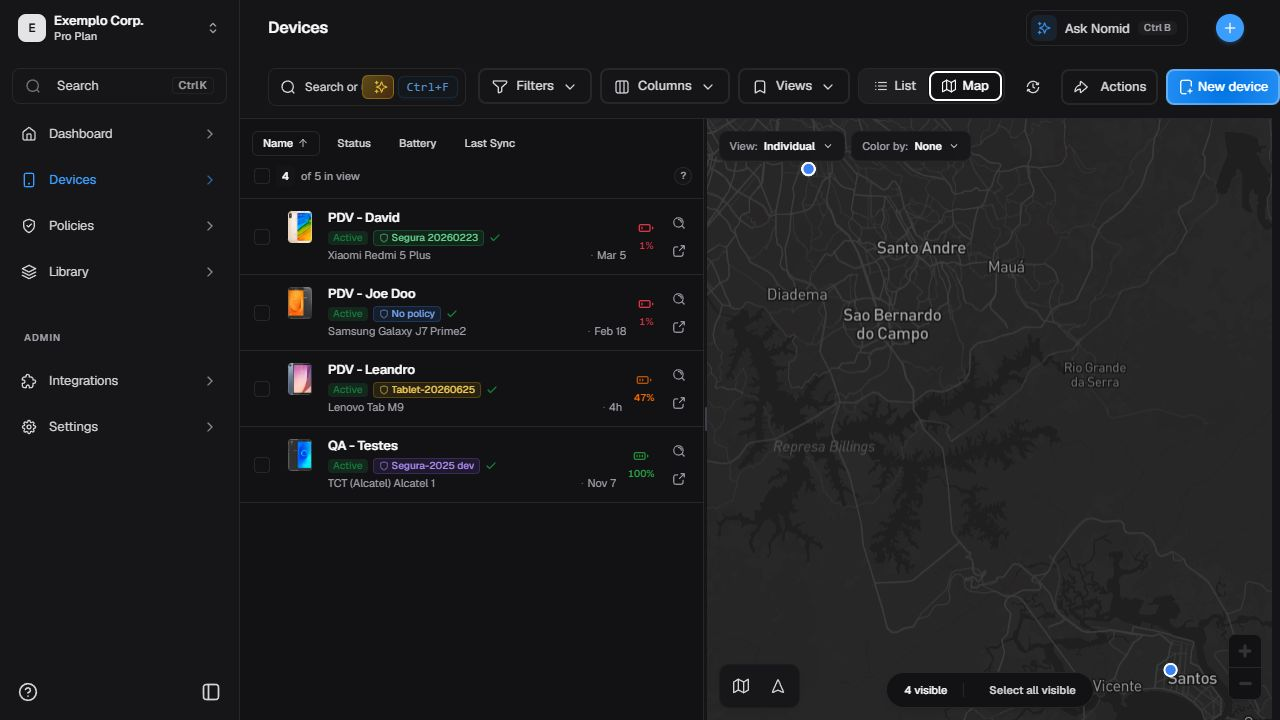 Map controls and a device location marking.
Markers, points, clusters, and positions change with telemetry. Search may remain in the page toolbar instead of appearing inside the map.
Select a location marking
Access: view — Admin Editor Analyst Teacher; Custom / company role*. Permission: list devices.
Select a marker or point to open its card. Check the authorized identity and use the details action only when you need the device page.
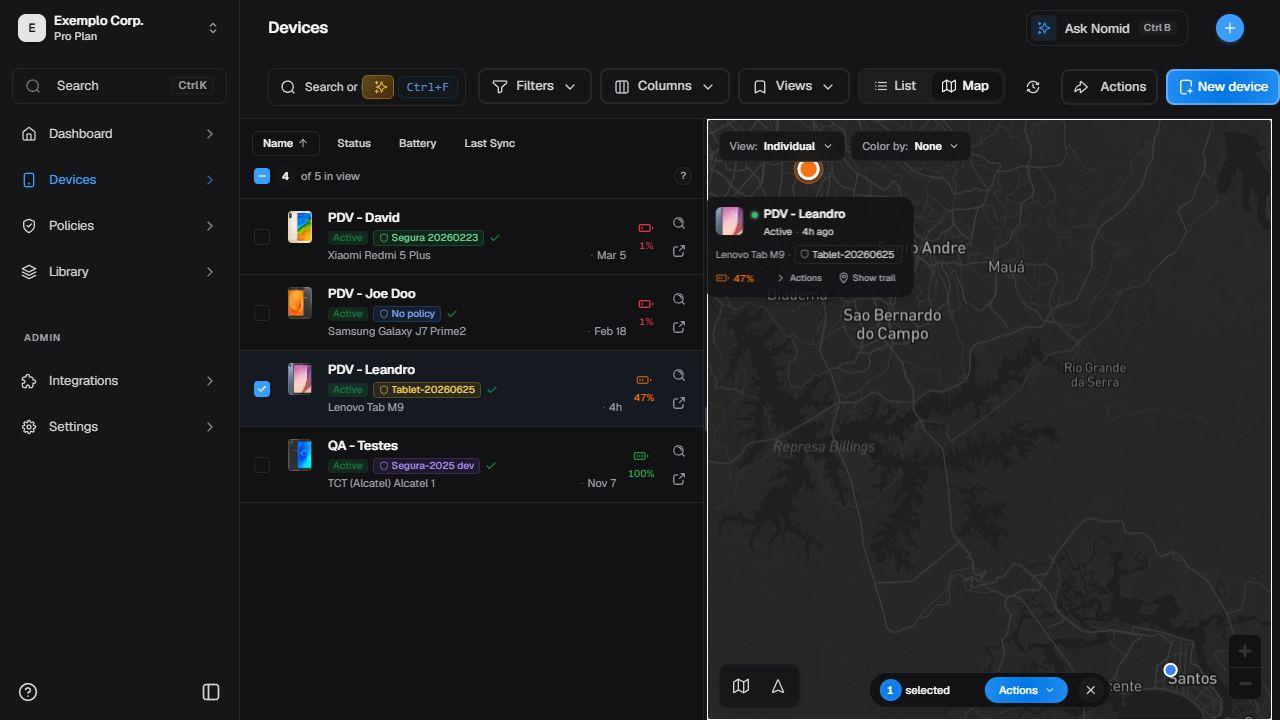 Device selected on the map with general geographic context.
A trail appears only when data exists. The map does not prove real-time presence and must not be used to infer an exact address.
Select devices and open actions
Access: Based on permissions. Permission: viewing and execution have different permissions; check each action’s label.
Bulk actions
Access: Based on permissions. Permission: viewing and execution have different permissions; check each action’s label.
- Select the checkboxes for the intended rows.
- Check the selected count before opening Manage device.
- Read the menu without choosing a command until impact, platform, and permission are confirmed.
- Close the menu and clear selection if the scope is wrong.
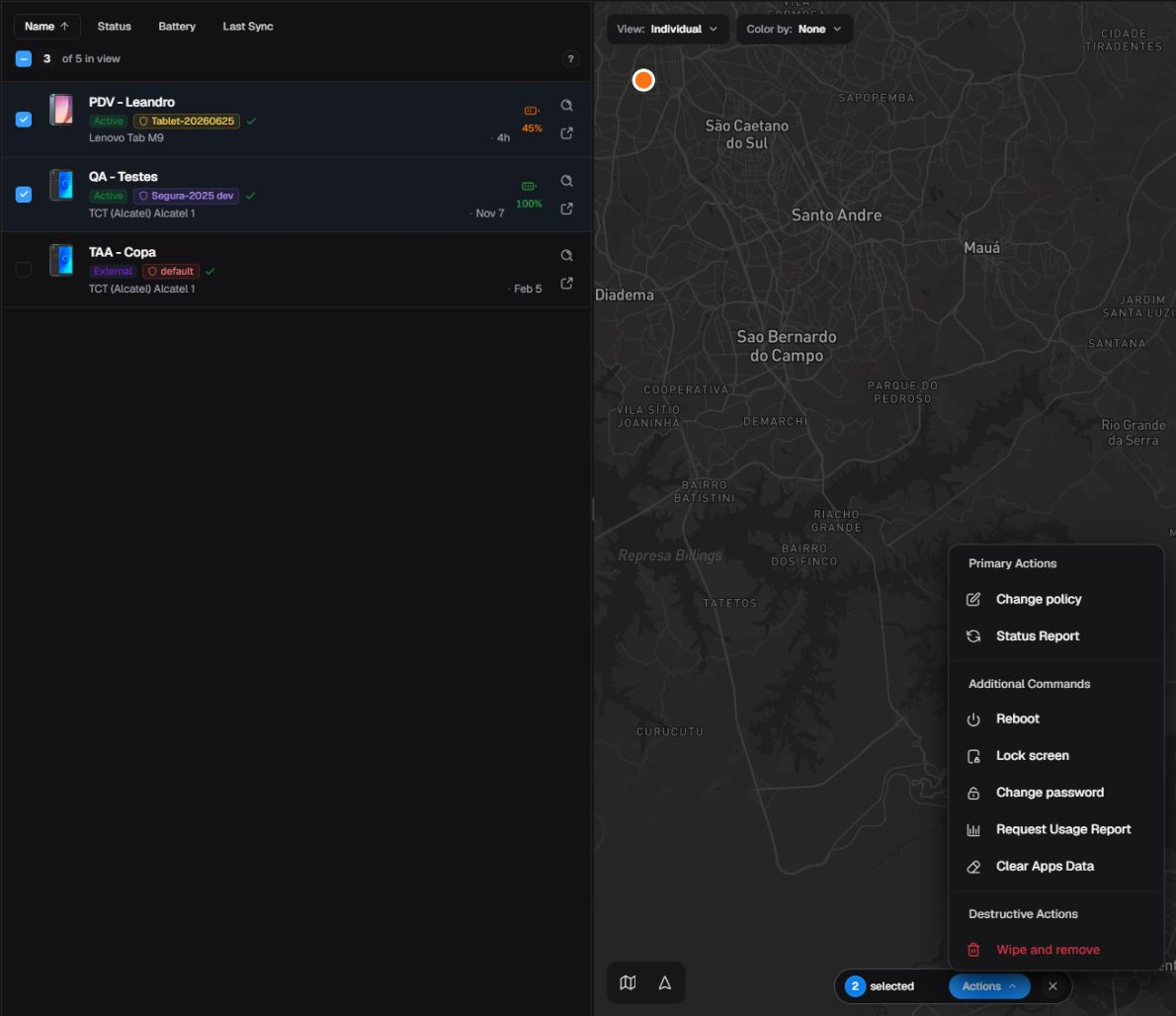 Bulk selection and the Manage device menu associated with the selected devices.
The Manage device menu and a row menu share some of the commands described in the following table. Availability varies by platform, state, permission, connectivity, and enabled feature.
Row actions
Access: Based on permissions. Permission: viewing and execution have different permissions; check each action’s label.
Use the row's three-dot menu to act on one device. Verify the row name and policy before opening it.
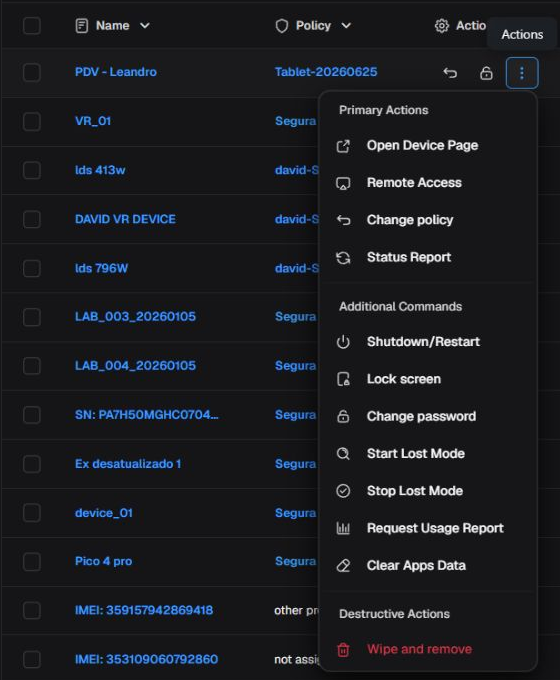 Individual menu with primary, additional, and destructive action groups.
What each control does
| Visible control | Effect and operation type | Conditions | Impact and risk | Where to verify |
|---|---|---|---|---|
| Open Device Page Access: view — Admin Editor Analyst Teacher; Custom / company role*. Permission: view the device. |
Navigates to the device page; it neither sends a command nor changes the device. | The row and device page must be accessible. | Low; verify that the correct device opened. | Device page header and Summary. |
| Remote Access Access: use — Admin Editor Teacher; Custom / company role*. Permission: view the device and enable remote access. |
Opens the entry point for a Nomid Remote session; selecting it does not prove that a session started. | Compatible feature, permission, platform, agent, and connectivity. | High for privacy and operational control. | Session flow and state in Nomid Remote. |
| Change policy Access: Based on permissions. Permission: permission to send commands and access to the target policy; requirements differ between device details and the policy drawer. |
Opens the change form; completing it changes the policy assignment and requires a later synchronization to reach the device. | Edit permission and a compatible destination policy. | High; restrictions, apps, and settings may change. | Assigned policy on the device page, History, and later synchronization; review effects in 4. Policies. |
| Status Report Access: execute — Admin Editor Teacher; Custom / company role*. Permission: view the device and send commands. |
Sends an asynchronous request to refresh inventory and reported state. | A managed device that is connected and able to receive the command. | Low, but it may use network and battery. | History, last synchronization time, and refreshed fields. |
| Classroom mode Access: Based on permissions. Permission: Classroom mode enabled; commands, screenshots and remote access have separate permissions. |
Opens the interactive experience for the selected set; opening it does not prove that a session is running. | Compatible feature, permissions, and devices. | Medium; it may interfere with use of the selected devices. | State shown by the experience and later device events. |
| Shutdown/Restart Access: execute — Admin Editor Teacher; Custom / company role*. Permission: view the device and send commands. |
Opens the compatible choice; Restart restarts the operating system and Shutdown requests power-off when supported by the platform. | Compatible platform, permission, connectivity, and command support. | High; interrupts use and may cause loss of unsaved work. | History, command time, and a new synchronization after the device returns. |
| Lock screen Access: execute — Admin Editor Teacher; Custom / company role*. Permission: view the device and send commands. |
Sends a request to lock the screen immediately without erasing data. | A managed device able to receive the command. | Medium; interrupts current use. | History and reported state after synchronization. |
| Change password Access: execute — Admin Editor Teacher; Custom / company role*. Permission: view the device and send commands. |
Opens a form and, when submitted, changes or clears the lock credential according to the platform and presented options. | Compatible permission, platform, and management mode. | High; an incorrect credential can prevent access to the device. | History and authorized operational verification on the device after synchronization. |
| Open App Access: execute — Admin Editor Teacher; Custom / company role*. Permission: view the device and send commands. |
Opens app selection and, when submitted, requests that the selected app be brought to the foreground. | Installed app, compatible device, permission, and connectivity. | Medium; interrupts the user's current context. | History and device state after synchronization. |
| Pin app Access: execute — Admin Editor Teacher; Custom / company role*. Permission: view the device and send commands. |
Opens app selection and requests that the selected app remain in pinned or kiosk mode. It is not the same as creating a permanent policy. | Installed app and compatible platform/management mode. | High; may restrict user navigation. | History and reported device behavior; permanent configuration belongs in 4. Policies. |
| Start Lost Mode Access: execute — Admin Editor Teacher; Custom / company role*. Permission: view the device and send commands. |
Opens configuration and requests a state that restricts use and shows the configured information, as supported by the platform. It does not promise location. | Compatible platform, management mode, permission, and connectivity. | High; restricts device use. | History, reported state, and later synchronization. |
| Stop Lost Mode Access: execute — Admin Editor Teacher; Custom / company role*. Permission: view the device and send commands. |
Requests that the active Lost Mode state end. | Lost Mode must be active and the device must accept the command. | High; returns the device to the use allowed by its current configuration. | History, reported state, and later synchronization. |
| Request Usage Report Access: execute — Admin Editor Teacher; Custom / company role*. Permission: view the device and send commands. |
Opens parameters and requests a new collection/transmission for the selected period; data changes only after the device responds. | Compatible permission, usage telemetry, platform, and connectivity. | Low to medium; may use network, battery, and processing. | History, telemetry time, and the Usage tab. |
| Export Usage Data Access: execute — Admin Editor; Custom / company role*. Permission: view the device and export usage data. |
Requests the available export. The initial message only indicates that the export flow started in the Portal; it does not prove that the backend accepted it, that a file was generated, or that its contents are complete. | Export permission and available data. | Medium because usage information is involved. | A later notification, resulting file, or error. |
| Clear Apps Data Access: execute — Admin Editor Teacher; Custom / company role*. Permission: view the device and send commands. |
Opens app selection and, when submitted, erases local data for the selected apps. It may remove sessions and settings, but does not uninstall the app. | Compatible app, platform, permission, and management. | High and potentially irreversible for the selected local data. | History and app state after synchronization. |
| Wipe and remove Access: execute — Admin Editor Teacher; Custom / company role*. Permission: view the device and send commands. |
Opens the wipe dialog with an irreversible-action warning and a separate Delete from Portal option. Check the main action and this administrative option in the details below. | Explicit authorization, permission, and compatible platform. | Critical, with no recovery guarantee. This manual does not teach how to confirm the action. | History, device inventory, and later management state. |
| Relinquish Ownership Access: execute — Admin Editor Teacher; Custom / company role*. Permission: view the device and send commands. |
Opens a dialog warning that MDM control will be removed. The administrative Delete from Portal option is separate; check the example and its limits below. | Compatible device/provider, permission, and explicit authorization. | Critical; may end corporate management. This manual does not teach how to confirm the action. | History, inventory, and later ownership/management state. |
Portal acceptance of a request does not mean that the device received or completed it. Check status and time in History, then wait for a later synchronization before repeating any command. To operate a remote session, continue in Nomid Remote.
Wipe and remove: check deletion from the Portal
In the device details, Manage device > Wipe and remove opens the action dialog when available. Check the identified device and the irreversible-action warning. Wiping is the main action; Delete from Portal is the administrative option whose description says that device data will be removed from the Portal after wiping.
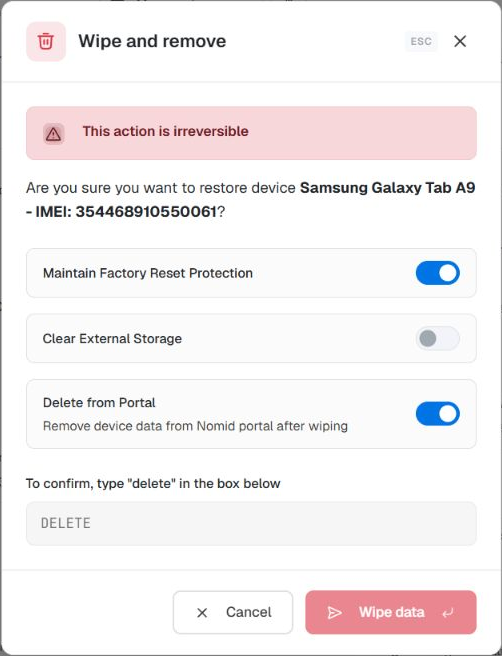 Samsung Galaxy Tab A9 example, Android 16, FULL management: Delete from Portal is on when the dialog opens.
Check the control on your device; this example does not establish a default for every platform or version. Turning off administrative deletion does not cancel wiping or guarantee that the record remains, management continues, or data can be recovered. The description states the Portal's intended effect; this image does not demonstrate an execution outcome.
In this example, the confirmation field is empty and Wipe data is disabled. The uppercase text is a field hint, not a completed confirmation. To inspect and leave, use Cancel without filling in the field, changing options, or activating the final action.
Relinquish Ownership: check deletion from the Portal
When available in the device details, Manage device > Relinquish Ownership opens a separate dialog. The Portal warns that this action will remove MDM control and the devices will no longer be managed. Delete from Portal is a separate option: its description associates removal of data from the Portal with relinquishing ownership.
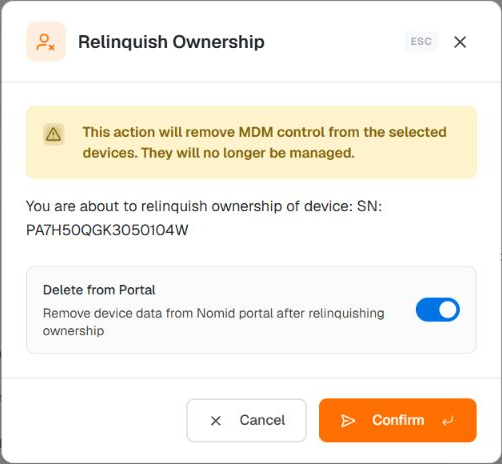 Pico Neo 3 example, Android 10, FULL management: the administrative option is on, with no text confirmation field.
In this single-device example, Confirm is already enabled. Do not rely on the text confirmation safeguard shown in the previous dialog. To inspect without executing, check the serial number and warning, then leave using Cancel, without selecting Confirm or pressing Enter.
The separate entry appeared on this Pico, but not on the Samsung above, although both show FULL management. That mode alone does not determine availability. A missing entry is not a reason to use another action as a substitute.
The warning describes the consequence announced by the Portal, not a tested outcome in this example. Turning off Delete from Portal does not cancel relinquishment or guarantee continued management, retention of the record, or preservation of data. This section explains how to recognize the risk and leave the dialog; it does not teach how to confirm the action.
General page actions
Access: Based on permissions. Permission: viewing and execution have different permissions; check each action’s label.
Open the general menu to locate operations that do not belong to one row, such as adding or importing devices.
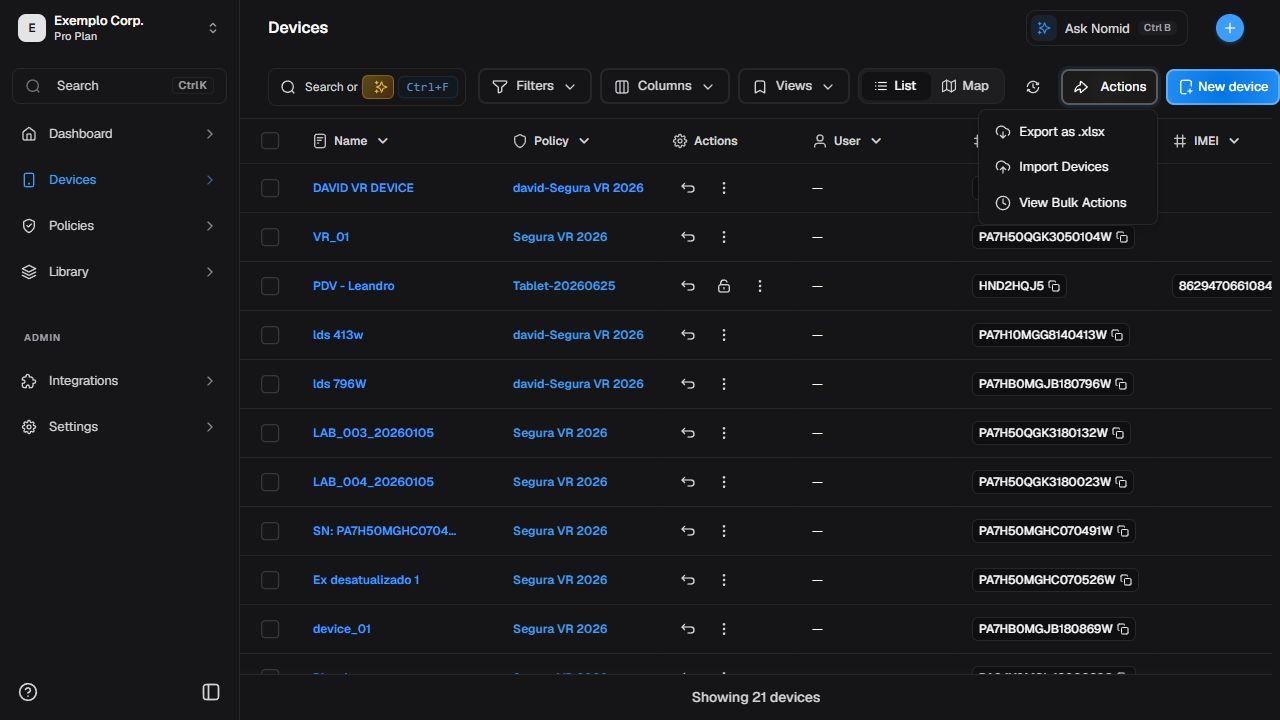 General actions available on the Devices page.
For enrollment, use 8. New device. Opening the wizard is not the same as completing enrollment.
Review an import without completing it
Access: Based on permissions. Permission: access to company imports; selecting a policy also requires access to it.
Review before importing
Access: Based on permissions. Permission: access to company imports; selecting a policy also requires access to it.
Open Actions and select Import Devices. The window accepts a .csv, .xlsx, or .xls file, or pasted tabular data. Loading or pasting prepares data for review inside the window; remote changes begin only at the final Import step. Use authorized data only and close the window before that step when you only need to review the flow.
Check column mapping
Access: Based on permissions. Permission: access to company imports; selecting a policy also requires access to it.
In the preview, review every source column and assign it to a Portal destination: Skip, Serial number, Device name, Tags, or Policy. Serial number is required to continue. Automatic detection can suggest mappings, but it does not replace review: a column that should not be used must remain Skip.
| Destination | Effect during review |
|---|---|
| Skip | Excludes the current column from import processing. |
| Serial number | Identifies the device; the journey cannot continue without this mapping. |
| Device name | Uses column values as proposed device names. |
| Tags | Uses column values as proposed tags. |
| Policy | May open a conditional policy-matching step; do not select a destination policy without the applicable authorization. |
When a column is assigned to Policy, the matching step can proceed only after every required value is matched. The policy list depends on the company and permissions. This version does not teach selecting a policy or moving to Review or Import.
Understand preview, limits, and submission
Access: Based on permissions. Permission: access to company imports; selecting a policy also requires access to it.
The preview renders up to 100 rows for reading, while validation and import use the full parsed set. The supported maximum is 10,000 devices per request. A short preview therefore does not mean that the file was truncated.
Before submission, read proposed new, updated, invalid, and skipped rows. Preview helps identify problems but does not promise final counts. Close the window with X to abandon review without creating records.
Interpret processing
Access: Based on permissions. Permission: active session for your own jobs; viewing other users’ jobs requires an additional permission.
After an authorized submission, follow the bulk-import Job. PENDING and QUEUED are not the same: QUEUED waits behind another import for the same company; RUNNING indicates processing; COMPLETED, COMPLETED_WITH_ERRORS, and FAILED end the execution with different outcomes. Read created, updated, failed, and skipped as final per-row outcomes. A completed Job can still have partial success; do not treat total processed as total success. Result download appears only when the Job provides a result URL.
Summary
Access: view — Admin Editor Analyst Teacher; Custom / company role*. Permission: view the device.
Open and recognize Summary
Access: view — Admin Editor Analyst Teacher; Custom / company role*. Permission: view the device.
Select the device name or Open Device Page. In Summary, check the header, model, state, last synchronization, and available tabs.
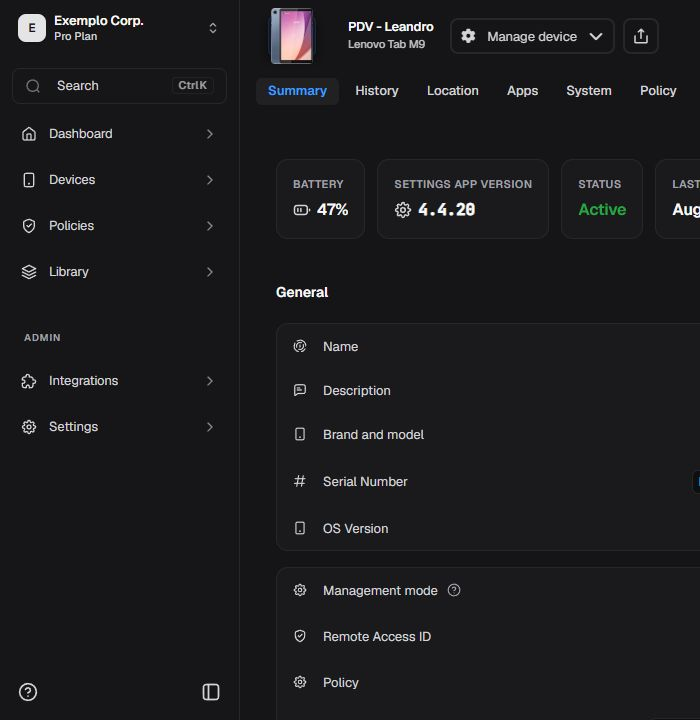 Header and Summary for a managed device.
 The External status appears in the device Summary.
External devices or other platforms may show fewer tabs and actions. Values and dates are examples of the current state, not product constants.
Manage device menu
Access: Based on permissions. Permission: viewing and execution have different permissions; check each action’s label.
Open Manage device only to identify available options, then close it without running a command.
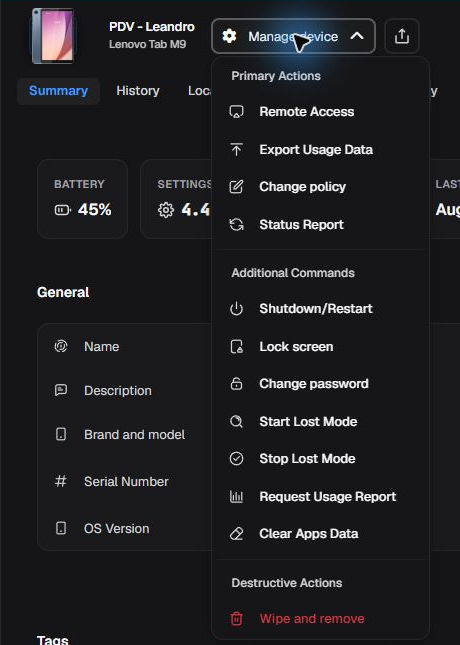 Individual device menu with no action executed.
The device page menu reuses the commands detailed in What each control does and adds Export Usage Data when permission is available. Before submitting any request, record the device, reason, impact, authorization, and recovery possibility.
History
Access: view — Admin Editor Analyst Teacher; Custom / company role*. Permission: view the device.
History and commands
Access: view — Admin Editor Analyst Teacher; Custom / company role*. Permission: view the device.
Open History and use the displayed filters to narrow events by type or period. Read the state in each returned record.
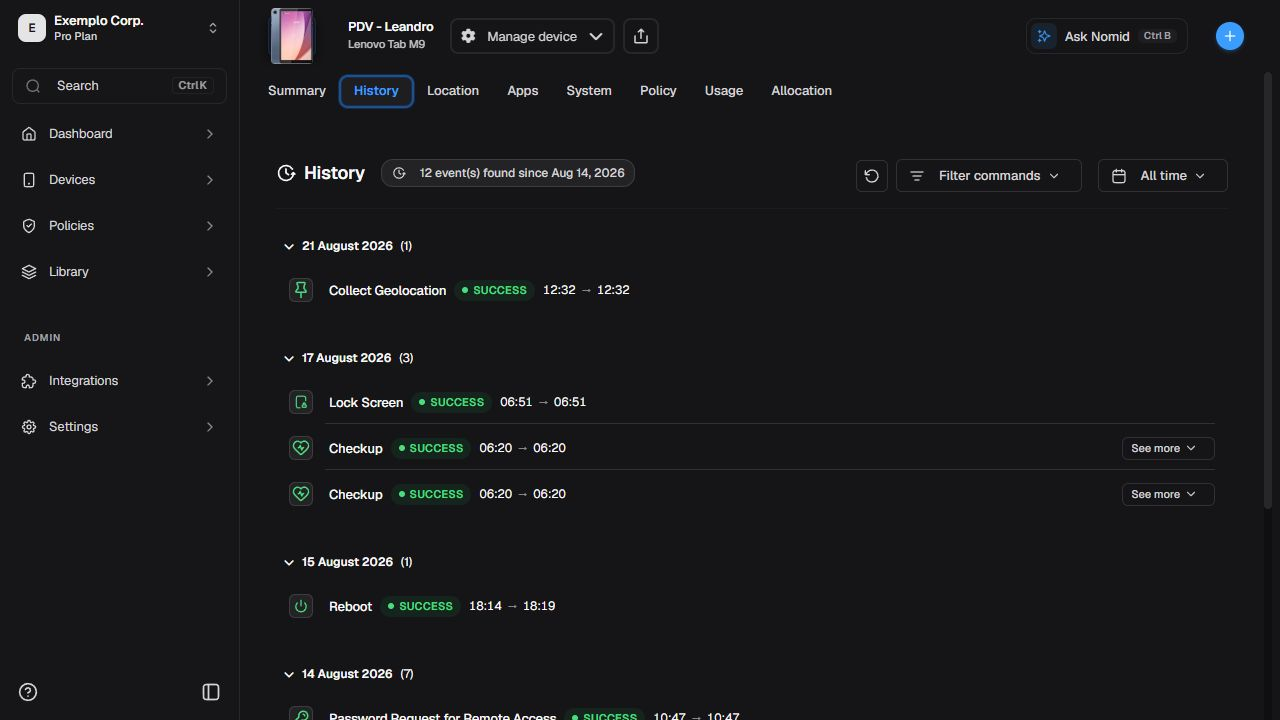 Command and event history with available filters.
Interpret request, processing, and completion times separately. Pending, in progress, completed, and failed describe different stages; a record does not prove the user observed the effect on the device.
Location
Access: view — Admin Editor Analyst Teacher; Custom / company role*. Permission: view the device.
Location
Access: view — Admin Editor Analyst Teacher; Custom / company role*. Permission: view the device.
Open Location and keep a regional map scale. Check the marker, period or quantity, and zoom controls.
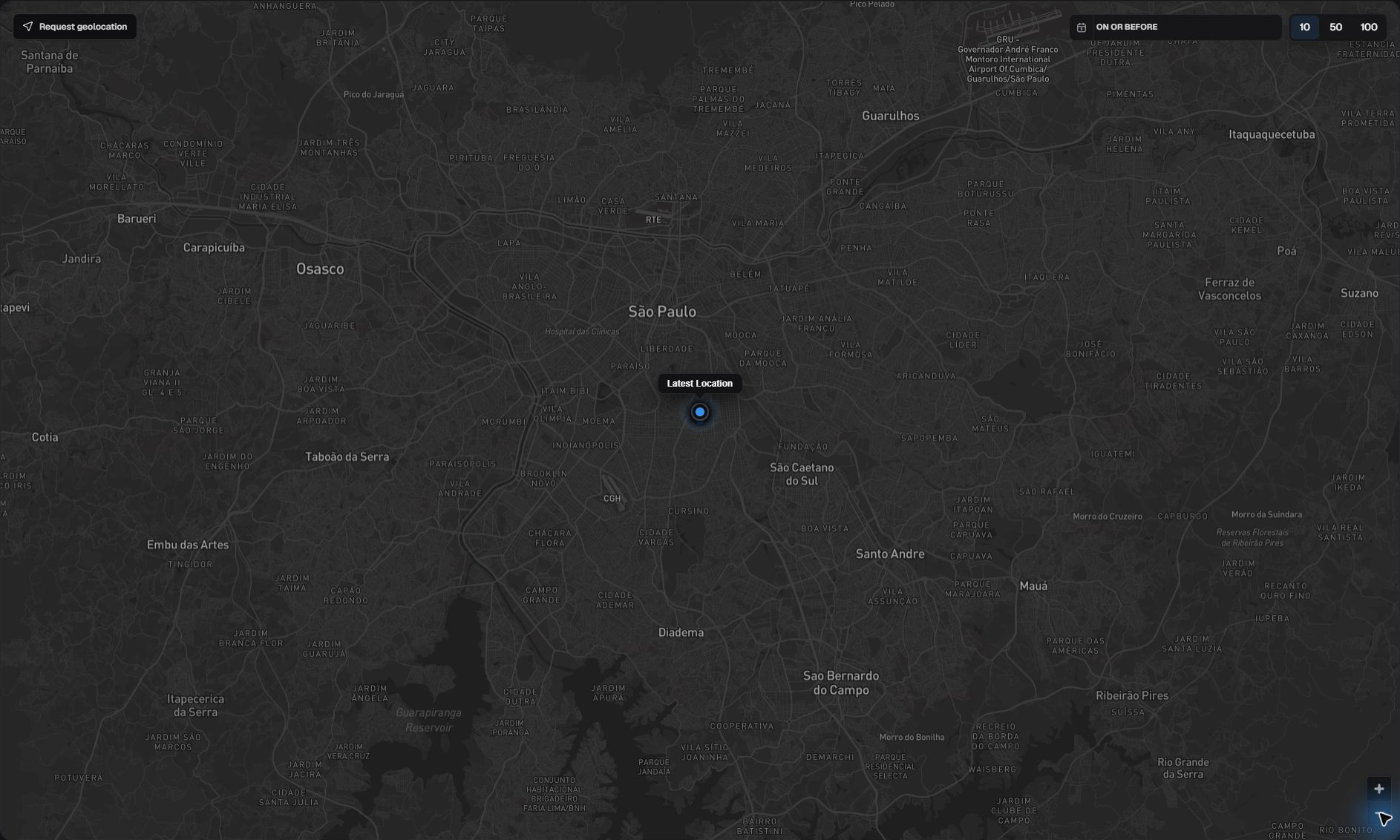 Latest available location in general geographic context.
The position may be stale and does not prove real-time presence. Do not zoom to, transcribe, or publish a street, building, or precise address.
Request a new location
Access: execute — Admin Editor Teacher; Custom / company role*. Permission: view the device and send commands.
Before requesting, check the device, purpose, authorization, and possible battery or connectivity impact. Do not trigger the request if any information is wrong. This manual neither sends nor proves delivery of the command.
Apps
Access: view — Admin Editor Analyst Teacher; Custom / company role*. Permission: view the device.
Installed apps
Access: view — Admin Editor Analyst Teacher; Custom / company role*. Permission: view the device.
Open Apps and use search or filters to locate package, version, source, and state.
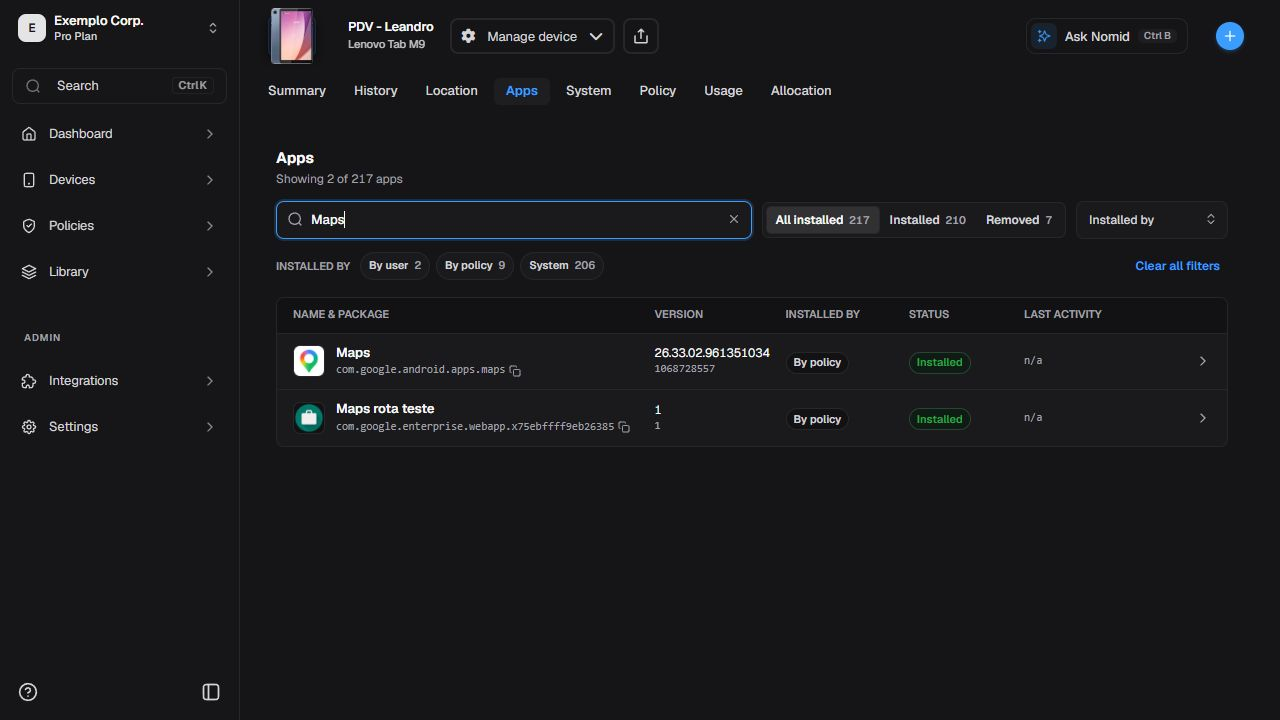 Apps reported by the device.
Select an app to open details without starting installation, removal, or clearing.
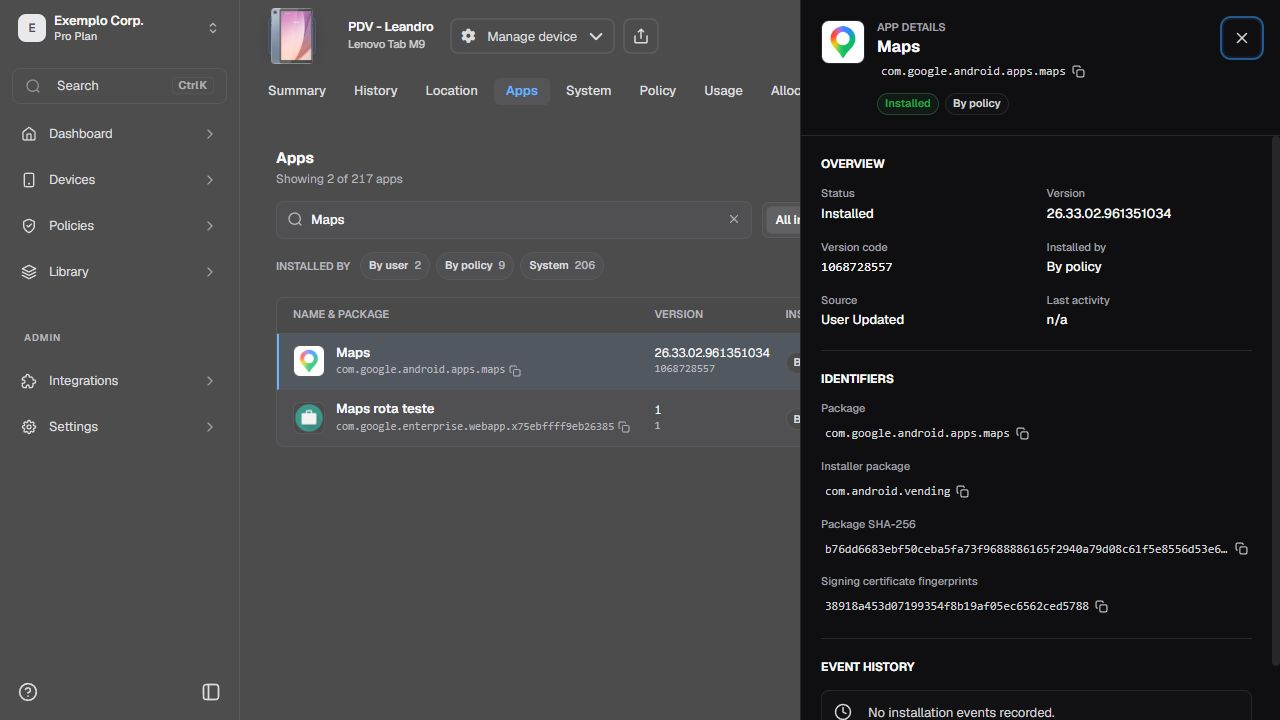 Selected app detail and reported information.
To distribute or configure apps, continue in 5. Library or 4. Policies, depending on the workflow.
System
Access: view — Admin Editor Analyst Teacher; Custom / company role*. Permission: view the device.
System, hardware, and network
Access: view — Admin Editor Analyst Teacher; Custom / company role*. Permission: view the device.
In System, check the reported information blocks. Read n/a as “not available in this context,” not as proof of compliance or absence of risk.
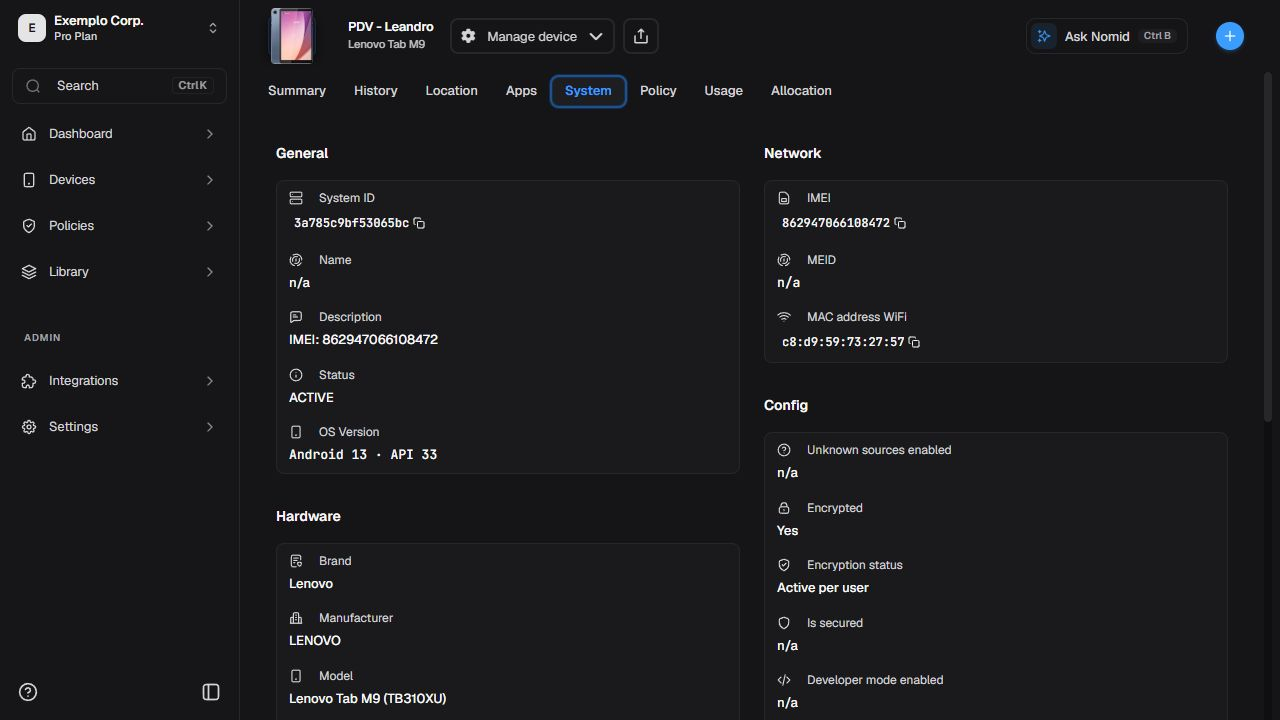 Reported system, hardware, network, and configuration information.
Network fields, addresses, and versions can change. Do not use a static image to diagnose current connectivity.
General: build number
Access: view — Admin Editor Analyst Teacher; Custom / company role*. Permission: view the device.
In the device details, open System and find General. Check Build number, below OS Version, to identify the build reported by the device. Use both values when comparing versions or asking support to investigate.
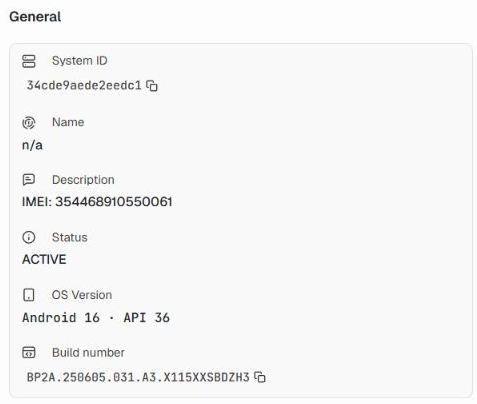 Example OS version and build from a different device than the one in the overview above.
The number identifies the reported build. On its own, it does not confirm that an update was recently installed or that the device is compliant. If the field is missing or has no value, the information is unavailable in these device details; this alone does not mean the firmware is outdated.
Managed contacts
Access: view — Admin Editor Analyst Teacher; Custom / company role*. Permission: view the device.
When the block exists, check count, state, and last checked time. Contact list sources and configuration belong to 5. Library or the responsible settings; this page only shows the reported state.
 Managed contacts state on the device.
Up to date does not promise immediate synchronization after every change. Use technical diagnostics only when needed and authorized.
Policy
Access: view — Admin Editor Analyst Teacher; Custom / company role*. Permission: view the device.
Applied policy
Access: view — Admin Editor Analyst Teacher; Custom / company role*. Permission: view the device.
Open Policy to check the reported name, version or update, and last synchronization.
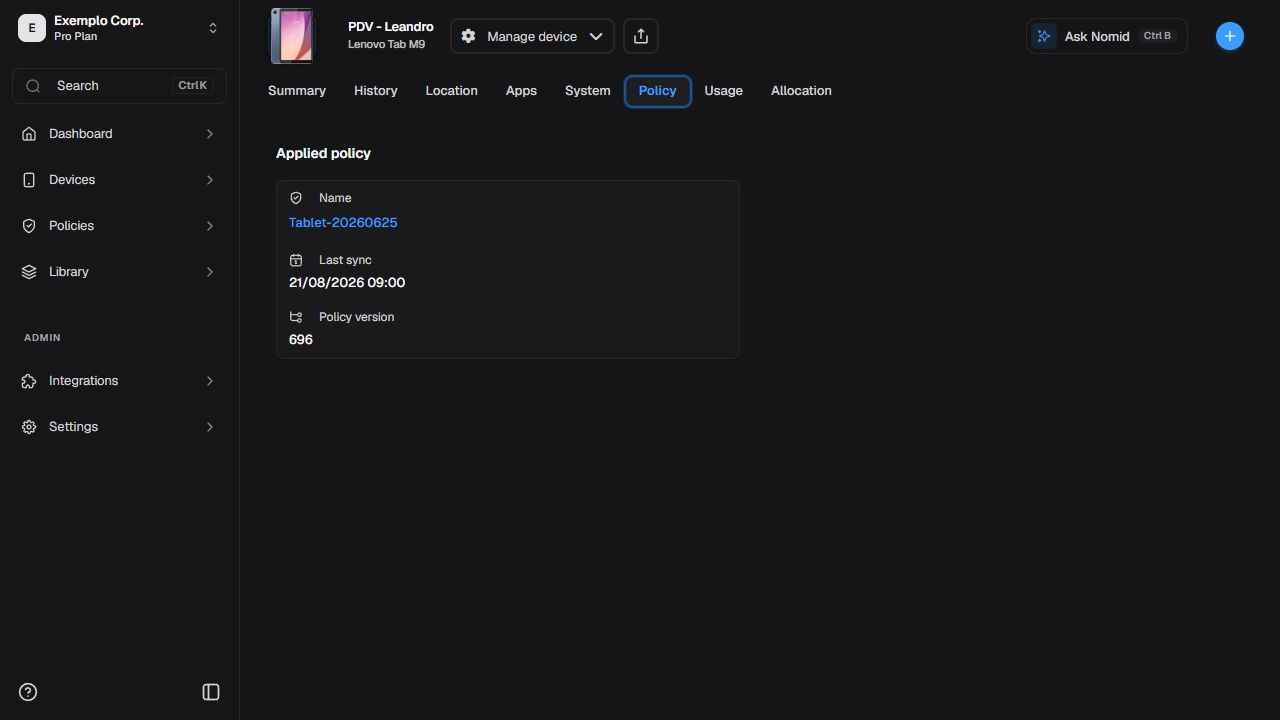 Associated policy and information reported by the device.
This page reports the device state. To edit rules, scope, or settings, use 4. Policies. Association does not prove that every rule has already applied.
Usage
Access: view — Admin Editor Analyst; Custom / company role*. Permission: view the device and its usage data.
Device usage
Access: view — Admin Editor Analyst; Custom / company role*. Permission: view the device and its usage data.
Open Usage in the device details to compare screen time, traffic, or other available aggregates. Before interpreting the values, select a period and check the displayed dates.
Select a period
| Control | What to view |
|---|---|
| 7D | Data for the 7-day interval shown on screen. |
| 30D | Data for the 30-day interval shown on screen. |
| 90D | Data for the 90-day interval shown on screen. |
| Calendar icon | Custom dates covering up to 90 days. |
To view specific dates, open the calendar next to 90D, choose the start and end dates, and select Apply. Cancel closes the selection without applying the new interval. After applying, check the dates at the top of the tab and on the chart before comparing metrics.
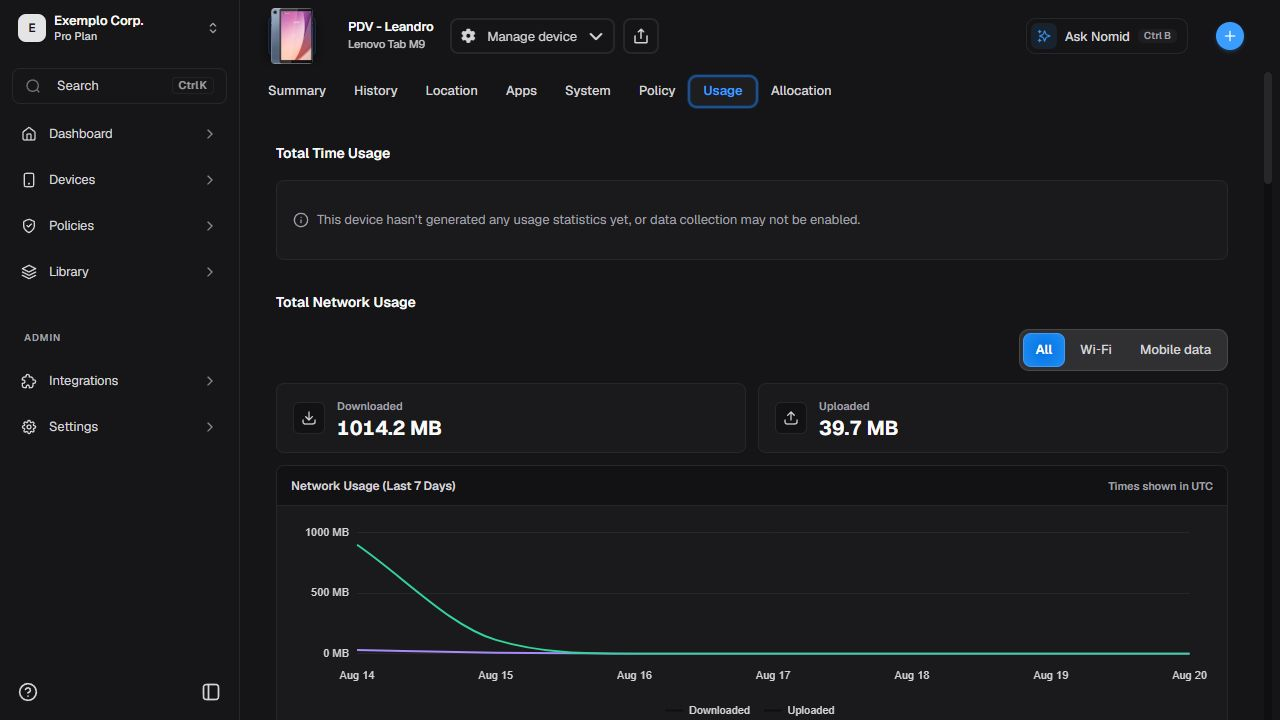 Example custom interval from October 1 to 7, with the calendar closed and metrics for that period.
The selection changes the query interval without requesting new data collection or changing its frequency. Values depend on data sent by the device for that period. A period with no available data does not prove there was no usage.
Before comparing, check that the interval and unit match, and review the latest telemetry. The chart shows times in UTC. Do not add values from screens captured at different times or assume the tab always opens with 7D selected: check the selected control and the dates.
App details
Access: view — Admin Editor Analyst; Custom / company role*. Permission: view the device and its usage data.
Select an app in the usage list to open the available detail.
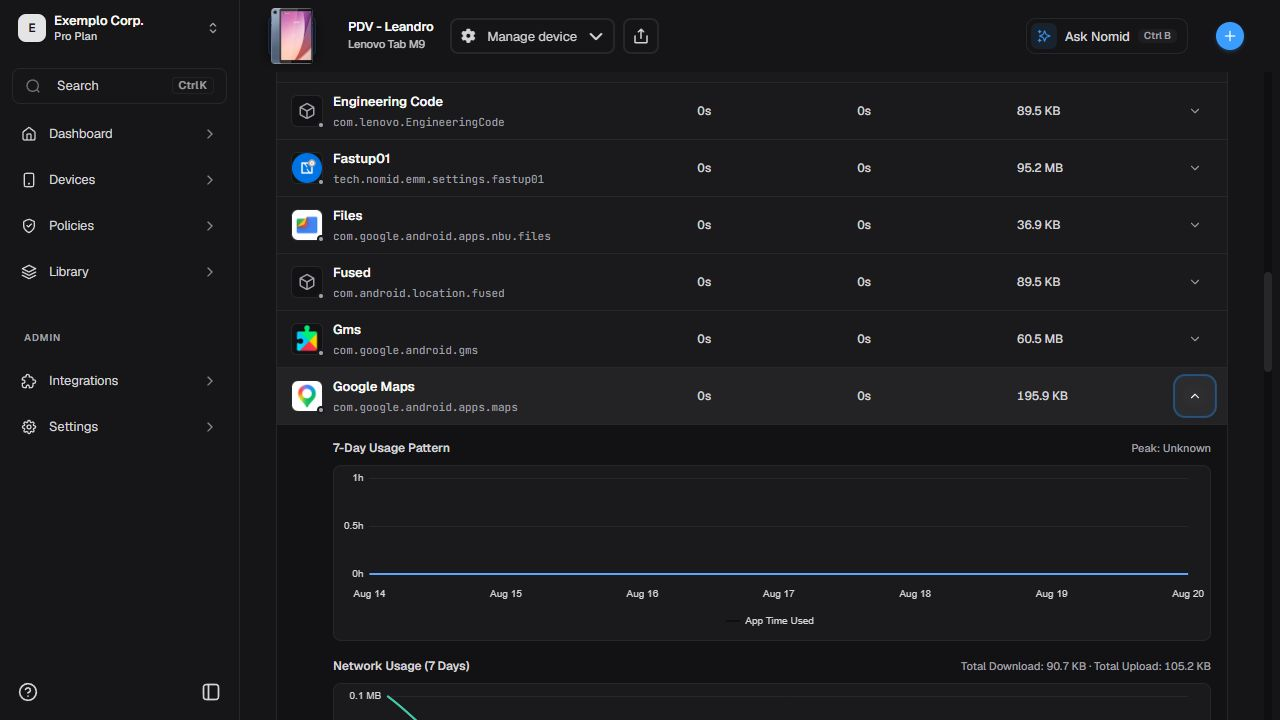 Usage attributed to an app in the current period.
Foreground time, data, and events depend on platform and collection. A missing value can mean unavailable data rather than zero use.
Connectivity
Access: view — Admin Editor Analyst Teacher; Custom / company role*. Permission: view the device.
The Connectivity tab collects connection history reported by the device. These records do not, by themselves, confirm which connection is active right now.
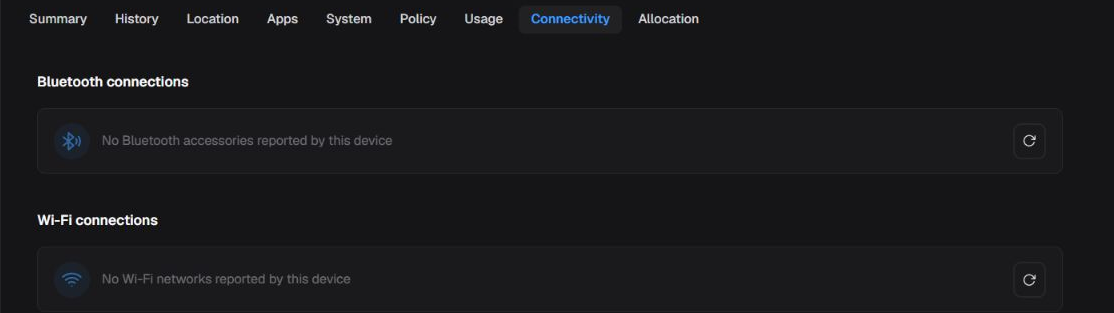 The Connectivity tab brings together reported Bluetooth and Wi-Fi connection boxes.
Bluetooth Connections
Access: view — Admin Editor Analyst Teacher; Custom / company role*. Permission: view the device.
The Bluetooth Connections box shows accessories reported by the device. When it is empty, treat it as no reported data, not proof that Bluetooth is off or that no accessory is currently connected.
 No Bluetooth accessory was reported by this device.
Wi-Fi Connections
Access: view — Admin Editor Analyst Teacher; Custom / company role*. Permission: view the device.
The Wi-Fi Connections box shows networks reported by the device. An empty state means no network was reported at the time of the report; it does not confirm whether a Wi-Fi connection is active now.
 No Wi-Fi network was reported by this device.
To change network rules, use 4. Policies. Before diagnosing or restricting a network, check synchronization and behavior on a pilot device.
Allocation
Access: view — Admin Editor Analyst; edit — Admin Editor; Custom / company role*. Permission: view allocation; edit allocation.
Allocation and responsibility
Access: view — Admin Editor Analyst; edit — Admin Editor; Custom / company role*. Permission: view allocation; edit allocation.
The Allocation tab stores administrative data and can depend on permission, enabled feature, and device type. Allocation status is not the device's MDM status.
| Status | Operational meaning |
|---|---|
| Allocated | Assigned to a person or area and in administrative use. |
| Borrowed | Temporarily loaned; an expected return date or condition may matter. |
| Stock | Held or available, with no current person responsible for its use. |
| Maintenance | Temporarily outside regular use for repair or service. |
| Discontinued | Removed from the active administrative lifecycle. It does not delete or remove the device. |
These values are classifications stored in custom data. They do not change connectivity, policy, lock, wipe, enrollment, physical presence, or MDM state. Do not use an allocation value to conclude that a command ran.
When the form is available, review allocation details, responsible user, manager, role, phone, cost center/area, administrative location, allocation date, expected return date, last update, and responsibility term.
| Action | Effect and caution |
|---|---|
| Save Access: view — Admin Editor Analyst; edit — Admin Editor; Custom / company role*. Permission: view allocation; edit allocation. |
Persists the current administrative metadata. Review all fields before using it. |
| Discard changes Access: view — Admin Editor Analyst; edit — Admin Editor; Custom / company role*. Permission: view allocation; edit allocation. |
Restores the last loaded values in the form without persisting the current edits. |
| Download terms Access: execute — Admin Editor Analyst Teacher; Custom / company role*. Permission: download the responsibility form; responsibility form feature enabled. |
Generates the document only when the feature and permission are available. |
| Save and download Access: execute — Admin Editor; Custom / company role*. Permission: edit allocation and download the form; responsibility form feature enabled. |
Appears when edits are pending and persists the current values before generating the document. |
Last update and its author show the current visible form trace, not a complete allocation change history. The device History tab records device events and commands; it does not replace a dedicated Allocation audit trail.
Resolve common issues
| Situation | Check | Safe next step |
|---|---|---|
| Device is missing | Company, search, filters, and permission. | Clear filters and verify enrollment in New device. |
| Data looks old | Last synchronization, connectivity, and battery. | Wait for new telemetry before running an action. |
| Action is missing | Platform, state, permission, and enabled feature. | Do not seek an alternate shortcut; confirm with an administrator. |
| Command does not finish | State and times in History. | Do not repeat destructive actions before understanding the prior result. |
| Map does not update | Position age and location permission. | Do not interpret an old position as current location. |
| Policy looks different | Name, version, and last synchronization. | Compare with 4. Policies. |
Glossary
- Telemetry: information sent from the device to the Portal, such as state, battery, network, usage, and location.
- Synchronizing: processing or information exchange is under way; it does not mean success or failure by itself.
- External: a device presented through a compatible external source or management model.
- Job: batch processing with a state and result counts.
- Remote action: a command requested by the Portal and executed only when device, agent, network, and permissions allow it.