 Nomid
Configure Android 2.0 policies in the Nomid Portal. A policy groups rules distributed to linked devices; editing a rule does not immediately execute the physical device action it governs, such as factory reset or screen capture.
- Sign in to the Nomid Portal, open Policies and select the Android policy to configure.
- Check scope and linked devices before editing. Availability depends on company/group permissions, management mode, Android version and required apps.
- Edit controls, use Save, review differences and confirm. Check success, then validate the outcome on devices. Saving does not guarantee immediate physical application.
After saving, use Devices to check device information and synchronization.
Saving configuration, copying, deleting, restoring or editing policy information requires Edit policy, within the permitted scope. History requires View policy or Edit policy. Assigning a group also requires permission for its destination. Profiles may combine different permissions; do not assume access from a profile name.
In this manual, you are the administrator editing in the Portal; people are those using the device. Configuration shares changes being edited but not yet saved, called a draft. They are saved only after successfully completing Save, review and confirmation; switching tabs keeps the edit open. Discard restores the saved configuration. Do not rely on automatic recovery after reloading or leaving. Description, tags and group save separately, and commands such as Restore save after their own confirmation. Closing a pane does not discard edits; list fields may accept text on blur or close. Uploads can also create resources separately. Check the outcome before repeating a write.
Before deploying network, access, password or wipe restrictions, validate on a representative pilot device and preserve recovery access. Changing a rule later does not recover erased data. Figure values are configuration examples, not universal defaults.
Summary
Devices
Check which devices receive this policy. If the list is empty, use the enrollment entry to start linking devices; they receive the configuration after successful enrollment.

Figure 1. Devices.
About this policy
Use description, tags and group to identify and organize the policy. These details save separately: leaving an edited description can save it; adding or removing a tag in the readout saves immediately. Resolve pending configuration changes before moving groups and confirm you can assign the destination group. On a conflict, reload and review before trying again.
Copy requires Edit policy. A new name creates another policy; copying over an existing policy updates the destination while preserving its organizational details. Check the destination before confirming. Delete also requires Edit policy, revokes associated enrollment and public links, and does not wipe devices. Do not rely on automatic recovery of a deleted policy.
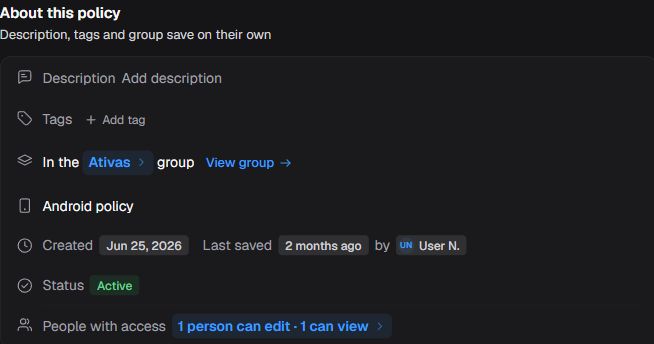
Figure 2. About this policy.
Configuration
Open the area you want to configure and edit its controls. Tabs share the unsaved edit: switching tabs neither saves nor discards changes. Use Save, review the differences and confirm after checking their scope. Discard replaces edits with the saved configuration; closing a pane after typing does not guarantee cancellation. After saving succeeds, distribution and device application still depend on communication and compatibility.
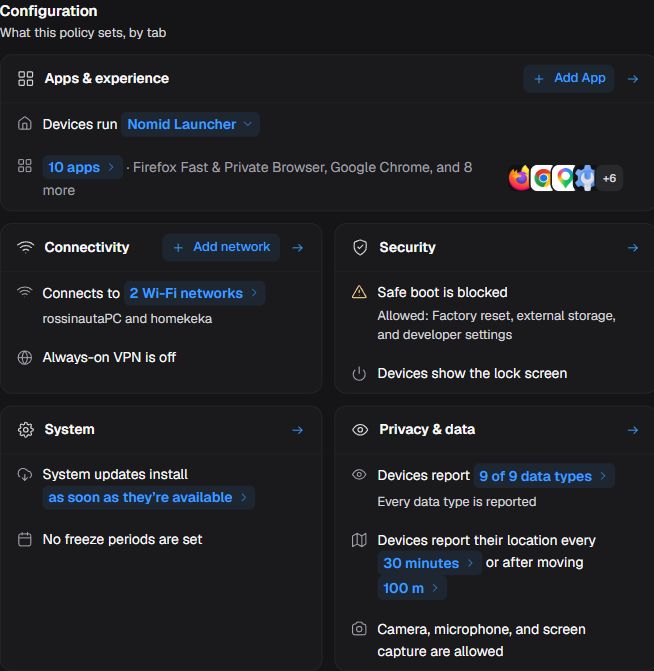
Figure 3. Configuration.
Device locations
View the latest positions received from linked devices. An empty list does not establish a GPS failure: first check enrollment and location reporting settings. A previously reported position is not a guarantee of real-time location.
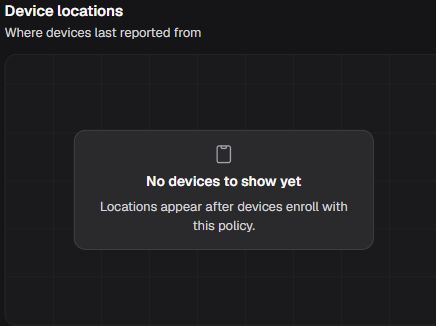
Figure 4. Device locations.
Recent changes
Check version, author and time of changes before continuing an edit. Open Activity to filter changes, compare versions or consider a restore. Comparing does not restore.
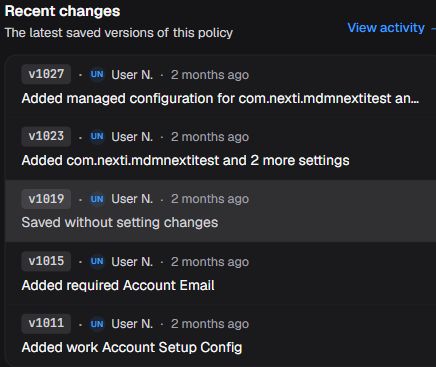
Figure 5. Recent changes.
Apps & experience
Home screen
Open each entry to configure mode, apps, appearance and layout. Appearance and dock apply to Nomid Launcher or Nomid Kiosk, not the system home screen. For single-app kiosk, choose the app and a secure maintenance password before deploying. Maintenance access depends on navigation controls; preserve the navigation needed to reach it.
In app details, configure installation, permissions and updates for the intended task. Environments, tracks and managed settings depend on app source and schema. Delegate sensitive capabilities only to apps that need them; network and security logs have delegation restrictions indicated by the editor.
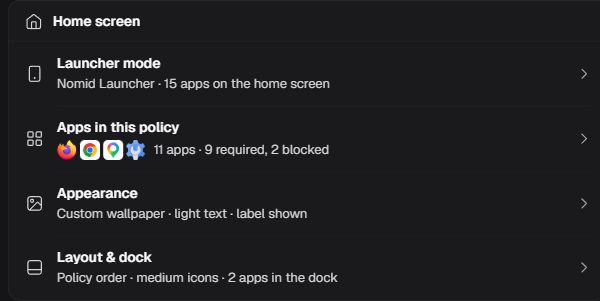
Figure 6. Home screen.
Launcher mode
Opens launcher mode pane; selecting a mode changes the unsaved edit.
Mode
| Choice or action | Function and outcome |
|---|---|
| System launcher | Uses Android home screen; appearance/layout do not apply. |
| Nomid Launcher | Uses Nomid home screen with apps, wallpaper, label and dock. |
| Nomid Kiosk | Locks device to single app or policy apps; reveals kiosk settings. |
Kiosk experience
| Choice or action | Function and outcome |
|---|---|
| Multi-app | Shows multiple apps in kiosk experience. |
| Single-app | Runs one selected kiosk app. |
Kiosk app
Choose the app for single-app kiosk. Selecting it can add it to the policy and make installation required in the unsaved edit. Setting the maintenance password is a separate step.
Maintenance password
Sets single-app kiosk exit password subject to the displayed minimum length; protect the password.
Opening other apps
In Nomid Kiosk, controls whether people may open apps outside the configured kiosk experience.
| Choice or action | Function and outcome |
|---|---|
| Allowed | People can open other apps. |
| Prevented | People cannot open other apps. |
Apps in this policy
Opens policy app list and app settings; changes remain unsaved until Save.
Installation
| Choice or action | Function and outcome |
|---|---|
| Required | For Google Play apps, requests automatic installation and prevents people from uninstalling while the app is required. Allowing uninstall in the general rule does not release this app. |
| Optional | App is available rather than forced. |
| Blocked | For Google Play apps, prevents new installations and uninstalls the app if installed under a previous policy. Disabled preserves installation but prevents opening; Hidden only changes launcher presentation. Do not apply the uninstall conclusion to other sources without confirming their distribution behavior. |
App enabled
| Choice or action | Function and outcome |
|---|---|
| Enabled | Keeps the app enabled for use; installation and launcher visibility are configured separately. |
| Disabled | App stays installed but users cannot open it. |
Launcher access
| Choice or action | Function and outcome |
|---|---|
| Visible | Visible to everyone on launcher. |
| Admin only | Reserves the app for the administrative area of the launcher on the device; your Portal role does not grant that local access. These sources do not establish the path or credential for opening that area: confirm them with support for the launcher version before relying on this choice. Do not assume it uses the kiosk maintenance password. |
| Hidden | Hides the app from the launcher; this choice does not block its installation or disable it. |
Default permission
The rules below concern Android runtime permissions. Policy grants or denials enforce the state and prevent people from reversing it in Settings while the rule applies; prompting leaves the decision to them. An individual rule takes precedence over the app default, which overrides the general default. On Android 12 or later, automatically granting SMS and sensor permissions such as camera, microphone and location requires a fully managed device. Do not treat this choice as universal authorization for every permission or special access.
| Choice or action | Function and outcome |
|---|---|
| Not set | Applies the policy’s default permission-grant rule to this app. |
| Prompt to user | Asks the person to authorize Android permissions requested by this app. |
| Grant all | Automatically grants permissions covered by the rule and prevents people from denying them later in Settings; the limits above apply. |
| Deny all | Automatically denies permissions covered by the rule and prevents people from granting them later in Settings. |
Minimum version
Enter the minimum Android integer version code (versionCode) required for this app, not its displayed version name such as 2.1. Obtain the code from the app or distribution catalog owner. Versions with lower codes are noncompliant.
Auto update
For Google Play apps, per-app Postponed or High priority overrides the general rule under Security → Encryption & apps → App updates. Thus, High priority is not constrained by Never or On Wi-Fi only in the general rule; it may use mobile data and incur charges. Default follows normal Google Play conditions and the applicable general rule. Review both controls before distribution; the choice does not guarantee immediate installation. Other app sources have their own distribution flow.
| Choice or action | Function and outcome |
|---|---|
| Default | Follows Google Play default rules. |
| Postponed | Postpones automatic updates for up to 90 days; people can still update manually through Google Play. |
| High priority | Requests installation of the update as soon as possible. |
Credential manager
On Android 14 or later, a provider stores and supplies passwords or passkeys for app sign-in through Android Credential Manager. This control authorizes that role for the selected app; it does not configure Nomid Remote passwords.
| Choice or action | Function and outcome |
|---|---|
| Follow policy default | Applies the provider default configured under Apps & experience → Device to this app. |
| Allowed | Authorizes this app as an Android sign-in credential provider even when the policy default does not allow it. |
Connect work and personal data
Controls communication between instances of the same app in the work and personal profiles. Allowing authorizes this communication only after the person consents; it does not release all data between profiles or create a work profile.
| Choice or action | Function and outcome |
|---|---|
| Not set | Without an explicit choice, the Android default prevents this app from communicating between personal and work profiles. |
| Allowed | Allows the two instances of this app to communicate across profiles after the person consents. |
| Disallowed | Prevents communication between instances of this app in personal and work profiles. |
Work profile widgets
Authorizes widgets from an app installed in the work profile on the personal profile’s home screen when the launcher supports widgets. Allowing lets people add these widgets, which may display work information; it does not add them automatically. Without a work profile, this cross-profile authorization does not apply.
| Choice or action | Function and outcome |
|---|---|
| Not set | Follows the policy’s work-profile widget default; without an explicit default, Android does not allow those widgets in the personal profile. |
| Allowed | Allows adding this work app’s widgets to the personal profile’s home screen, with launcher support. |
| Disallowed | Prevents making this work app’s widgets available to add to the personal profile’s home screen. |
Always On VPN
| Choice or action | Function and outcome |
|---|---|
| Will only connect to network via VPN, if one is set | Requires the configured VPN for this app. |
| Can connect to network outside VPN, if unavailable | Allows this app to connect outside the VPN when unavailable. |
Delegated scopes
You grant the capability to the selected app; that app, rather than the person using the device, can call the authorized operations. It must implement those functions. Selecting a scope does not automatically install certificates, change other apps or start collection, and does not make the app a Portal administrator. Operations respect the managed user or profile and Android conditions.
| Choice or action | Function and outcome |
|---|---|
| Certificate installation and management | Authorizes this app to query user-installed CAs, install and remove those CAs, and install private-key/certificate pairs for authentication. Operations stay within the Android-authorized user or profile; this is not unrestricted access to other apps’ keys. |
| Managed configurations | Authorizes this app to query and set managed configurations for other apps in the permitted user or profile. The target app must recognize and apply the fields: for example, an email account or browser URL rules, if supported. This differs from this app merely receiving its own configuration. |
| Block uninstall | Authorizes this app to set and clear uninstall blocks for apps identified by package name, to prevent or allow people to remove them. Clearing this block does not remove other restrictions, such as installation required by policy. |
| Permission policy and permission grant state | Authorizes this app to set the response to future Android runtime-permission requests, query another app’s permission state, and grant, deny or return that decision to the person. The Android and management limits under Default permission apply; it does not grant unrestricted authority over special permissions. |
| Package access state | Authorizes this app to query whether other apps are hidden or suspended, hide or suspend them, and reverse those states using their package names. This restricts app availability and use within the permitted scope; it does not authorize reading their internal files or messages. |
| Enable system apps | Authorizes this app to re-enable system apps already present on the device that were disabled when the user or profile was initialized. It does not download or install an absent app or turn an ordinary app into a system app. |
| Network activity logs | Authorizes this app to enable and disable network logging, check whether it is active and retrieve available batches for auditing. Events include DNS queries and TCP connections, with domain or IP, port where applicable, app and time. It does not capture full traffic content, UDP or all communications bypassing the logged APIs. |
| Security logs | Authorizes this app to enable and disable security logging, check whether it is active and retrieve available batches, including the previous reboot cycle where supported. It allows auditing Android events such as app starts, unlock attempts and ADB activity; it does not give full access to files or messages. |
Each logging scope can be delegated to at most one app. Network logs: fully managed devices on Android 10 or later, or work profiles on Android 12 or later; work-profile collection stays in that profile. Security logs: Android 12 or later on fully managed or company-owned work-profile devices. Retrieving batches depends on Android requirements and log availability; it does not guarantee complete history.
Environment
Selects the set of published Nomid app versions considered for distribution. The environment filters the catalog; its name does not universally mean a server, testing or production. Confirm its purpose and available versions with the catalog owner before changing it.
Tracks
Adds channels whose published versions can be distributed in the selected environment. Production remains included; the service chooses the highest version code among eligible versions. Adding a channel can change the offered version without creating or publishing one. Ask the catalog owner what the channels contain.
Managed configurations
Here you fill in the Portal configuration intended for the selected app itself. For example, an email server or allowed URLs, only if the app provides those fields. The app must read and apply the configuration it receives. This editor does not grant the app a scope to configure other apps; that capability is a separate delegation.
| Choice or action | Function and outcome |
|---|---|
| Edit configuration | Open fields provided by the app schema. Applying changes updates the unsaved policy edit. |
Website
Opens the Secure Web App editor when editing is enabled. Applying replaces the app’s managed configuration in the policy and can update its icon; changes remain unsaved until Save.
Individual grants
Granted and Denied enforce the permission state and prevent people from reversing it in Settings while the rule applies. Ask every time leaves the decision to the person. The Android, management and permission-type limits described under Default permission apply.
| Choice or action | Function and outcome |
|---|---|
| Granted | Grants the specified Android permission and prevents people from denying it in Settings where policy granting is supported. |
| Ask each time | Leaves the named Android permission for the person’s decision instead of granting or denying it through this rule. Authorization prompts follow Android behavior; the caption does not guarantee a prompt on every use. |
| Denied | Denies the specified permission and prevents people from granting it in Settings while the rule applies. |
| Not set | Uses app default for permission. |
| Remove this permission | Removes explicit permission entry, reverting to app default. |
Appearance
Opens wallpaper, text color and home label; available for Nomid Launcher/Kiosk.
Wallpaper
| Choice or action | Function and outcome |
|---|---|
| Company wallpaper | Uses configured company default wallpaper; disabled if none available. |
| Upload image… | Opens upload flow; file selection/upload can create resource and change the unsaved policy settings. |
| Add image from a URL… | Opens URL-based image flow. |
| No wallpaper | Removes custom/default wallpaper selection from the unsaved policy edit. |
Text Color
| Choice or action | Function and outcome |
|---|---|
| Light | Uses light launcher labels. |
| Dark | Uses dark launcher labels. |
Launcher label
Sets text/template displayed on launcher.
Layout & dock
Opens app order, icon size and dock controls; available for Nomid Launcher/Kiosk.
App order
| Choice or action | Function and outcome |
|---|---|
| Policy defined | Policy sets app order. |
| Let people decide | Each person can arrange apps. |
Icon size
Sets app icon size on the Nomid Launcher or Nomid Kiosk home screen.
| Choice or action | Function and outcome |
|---|---|
| Small | Uses small icons. |
| Medium | Uses medium icons. |
| Large | Uses large icons. |
Screen orientation
| Choice or action | Function and outcome |
|---|---|
| Keep upright | Keeps device upright in portrait. |
| Device setting | Uses device orientation setting. |
Dock
- Add, remove or reorder policy apps in the dock, within the limit shown by the editor.
Device
Configure app availability, permissions, relaunch, Nomid Settings, Remote, files and contacts through their entries. Hiding an app in the launcher, blocking installation and disabling its use are different decisions.
Remote access requires Nomid Remote to be installed and configured. These settings govern a future session; they neither start a connection nor guarantee immediate reachability. Sharing without confirmation expands access to the screen. Protect passwords and review that scope before saving.
If Nomid Remote is already present but required managed settings are missing, opening the pane can initialize fields in the local form. Closing the pane does not automatically undo this initialization. Check the unsaved edit before saving; use discard to abandon configuration changes.
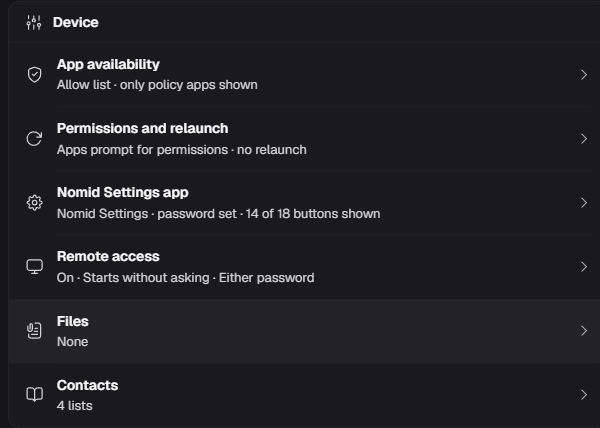
Figure 7. Device.
App availability
Opens Play Store and outside-app visibility choices.
Play Store apps mode
| Choice or action | Function and outcome |
|---|---|
| Allow list | People can install only policy apps. |
| Deny list | People can install any app except blocked apps. |
Apps outside this policy
| Choice or action | Function and outcome |
|---|---|
| Policy apps only | Launcher shows policy apps and selected system apps. |
| Play Store only | In the launcher, also shows other Google Play apps alongside policy apps. |
| All installed | In the launcher, shows every installed app that can be launched. |
Google Play Protect
| Choice or action | Function and outcome |
|---|---|
| Enforced | Requires Google Play Protect app verification. |
| Off | Lets people choose whether to enable Google Play Protect app verification; it does not force protection off. |
Permissions and relaunch
Opens default permission and app relaunch controls.
Credential manager default
Defines which apps without an individual override may provide passwords or passkeys for sign-in through Android Credential Manager on Android 14 or later. The per-app control under Home screen can grant specific authorization.
| Choice or action | Function and outcome |
|---|---|
| Not allowed | Disallows credential providers unless app-specific override. |
| System apps only | Allows the manufacturer’s default credential providers; other apps need individual authorization. |
Target app
Choose the app that Nomid Settings should open again. The routine asks Android to open that app’s launch screen; it may open it or bring it to the foreground. This is not a force-stop command: reusing the screen and session depends on the app and Android. Do not rely on it to save work or clear memory.
The app must be installed and have a launchable screen. The routine respects the restriction on apps reserved for the launcher’s administrative area. Android may refuse a background launch; in that case it retries in the next cycle. The first launch may occur when the routine starts or is reconfigured, before a full interval elapses.
Frequency
Sets the interval in minutes that Nomid Settings uses to schedule the next launch attempt, with a minimum of 1 minute. The next cycle is scheduled after the previous attempt; Android may delay it. It does not guarantee execution at exact times.
Nomid Settings app
Opens configuration of buttons offered in Nomid Settings, such as Wi-Fi, Bluetooth and brightness. Sets which are available, unavailable or protected by the policy password. The password reveals buttons marked as protected in Nomid Settings; it does not replace the Android unlock password.
Remote access
Opens Nomid Remote access and authentication settings; it does not start a remote session.
Nomid Remote starts
| Choice or action | Function and outcome |
|---|---|
| When the device boots | Starts at device boot. |
| When someone opens it | Starts Nomid Remote when someone opens that app on the device. |
Settings on the device
| Choice or action | Function and outcome |
|---|---|
| Locked | Prevents people from changing remote-access settings in the device’s Nomid Remote app. |
| Can change | Allows people to change remote-access settings in the device’s Nomid Remote app. |
Screen sharing
| Choice or action | Function and outcome |
|---|---|
| Asks the person first | Requires confirmation from the person on the device before sharing its screen in a Nomid Remote session. |
| Starts without asking | Configures Nomid Remote screen sharing without asking the person on the device for confirmation. |
Verification
Chooses which password is accepted to authenticate remote access to the device through Nomid Remote.
| Choice or action | Function and outcome |
|---|---|
| Temporary password | Accepts the Nomid Remote temporary password to authenticate remote access. |
| Permanent password | Accepts the configured permanent password to authenticate Nomid Remote access. |
| Either password | Accepts either the temporary or the permanent Nomid Remote password to authenticate remote access. |
During a session
| Choice or action | Function and outcome |
|---|---|
| Stays on | Keeps the device screen on during a Nomid Remote access session. |
| Can turn off | Allows the device screen to turn off during a Nomid Remote access session. |
While the device is locked
Controls whether Nomid Remote access is allowed while the device is locked. This choice does not unlock the device or start a connection.
| Choice or action | Function and outcome |
|---|---|
| Stay available | Allows Nomid Remote access sessions while the device is locked. |
| Aren’t available | Prevents Nomid Remote access sessions while the device is locked. |
Password sync
Synchronization sends the device’s Nomid Remote password to the Nomid service; the Portal can retrieve it to authenticate the remote session without the operator typing it. This requires the company feature, the device’s effective policy, the app sending its password and the operator’s authorization to retrieve it. Enabling the option does not prove that transmission has occurred.
| Choice or action | Function and outcome |
|---|---|
| Sync automatically | Requests sending the Nomid Remote password automatically to the Nomid service for Portal authentication of an authorized session. |
| Are typed in | Disables automatic transmission; the operator must obtain and enter a valid Nomid Remote password when authenticating the session. |
Files
Opens file association in this policy; file creation belongs to Library.
Files
Select the Library files that Nomid Settings should download to the device’s shared storage. This requires a Settings version implementing this synchronization, connectivity, free space and destination access. Without another destination, the reviewed implementation uses Download/nomid; with a configured destination, it uses that folder. If storage restrictions prevent the requested path, it may use a subfolder under Documents/Nomid. Confirm the actual destination before guiding the person.
People open the file with a file manager that can access that folder and an app supporting its format, such as a PDF reader. Associating a file does not install that reader or open the document automatically. Content, name and destination changes are re-evaluated during synchronization.
Removing the association makes synchronization attempt to delete the copy it recorded on the device; connectivity or access may delay completion. This neither deletes the Library original nor wipes every copy made by the person or other apps.
Contacts
Opens contact-list association in this policy; list creation belongs to Library.
Contacts
Associate the Library contact lists that Nomid Settings should synchronize with Android contacts. This requires a Settings version implementing the feature and read/write contacts permissions. The reviewed implementation imports entries into the local Nomid Contacts account in the user or profile where Settings runs. In the Contacts app, people should include that account in the display filter; menu names vary by app and manufacturer. This does not synchronize those entries with a personal Google account.
On successful synchronization, Settings adds or updates imported contacts and removes managed records no longer in the set delivered by policy. Editing a Library list or removing its association takes effect only after the updated policy is received and synchronization completes. Removal acts on records identified as Nomid-managed; it does not wipe the entire address book or delete the original Library list.
Device preview
Use Previous and Next to browse simulated screens. The preview helps check icons, layout and dock; it does not run apps or verify behavior on a particular device model.
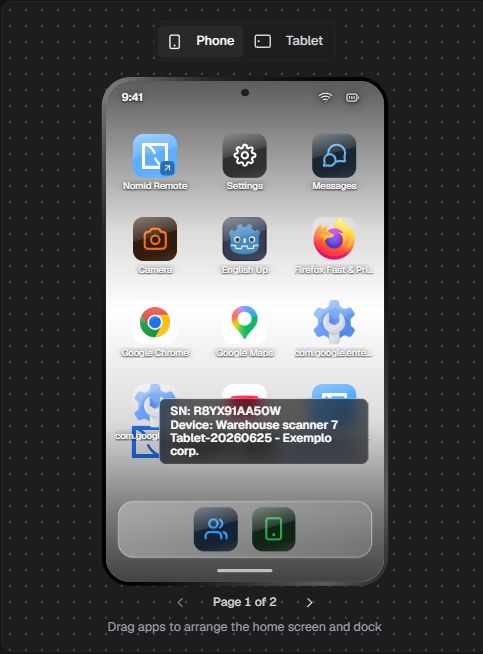
Figure 8. Device preview.
Previous
Moves preview to previous simulated screen.
Next
Moves preview to next simulated screen.
Connectivity
Wi-Fi networks
Add the network, enter its SSID and select security before saving. Adding a network already creates an unsaved entry. For enterprise Wi-Fi, select EAP and complete its applicable fields. PAP is offered with EAP-TTLS; 192-bit enterprise security requires EAP-TLS. Use certificates and the RADIUS domain supplied by the network administrator.
Certificate buttons upload a file or replace an existing certificate. Selecting a valid file changes configuration. Distinguish the server CA from the client PKCS#12 certificate. The hardware MAC option is specific to Android 13 or later.
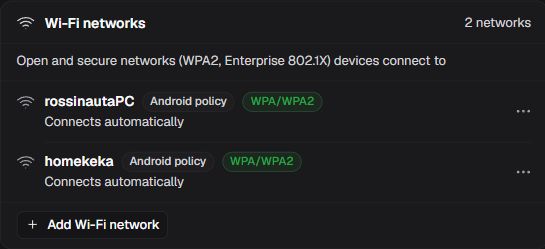
Figure 9. Wi-Fi networks.
Add Wi-Fi network
Adds a network to the unsaved edit, initially with automatic connection and no authentication. Configure security before saving.
Name (SSID)
Enter the exact name (SSID) of the Wi-Fi network the device should recognize.
Security
| Choice or action | Function and outcome |
|---|---|
| WPA/WPA2/WPA3 Personal (recommended) | Uses shared passphrase. |
| WPA/WPA2 Enterprise (802.1X) | Exposes enterprise EAP configuration. |
| WPA3 Enterprise 192-bit | Exposes enterprise EAP-TLS configuration; EAP-TLS is required. |
| WEP (legacy) | Uses WEP shared secret. |
| Open (no password) | No Wi-Fi authentication. |
Password
Sets network passphrase; keep the passphrase secret.
Connect automatically
-
When enabled: Requests automatic connection to this configured network when available; it does not itself turn on the Wi-Fi radio or lock people’s settings.
-
When disabled: Does not request automatic connection to this network; it does not prohibit using it.
Hidden network
-
When enabled: Tells Android that this network does not broadcast its SSID, so it searches for a hidden network; this option does not hide the network from user lists.
-
When disabled: Treats SSID as broadcast.
MAC address
| Choice or action | Function and outcome |
|---|---|
| Device MAC | Uses hardware MAC address. |
| Randomized (recommended) | Clears explicit hardware choice; default MAC behavior applies. |
EAP method
| Choice or action | Function and outcome |
|---|---|
| PEAP | Uses tunneled EAP with MSCHAPV2 inner authentication. |
| EAP-TTLS | Uses tunneled EAP-TTLS; PAP may be offered here. |
| EAP-TLS (client certificate) | Uses client certificate authentication. |
Inner authentication
| Choice or action | Function and outcome |
|---|---|
| MSCHAPv2 | Authenticates inside the tunnel using MSCHAPv2. |
| PAP | Authenticates inside the tunnel using PAP, available only with EAP-TTLS. |
Identity (user name)
Sets EAP identity.
Password
Sets tunneled EAP secret; keep the value secret.
Anonymous identity
Sets the optional outer identity presented during tunneled EAP Wi-Fi authentication.
RADIUS server domain
Sets trusted server domain suffix list.
Server CA certificate
| Choice or action | Function and outcome |
|---|---|
| Upload file | Opens a file chooser; selecting a valid server CA parses certificate data into the policy certificate list and stores a reference. |
Client certificate
| Choice or action | Function and outcome |
|---|---|
| Upload a file | Uses uploaded client certificate reference. |
| Already on the device | Uses named device key pair alias. |
Client PKCS#12 file
| Choice or action | Function and outcome |
|---|---|
| Upload file | Opens a file chooser for a client certificate; valid selection updates the policy certificate reference. |
Key pair alias
Uses key pair alias instead of uploaded client certificate.
Wi-Fi rules
Set radio control, user network configuration and accepted security separately. The network escape hatch can help at startup when the server cannot be reached; it does not replace managed network planning. An offered unset option leaves the effective default in force; it does not automatically block the feature.
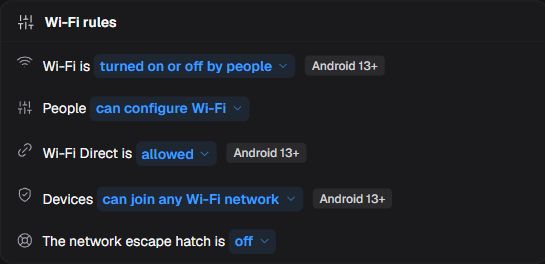
Figure 10. Wi-Fi rules.
Wi-Fi radio
Use this to leave switching to people or enforce the radio state. On company-owned devices running Android 13 or later, these states control turning Wi-Fi on and off; they do not select a network or its credentials.
| Choice or action | Function and outcome |
|---|---|
| User choice (Default) | People can turn Wi-Fi on or off. |
| Enabled | Keeps the Wi-Fi radio on and prevents people from turning it off under the conditions above. |
| Disabled | Keeps the Wi-Fi radio off and prevents people from turning it on under the conditions above. |
User Wi-Fi configuration
Use this to limit the networks people can add or change. Networks supplied by the administrator under Wi-Fi networks are a separate decision; blocking configuration neither supplies a network nor guarantees connectivity.
| Choice or action | Function and outcome |
|---|---|
| Not configured | Clears the explicit choice; the current default allows network configuration. An explicit restriction must not be interpreted as this state. |
| Allowed | Allows people to add, remove and modify Wi-Fi networks; it does not force the radio to stay on. |
| Blocked | Prevents people from adding, removing or modifying networks. On fully managed devices, removes networks not supplied by policy; on company-owned work-profile devices, retains existing networks. Do not infer the ability to switch between existing networks from this option. |
| Adding networks blocked | Prevents adding networks but allows switching between already configured networks. Requires Android 13 or later on fully managed or company-owned work-profile devices; without that support, network configuration is allowed. |
Wi-Fi Direct
Allows or blocks direct connections between devices without requiring an access point. This control requires a company-owned device running Android 13 or later; allowing it does not start a connection.
| Choice or action | Function and outcome |
|---|---|
| Allowed (Default) | Wi-Fi Direct allowed. |
| Blocked | Wi-Fi Direct blocked. |
Minimum Wi-Fi security
Use this to prevent connections to networks below the selected level, including when people can choose a network. Requires Android 13 or later on fully managed or company-owned work-profile devices; it supplies no password or certificate.
| Choice or action | Function and outcome |
|---|---|
| Open networks permitted (Default) | Requires no security above an open network; authentication, radio state and other restrictions still apply. |
| Personal or enterprise | Requires personal or enterprise Wi-Fi security. |
| Enterprise networks only | Requires enterprise Wi-Fi security. |
| 192-bit enterprise networks only | Requires 192-bit enterprise security. |
Network escape hatch
| Choice or action | Function and outcome |
|---|---|
| On | People may temporarily connect to a network if device cannot reach server at startup. |
| Off | Device waits for saved network when server unreachable at startup. |
| Not configured | With no explicit choice, the escape hatch is disabled: if the server is unreachable at startup, the device waits for a saved network. |
Traffic routing
For always-on VPN, choose its provider before deciding to block other traffic. An unavailable VPN with lockdown can interrupt communication. The proxy is recommended: apps may ignore it. Switching between manual and PAC clears fields exclusive to the other mode; check the new result before saving.
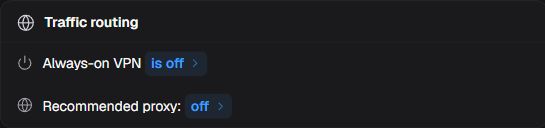
Figure 11. Traffic routing.
Always-on VPN
Opens always-on VPN settings pane; selected app and lockdown affect traffic.
VPN app
Choose the always-on VPN provider app. Confirm it is installed and configured before blocking other connections.
Block connections without the VPN
-
When enabled: Blocks connections outside selected VPN.
-
When disabled: Allows connections when selected VPN is unavailable.
Recommended proxy
Opens recommended proxy settings pane; address/port affect network routing.
Proxy
| Choice or action | Function and outcome |
|---|---|
| Off | Clears proxy fields. |
| Manual | Uses host/port/exclusions and clears PAC-only value. |
| Auto-config (PAC) | Uses PAC URL and clears manual-only values. |
Host
Sets manual proxy host.
Port
Sets manual proxy port.
Don’t use the proxy for
Lists hosts to access without the recommended proxy. Enter, comma, leaving the field and closing the pane accept valid typed entries.
Auto-config file URL
Enter the PAC file URL, which determines the proxy to use for each connection.
Mobile data
Use carrier-supplied parameters and confirm device support before overriding APNs. Choosing a carrier template or adding a custom APN changes the unsaved edit. APN types and radio technologies allow multiple selections.
Check virtual operator type carefully: the Portuguese and Spanish lists can repeat IMSI for two different criteria, IMSI and SPN. The English labels distinguish them. IMSI identifies the subscriber; SPN identifies the service provider name. Do not choose SPN solely by the duplicated label or list position. If SPN is required and you cannot confirm the type, stop the change and request unambiguous identification before saving.
Expand APN details shows fields; Collapse APN details hides them. Delete APN configuration removes the APN configuration from the unsaved edit. While editing the name, Escape is associated with canceling that edit; it is not a button and does not discard other policy changes.
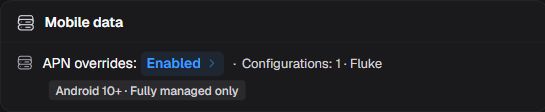
Figure 12. Mobile data.
APN overrides
Configure carrier-supplied APNs before overriding the others. Enabling overrides requires a fully managed device running Android 10 or later. Enterprise APNs in a work profile require Android 13 or later and use their own preferential-network rules; do not enable this selector for that case. The managed list is separate from ordinary APNs and cannot be edited by the person in Android Settings. Disabling this selector does not delete the configured list.
APN overrides
| Choice or action | Function and outcome |
|---|---|
| Enabled | Uses only the policy’s override APNs and ignores the device’s other APNs under the conditions above. People cannot replace this list with their own APNs. |
| Disabled | Disables use of override APNs but retains the Portal list and the managed APNs saved on the device. Other APNs are used again; this does not remove other mobile-network restrictions. |
APN
Enter the carrier-supplied APN identifier for the mobile-data access point.
Enter APN display name
Sets the name displayed for this APN. Confirming the name changes the unsaved edit.
Username
Sets APN authentication username.
Password
Sets APN authentication password; keep the password secret.
Carrier ID
Enter the carrier’s integer ID from Android carrier identification, obtained from the carrier or APN provider. It is not the MCC+MNC combination used in the next field. Zero means unset; negative values are invalid.
Numeric Operator ID
Enter the carrier-supplied MCC+MNC numeric code: mobile country code followed by mobile network code, normally 5 or 6 digits. Preserve leading zeros; do not use the integer carrier ID from the previous field.
MMSC URL
Enter the multimedia messaging service center (MMSC) URL used by this APN for MMS.
MMS Proxy Address
Sets MMS proxy host.
MMS Proxy Port
Sets MMS proxy port.
Proxy Address
Sets APN proxy address.
Proxy Port
Sets APN proxy port.
MTU IPv4
Sets the maximum IPv4 transmission unit size for this APN. Use the carrier-supplied value.
MTU IPv6
Sets the maximum IPv6 transmission unit size for this APN. Use the carrier-supplied value.
Authentication
Chooses how this APN’s data connection authenticates with the carrier; the username and password belong to the APN being edited.
| Choice or action | Function and outcome |
|---|---|
| None selected | Clear explicit authentication. |
| None | Use no authentication. |
| PAP | Authenticate using PAP. |
| CHAP | Authenticate using CHAP. |
| PAP or CHAP | Allow PAP or CHAP. |
Protocol
Selects the data transport protocol used by this APN.
| Choice or action | Function and outcome |
|---|---|
| IP | Carry IPv4 traffic. |
| IPv4/IPv6 (Recommended) | Carry IPv4 and IPv6 traffic. |
| IPv6 only | Carry IPv6 traffic. |
| Non-IP | Use non-IP traffic. |
| PPP | Use PPP. |
| Unstructured | Use unstructured transmission. |
Roaming Protocol
Selects this APN’s data transport protocol while the device is roaming.
| Choice or action | Function and outcome |
|---|---|
| IP | Carry IPv4 traffic. |
| IPv4/IPv6 (Recommended) | Carry IPv4 and IPv6 traffic. |
| IPv6 only | Carry IPv6 traffic. |
| Non-IP | Use non-IP traffic. |
| PPP | Use PPP. |
| Unstructured | Use unstructured transmission. |
Always On
Controls whether the policy requests an always-on connection for this APN.
| Choice or action | Function and outcome |
|---|---|
| Not Always On | Do not request an always-on connection. |
| Always On | Request an always-on connection. |
MVNO Type
| Choice or action | Function and outcome |
|---|---|
| Not configured | Clear the explicit virtual operator criterion. |
| Group Identifier (GID) | Identify the virtual operator by group GID. |
| SIM Card Identifier (ICCID) | Identify it by SIM ICCID. |
| International Mobile Subscriber Identity (IMSI) | Identify it by subscriber IMSI. |
| Service Provider Name (SPN) | Identify it by service provider name SPN. |
APN Types
| Choice or action | Function and outcome |
|---|---|
| ENTERPRISE | Associate the APN with enterprise traffic. |
| BIP | Associates the APN with the data channel used by SIM/UICC card applications to communicate over the network (Bearer Independent Protocol). |
| CBS | Associate it with cell broadcast messages. |
| DEFAULT_DATA_TRAFFIC | Associate it with default data traffic. |
| DUN | Associate it with tethered/dial-up traffic. |
| EMERGENCY | Associate it with emergency communications. |
| FOTA | Associate it with firmware updates. |
| HIPRI | Associate it with high-priority data. |
| IA | Associate it with initial network attachment. |
| IMS | Associates the APN with the carrier’s IP Multimedia Subsystem (IMS), used by services such as voice and video over IP. |
| MCX | Associate it with mission-critical communications. |
| MMS | Associate it with MMS. |
| RCS | Associates the APN with RCS advanced messaging, such as group conversations and file transfer, according to the carrier’s service. |
| SUPL | Associate it with SUPL location assistance. |
| VSIM | Associate it with virtual SIM. |
| XCAP | Associates the APN with accessing and changing application configuration stored as XML on a server through XCAP. |
Network Types
| Choice or action | Function and outcome |
|---|---|
| EDGE | Include this technology among networks to which the APN applies. |
| GPRS | Include this technology among networks to which the APN applies. |
| GSM | Include this technology among networks to which the APN applies. |
| HSDPA | Include this technology among networks to which the APN applies. |
| HSPA | Include this technology among networks to which the APN applies. |
| HSPAP | Include this technology among networks to which the APN applies. |
| HSUPA | Include this technology among networks to which the APN applies. |
| IWLAN | Include this technology among networks to which the APN applies. |
| LTE | Include this technology among networks to which the APN applies. |
| NR | Include this technology among networks to which the APN applies. |
| TD_SCDMA | Include this technology among networks to which the APN applies. |
| UMTS | Include this technology among networks to which the APN applies. |
Manage APN configurations
| Choice or action | Function and outcome |
|---|---|
| Select by Carrier | Add APNs from the selected carrier template. |
| Add Custom APN | Add a custom APN to the unsaved policy edit. |
| Delete APN configuration | Remove the APN from the unsaved edit. |
| Expand APN details | Shows the APN configuration fields; Collapse APN details hides them again. |
Mobile & sharing
Configure each feature for the device task. Allowing a connection and allowing changes to its settings are different controls. USB, airplane mode, mobile radio or tethering restrictions can affect support and connectivity; validate on a compatible pilot device before the whole group.
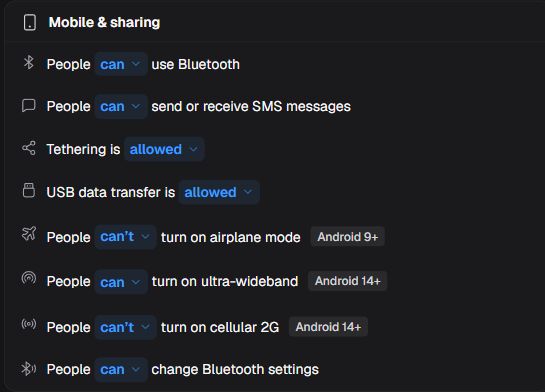
Figure 13. Mobile & sharing.
Bluetooth
| Choice or action | Function and outcome |
|---|---|
| Allowed | People can use Bluetooth. |
| Blocked | People cannot use Bluetooth. |
SMS
| Choice or action | Function and outcome |
|---|---|
| Allowed | People can send or receive SMS. |
| Blocked | People cannot send or receive SMS. |
Tethering
| Choice or action | Function and outcome |
|---|---|
| Not configured | Clears the explicit choice. The default allows tethering unless Network settings → Hotspot and tethering settings is Blocked; that legacy restriction makes the default block tethering. Check that control in the Portal. If the saved state cannot be identified, confirm it with support before relying on Not configured. |
| Allowed (Default) | Tethering allowed. |
| Wi-Fi tethering blocked | Blocks Wi-Fi tethering. |
| Blocked | Blocks tethering. |
USB data access
USB data restrictions apply to company-owned devices and do not change charging. Blocking all data requires Android 12 or later and compatible device USB support; without it, Android applies file-transfer blocking instead and reports the incompatibility. Check a representative model.
| Choice or action | Function and outcome |
|---|---|
| Not configured | Clears the explicit choice; the current default blocks USB file transfer without preventing charging. |
| Allowed | USB data transfer allowed. |
| File transfer blocked | Prevents copying files over USB while allowing other USB data uses, such as a mouse or keyboard. |
| Data transfer blocked | Requests blocking all types of USB data transfer, including data peripherals; the compatibility conditions above apply. |
Airplane mode
Requires Android 9 or later on fully managed or company-owned work-profile devices. User choice preserves the ability to turn it on or off; Disabled enforces the off state.
| Choice or action | Function and outcome |
|---|---|
| User choice (Default) | People can turn airplane mode on or off. |
| Disabled | Turns airplane mode off and prevents people from turning it on under the support conditions above. |
Ultra-wideband
Requires compatible UWB hardware and Android 14 or later on fully managed or company-owned work-profile devices. User choice allows adjusting the state; Disabled enforces the off state.
| Choice or action | Function and outcome |
|---|---|
| User choice (Default) | People can turn ultra-wideband on or off. |
| Disabled | Turns UWB off and prevents people from enabling it in Settings under the conditions above. |
Cellular 2G
Requires Android 14 or later on fully managed or company-owned work-profile devices, with cellular-network support. User choice allows adjusting 2G use; Disabled enforces the off state.
| Choice or action | Function and outcome |
|---|---|
| User choice (Default) | People can turn cellular 2G on or off. |
| Disabled | Disables ordinary cellular 2G use and prevents people from enabling it in Settings under the conditions above. Android can still scan for and use 2G for emergency calls; that exception is not blocked. |
Bluetooth configuration
| Choice or action | Function and outcome |
|---|---|
| Allowed | People can change Bluetooth settings. |
| Blocked | People cannot change Bluetooth settings. |
Network settings
These controls limit changes people can make in Android Settings. They do not themselves reset the network or install certificates. Preserve a support route before restricting VPN, certificates or network changes.
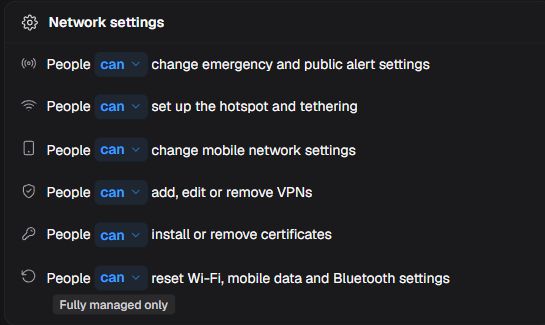
Figure 14. Network settings.
Cell broadcast settings
| Choice or action | Function and outcome |
|---|---|
| Allowed | People can change emergency/public alert settings. |
| Blocked | People cannot change emergency/public alert settings. |
Hotspot and tethering settings
This is the legacy control referenced under Mobile & sharing → Tethering → Not configured. When Tethering has an explicit choice, that choice takes precedence and Android ignores this control. Review both choices together; do not assume Blocked here limits explicitly Allowed tethering.
| Choice or action | Function and outcome |
|---|---|
| Allowed | People can configure hotspot/tethering. |
| Blocked | People cannot configure hotspot/tethering. |
Mobile network settings
| Choice or action | Function and outcome |
|---|---|
| Allowed | People can change mobile network settings. |
| Blocked | People cannot change mobile network settings. |
VPN settings
| Choice or action | Function and outcome |
|---|---|
| Allowed | People can add/edit/remove VPNs. |
| Blocked | People cannot add/edit/remove VPNs. |
Security credentials
| Choice or action | Function and outcome |
|---|---|
| Allowed | People can install/remove certificates. |
| Blocked | People cannot install/remove certificates. |
Reset network settings
This control applies only to fully managed devices. In other modes, Android reports management-mode noncompliance; do not rely on this restriction in a work profile.
| Choice or action | Function and outcome |
|---|---|
| Allowed | People can reset Wi-Fi/mobile/Bluetooth settings. |
| Blocked | People cannot reset Wi-Fi/mobile/Bluetooth settings. |
Security
Recovery & tamper
Allowing factory reset makes that action available on the device; it does not execute it now. Safe mode, debugging and external storage restrictions can limit maintenance. On Android 12 or later, consider the USB data access control in Connectivity as indicated by the Portal.
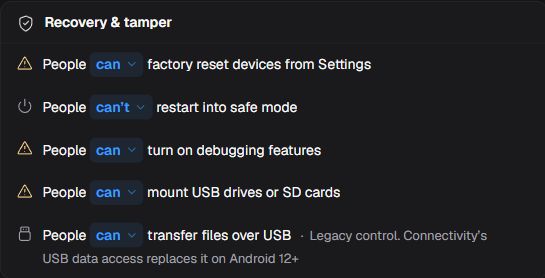
Figure 15. Recovery & tamper.
Factory reset
| Choice or action | Function and outcome |
|---|---|
| Allowed | People can factory reset from Settings. |
| Blocked | People cannot factory reset from Settings. |
Safe boot
| Choice or action | Function and outcome |
|---|---|
| Allowed | People can restart into safe mode. |
| Blocked | People cannot restart into safe mode. |
Developer settings
| Choice or action | Function and outcome |
|---|---|
| Allowed | People can enable debugging features. |
| Blocked | People cannot enable debugging features. |
External storage
| Choice or action | Function and outcome |
|---|---|
| Allowed | People can mount USB drives or SD cards. |
| Blocked | People cannot mount external media. |
Lock screen
Choose which features remain available while locked. Restrictions support multiple selections. The all-features option includes future features and implies individual restrictions; review its impact on unlocking and notifications.
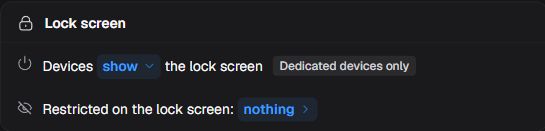
Figure 16. Lock screen.
Lock screen restrictions
| Choice or action | Function and outcome |
|---|---|
| Restrict all features | Disables all current/future lock screen features; individual entries become implied and disabled. |
| All notifications | Hide every notification on the lock screen |
| Notification content | Hide notification content. Notifications still appear |
| Replies from notifications | Block typing into notifications while locked |
| Fingerprint | Disable the fingerprint sensor on the lock screen |
| Face | Disable face authentication |
| Iris | Disable iris authentication |
| All biometrics | Disable every biometric unlock method |
| Trust agents | Ignore trust agents that keep the device unlocked |
| Camera | Block opening the camera without unlocking |
Lock screen & support messages
Edit the message for its intended location: lock screen, blocked setting or administrator screen. Respect each field limit and avoid secrets. Closing after typing is not a general way to cancel edits.
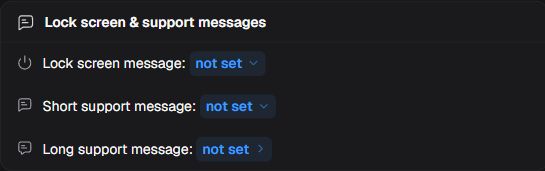
Figure 17. Lock screen & support messages.
Lock screen message
Opens editor for message displayed on lock screen; the typed value remains unsaved.
Lock screen message
Sets up to 200 characters on managed device lock screen.
Short support message
Opens short support message editor; the typed value remains unsaved.
Short support message
Sets up to 200 characters shown where a setting is blocked.
Long support message
Opens long support message editor; the typed value remains unsaved.
Long support message
Sets up to 4096 characters displayed in device administrator screen.
Android version
Set the minimum accepted Android version. Before raising it, check associated devices: older versions can become noncompliant.

Figure 18. Android version.
Minimum Android version
Sets the minimum accepted Android version; devices running older versions may become noncompliant.
Sign-in & accounts
Choose sign-in method before requirement and expiry. Disabling sign-in clears expiry. Work-account binding is separate from adding/removing accounts and controls whether an email is required. The email must belong to the company managed Google domain; changing it does not alter an account already set up on a device. In kiosk mode, follow the Portal limitation on blocking apps before sign-in.
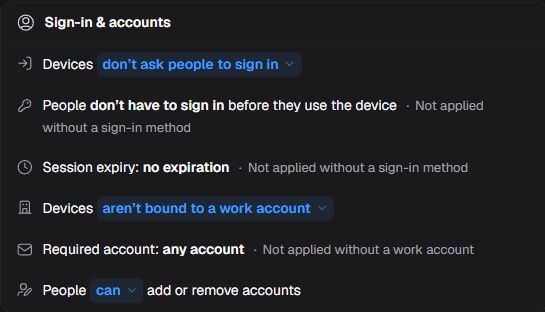
Figure 19. Sign-in & accounts.
Account changes
| Choice or action | Function and outcome |
|---|---|
| Allowed | People can add or remove accounts. |
| Blocked | People cannot add or remove accounts. |
Sign-in method
Configures device-use sign-in managed by Nomid Settings, using a PIN or SSO. This session is separate from Android screen unlocking and binding a Google work account.
| Choice or action | Function and outcome |
|---|---|
| None | Device does not ask people to sign in. |
| PIN | Device asks people to sign in with a PIN. |
| SSO | Device asks people to sign in with single sign-on. |
Login requirement
| Choice or action | Function and outcome |
|---|---|
| Not required | People do not have to sign in before using device. |
| Always required | People must sign in before using device. |
Account binding (one time only)
With Google account linking enabled, Android management must use an authenticated Google work account. Android handles adding and authenticating the account; saving the policy neither creates a Google account nor authenticates the person automatically. This is separate from Nomid Settings PIN or SSO login.
The “one time only” limit concerns choosing the required account: after an authenticated Google account has been added, changing Require a specific account does not replace the configured account. Choose the correct address before that step; this field is neither an account-switching mechanism nor a session timeout.
| Choice or action | Function and outcome |
|---|---|
| No | Does not impose a Google-authenticated-account requirement through this rule. |
| Work Google Account | Requires an authenticated Google work account for Android management, as described in the account setup above. |
Session expiry
Sets the device sign-in session duration in whole minutes, until Nomid Settings signs the person out. Disabling the sign-in method clears this expiry.
Require a specific account
Sets required Google work account; disabling binding clears email.
Passwords & recovery
Add a rule for each required scope and select quality before character minimums. Fields vary with quality. A failed-password threshold can wipe data; confirm recovery before enabling it.
Recovery accounts can be required after factory reset. Confirm the company controls those accounts. A valid typed email can enter the list on Enter, blur or pane close; check the list before saving.
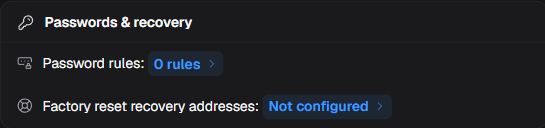
Figure 20. Passwords & recovery.
Password rules
Opens rules requiring a password for device or work-profile access, according to each rule’s scope.
Add and remove password rules
| Choice or action | Function and outcome |
|---|---|
| Add password policy | Adds a password rule to the unsaved edit for the next free scope, device or work profile. |
| Remove (rule name) | Removes the named password rule from the unsaved edit and offers Undo for that removal. |
| Undo | Restores the just-removed password rule in the unsaved edit. |
Password scope
| Choice or action | Function and outcome |
|---|---|
| Not set | Applies the requirement to the work profile on work-profile devices, or to the whole device on fully managed or dedicated devices. Confirm the targets’ management mode. |
| Only applied to the device | Applies rule to device. |
| Only applied to the work profile | Applies rule to work profile. |
Password quality
Quality defines the minimum unlock requirement for the rule’s scope. For device-scoped rules on personally owned work-profile devices running Android 12 or later, Android interprets these qualities as complexity bands; effective restrictions can differ from individual minimums. Check the applied requirement before deploying the rule.
| Choice or action | Function and outcome |
|---|---|
| Not required | Does not require password through this rule. |
| Biometrical simple | Requests a minimum level that admits low-security biometric recognition. It does not mean requiring a strong numeric password; the effective method depends on Android and management mode. |
| Required, but no rules | Requires password without specific character quality. |
| Required, but with rules | Requires the password to satisfy this rule’s length and character minimums, where applicable to Android and the scope. |
| Numeric | Requires numeric characters and allows a length requirement; it does not add the sequence restriction of Numeric strong. |
| Numeric strong | Requests a numeric password without repeating or ordered sequences, such as 4444 or 1234, and allows a length requirement. Observe the Android and scope conversion noted above. |
| Alphabetic | Requires letters or symbols and allows a minimum password length. |
| Alphanumeric | Requires digits combined with letters or symbols and allows a minimum password length. |
Minimum password length
Sets minimum password length; visibility depends on password quality.
Minimum letters
Sets minimum letters; visibility depends on password quality.
Minimum lower cases
Sets minimum lower cases; visibility depends on password quality.
Minimum upper case letters
Sets minimum upper case letters; visibility depends on password quality.
Minimum numerical digits
Sets minimum numerical digits; visibility depends on password quality.
Minimum symbols
Sets minimum symbols; visibility depends on password quality.
Minimum non-letter
Sets minimum non-letter; visibility depends on password quality.
Maximum attempts
Configures the failed-password limit for this rule’s scope as a destructive-wipe trigger. This field does not establish the wipe’s scope or execution.
Password history
Sets previous passwords disallowed for reuse.
Password expires after
Set password expiry using days or hours; existing minute/second values are preserved.
Password unlock
Sets the interval after unlocking with a password, PIN or pattern, the strong authentication forms for this control, before one of those forms is required again. During the interval other permitted methods, such as biometrics or trust agents, may be used; afterward they are insufficient until strong authentication is performed again on the covered device or profile.
| Choice or action | Function and outcome |
|---|---|
| Period is set to the device's default | Uses device default strong-authentication interval. |
| Period is set to 24 hours | Sets 24-hour strong-authentication interval. |
Factory reset recovery addresses
Opens recovery address editor; configured accounts affect recovery after reset.
Recovery email addresses
Adds recovery accounts authorized for setup after a factory reset; empty and duplicate addresses are discarded. Enter, leaving the field or closing the pane can accept a valid typed address.
Encryption & apps
Configure encryption and app sources for the management mode. Private-key selection and app/address rules are separate decisions. When limiting accessibility or keyboards to a list, include necessary packages so people can keep using the device; do not assume omitted apps are allowed.
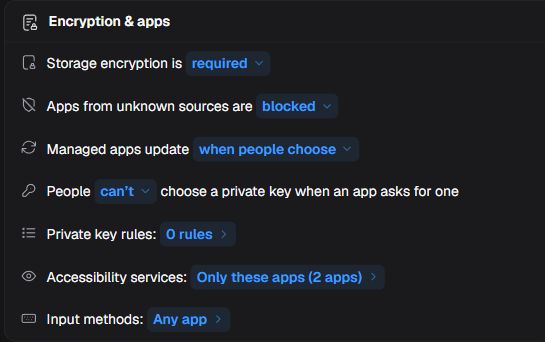
Figure 21. Encryption & apps.
Encryption
| Choice or action | Function and outcome |
|---|---|
| Not required (Default) | Storage encryption is not required. |
| Required | Storage encryption is required. |
| Required, with a password to start | Storage encryption requires password to start. |
Untrusted apps
| Choice or action | Function and outcome |
|---|---|
| Blocked (Default) | Apps from unknown sources are blocked. |
| Personal profile only | Allows installation of apps from unknown sources only in the personal profile. |
| Allowed on the whole device | Allows installation of apps from unknown sources across the device. |
App updates
For Google Play apps, this general control does not override Postponed or High priority selected in the app details under Apps & experience → Home screen → Auto update. Check that individual choice too; new rules do not interrupt updates already in progress.
| Choice or action | Function and outcome |
|---|---|
| People choose (Default) | People choose when managed apps update. |
| Any time | Allows managed apps to update as soon as updates are available. |
| On Wi-Fi only | Allows managed apps to update over a Wi-Fi connection. |
| Never | Does not request automatic updates; managed apps update when the person requests them. |
Private key selection
| Choice or action | Function and outcome |
|---|---|
| Allowed | People can choose a private key when an app asks. |
| Blocked | People cannot choose a private key. |
Private key rules
Opens rules granting an app access to the private key identified by its alias when its package and requested address match the rule. If several rules match, the last applies. Without a match, Private key selection determines whether the person may choose a key. That control has no effect when certificate selection is delegated to an app.
Accessibility services
Choose which apps people may enable as Android accessibility services, for example to assist reading or navigation if they implement those features. Allowing does not automatically install or enable the service. System accessibility services remain available; the list restricts other apps.
| Choice or action | Function and outcome |
|---|---|
| Any app | Any app can provide accessibility service. |
| Only these apps | Among non-system apps, allows enabling accessibility services only from the selected packages. |
Input methods
Choose which keyboards people may enable for typing on the device. Allowing does not automatically install or select a keyboard. System input methods remain allowed; the package list restricts non-system keyboards.
| Choice or action | Function and outcome |
|---|---|
| Any app | Any input method app is permitted. |
| System keyboards only | Only system keyboards are permitted. |
| Only these apps | Besides system keyboards, allows enabling only the selected keyboard packages. |
Restrictions & responses
These options configure responses to three distinct conditions: an operating system that cannot be recognized, signs of OS tampering, and a failed hardware-backed security check. Once distributed, the policy defines the response for the recognized condition; selecting an option or saving is not a wipe-now command.
This control does not set an evaluation interval. Confirm check frequency and the exact wipe scope for the version and management mode in use before enabling the response. Wiping can remove data and management; do not configure it assuming personal data will be preserved. Wipe is destructive and may require reprovisioning; later policy changes do not recover erased data.
For enforcement, choose requirement, scope and delay. Device-wide blocking includes personal apps. If both block and wipe apply, wipe must follow block. Edit and save a rule to change a future restriction; this does not undo an executed wipe.
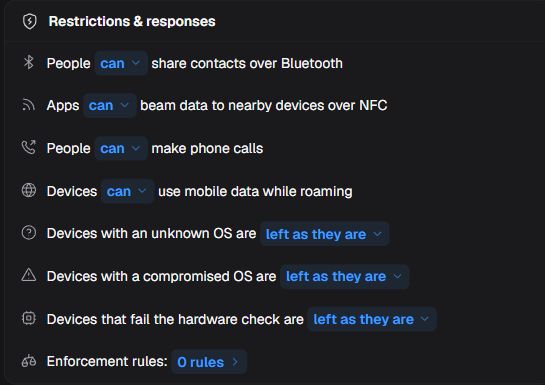
Figure 22. Restrictions & responses.
Bluetooth contact sharing
| Choice or action | Function and outcome |
|---|---|
| Allowed | People can share contacts over Bluetooth. |
| Blocked | People cannot share contacts over Bluetooth. |
NFC sharing
| Choice or action | Function and outcome |
|---|---|
| Allowed | Apps can beam data over NFC. |
| Blocked | Apps cannot beam data over NFC. |
Outgoing calls
| Choice or action | Function and outcome |
|---|---|
| Allowed | People can make outgoing calls. |
| Blocked | Prevents ordinary outgoing calls; emergency calls remain permitted. |
Data roaming
| Choice or action | Function and outcome |
|---|---|
| Allowed | Devices can use mobile data while roaming. |
| Blocked | Devices cannot use mobile data while roaming. |
Enforcement rules
Opens noncompliance enforcement rules editor.
Unknown OS
| Choice or action | Function and outcome |
|---|---|
| Do nothing | For unrecognized OS: Leaves affected devices as they are. |
| Quarantine | Selects the Quarantine response for this condition. Access restrictions and the release procedure are not established by this configuration’s sources; confirm both with support for the version and management mode before enabling it. |
| Wipe | For unrecognized OS: Sets wipe as the response to this security condition; confirm its management-mode scope before enabling. |
Compromised OS
| Choice or action | Function and outcome |
|---|---|
| Do nothing | For tampered OS: Leaves affected devices as they are. |
| Quarantine | Selects the Quarantine response for this condition. Access restrictions and the release procedure are not established by this configuration’s sources; confirm both with support for the version and management mode before enabling it. |
| Wipe | For tampered OS: Sets wipe as the response to this security condition; confirm its management-mode scope before enabling. |
Hardware evaluation failed
| Choice or action | Function and outcome |
|---|---|
| Do nothing | For failed hardware-backed check: Leaves affected devices as they are. |
| Quarantine | Selects the Quarantine response for this condition. Access restrictions and the release procedure are not established by this configuration’s sources; confirm both with support for the version and management mode before enabling it. |
| Wipe | For failed hardware-backed check: Sets wipe as the response to this security condition; confirm its management-mode scope before enabling. |
Requirement
| Choice or action | Function and outcome |
|---|---|
| App requirements | Uses Android-reported app noncompliance, such as a missing required app or one below the minimum version code. Check the device’s reported reason; not every app setting has the same trigger. |
| Password requirements | Uses reported noncompliance with this policy’s password rules, in the scope indicated by Android. It does not refer to Nomid Remote access passwords. |
Block scope
The scope determines which apps are blocked for noncompliance; these choices apply to company-owned devices. Confirm management mode and the presence of a work profile before deployment.
| Choice or action | Function and outcome |
|---|---|
| Not set | Leave scope unspecified; when block days are set, the work-profile default applies. |
| Work profile | Block work-profile apps. |
| Entire device | Block the entire device, including personal apps. |
| Default scope | Legacy value: uses Android’s default of blocking work-profile apps while leaving personal apps unaffected. Shown only when already saved; confirm management-mode support. |
Block after (days)
Sets the nonnegative whole-day delay for blocking due to noncompliance with the selected requirement. A configured scope without a delay can cause immediate blocking.
Wipe after (days)
Sets the wipe-action delay for noncompliance with the selected requirement. If blocking is also configured, wiping must follow the block delay; this is not a wipe-now command.
Keep factory reset protection
-
When enabled: Requests preservation of factory reset protection in this enforcement wipe configuration. This does not guarantee that protection is preserved after execution.
-
When disabled: Does not request preserving factory reset protection for this enforcement wipe.
Rules
Geofences
Open the geofence, name it and set center and radius. The geofence tag helps find devices outside all areas in the device list; it does not itself order a wipe or lock. Map changes also change the unsaved policy settings. Check area and radius before saving.
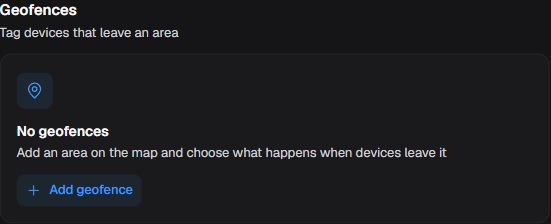
Figure 23. Geofences.
Add geofence
When the first geofence is not yet configured, opens its empty fields to define the new area. To change an existing geofence, use its edit control. Editing the name, map, radius or tagging changes the shared unsaved edit.
Name
Sets required geofence name.
Latitude
Sets center latitude between -90 and 90.
Longitude
Sets center longitude between -180 and 180.
Radius
Sets required radius of at least 1 meter.
Add the tag “geofence”
-
When enabled: Tag devices outside every geofence so they can be found in the device list.
-
When disabled: Stop requesting this outside-area tag.
App schedules
Add the schedule, select its apps and configure day groups and non-overlapping time windows. Start is included; end marks when availability stops. Selected apps are blocked outside windows. Removing the only rule restricting an app can make it available at any time; review before confirming.
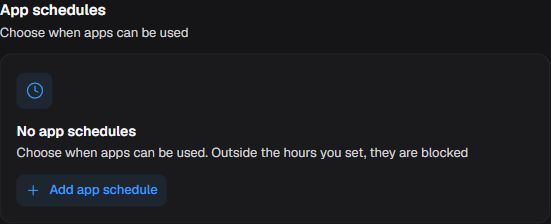
Figure 24. App schedules.
Add app schedule
Creates an unsaved schedule with weekdays and 09:00–18:00 initially. Closing removes it if it still has no name, no apps and unchanged initial days and hours. Complete and review the name, apps, days and hours before saving.
Schedule name
Sets schedule name up to 20 characters.
Add apps
Add the apps whose use this schedule will restrict. The picker lists eligible policy apps and may vary.
Days
| Choice or action | Function and outcome |
|---|---|
| Mon | Include this day in the group whose time windows allow app use. |
| Tue | Include this day in the group whose time windows allow app use. |
| Wed | Include this day in the group whose time windows allow app use. |
| Thu | Include this day in the group whose time windows allow app use. |
| Fri | Include this day in the group whose time windows allow app use. |
| Sat | Include this day in the group whose time windows allow app use. |
| Sun | Include this day in the group whose time windows allow app use. |
Start time, window (window number)
The Portal stores this schedule’s days and times, but the execution clock/time-zone reference was not established by the reviewed sources. Before deploying across time zones, confirm the reference with support for the Nomid Settings version in use and validate a representative device.
Sets the HH:MM start of the window when this schedule’s apps may be used; the start instant is included.
End time, window (window number)
Sets the HH:MM end of this schedule’s app-use window; that window no longer allows use from this instant.
Manage windows and schedules
| Choice or action | Function and outcome |
|---|---|
| Add hours | Adds an allowed-use window for this schedule’s apps, without overlap and where space remains. |
| Remove window (window number) | Removes the selected allowed-use window for this schedule’s apps from the unsaved edit. |
| Add other days | Adds a group of unassigned days to this schedule so their app-use windows can be configured. |
| Remove app schedule | After confirmation remove the rule; apps restricted only by this rule become available at any time. |
| Done | Close the pane; edits remain unsaved until Save. |
System
Updates
Choose update installation timing and annual freeze dates separately. Postponing up to 30 days does not postpone security patches; a freeze blocks all updates, including those patches. Check periods so necessary fixes are not blocked.
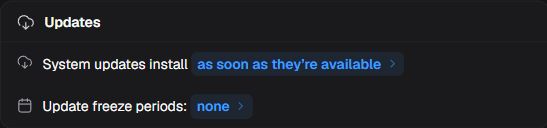
Figure 25. Updates.
System updates
| Choice or action | Function and outcome |
|---|---|
| When people accept them | Devices ask people before installing updates; Android default. |
| As soon as they’re available | Updates install automatically when released. |
| In a daily window | Updates install during the configured daily window. |
| Postponed | Updates wait up to 30 days; security patches are not postponed. |
Start hours
The daily update window uses each device’s local time, not the editing computer’s clock. Devices in different time zones use the same local start and end times at different absolute instants.
Sets the start of the daily window for installing Android system updates.
End hours
Sets the end of the daily window for installing Android system updates.
Days to postpone updates
Sets how many days to postpone Android system updates and computes the corresponding period. This choice does not postpone security patches.
Freeze Periods
Freeze periods — Opens annual freeze-period editor; freezes block all system updates including security patches on those dates.
Start date
Sets the annual start date for suspending all system updates, including security patches.
End date
Sets the annual end date for suspending all system updates, including security patches.
Add and remove periods
| Choice or action | Function and outcome |
|---|---|
| Add freeze period | Adds an annual period for suspending all system updates to the unsaved edit. |
| Remove freeze period | Removes the selected annual system-update freeze period from the unsaved edit. |
Screen & power
Set inactivity timeout, lock limit, charging sources and brightness consistently. Charging sources allow multiple selections. Enforced screen timeout and automatic or fixed brightness remove people’s adjustment choice; they require Android 9 or later on fully managed devices, or Android 15 or later on company-owned work-profile devices. Check units before saving.
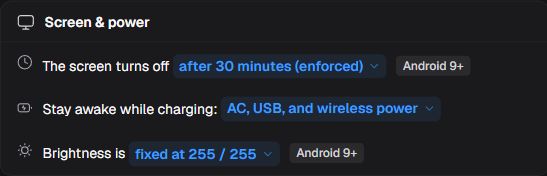
Figure 26. Screen & power.
Screen timeout
| Choice or action | Function and outcome |
|---|---|
| User choice | People choose timeout; optional maximum lock bounds inactivity. |
| Enforced | Screen turns off after configured seconds; people cannot change it. |
Turn off after
Sets enforced screen inactivity timeout in seconds.
Maximum time to lock
Sets maximum inactivity before lock; empty means no limit.
Stay awake while charging
| Choice or action | Function and outcome |
|---|---|
| AC | Stays awake on AC power. |
| USB | Stays awake on USB power. |
| Wireless | Stays awake on wireless charging. |
Brightness
| Choice or action | Function and outcome |
|---|---|
| User choice | People choose brightness. |
| Automatic | Device adjusts brightness automatically using optional level; people cannot change it. |
| Fixed | Brightness stays at configured level; people cannot change it. |
Level
The Portal accepts input from 0 to 255, but in the Android contract only 1 to 255 represent brightness levels: 1 is lowest and 255 highest. Zero means no level is set, not minimum brightness or a fixed zero level. In Fixed mode, enter 1 to 255; in Automatic mode, a defined level guides adjustment.
Sound
Choose free volume, starting level, fixed level or mute. Configure notification sound, screen wake and vibration separately. Test a representative device for audibility and battery impact.
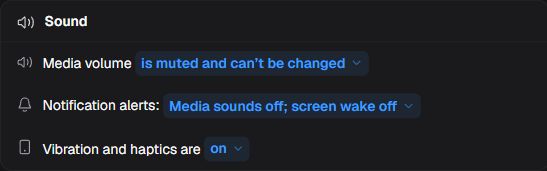
Figure 27. Sound.
Media volume
| Choice or action | Function and outcome |
|---|---|
| User controlled | People can adjust media volume. |
| Set starting volume | Policy sets starting level, then people can adjust. |
| Mute and disable controls | Mutes media and prevents volume changes. |
| Keep at fixed volume | Keeps configured level and prevents lasting changes. |
Level
Enter the media-volume level: 0–100 for starting volume or 1–100 for fixed volume.
Notification alerts
Opens media sound/screen wake alert controls; changes remain unsaved until Save.
Play notification sounds through media volume
-
When enabled: Play notification sound/vibration through the media stream.
-
When disabled: Turn off this notification sound/vibration while preserving other notification settings.
Wake the screen for new notifications
-
When enabled: Request screen wake for new notifications.
-
When disabled: Turn off this screen-wake request.
Vibration and haptics
This control sends the vibration and haptics restriction to Nomid Settings; On removes that restriction and Off requests it. The consulted sources do not establish whether people can change the state afterward or how the app reapplies the restriction. Before relying on continuous blocking or freedom to adjust it, confirm behavior with support for the installed Nomid Settings version and validate a representative device.
| Choice or action | Function and outcome |
|---|---|
| On | Does not request blocking vibration and haptics through Nomid Settings; it does not force every notification or interaction to vibrate. |
| Off | Requests Nomid Settings to restrict vibration and haptics; whether people can re-enable them remains subject to the confirmation described above. |
Volume adjustment
| Choice or action | Function and outcome |
|---|---|
| Allowed | People can adjust volume. |
| Blocked | Prevents volume adjustment and changes Media volume to Mute and disable controls in the unsaved edit. A positive level used for Set starting volume or Keep at fixed volume is cleared, and fixed-volume enforcement is turned off. Review both controls before Save. |
Date & time
Choose automatic or person-controlled date, time and zone. This affects device time interpretation; check the result before using scheduled routines.

Figure 28. Date & time.
Automatic date & time
| Choice or action | Function and outcome |
|---|---|
| Set automatically (enforced) | Sets date, time and zone automatically and prevents people from adjusting them manually; applies to company-owned devices. |
| Set by people (user choice) (Default) | People choose date, time and zone. |
App behavior
Set responses to permission requests and what people may do with apps. Allowing uninstall does not uninstall an app now. The managed-installation readout is informational, not an installation-blocking selector.
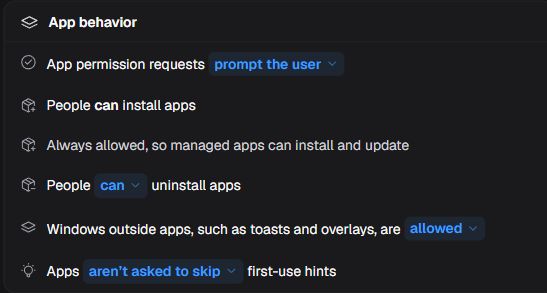
Figure 29. App behavior.
App permission requests
| Choice or action | Function and outcome |
|---|---|
| Prompt the user (Default) | Apps prompt users for permission. |
| Deny all | Permission requests are denied automatically. |
| Grant all (deprecated) | Permissions are granted automatically; option disabled in current UI. |
Uninstalling apps
The general permission does not authorize removing an app that the policy requires to be installed. To release a required Google Play app for removal, also review its Installation choice in the app details.
| Choice or action | Function and outcome |
|---|---|
| Allowed | Allows uninstalling removable apps; apps whose installation is required by policy remain protected against user uninstallation. |
| Blocked | People cannot uninstall apps. |
Windows outside apps
| Choice or action | Function and outcome |
|---|---|
| Allowed | Allows windows outside apps such as toasts and overlays. |
| Blocked | Blocks toasts and overlays outside the app window. |
Skip first-use hints
| Choice or action | Function and outcome |
|---|---|
| Recommend skipping | Asks apps to skip first-use hints. |
| Off | Does not ask apps to skip hints. |
People can install apps
Managed app installation remains allowed. This readout cannot block installation.
Kiosk controls
To change kiosk status bar, navigation, power and Settings access, use Launcher mode in Apps & experience. Confirm Nomid Kiosk mode and preserve usable maintenance access before restricting navigation.
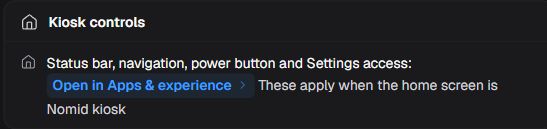
Figure 30. Kiosk controls.
Users & personalization
Choose whether people may manage users and personalize Android. These permissions enable or restrict device actions; they do not immediately create or remove users through the Portal.
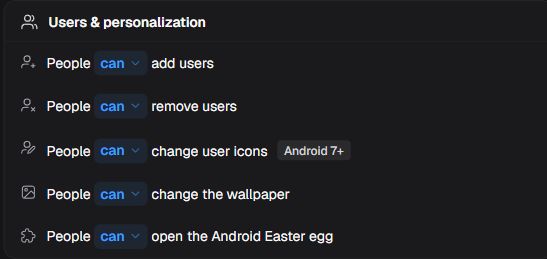
Figure 31. Users & personalization.
Add users
| Choice or action | Function and outcome |
|---|---|
| Allowed | People can add users. |
| Blocked | People cannot add users. |
Remove users
| Choice or action | Function and outcome |
|---|---|
| Allowed | People can remove users. |
| Blocked | People cannot remove users. |
User icon
| Choice or action | Function and outcome |
|---|---|
| Allowed | People can change user icons. |
| Blocked | People cannot change user icons. |
Wallpaper
| Choice or action | Function and outcome |
|---|---|
| Allowed | People can change wallpaper. |
| Blocked | People cannot change wallpaper. |
Android Easter egg
This is the hidden recreational experience in Android Settings, with an animation or game that varies by version. This control allows or blocks access to it; it is not a general list of installed games.
| Choice or action | Function and outcome |
|---|---|
| Allowed | People can open Android Easter egg. |
| Blocked | People cannot open Android Easter egg. |
Privacy & data
Capture
Treat camera, microphone and screen capture as independent permissions. Allowing the microphone lets people unmute it; it does not start audio recording. Allowing capture does not start a remote session.
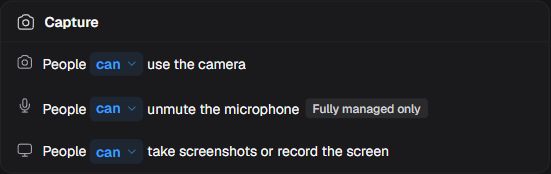
Figure 32. Capture.
Camera
| Choice or action | Function and outcome |
|---|---|
| Allowed | People can use camera. |
| Blocked | People cannot use camera. |
Microphone
| Choice or action | Function and outcome |
|---|---|
| Allowed | People can unmute microphone. |
| Blocked | People cannot unmute microphone. |
Screen capture
| Choice or action | Function and outcome |
|---|---|
| Allowed | People can take screenshots or record screen. |
| Blocked | People cannot capture screen. |
Location
Separate Android location, person-controlled sharing and Nomid Settings reporting. Set time, distance or both, then choose whether either or both targets must be met. Presets fill targets; mile alternatives follow imperial preference. These are reporting targets, not timing guarantees: sleep, connectivity and missing location fixes can delay reports.
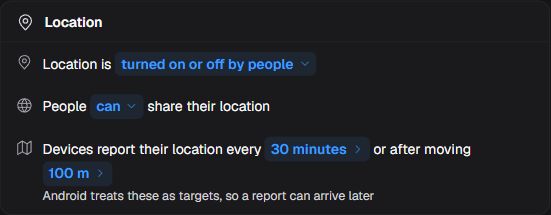
Figure 33. Location.
Location mode
Use this to leave switching to people or require a state. On company-owned work-profile devices running Android 11 or later, an enforced state depends on the person making the requested adjustment; noncompliance may be reported until then. Do not rely on a forced change in that case.
| Choice or action | Function and outcome |
|---|---|
| Always on | Requires location on, subject to the person-controlled adjustment described above. |
| People choose (Default) | People may turn location on or off. |
| Off | Requires location off, subject to the person-controlled adjustment described above. |
Location sharing
Controls whether people may enable Android location sharing with apps; within a work profile, it can prevent those apps from accessing location. It does not choose human recipients or configure Nomid Settings reports, which have separate controls below.
| Choice or action | Function and outcome |
|---|---|
| Allowed | Allows enabling Android location sharing with apps, subject to other permissions and location mode. |
| Blocked | Prevents enabling that sharing in the managed scope; in a work profile it restricts location for that profile’s apps. |
Location reports
Opens time/distance criteria for position reports; settings depend on Nomid Settings.
Report location
-
When enabled: Enables Nomid Settings location reports, restoring previous time and distance targets or the standard interval.
-
When disabled: Clears the time and distance targets and disables Nomid Settings location reports.
Report every
Sets minutes between Nomid Settings location reports, with a 15-minute minimum in the Portal. Empty allows location reporting by distance alone.
Time target presets
Each preset fills the time target between location reports sent by Nomid Settings.
| Choice or action | Function and outcome |
|---|---|
| 15 min | Sets the reporting interval to 15 minutes. |
| 30 min | Sets the reporting interval to 30 minutes. |
| 1 h | Sets the reporting interval to 60 minutes. |
| 4 h | Sets the reporting interval to 240 minutes. |
| 24 h | Sets the reporting interval to 1440 minutes. |
Distance
Sets the positive displacement target for Nomid Settings location reports. The displayed unit follows the metric or imperial preference.
Metric distance presets
Each preset fills the displacement target for a new Nomid Settings location report.
| Choice or action | Function and outcome |
|---|---|
| 50 m | Sets the displacement target to 50 meters. |
| 100 m | Sets the displacement target to 100 meters. |
| 500 m | Sets the displacement target to 500 meters. |
| 1 km | Sets the displacement target to 1000 meters. |
Mile alternatives
These presets fill the same location-report displacement target in miles, converted to meters in the configuration.
| Choice or action | Function and outcome |
|---|---|
| 0.05 mi | Sets the displacement target to 0.05 miles, converted to meters. |
| 0.1 mi | Sets the displacement target to 0.1 miles, converted to meters. |
| 0.25 mi | Sets the displacement target to 0.25 miles, converted to meters. |
| 0.5 mi | Sets the displacement target to 0.5 miles, converted to meters. |
With both set
When both time and distance are configured for Nomid Settings location reports, choose how to combine the two targets.
| Choice or action | Function and outcome |
|---|---|
| When both are reached | Sends the location report only when both time and displacement targets have been met. |
| When either is reached | Sends the location report when either the time or the displacement target has been met. |
Device reports
Choose the app inventory level and enable only the status categories needed. Each category is independent; disabling it excludes that data from future reports. These selectors decide what is reported to the administrator; they do not let people change hardware or erase data already received.
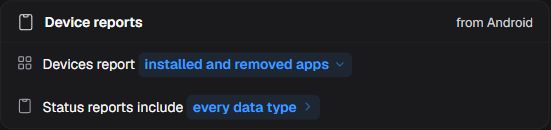
Figure 34. Device reports.
App reports
| Choice or action | Function and outcome |
|---|---|
| Installed and removed apps | Reports installed and removed apps. |
| Installed apps only | Reports installed apps. |
| Nothing about apps | Does not report app inventory. |
Device data
Opens selectors for independent device-data categories to include in reports. Each category has its own state; opening the pane does not enable all categories.
Device settings
-
When enabled: Includes device settings, encryption, screen lock, USB debugging and unknown sources in device reporting.
-
When disabled: Leaves device settings, encryption, screen lock, USB debugging and unknown sources out of device reporting.
Display info
-
When enabled: Includes display size, density and refresh rate in device reporting.
-
When disabled: Leaves display size, density and refresh rate out of device reporting.
Hardware status
-
When enabled: Includes temperatures, fan speeds and CPU usage in device reporting.
-
When disabled: Leaves temperatures, fan speeds and CPU usage out of device reporting.
Memory info
-
When enabled: Includes RAM, storage size and low-storage events in device reporting.
-
When disabled: Leaves RAM, storage size and low-storage events out of device reporting.
Network info
-
When enabled: Includes IMEI, Wi-Fi MAC address and mobile carrier in device reporting.
-
When disabled: Leaves IMEI, Wi-Fi MAC address and mobile carrier out of device reporting.
Power management events
-
When enabled: Includes battery, charging, startup and shutdown events in device reporting.
-
When disabled: Leaves battery, charging, startup and shutdown events out of device reporting.
Software info
-
When enabled: Includes Android version, security patch level and build identification in device software reports.
-
When disabled: Excludes this software category from future reports.
System properties
-
When enabled: Includes technical names and values of system properties selected by Android, depending on device and manufacturer. The source does not define a universal list of reported properties; inspect the set reported by a representative model before deploying this collection.
-
When disabled: Excludes this category of system-property names and values from future reports.
Usage statistics
Select what Nomid Settings collects and the periodic reporting interval. App, mobile-data and Wi-Fi usage follow that interval. Wi-Fi and Bluetooth connections are events and do not wait for it. Notifications require notification access and at least daily reporting. These controls authorize collection and reporting to the administrator; they do not allow or block using apps or connections. Disabling collection limits future reports and does not automatically erase history.
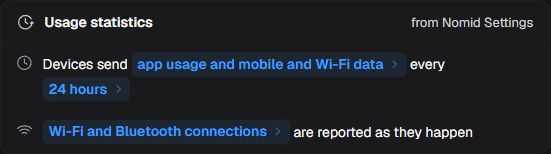
Figure 35. Usage statistics.
Usage statistics
Opens usage reporting controls; Nomid Settings dependency and interval floor apply.
Collected data
For data consumption, the reviewed Nomid Settings implementation records received and sent volumes in bytes, separately for mobile and Wi-Fi, with totals and detail by app package. It does not measure connection duration or accessed content. It uses UTC daily windows and updates a partial reading for today; this differs from the reporting interval. It requires Android 10 or later and the statistics access Android allows Settings. Apps sharing a system identifier may repeat values in the detail; adding app rows may not reproduce the total.
Mobile data usage and Wi-Fi data usage select per-app detail for each network. When at least one collector besides notification statistics is selected, the periodic routine also calculates totals for both networks even if one of those selectors is off. Thus, turning off a selector does not guarantee excluding its total. These selectors also do not block on-demand statistics requests from the service. Data availability and presentation depend on the installed version and granted access; missing or zero values alone do not establish absence of traffic.
For notifications, the sources establish collection of counts but do not detail the handling events sent by each Nomid Settings version. Before requiring, for example, a report of opened or dismissed notifications, confirm with support whether the installed version supplies that detail.
| Choice or action | Function and outcome |
|---|---|
| App usage | Collects app usage and duration periodically. |
| Mobile data usage | Enables per-app detail of received/sent mobile-network bytes under the conditions above. |
| Wi-Fi data usage | Enables per-app detail of received/sent Wi-Fi bytes under the conditions above. |
| Notification statistics | Collects notification counts through Nomid Settings; requires notification access and at least daily reporting. |
| Wi-Fi connections | Reports joined networks and duration as events; ignores periodic interval. |
| Bluetooth connections | Reports accessory connection events; ignores periodic interval. |
Send every
Sets minutes between periodic usage-statistics reports sent by Nomid Settings. Empty uses 24 hours. The Portal raises new values below 15 minutes; Settings ignores older shorter values and uses 24 hours.
Reporting interval presets
Each preset fills the periodic reporting interval for usage statistics collected by Nomid Settings; Wi-Fi and Bluetooth connection events do not follow this interval.
| Choice or action | Function and outcome |
|---|---|
| 1 h | Sets the reporting interval to 60 minutes. |
| 6 h | Sets the reporting interval to 360 minutes. |
| 12 h | Sets the reporting interval to 720 minutes. |
| 24 h | Sets the reporting interval to 1440 minutes. |
Insights
Consult the indicators available for this policy. Data availability depends on devices and received reports; this tab has no universal indicator to fill in manually.
Activity
Policy activity
Use the filter to narrow the list and Show more for older entries. Compare shows differences without changing the policy. History requires View policy or Edit policy, together with company and policy-scope access.
Restore requires Edit policy, an available policy and no pending configuration or information edits. Review the chosen revision and confirm only to save its configuration immediately. Restore preserves current description, tags and group; it does not need a later Save. Closing the pane does not cancel an ongoing restore. If an AI explanation is offered, it starts its own conversation.
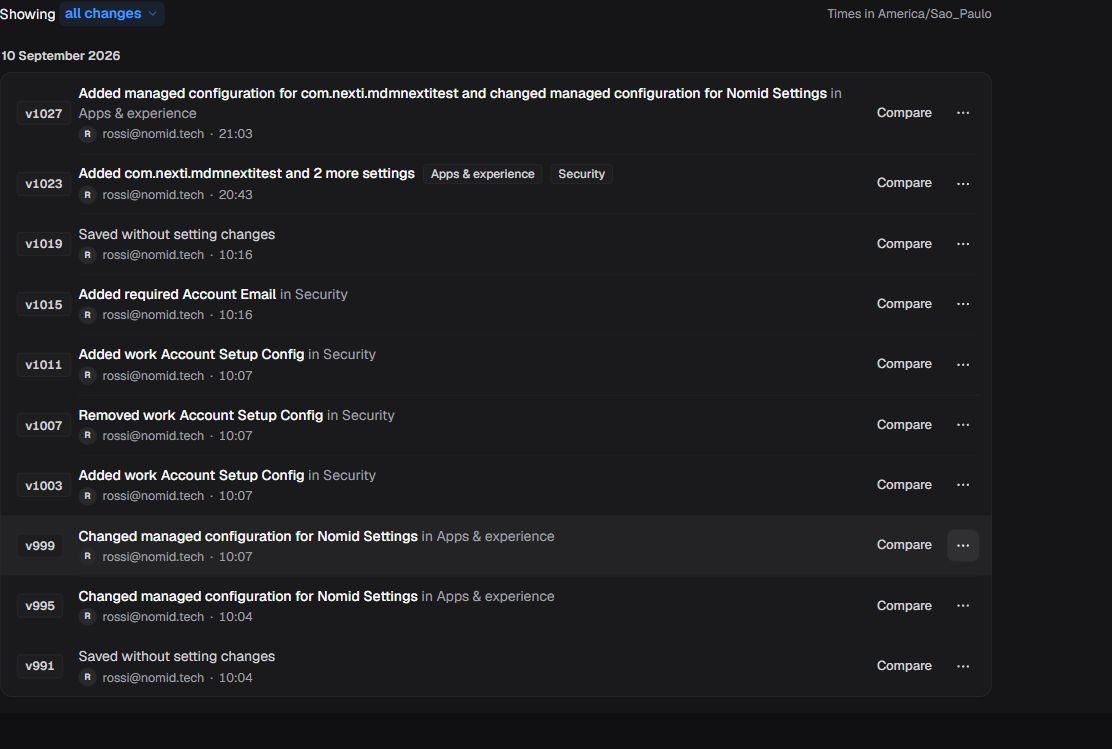
Figure 36. Policy activity.
Show
Opens local history filter; selecting a category changes list view only.
Actions for version
To return to an earlier revision’s configuration, open its actions and choose Restore. Review and confirm to save that configuration; the operation preserves the current description, tags and group, and opening the menu does not erase history.
After saving, check the Portal response and follow the result on devices. If a network change prevents communication, use the deployment recovery procedure; do not assume another save will reach an offline device.