 Nomid
NomidAccess: view — Admin Editor Analyst; Custom / company role*. Permission: view the Dashboard.
Reading access labels: tags identify standard roles whose definitions include the stated permission. Each action’s availability depends on the user’s effective permissions, company, groups, enabled features and policy restrictions. Custom and company roles depend on assigned permissions. If access is unavailable, ask an administrator to check Settings > Platform Users. A section’s label covers its controls unless an action has its own condition. Viewing does not authorize changes or execution; a label does not guarantee that a command will be accepted or completed.
Dashboard brings together current fleet status, enrollment trends, location, usage, security, and applications. Use it to identify a situation, narrow the scope, and continue to the owning article when you need to investigate or change a device.
Important: Dashboard values depend on the company, permissions, period, and latest available telemetry. A value alone does not prove failure, compliance, cause, or intent.
Quick route
- Open and recognize Dashboard
- Choose a period and dates
- Interpret fleet status
- Analyze enrollments
- Use the map
- Investigate cards
- Customize Dashboard
- Resolve common issues
Start here
Prepare access and check the context before interpreting any number.
Prerequisites
- Open https://portal.nomid.tech/ and confirm the
portal.nomid.techdomain before entering credentials. - Sign in to the company you want to analyze.
- Have permission to view Dashboard and the devices in your scope.
- For usage, security, network, and location metrics, wait for devices to send the corresponding telemetry.
Open and recognize Dashboard
Access: view — Admin Editor Analyst; Custom / company role*. Permission: view the Dashboard.
- In the sidebar, select Dashboard.
- Check the current company in the user menu.
- Wait for counters, chart, map, and cards (summary blocks) to finish loading.
- Before comparing values, check the selected period and data age.
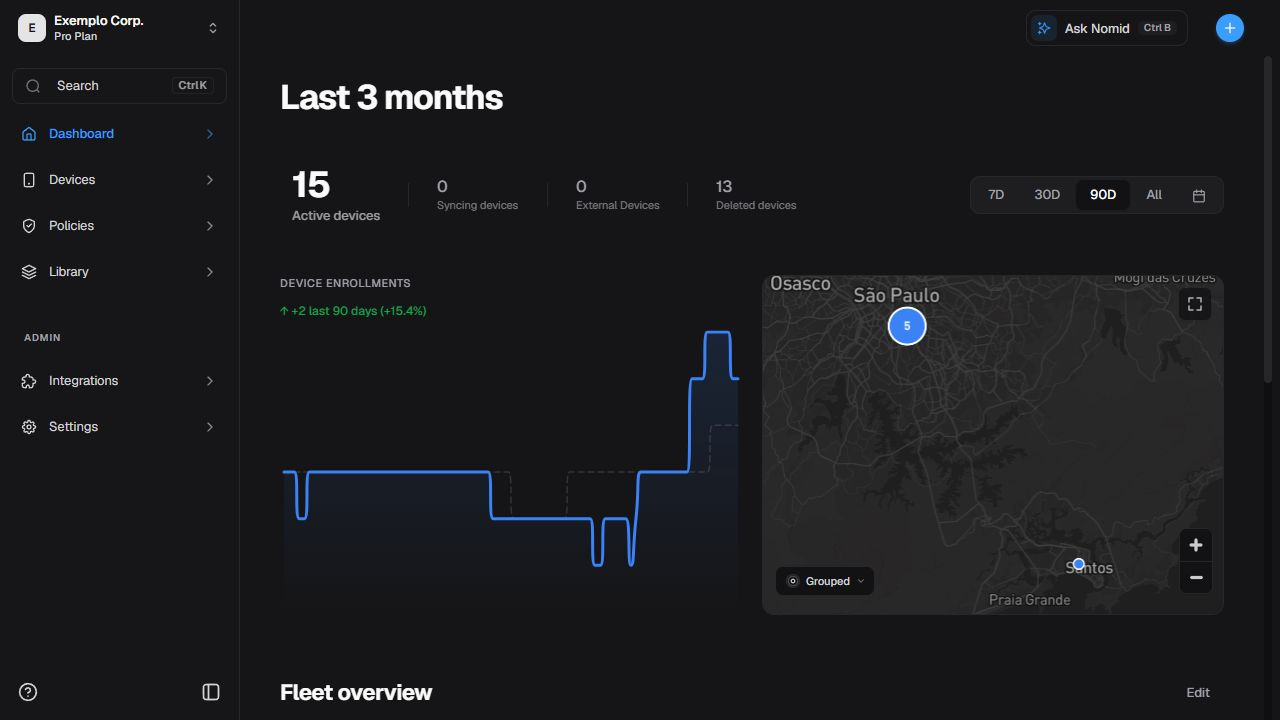 Figure 1. Dashboard overview and the relationship between its main areas.
Read the page from top to bottom:
| Area | Question answered | Typical next step |
|---|---|---|
| Counters | What is the current state of visible devices? | Open the corresponding counter. |
| Enrollments | How did the count change during the period? | Inspect the series and tooltip, the box shown over a data point. |
| Map | Where are the latest valid locations? | Expand, change mode, or search. |
| Cards | Which groups, usage, risks, and apps need attention? | Open the card or its details. |
| Edit | Which cards are visible and in what order? | Add, remove, or drag cards. |
Counters represent current state. Enrollment and usage charts represent series or period aggregates. Do not compare these classes as if they used the same calculation.
Choose a period and dates
Access: view — Admin Editor Analyst; Custom / company role*. Permission: view the Dashboard.
Set the time window before analyzing charts and historical metrics.
Presets
Access: view — Admin Editor Analyst; Custom / company role*. Permission: view the Dashboard.
| Control | Result | Limit |
|---|---|---|
| 7D | Requests seven days for compatible historical components. | It does not turn current counters into history. |
| 30D | Requests 30 days and updates the compatible title. | Some components may use another cutoff. |
| 90D | Extends the trend to 90 days. | Short peaks may appear less prominent. |
| All | Requests the longest history each component provides. | It does not mean unlimited retention. |
| Calendar | Opens start and end date selection. | The source may limit long intervals. |
Select 30D and wait for the period title to change.
 Figure 2. 30D preset and the title displayed after refresh.
Custom interval
Access: view — Admin Editor Analyst; Custom / company role*. Permission: view the Dashboard.
- Select the calendar.
- Find the start date in the left panel and the end date in the right panel.
- Select the start and end.
- Select Apply to update compatible components or Cancel to keep the previous period.
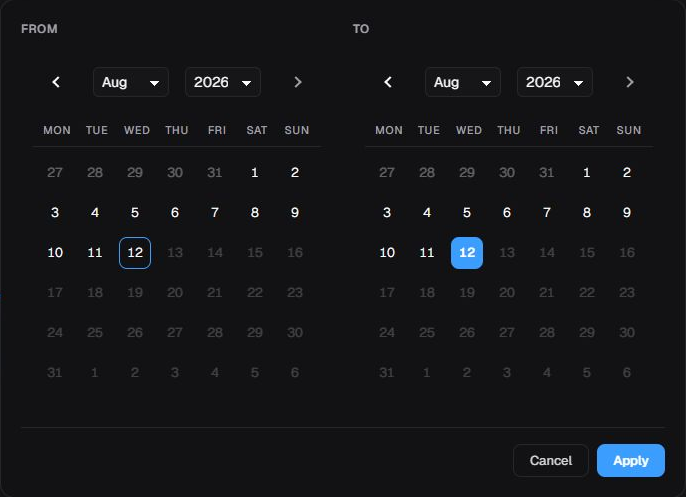 Figure 3. Calendar used to choose start and end dates.
After selecting Apply, check both dates in the selector. The expected behavior is to update compatible components with the chosen interval. The control does not guarantee equal retention or exactly the same window across all sources.
 Figure 4. Custom interval dates displayed after Apply.
Refresh and data age
Access: view — Admin Editor Analyst; Custom / company role*. Permission: view the Dashboard.
- Dashboard queries separate sources; one card may finish before another.
- Refreshing the page does not force a device to synchronize.
- Check last sync (the most recent synchronization available) in 3. Devices when data age matters.
- Time-zone cutoffs may differ across enrollment, usage, and custom periods. Check the source time before comparing events near midnight.
Interpret fleet status
Access: view — Admin Editor Analyst; Custom / company role*. Permission: view the Dashboard.
Start with the current counters and open only the drawer, the side panel containing details, needed for the investigation.
Counters and drawer
Access: view — Admin Editor Analyst; Custom / company role*. Permission: view the Dashboard.
Selecting a counter opens a query; it does not change the device. In Active devices, use the available filters, search field, and scrolling to narrow the list. If you prefer the keyboard, use Ctrl+F on Windows or Command+F on macOS when available; the visible search field remains the primary path.
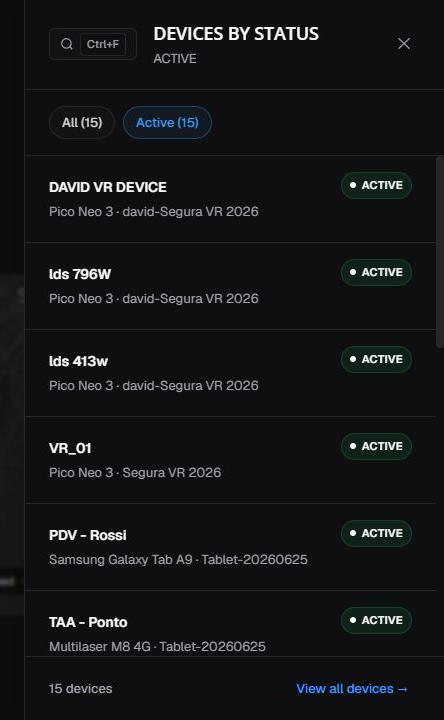 Figure 5. Drawer opened from the Active devices counter.
- All/Active: chooses the displayed set; an available filter is not automatically applied.
- Search: filters loaded items.
- X/Close: closes the drawer without changing status or synchronization.
- View all devices: continues in 3. Devices.
When you select a row, stop at the Dashboard boundary and continue in 3. Devices. The device sheet, tabs, and actions do not belong to this article.
Status meanings
Access: view — Admin Editor Analyst; Custom / company role*. Permission: view the Dashboard.
| Status | How to interpret it | Interpretation risk | Next step |
|---|---|---|---|
ACTIVE |
The API and Portal classify the device as active. | It does not guarantee recent sync or completed policy. | Check last sync and policy in Devices. |
SYNCHRONIZING |
Indicates that the device is still converging to its expected state, such as during provisioning or while changes have not yet been applied. | The status alone does not identify a pending policy, connectivity, or cause. | Open the counter, search, and check last sync and policy in 3. Devices. |
INACTIVE |
Groups DISABLED and LOST. |
The label does not identify the underlying state. | Confirm the state in the device sheet before acting. |
EXTERNAL |
Local concept for external records with no direct Android Management API equivalent. | Do not infer ownership, billing, or management level from the label. | Validate the record in Devices. |
DELETED |
Record mapped as deleted. | It does not prove complete removal or represent current inventory. | Check the record and deletion event. |
REPROVISIONED |
Record replaced by a new provisioning. | It may be confused with the new device. | Relate the records in Devices; do not expect this category in the current card. |
Do not treat EXTERNAL and DELETED counters as automatically equivalent to a drawer or list. The optional status card may also expose categories that differ from the general drawer.
Analyze enrollments
Access: view — Admin Editor Analyst; Custom / company role*. Permission: view the Dashboard.
Use the series to understand how inventory changed during the selected period.
Device Enrollments
Access: view — Admin Editor Analyst; Custom / company role*. Permission: view the Dashboard.
The chart shows accumulated enrollment and deletion changes. Use it to relate peaks to deployments or retirements, not to diagnose a specific device.
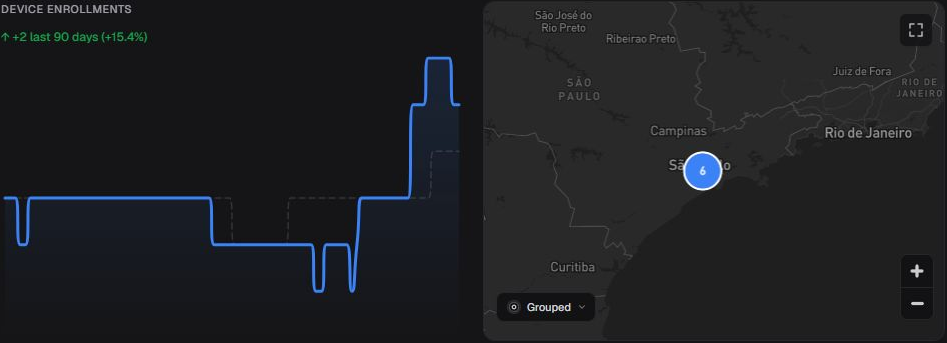 Figure 6. Enrollment series in the context of the integrated map area.
- Total: accumulated series count.
- Enrolled/Deleted: movements for the date when available.
- Main line: accumulated total.
- Trend: visual smoothing; it is not a forecast.
- Period: changes the requested window without guaranteeing retention equal to other sources.
Move the pointer over the line to open the tooltip. Read the date and fields at that point; do not confuse accumulated Total with enrollments on that day.
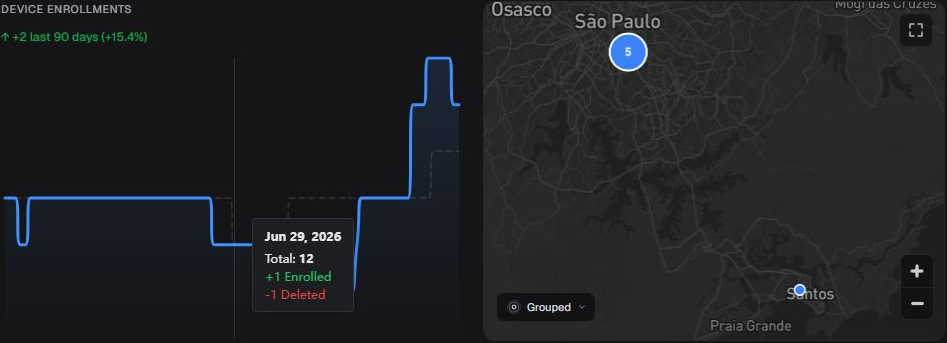 Figure 7. Series tooltip with the date and Total at the selected point.
To identify devices, continue in 3. Devices. The chart alone does not explain a drop.
Use the map
Access: view — Admin Editor Analyst; Custom / company role*. Permission: view the Dashboard.
The map shows the latest valid coordinate available for devices in your scope. It is not real-time tracking. A missing point may result from missing coordinates, missing collection, restricted permission, or a device outside the visible set.
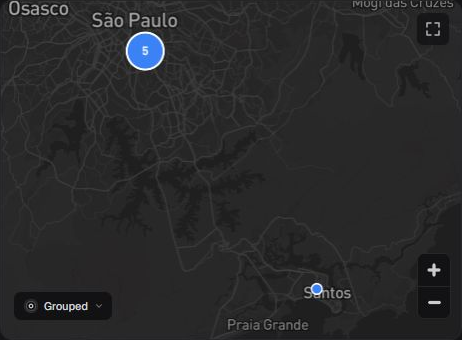 Figure 8. Collapsed map in Grouped mode with a cluster — a visual grouping of nearby markers — and a marker from the current query.
Controls and modes
Access: view — Admin Editor Analyst; Custom / company role*. Permission: view the Dashboard.
| Control | Result |
|---|---|
| Expand | Opens a larger map. |
| Grouped | Combines nearby markers into clusters. |
| Individual | Separates markers when scale allows. |
| Heatmap | Shows density, not an exact count per position. |
| Zoom/drag | Changes only the visible area. |
| Close | Returns to Dashboard. |
Select Expand to use search, modes, zoom, and close in the same panel.
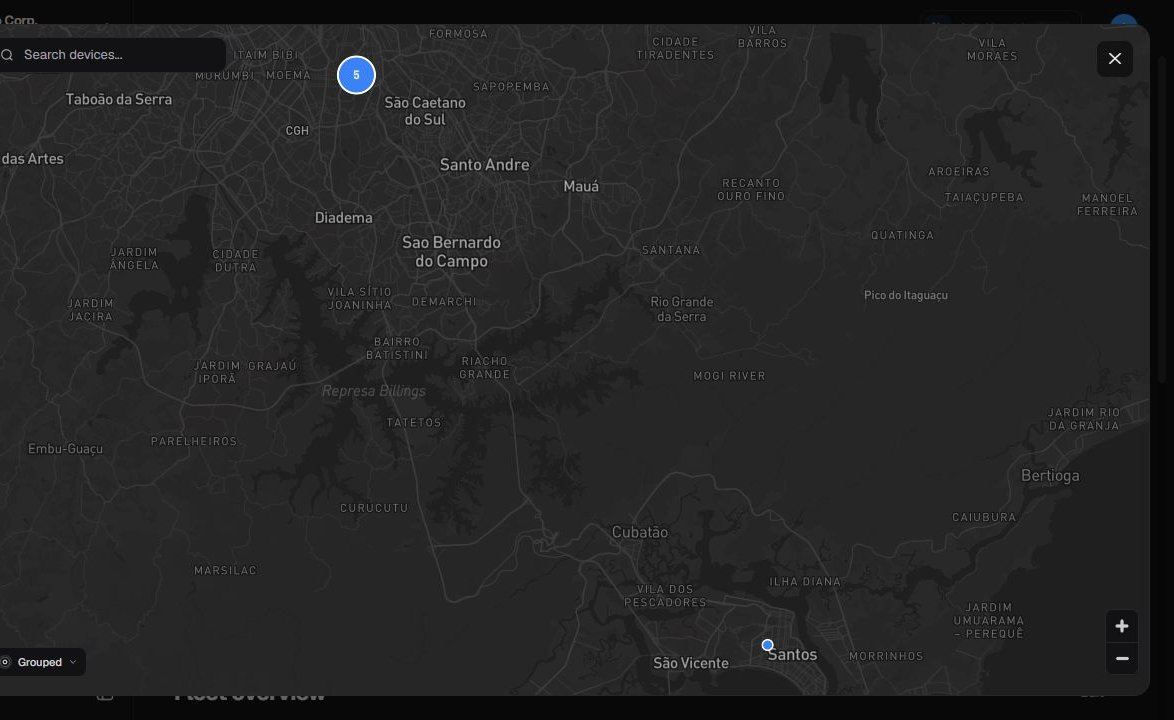 Figure 9. Expanded Grouped map with search, zoom, and Close.
Open the mode menu and choose Individual to separate visible points. Count, position, and initial extent vary with the data.
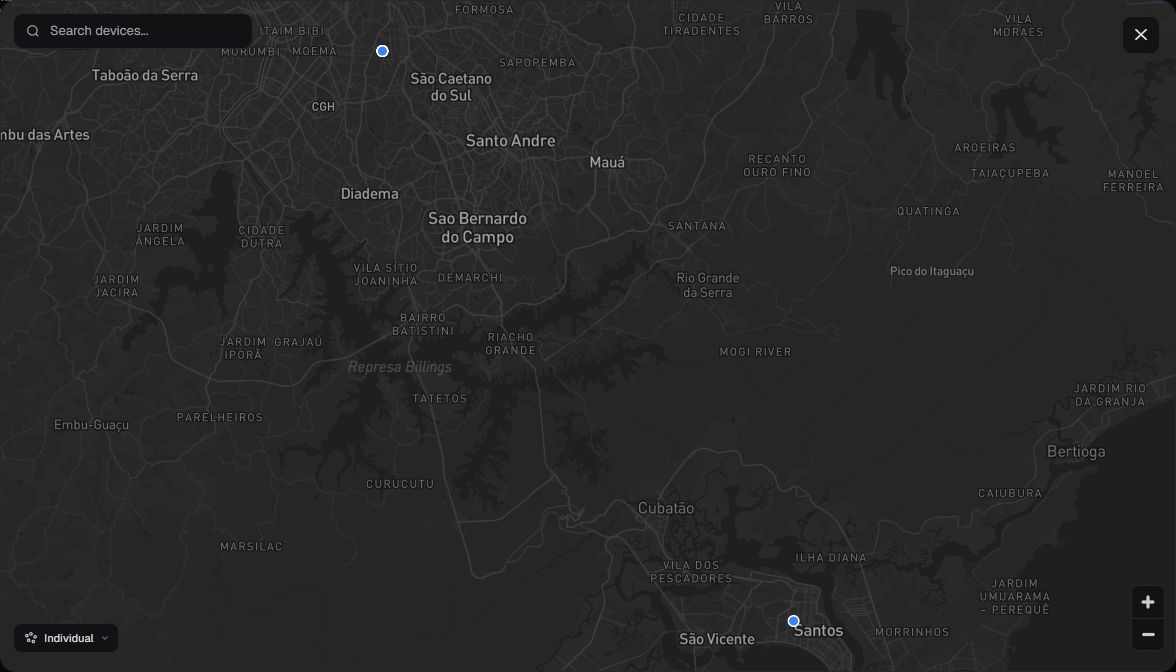 Figure 10. Individual mode with separate markers and map controls.
Choose Heatmap to compare geographic concentration. Do not read intensity as an exact device count.
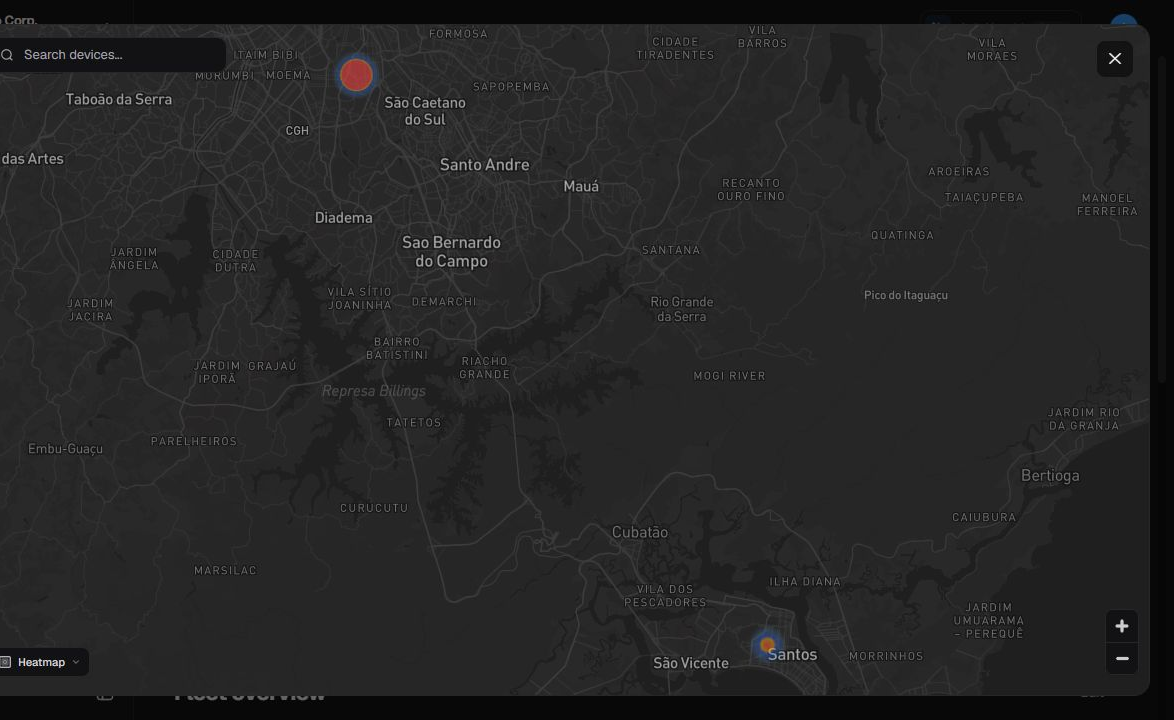 Figure 11. Heatmap layer representing available location density.
Search the map
Access: view — Admin Editor Analyst; Custom / company role*. Permission: view the Dashboard.
- Expand the map.
- Select the search field and enter an allowed identifier.
- Check the suggestions and indicators in each row without assigning meaning to their colors: the list does not provide a semantic legend.
- Select a suggestion to recenter the map.
- Check the marker without assuming a fixed position or real-time update.
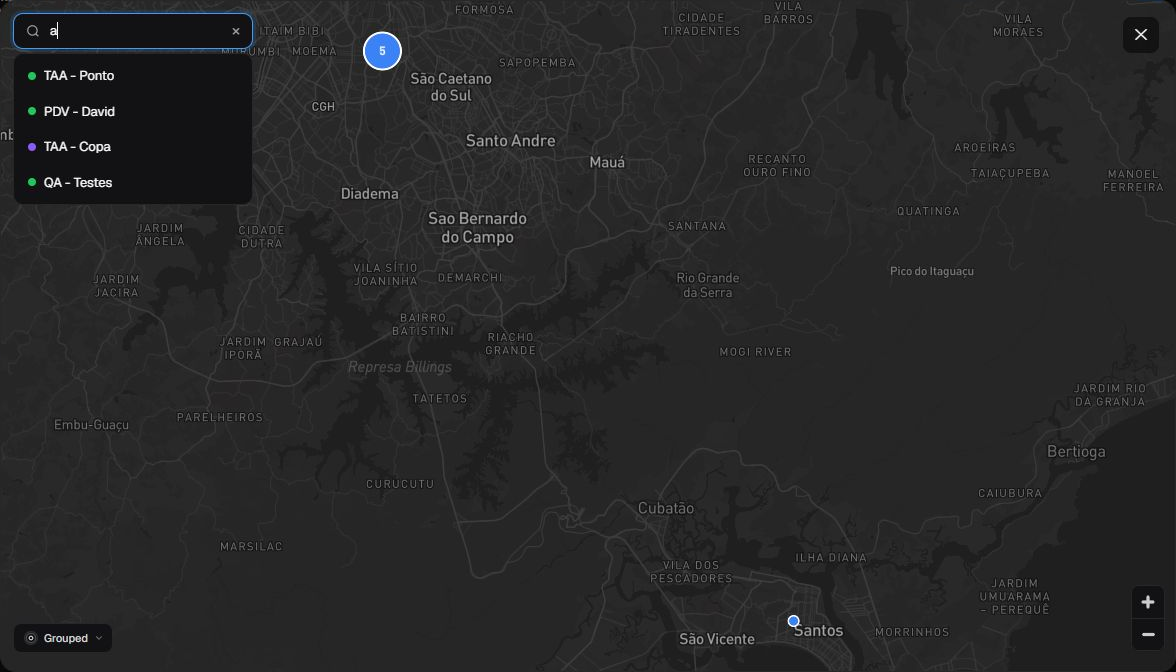 Figure 12. Search suggestions with geographic context preserved.
Selection closes the list and zooms toward the result, but it does not open a device sheet, policy, or status tooltip. Confirm the state in 3. Devices; changing language does not guarantee the same geographic extent.
Investigate cards
Access: view — Admin Editor Analyst; Custom / company role*. Permission: view the Dashboard.
Complete each analysis within its card before moving to the next feature.
Fleet overview
Access: view — Admin Editor Analyst; Custom / company role*. Permission: view the Dashboard.
Scroll to Fleet overview to locate cards and Edit. Counts belong to the current company, period, and permission scope.
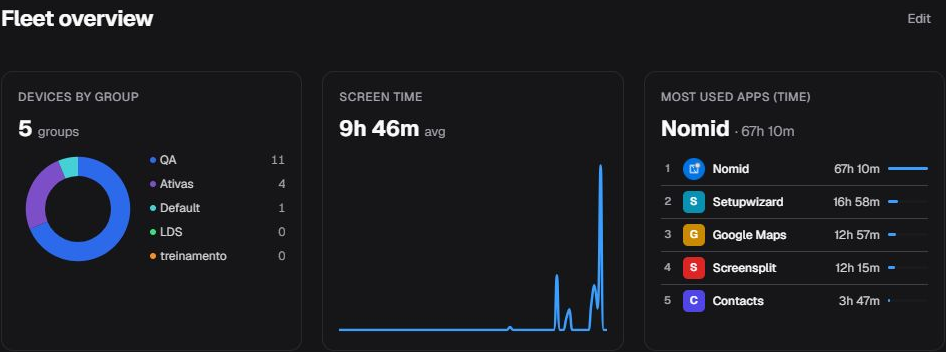 Figure 13. Entry point for the card area and Edit mode.
Devices by Group
Access: view — Admin Editor Analyst; Custom / company role*. Permission: view the Dashboard.
The card presents reported counts for policy-derived groups. These counts do not establish an exclusive partition and should not be added to reconstruct the fleet total. The component uses its own universe, which may differ from the top counters.
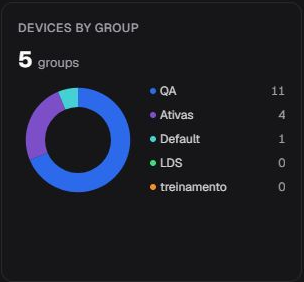 Figure 14. Summary counts by group.
- Select a group to see assigned policies and counts.
- Use groups to go back one level.
- Select a policy to open the device drawer.
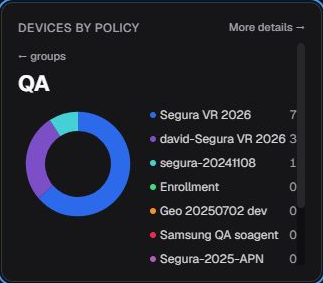 Figure 15. Policies assigned to the selected group.
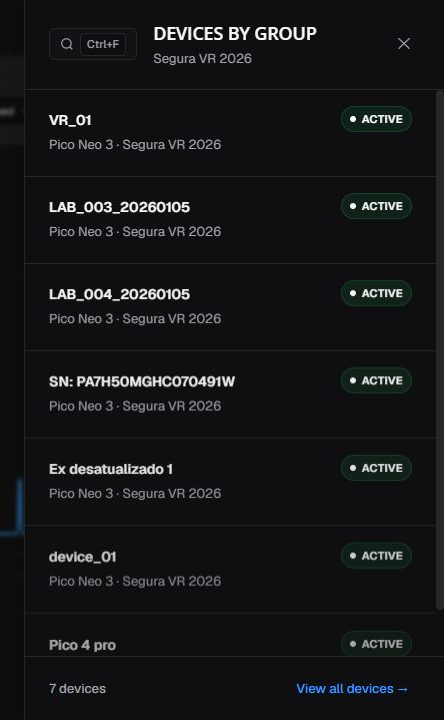 Figure 16. Policy-filtered list with search, scrolling, total, and final action.
In the drawer, search, scroll, and use View all devices when you need to continue. Selecting a row ends this journey; device-sheet details are in 3. Devices. To change configuration, continue in 4. Policies. Returning to Dashboard may close the drawer and internal levels; reopen the group before continuing.
Screen Time
Access: view — Admin Editor Analyst; Custom / company role*. Permission: view the Dashboard.
The card shows average per device and daily change within a compatible period. The average does not describe each device, and devices without telemetry may be excluded.
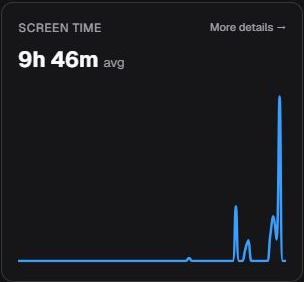 Figure 17. Average screen time and daily series.
Select More details to open the per-device list. Use search, Usage, sorting, and scrolling to find larger contributions.
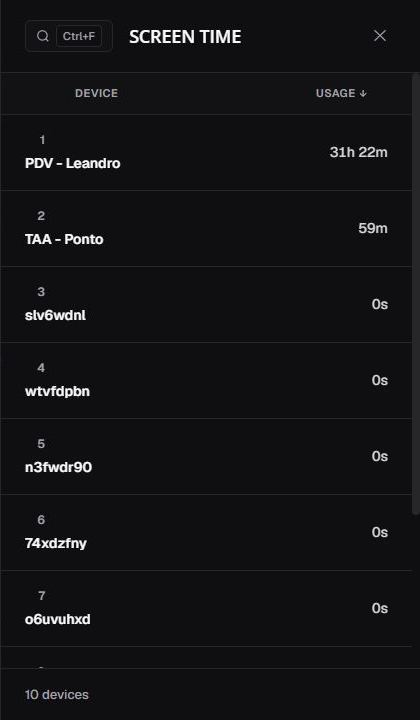 Figure 18. Screen Time details by device.
Selecting a row ends Dashboard coverage. Continue in 3. Devices. When you return, check the period and reopen the drawer if needed.
Security & Attention
Access: view — Admin Editor Analyst; Custom / company role*. Permission: view the Dashboard.
The card summarizes findings, not unique devices: one device may appear in several categories. Read three levels separately: card count, category summary, and rows only when the category actually expands.
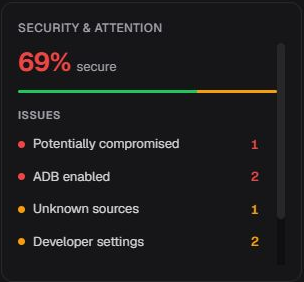 Figure 19. Aggregate summary and initial Security & Attention categories.
| Category | Safe meaning | Next step |
|---|---|---|
| ADB enabled | The option is enabled; it does not prove an active ADB session. | Check report age and applicable policy. |
| Unknown sources | External installation is enabled; it does not prove malicious software. | Check apps and policy before restricting. |
| Developer settings | Condition reported by the device. | Confirm need and policy. |
| Potentially compromised | May indicate root/jailbreak; it does not confirm compromise. | Prioritize investigation and follow company policy. |
| Not synced in 48+ hours | No telemetry arrived after the 48-hour cutoff. | Check connectivity and last sync; do not assume the cause. |
| At risk | The item may be selectable, but no equivalent drawer group is available. | Do not promise a list; use Devices. |
| Not encrypted | Category may diverge between card and drawer. | Do not rely on the click for a list. |
Select a category to read guidance and count. The following figures show collapsed summaries; they do not mean an empty list and do not show View all opened.
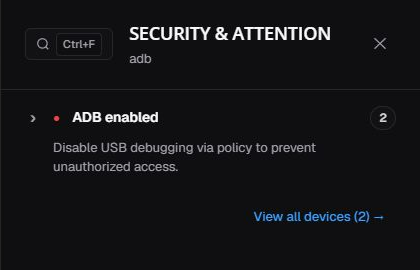 Figure 20. ADB enabled with guidance, count, search, final action, and Close.
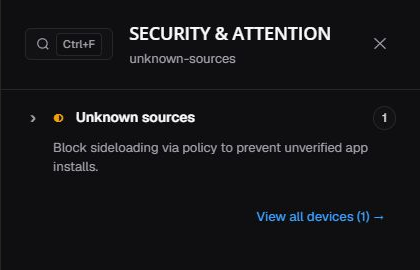 Figure 21. Unknown sources without inferring malicious installation.
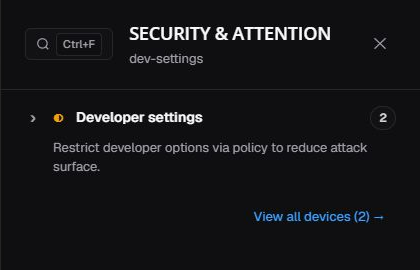 Figure 22. Developer settings and drawer controls.
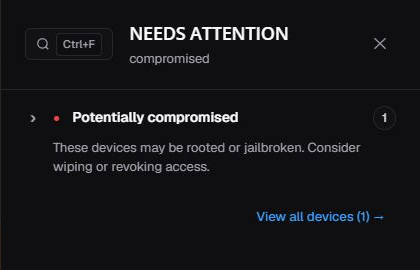 Figure 23. Potential compromise presented as a condition to investigate.
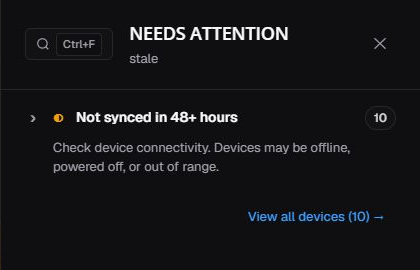 Figure 24. Missing recent telemetry after the 48-hour cutoff.
Use the visible search field when rows exist; Ctrl+F on Windows and Command+F on macOS may open the same search when available. Close returns to Dashboard. View all continues in 3. Devices. To change restrictions, use 4. Policies; Dashboard does not remediate the condition.
Data Usage
Access: view — Admin Editor Analyst; Custom / company role*. Permission: view the Dashboard.
The card aggregates download and upload during the period. Total is not carrier billing and may exclude devices without telemetry.
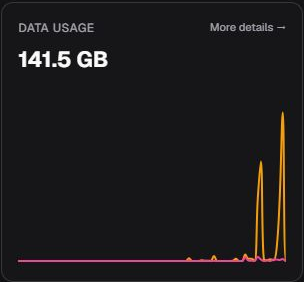 Figure 25. Aggregate volume and daily Data Usage series.
Move the pointer over the series to read the date and, when available, Download and Upload. Moving away closes the tooltip; it does not apply a filter or open a list.
Select More details to open per-device totals. Search, sort by Total, and scroll.
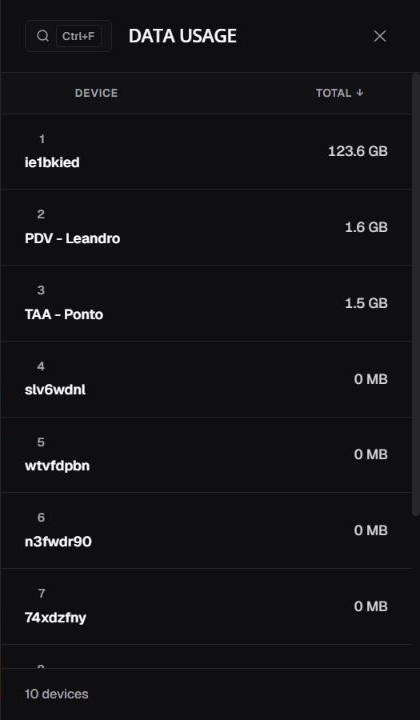 Figure 26. Aggregate consumption by device in the current query.
Selecting a row reaches the Dashboard boundary; continue in 3. Devices. A reduction between periods may result from the window or missing telemetry, not necessarily savings.
Most Used Apps (Time)
Access: view — Admin Editor Analyst; Custom / company role*. Permission: view the Dashboard.
The ranking orders apps by aggregate duration. Bars are relative to the leader, not total fleet time.
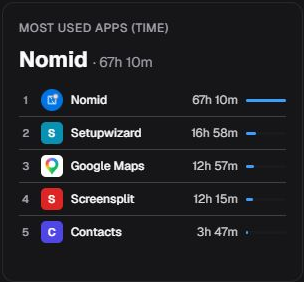 Figure 27. Summary app ranking by usage time.
Select More details to open the list. Use search, Usage sorting, scrolling, and count; copying the package does not open a device.
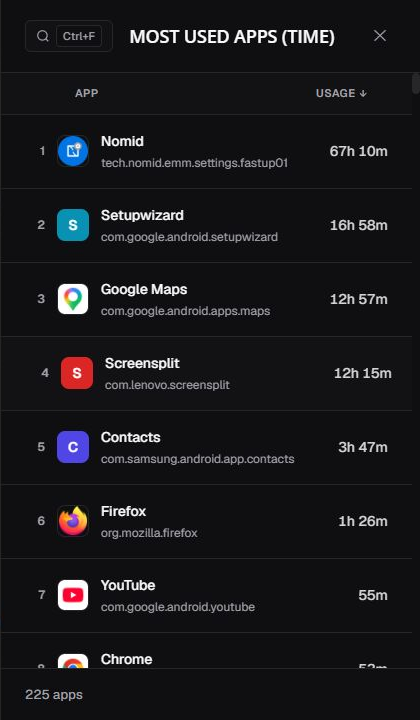 Figure 28. App list ordered by aggregate usage time.
Most Used Apps (Data)
Access: view — Admin Editor Analyst; Custom / company role*. Permission: view the Dashboard.
The ranking aggregates bytes received and sent by app. Bars are relative to the highest value in the query.
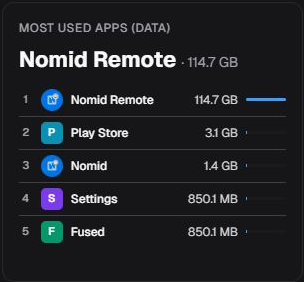 Figure 29. Summary app ranking by Data Usage.
In details, use search, sorting, scrolling, and count. The Mobile and Wi-Fi columns do not establish a split by network type: the underlying measurements distinguish sent and received traffic. Do not use these columns to allocate usage or cost to cellular or Wi-Fi networks.
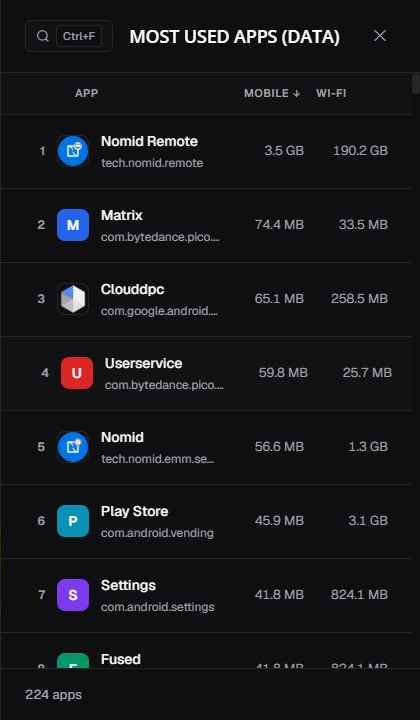 Figure 30. Aggregate list with the visible Mobile and Wi-Fi columns.
Literal values in Figures 29 and 30 may reflect different queries, periods, refresh times, or telemetry availability. Do not add or reconcile the numbers across the two images; confirm the current period, query, refresh, and telemetry in the interface.
App Versions
Access: view — Admin Editor Analyst; Custom / company role*. Permission: view the Dashboard.
The card distributes devices across versions of the selected application. A missing version does not prove a complete update.
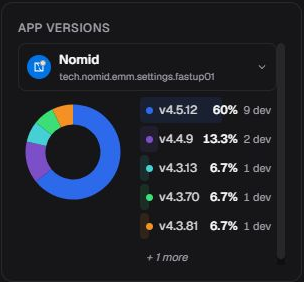 Figure 31. Device distribution by selected app version.
Open the selector, search by name or package, and choose the application. Arrow keys move through results, Enter selects, and Esc closes without changing the app.
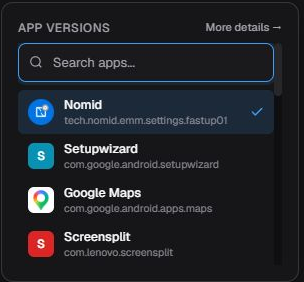 Figure 32. Search and options in the application selector.
Select More details and expand a version to see percentage, count, and devices. View all devices continues in 3. Devices.
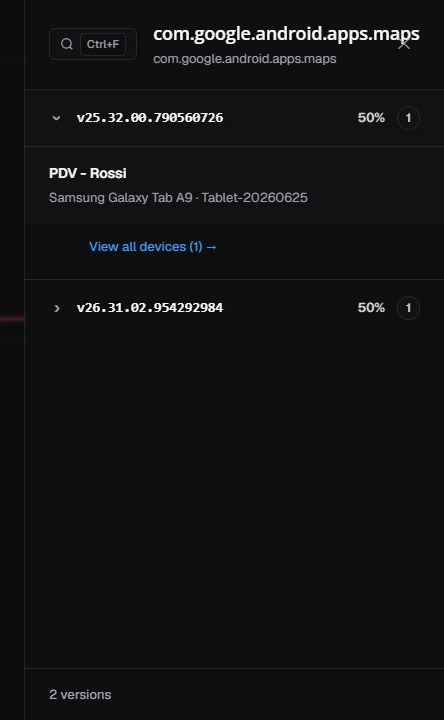 Figure 33. Expanded version with percentage, count, rows, and final action.
You can keep two version cards with different applications. In Edit mode, each card has its own selector and remove control.
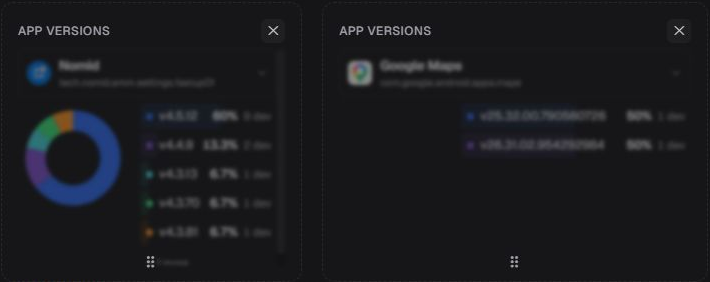 Figure 34. Two simultaneous cards with independent selectors and controls.
Select Done to leave Edit mode and save the layout locally in this browser for your user and company, if storage is available.
Library Distribution
Access: view — Admin Editor Analyst; Custom / company role*. Permission: view the Dashboard.
The card summarizes Library/CDN bytes delivered through the displayed cutoff. It is neither carrier billing nor the device's own data traffic.
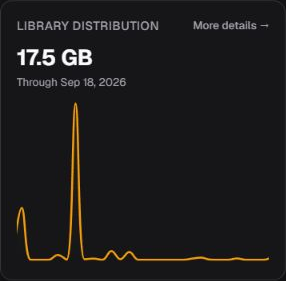 Figure 35. Library delivery through the displayed cutoff. More details opens the detail.
Rows and totals depend on the current query and available data. Selecting a row continues in 3. Devices.
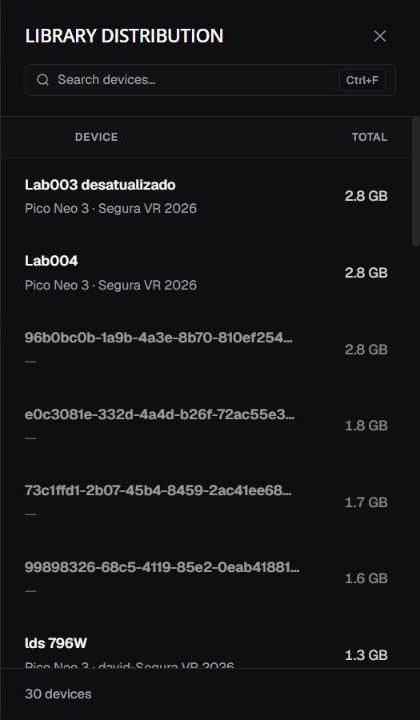 Figure 36. Per-device Library delivery totals in the current Dashboard query.
Customize Dashboard
Access: view — Admin Editor Analyst; Custom / company role*. Permission: view the Dashboard.
Select Edit in Fleet overview. Cards display handles and controls; content may blur to emphasize editing.
| Action | Result |
|---|---|
| X on a regular card | Hides the card; it can be recovered from Hidden cards. It does not change device data. |
| X on App Versions | Hides the original card. For added copies, removes that copy and its app selection from the layout; it does not remove the app or device data. |
| + in Hidden cards | Restores the card to the grid. |
| + App Versions | First restores the original card if hidden. Otherwise, adds a copy of the card. |
| Drag | Moves the card to the new position. |
| Button immediately to the left of Done | Opens the general reset confirmation. |
| Done | Leaves Edit mode and shows the resulting organization at that moment. |
| Esc | Leaves the mode; it does not undo changes. |
To reorder, drag the handle, drop the card in the target position, and check the grid sequence. To undo only the order, move the card again.
To return to the default organization, use the button immediately to the left of Done in the Fleet overview action strip and read the confirmation before proceeding. Reset affects only this browser's storage: it restores the default layout, removes dynamic cards, and clears every saved App Versions selection in this browser, including selections from other contexts accessed in it. It also closes the drawer and leaves Edit mode. It does not change devices, apps, or policies and does not provide undo.
Add Devices by Status and Needs Attention from the catalog. Values are a snapshot of the current query.
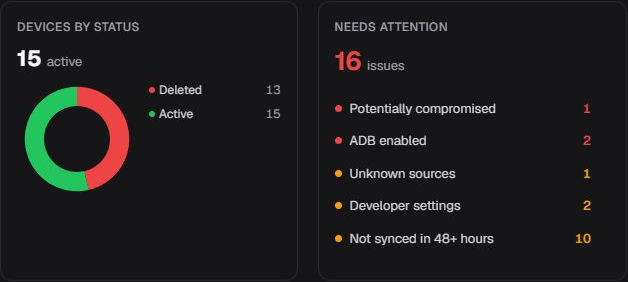 Figure 37. Devices by Status and Needs Attention added to the grid.
Devices by Status
Access: view — Admin Editor Analyst; Custom / company role*. Permission: view the Dashboard.
Open the card to inspect the general drawer. It starts with All selected; ACTIVE and External appear as available filters, not automatically applied.
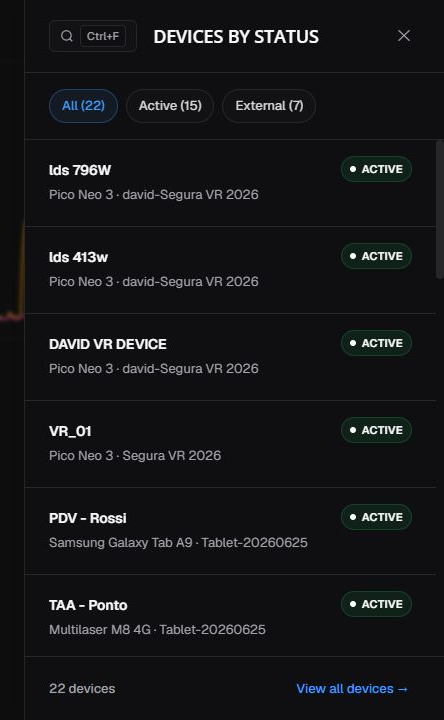 Figure 38. General drawer with All selected and ACTIVE and External available.
INACTIVEmay combineDISABLEDandLOST; confirm the underlying state.SYNCHRONIZINGis explained through its counter and drawer and may not appear as a category in this card.- Do not expect
REPROVISIONEDin the current card. EXTERNALandDELETEDretain differences among counter, card, and drawer.
Choose the filter explicitly, check the list, and continue in 3. Devices before acting.
After finishing
After selecting Done, check the layout. It is saved locally for each user and company when browser storage is available; it is not synchronized with other browsers or computers. Clearing or disabling storage can prevent that preference from being restored. To return to the default, use the general reset in Edit mode, noting the effects described above.
Resolve common issues
| Situation | What to do |
|---|---|
| A component is still loading | Wait before comparing; no fixed duration is defined. |
| The drawer has no rows | Clear search, review the filter, and use the final action when available. A collapsed summary without rows does not mean an empty list. |
| A device is missing from the map | Check coordinates, last sync, and permission; absence does not prove location is disabled. |
| A value looks old | Check last sync in Devices; reloading does not force telemetry. |
| Dashboard and Devices differ | Match company, permissions, status, period, and refresh time. |
| A label appears in another language | Keep proper names/packages unchanged and record language + screen for support if the label blocks the task. |
Interpretation limits
- Current counters and historical series use different universes and calculations.
- Averages do not represent each device.
- App-ranking bars are relative to the leader.
- One device may produce several security findings.
- Absence from the map does not prove location is disabled.
- A missing app or version does not prove removal or complete update.
- Policy permissions may produce different values for different users.
Glossary
| Term | Meaning |
|---|---|
| Card | Summary block for a metric or distribution. |
| Drawer | Side panel opened over Dashboard. |
| KPI | Highlighted counter for current fleet state. |
| Enrollment | Registration of a device into management. |
| Tooltip | Information box shown when pointing at a data point. |
| Cluster | Visual grouping of nearby markers. |
| Last sync | Latest available device synchronization. |
Official sources
The Google references support general device and security-posture concepts. They do not define Nomid Dashboard labels, calculations, or product-specific behavior; those details follow the current interface.