 Nomid
NomidAccess: view — Admin Editor Analyst Teacher; edit — Admin Editor; Custom / company role*. Permission: view the policy; edit the policy.
Reading access labels: tags identify standard roles whose definitions include the stated permission. Each action’s availability depends on the user’s effective permissions, company, groups, enabled features and policy restrictions. Custom and company roles depend on assigned permissions. If access is unavailable, ask an administrator to check Settings > Platform Users. A section’s label covers its controls unless an action has its own condition. Viewing does not authorize changes or execution; a label does not guarantee that a command will be accepted or completed.
Use this manual to review and configure an existing policy for VR/Pico headsets. The page follows the same order as the tabs shown in Portal: Content, Remote Access, Launcher, Network, Security, and History.
A choice in the editor first changes the policy form. Save updates the policy and starts asynchronous synchronization for linked devices; this editor has no separate distribution step. That does not prove that every headset received or applied the change. Before editing a production policy, validate the change on a pilot Pico headset and monitor receipt under Devices.
To create the policy, see New policy. To associate or provision headsets, see New device. To monitor devices that received the policy, see Devices.
Open an existing VR/Pico policy
Access: view — Admin Editor Analyst Teacher; Custom / company role*. Permission: view the policy.
Open https://portal.nomid.tech/, confirm the active company, and select Policies in the main menu. Find a card identified as VR/Pico and select the policy name to open its summary. The edit icon indicates that your profile can change the policy; the view icon indicates read-only access. In the summary, select All Settings to open the VR editor. If the action is disabled, your profile cannot edit that policy. For search, filters, and card details, see Find and open a policy.
VR policy actions
Access: Based on permissions. Permission: each action below requires its own authorization; viewing or editing a policy does not automatically authorize commands, provisioning or deletion.
These actions apply to the policy as a whole, not to one configuration.
| Action | Effect and caution |
|---|---|
| Save Access: Based on permissions. Permission: change and save this policy, subject to its restrictions; viewing it does not authorize saving changes. |
Updates the policy and starts asynchronous synchronization with linked devices. Portal acceptance does not prove receipt or effect on the headset. |
| Copy policy Access: Based on permissions. Permission: access to the copy action in the policy context; navigation or an informational message does not establish authorization or creation of a copy. |
Returns to the policy list and displays an informational message. Do not assume that a copy was created: check the list and, if needed, use the New policy flow. |
| Delete policy Access: Based on permissions. Permission: authorize deletion of this policy; viewing or editing does not establish the right to delete it. |
Shows a confirmation with the current policy name and requests deletion only after confirmation. Do not confirm merely to test; use Cancel to leave without deleting. |
| View devices Access: Based on permissions. Permission: view linked devices within the authorized scope; viewing the policy does not automatically grant access to device details. |
Opens the list of linked devices; detailed monitoring remains in Devices. |
| Provision devices Access: Based on permissions. Permission: provision devices with the authorized policy; editing the policy alone does not grant provisioning access. |
Continues to the provisioning flow. For Pico VR, follow the NOPS procedure documented in New device. |
| Create new policy Access: Based on permissions. Permission: create a policy within the authorized scope; viewing the current policy does not authorize creating another. |
Opens the creation flow; initial fields and platform selection belong to New policy. |
Content
Access: view — Admin Editor Analyst Teacher; edit — Admin Editor; Custom / company role*. Permission: view the policy; edit the policy.
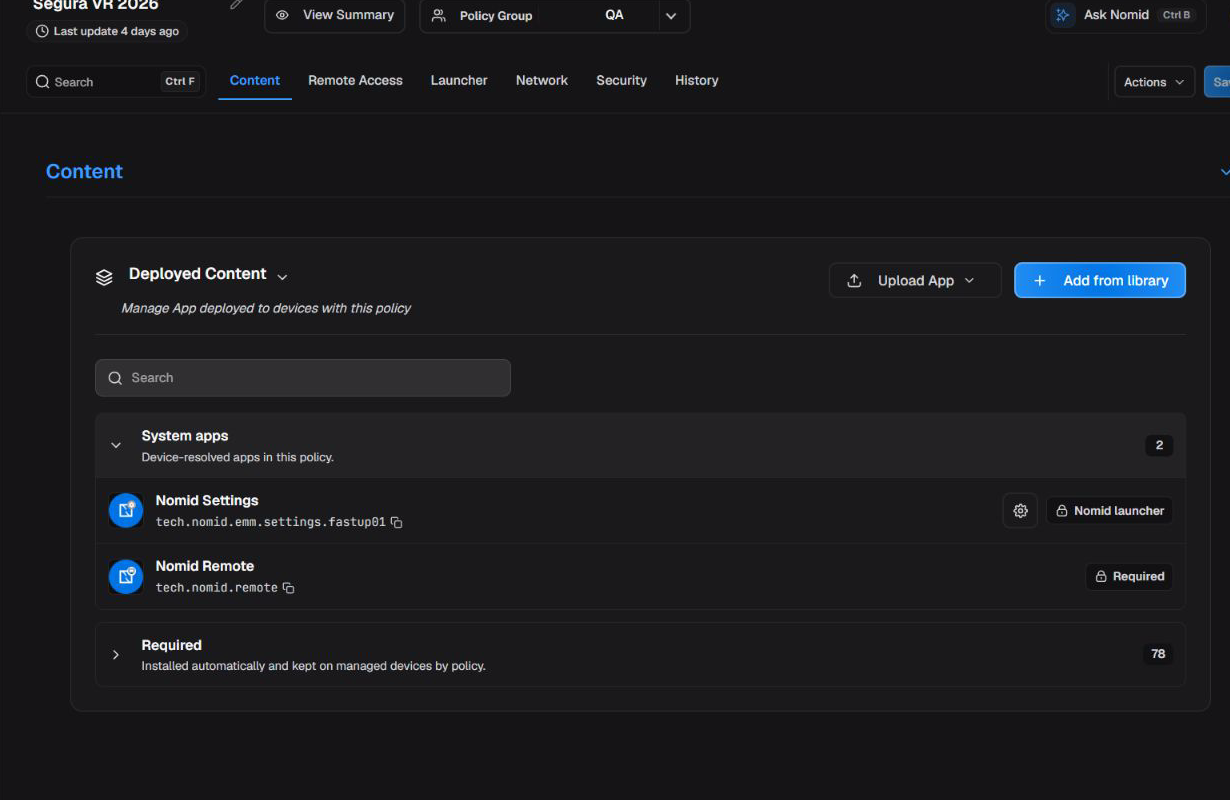
Content tab in the VR/Pico policy editor.
The first tab gathers the apps currently associated with the VR policy. The list is the central place to recognize what is included in the form, open managed configurations when an app supplies a schema, and remove an item before saving.
Deployed Content
Access: view — Admin Editor Analyst Teacher; edit — Admin Editor; Custom / company role*. Permission: view the policy; edit the policy.
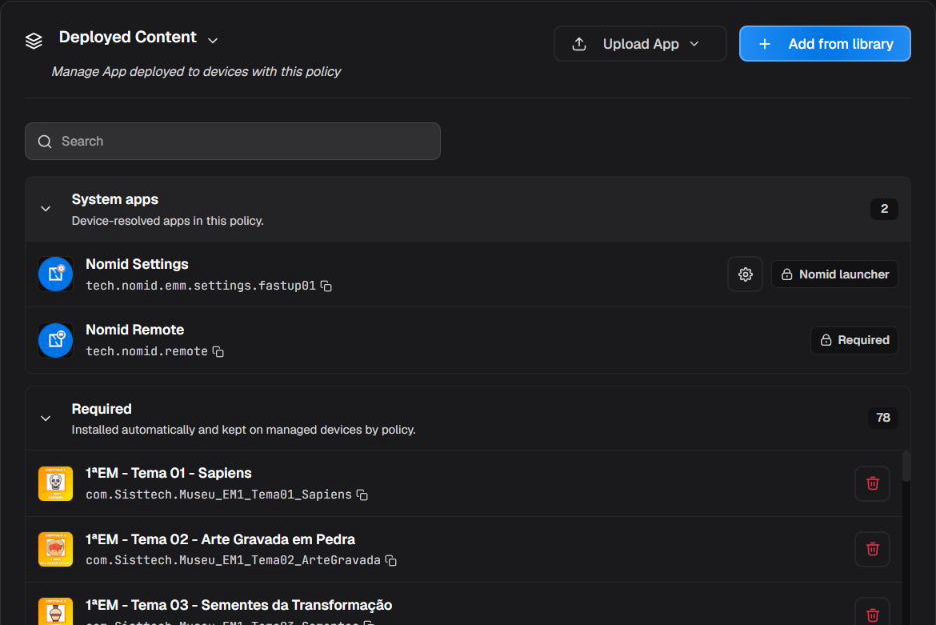
Deployed Content with search, add actions and expanded application groups.
Find an app through search or the visual filters. Portal shows categories for Application, Video, WebXR Link, and File, but the complete flow confirmed in this version loads and selects only Apps. Do not assume that the other filters provide an operational add flow until the interface confirms it.
In the Apps list, Portal organizes items into the expandable System apps and Required groups. System apps contains components resolved by the device for this policy; Required contains apps installed automatically and kept on devices managed by the policy. Counts and names vary with the policy and catalog. Expanding or collapsing a group changes only the list view.
Included apps
Access: view — Admin Editor Analyst Teacher; edit — Admin Editor; Custom / company role*. Permission: view the policy; edit the policy.
Search and display
| Control | Effect in the editor |
|---|---|
| Search | Filters displayed Apps by name without changing the policy. Clearing the search restores the list. |
| Application / Video / WebXR Link / File | Visually filters the displayed types. In this version, only Application has a complete add flow. |
| List | Shows Apps in rows with more details and per-item actions. |
| Grid | Shows the same Apps as compact cards; it does not change saved content. |
Policy content
| State or action | Effect |
|---|---|
| App shown in the list | The app belongs to the current policy form. This does not yet prove installation on the headset. |
| Add from library | Opens eligible company Apps that are not yet included. The list varies with company, permissions, and Library content. |
| Remove | Removes the app from the form. The change can reach devices only after a new revision is saved and synchronized. |
Use only the currently implemented Apps list to add an app. Publishing, uploading, and maintaining the catalog belong to Library; this page explains only how available content enters the policy.
In the Library dialog, select the required app and finish with the confirmation button that becomes enabled after selection. Before saving, confirm that the app appears under Deployed Content. Use Cancel or X to leave without including it.
App installation and configuration
Access: view — Admin Editor Analyst Teacher; edit — Admin Editor; Custom / company role*. Permission: view the policy; edit the policy.
Install type
| Option | Effect |
|---|---|
| Required | Keeps the app as required policy content. The current editor presents regular apps in this state. |
| Kiosk | Available for the Nomid Settings app. Enables the managed experience and reveals the specific Launcher sections. |
Use Kiosk only with a planned administrative exit and after validating the experience on a pilot headset.
Managed configuration
| State | Effect |
|---|---|
| Action available | Opens the fields published by the selected app's schema and associates the entered values with that app in the form. |
| Action absent | The app did not publish a compatible schema, or no configuration is available for this policy. |
The app itself defines its managed-configuration fields, validation, and effects. Do not enter values without documentation from the responsible vendor.
Content actions
Access: view — Admin Editor Analyst Teacher; edit — Admin Editor; Custom / company role*. Permission: view the policy; edit the policy.
| Menu action | Effect and limit |
|---|---|
| Upload App > Single Application | Uploads one application to Library. Before using it, confirm package, version, and owner; completing the upload does not automatically include the app in this policy. |
| Upload App > Batch Upload | Uploads multiple applications to Library. Review files, versions, and ownership before starting, then select only the required Apps in the policy. |
| Add from library | Selects an available app for inclusion in the policy form. |
| Copy package identifier | Copies the app's technical identifier for troubleshooting; it does not change the policy. |
| Remove | Removes the app from the form before the next save. |
Example: to prepare an already published training app, use a policy linked only to a pilot Pico headset. Find the app under Add from library, include it, and keep Install type set to Required. If the vendor publishes a schema, open Managed configuration and enter only documented values. Saving requests synchronization for linked devices whose enrollment state makes them eligible to receive it; confirm on the pilot that the app appears and opens before linking the policy more broadly.
Validate and recover: after saving and synchronizing to a pilot Pico headset, confirm that each required app appears and opens. Portal confirms content saved in the revision, not final installation or execution. If the result is unsuitable, return to the previous revision or remove the app from a new revision without changing the Library catalog.
Remote Access
Access: edit — Admin Editor; Custom / company role*. Permission: edit the policy configuration; operating a device session requires separate command, screenshot or remote access permissions.
This tab prepares the policy for the Nomid Remote app. Enabling these controls does not start a session. For consent, connection, and operation, see Nomid Remote.
Remote Access
Access: edit — Admin Editor; Custom / company role*. Permission: edit the policy configuration; operating a device session requires separate command, screenshot or remote access permissions.
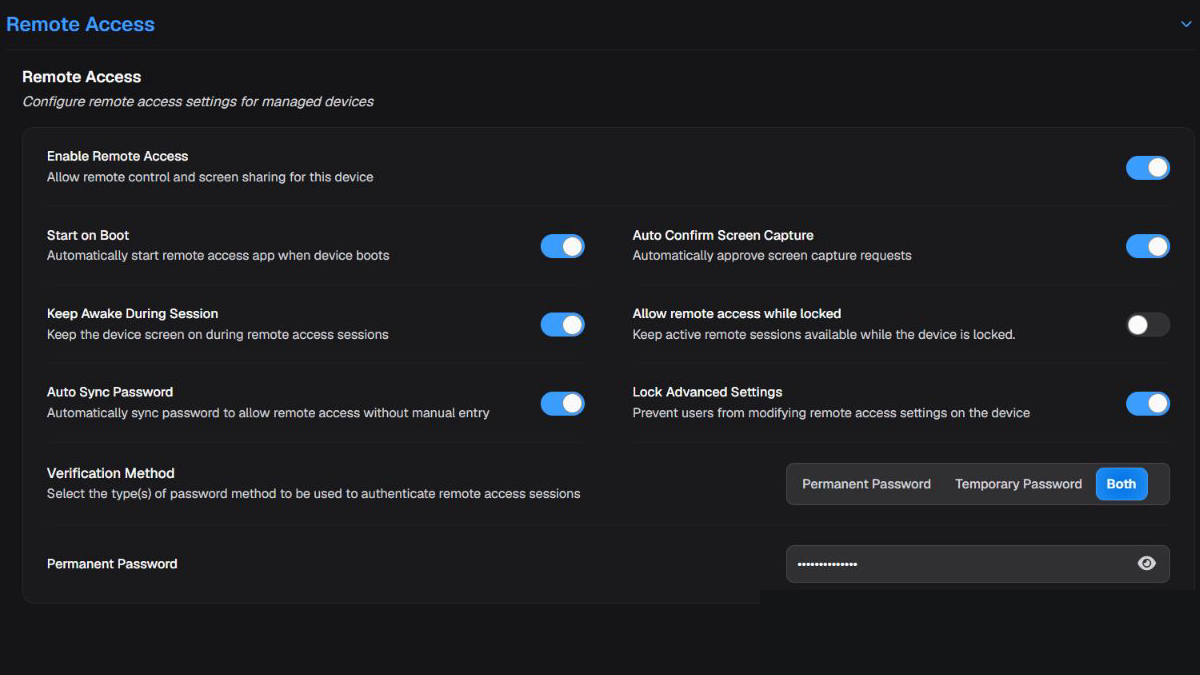
Policy Remote Access settings, with the password protected.
The panel requires remote access to be enabled for the company and the Nomid Remote app to be available in the company catalog. Viewing the policy also depends on profile permission; changing or saving it requires edit permission. Some controls appear only when the corresponding verification method is selected.
Enablement and startup
Access: edit — Admin Editor; Custom / company role*. Permission: edit the policy configuration; operating a device session requires separate command, screenshot or remote access permissions.
Enable Remote Access
| State | Effect |
|---|---|
| Enabled | Includes Nomid Remote and its configuration in the policy form; it does not start a session. |
| Disabled | Removes remote-access preparation from this policy. |
Start on Boot
| State | Effect |
|---|---|
| Enabled | Requests that the remote service start after the headset boots. |
| Disabled | Does not request automatic startup through this control. |
Use automatic startup only when support must be available after a reboot and the app is authorized to start on the Pico model in use. Confirm the behavior on a pilot headset.
Capture, screen, and lock state
Access: edit — Admin Editor; Custom / company role*. Permission: edit the policy configuration; operating a device session requires separate command, screenshot or remote access permissions.
Auto Confirm Screen Capture
| State | Effect |
|---|---|
| Enabled | Requests automatic confirmation of the capture prompt when the app and headset support it. |
| Disabled | Keeps local or system confirmation when required. |
Automatic confirmation reduces local intervention, but also removes a privacy checkpoint. Use it only in pre-authorized support scenarios.
Keep Awake During Session
| State | Effect |
|---|---|
| Enabled | Requests that the service and screen remain active during a remote session. |
| Disabled | Keeps the normal sleep and screen rules. |
Keeping the screen active can increase power use and heat. Reserve it for assisted sessions where sleep would interrupt support.
Allow remote access while locked
| State | Effect |
|---|---|
| Enabled | Requests remote capture and input during an active session while the headset is locked. |
| Disabled | Does not request remote access while the device is locked. |
Enable access while locked only when the privacy policy and support procedure authorize that reach.
Password and settings protection
Access: edit — Admin Editor; Custom / company role*. Permission: edit the policy configuration; operating a device session requires separate command, screenshot or remote access permissions.
Auto Sync Password
| State | Effect |
|---|---|
| Enabled | When the app's current password changes, requests that it be sent to the management service used for remote access. |
| Disabled | Keeps that automatic sending off; updates follow the company's authorized credential process. |
This control may be absent when the corresponding capability is not enabled for the company.
Use synchronization when authorized remote support needs the service to follow the current password without manual relay. Enable it only under the company's access and credential process; if automatic sending is not authorized, keep it disabled. The control does not prove automatic password revocation or rotation.
Lock Advanced Settings
| State | Effect |
|---|---|
| Enabled | Requests that the remote app prevent local changes to approval, verification, startup, capture, and screen-awake settings. |
| Disabled | Does not request centralized locking of those local settings. |
Enable the lock only when the support team has a maintenance procedure that does not depend on changing these settings directly on the headset.
Verification Method
| Option | Effect |
|---|---|
| Temporary Password | Uses the generated temporary code to verify the session. |
| Permanent Password | Uses the permanent password managed in the policy. |
| Both | Allows temporary or permanent verification according to the remote-app flow. |
Permanent Password
| State | Effect |
|---|---|
| Valid password | Sets the permanent credential used by Permanent Password and Both. Share the value only through the company's secure credential process. |
The field appears only when the method includes permanent verification. The password must contain at least eight characters, one uppercase letter, and one digit. If it does not meet the requirements, correct it or use Temporary password; never place passwords in examples, screenshots, or tickets.
Validate and recover: on a pilot headset, confirm availability, consent, authentication, and session closure. Portal confirms policy configuration, not connection success. If behavior is unexpected, end the session through the authorized procedure and return to the previous values or revision.
Launcher
Access: view — Admin Editor Analyst Teacher; edit — Admin Editor; Custom / company role*. Permission: view the policy; edit the policy.
Launcher selects either the managed Nomid Kiosk experience or the device's default launcher. The next five sections appear only with Nomid Kiosk. Portal stores these choices in the Nomid Settings configuration; because the Portal screen does not prove the result on the headset, validate each setting on a pilot Pico headset.
Launcher Type
Access: view — Admin Editor Analyst Teacher; edit — Admin Editor; Custom / company role*. Permission: view the policy; edit the policy.
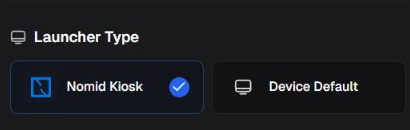
Launcher Type selector and its options in the VR editor.
Launcher Type
| Option | Effect |
|---|---|
| Nomid Kiosk | Selects the managed experience and reveals VR Environment, PIN, categories, layout, and actions toolbar. |
| Device Default | Keeps the native launcher and hides the Nomid Kiosk-specific sections. |
VR Environment
Access: view — Admin Editor Analyst Teacher; edit — Admin Editor; Custom / company role*. Permission: view the policy; edit the policy.
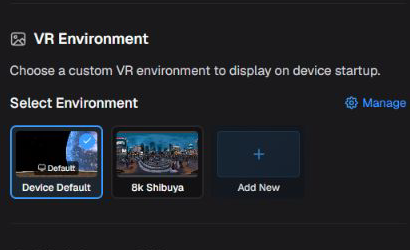
VR Environment selection in the launcher.
Select Environment
| State | Effect |
|---|---|
| Device Default | Keeps the headset's default environment and remains available even when there is no custom environment. |
| Available custom environment | Associates a ready environment available to the company with the policy form. |
The custom-environment list varies with the ready environments available to the active company. To consult the catalog, use Manage or Add New and continue to VR environments. In this policy, select only an environment that is already available.
Administrator PIN
Access: view — Admin Editor Analyst Teacher; edit — Admin Editor; Custom / company role*. Permission: view the policy; edit the policy.
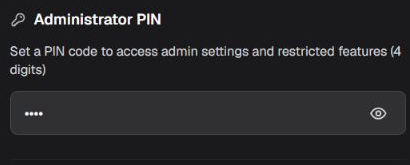
Administrator PIN field, with its value protected.
Administrator PIN
| Accepted value | Effect |
|---|---|
| 4-digit PIN | Stores the PIN used by the launcher's administrative configuration. Keep it in the secure credential process and do not include it in tickets or examples. |
Category Tabs
Access: view — Admin Editor Analyst Teacher; edit — Admin Editor; Custom / company role*. Permission: view the policy; edit the policy.
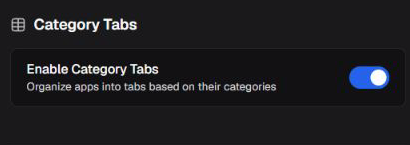
Launcher Category Tabs controls.
Enable Category Tabs
| State | Effect |
|---|---|
| Enabled | Requests that launcher apps be organized into tabs based on their assigned categories. |
| Disabled | Does not request category tabs through this control. |
Use categories when the catalog has consistently maintained groups. Without that organization, empty or unclear tabs can make apps harder to find.
Menu Layout
Access: view — Admin Editor Analyst Teacher; edit — Admin Editor; Custom / company role*. Permission: view the policy; edit the policy.
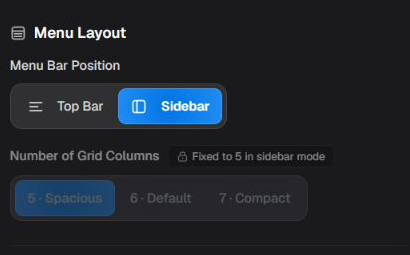
Menu Layout controls in the launcher.
Menu Bar Position
| Option | Effect |
|---|---|
| Top Bar | Requests that categories appear at the top of the launcher. |
| Sidebar | Requests that categories appear on the side and locks the form to a five-column grid. |
Number of Grid Columns
| Option | Effect |
|---|---|
| 5 — Spacious | Requests five columns with larger items. |
| 6 — Default | Requests six columns with intermediate density. |
| 7 — Compact | Requests seven columns with smaller items. |
With Sidebar, Portal locks the grid to five columns. Validate readability, reach, and visual comfort on the Pico model used in the operation.
Actions Toolbar
Access: view — Admin Editor Analyst Teacher; edit — Admin Editor; Custom / company role*. Permission: view the policy; edit the policy.
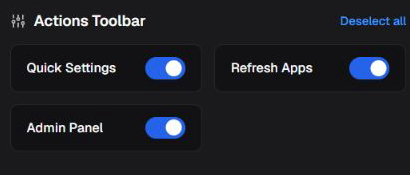
Actions Toolbar controls in the launcher.
Quick Settings
| State | Effect |
|---|---|
| Enabled | Requests that the Quick Settings action appear in the launcher. |
| Disabled | Requests that this action be hidden. |
Refresh Apps
| State | Effect |
|---|---|
| Enabled | Requests that the Refresh Apps action appear in the launcher. |
| Disabled | Requests that this action be hidden. |
Admin Panel
| State | Effect |
|---|---|
| Enabled | Requests that the Admin Panel action appear in the launcher. |
| Disabled | Requests that this action be hidden. |
Group actions
| Action | Effect in the form |
|---|---|
| Select all | Enables Quick Settings, Refresh Apps, and Admin Panel together. |
| Deselect all | Disables all three Actions Toolbar controls together. |
Before hiding all actions, confirm that the team still has an authorized path for headset maintenance and updates.
Validate and recover: before saving, use a policy linked only to a pilot Pico headset and confirm environment, administrator PIN, categories, layout, and actions. The Portal preview and saved value do not prove final rendering. If the headset can still synchronize, restore the previous setting or revision. If it loses connectivity or has no usable administrative exit, Portal restoration is not a recovery guarantee; follow the authorized maintenance or reprovisioning procedure for that Pico model.
Network
Access: view — Admin Editor Analyst Teacher; edit — Admin Editor; Custom / company role*. Permission: view the policy; edit the policy.
This tab defines Wi-Fi profiles that the headset should know. Protect the SSID when it identifies a private network, and never expose the password.
Network
Access: view — Admin Editor Analyst Teacher; edit — Admin Editor; Custom / company role*. Permission: view the policy; edit the policy.
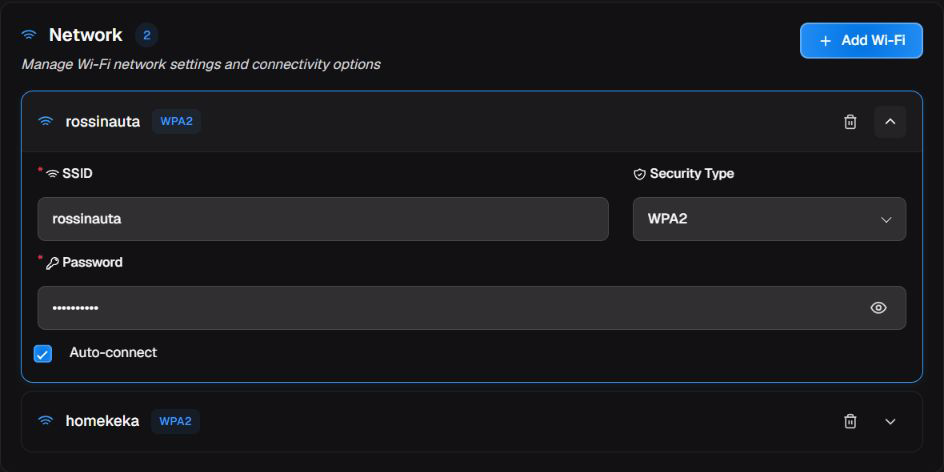
Network with an expanded Wi-Fi profile: SSID, WPA2 security, protected password and auto-connect.
Each profile can be expanded, collapsed, or removed in the form. Add Wi-Fi creates another local profile. On save, Portal updates the policy and starts asynchronous synchronization; that does not prove that the headset has received the change.
Identification and protection
Access: view — Admin Editor Analyst Teacher; edit — Admin Editor; Custom / company role*. Permission: view the policy; edit the policy.
SSID
| Value | Effect |
|---|---|
| Network name | Identifies the profile's Wi-Fi network. Portal accepts up to 32 characters. |
Security Type
| Option | Effect |
|---|---|
| Open | Creates the profile without a password and hides the Password field. Use only on a network explicitly approved for this risk. |
| WPA2 | Requires a password and stores a protected profile in the representation accepted by the editor. |
| WPA3 | Appears as a Portal option, but this version does not preserve its distinction from WPA2 across save and reopen: the policy may reappear as WPA2. This does not prove a protocol downgrade on the headset; validate functionally before real use. |
Password
| Value | Effect |
|---|---|
| 8–63 character password | Supplies the credential for a WPA2 or WPA3 profile. The field appears only for those types and must never be exposed. |
Connection
Access: view — Admin Editor Analyst Teacher; edit — Admin Editor; Custom / company role*. Permission: view the policy; edit the policy.
Auto-connect
| State | Effect |
|---|---|
| Enabled | Requests automatic connection when the network is available. |
| Disabled | Keeps the profile without requesting automatic connection through this control. |
Profile actions
Access: view — Admin Editor Analyst Teacher; edit — Admin Editor; Custom / company role*. Permission: view the policy; edit the policy.
| Action | Effect and caution |
|---|---|
| Add Wi-Fi | Adds an empty profile to the form. |
| Expand/Collapse | Shows or hides profile fields without changing their values. |
| Remove | Removes the profile from the list being edited. After saving and reopening, check the recorded configuration and validate networking on a pilot device. Removing the last profile does not prove that the network has been revoked on the headset; preserve a viable connection or administrative recovery path. |
Validate and recover: first save a policy linked only to a pilot headset and confirm association, authentication, and reconnection. Portal confirms saved values and starts synchronization, not final connectivity. Keep an alternate network or maintenance path before replacing an in-use profile. If the pilot loses access, Portal restoration helps only while the headset can still synchronize; follow the model's authorized recovery procedure when it is offline.
Security
Access: view — Admin Editor Analyst Teacher; edit — Admin Editor; Custom / company role*. Permission: view the policy; edit the policy.
In the current Portal version, this tab presents only the user's factory-reset permission. Other security options are not shown on this screen and cannot be configured through this flow.
Allow user factory reset
Access: view — Admin Editor Analyst Teacher; edit — Admin Editor; Custom / company role*. Permission: view the policy; edit the policy.
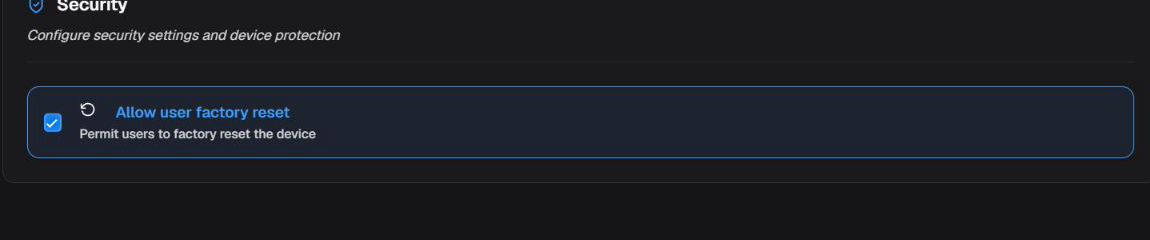
Control allowing the user to perform a factory reset.
Allow user factory reset
| State | Effect |
|---|---|
| Enabled | Requests permission for the user to initiate a factory reset on the headset. |
| Disabled | Requests prevention of a user-initiated factory reset. |
A factory reset erases local data and may remove the headset from management. Do not perform it merely to test the policy. Restoring the setting prevents new requests after synchronization but does not recover erased data; use the authorized reprovisioning procedure in New device.
Validate and recover: on the pilot, confirm only whether the local option is available or unavailable as expected. Do not confirm the reset. If a real reset has already occurred, follow the authorized recovery and provisioning procedure; restoring the revision does not reverse data deletion.
History
Access: view — Admin Editor Analyst Teacher; restore — Admin Editor; Custom / company role*. Permission: view revisions; restore a revision.
The History tab requires history-view permission and gathers recorded revisions of the VR policy. Use it to investigate changes before restoring a configuration.
Policy Revisions
Access: view — Admin Editor Analyst Teacher; restore — Admin Editor; Custom / company role*. Permission: view revisions; restore a revision.
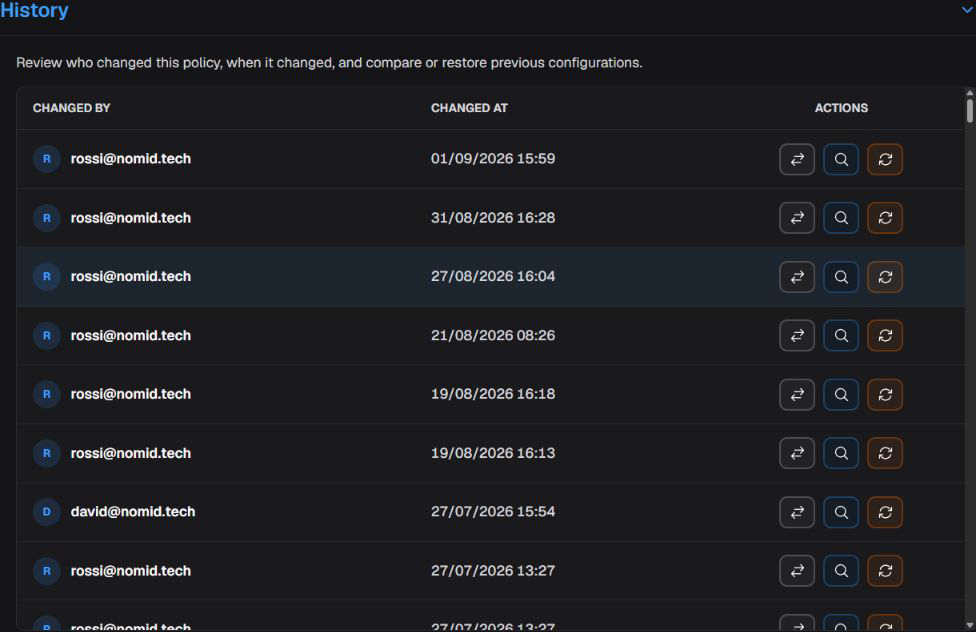
History with loaded revisions and the actions available for each row.
Available actions
Access: view — Admin Editor Analyst Teacher; restore — Admin Editor; Custom / company role*. Permission: view revisions; restore a revision.
| Action | Effect and condition |
|---|---|
| Compare | Opens differences between the selected revision and an available reference without changing the policy. |
| Preview | Opens an earlier revision in read-only mode; it does not replace the current revision. |
| Restore | After confirmation, replaces the current configuration with values from the selected revision. It does not appear for the current revision or a deleted policy. |
| Explain with AI | Produces an assisted explanation of differences when the feature is available and differences exist. Check its response against Portal values. |
Use Restore only when you intend to replace the current configuration. Before confirming, compare content, launcher, network, security, and remote access; then validate the new revision on a pilot Pico headset.
Quick troubleshooting
| Symptom | What to check |
|---|---|
| An app is missing | Check whether it is available in Library, already included, and whether the Application filter is active. |
| Remote access does not start | Confirm license, app, policy, permissions, and connectivity; enabling the policy does not start a session. |
| Launcher sections are missing | Confirm that Launcher Type is set to Nomid Kiosk. |
| Wi-Fi does not connect | Check SSID, security type, password, headset compatibility, and network range; do not repeat changes without preserving a recovery path. |
| History is missing | Confirm history-view permission. |
Glossary
| Term | Definition |
|---|---|
| Headset | A head-worn device used to display and control virtual-reality experiences. |
| VR/Pico | In this manual, a policy intended for Pico headsets compatible with Portal. |
| Policy | A set of settings saved in Portal to guide the behavior of linked devices. |
| Launcher | The home interface used to open apps and actions on the headset. |
| Nomid Kiosk | A managed launcher supplied by Nomid Settings for a controlled experience. |
| Kiosk | A dedicated mode that limits the experience to apps and actions defined by administrators. |
| Pilot Pico headset | A test headset used to observe effects before broad distribution. |
| Library | The company's Portal catalog where reusable apps are published and maintained. |
| Package identifier | The unique technical name that identifies an installed application. |
| Managed configuration | A set of fields published by an app to receive policy-managed values. |
| SSID | The name that identifies a Wi-Fi network. |
| WPA2/WPA3 | Wi-Fi network protection standards. |
| WebXR | Web technology for virtual- or augmented-reality experiences in a browser. |
| PIN | A numeric code for administrative access. |
| NOPS | The tool used in the authorized Pico headset provisioning process. |
| Nomid Remote | The application and service used for authorized remote-support sessions. |
| Policy revision | A saved version of the configuration, used to compare changes or recover an earlier state. |
| Distribution | The start of delivery of a revision to linked devices; in the VR editor, saving triggers this process asynchronously. |
| Synchronization | The step in which a device receives a revision already saved in Portal. |