 Nomid
NomidThe Nomid Ops App is the desktop application used by operations teams to prepare, provision, monitor, and diagnose Android/VR devices connected over USB. It is especially important for Pico VR headsets, because this device type is provisioned through NOPS, not through Zero-touch or Knox Mobile Enrollment.
Important: for Pico VR, use the Nomid Ops App flow. Zero-touch and KME are not available for this scenario. Before starting, confirm the policy, Wi-Fi, USB data cable, USB debugging, and computer authorization on the device.
Prerequisites
- Authorized user in the portal and in the Nomid Ops App.
- Correct company selected before downloading content or provisioning devices.
- VR/Pico policy created and validated in the portal.
- Device with enough battery, USB data cable, and USB debugging enabled.
- Valid Wi-Fi network for the device to complete enrollment, sync, and content download.
- Operating system permission to open the app and run local actions when prompted.
1. Access and First Run
1.1 Login Screen
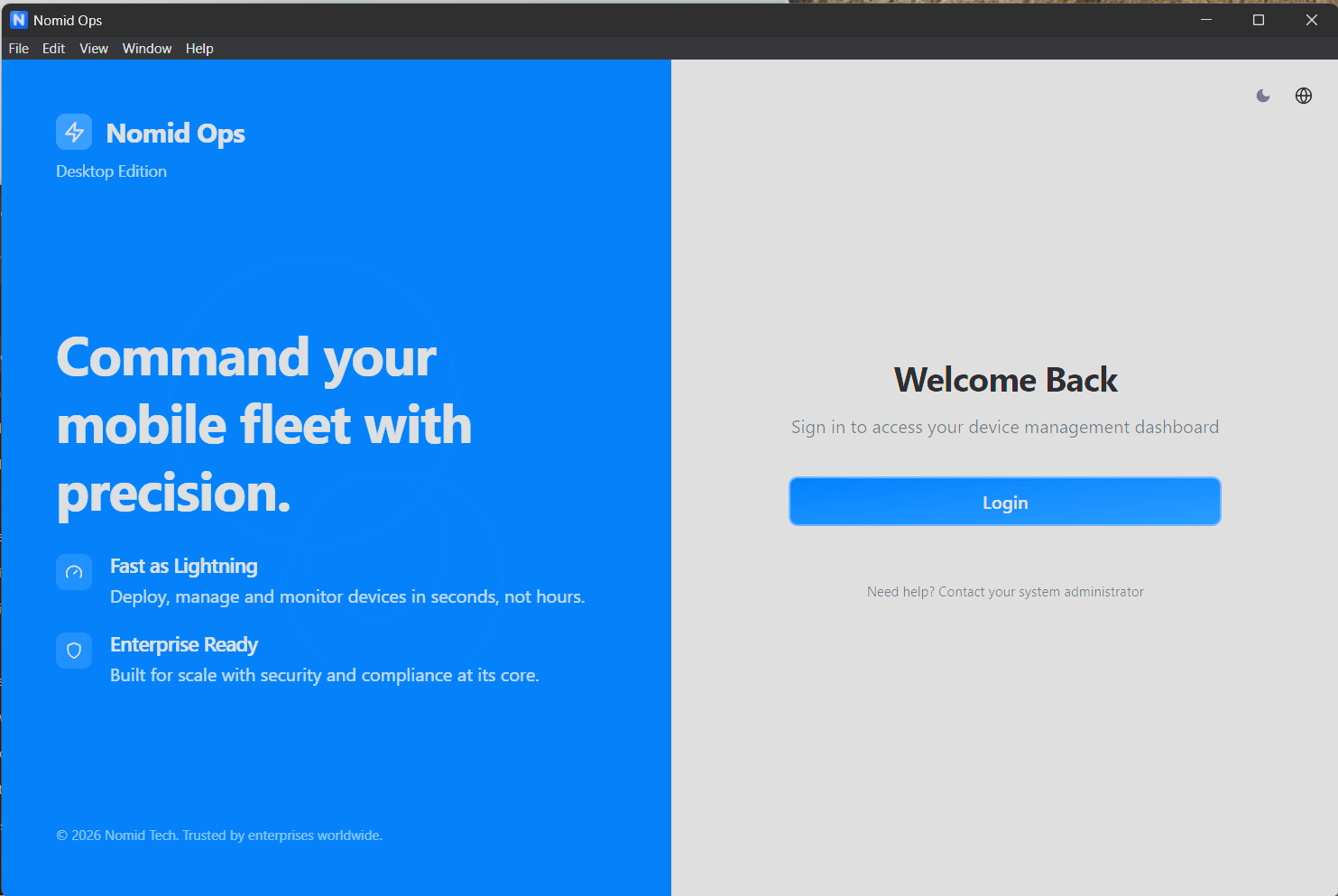
Use Login to start an authenticated session. The app uses the user identity to load companies, policies, devices, and content available in the portal. The icons at the top allow you to adjust appearance or language when these options are available.
If the session expires during provisioning, sign in again. The app preserves completed progress and resumes pending steps once authentication is restored.
1.2 Opening from the Portal
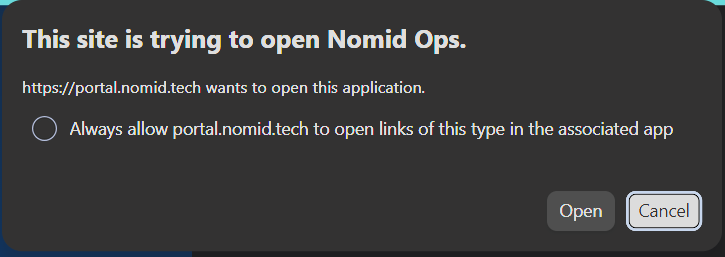
When the portal asks to open the Nomid Ops App, click Open to continue in the desktop application. Select Always allow portal.nomid.tech to open links of this type only on trusted workstations used by the operations team, because this option prevents future prompts for links of the same type.
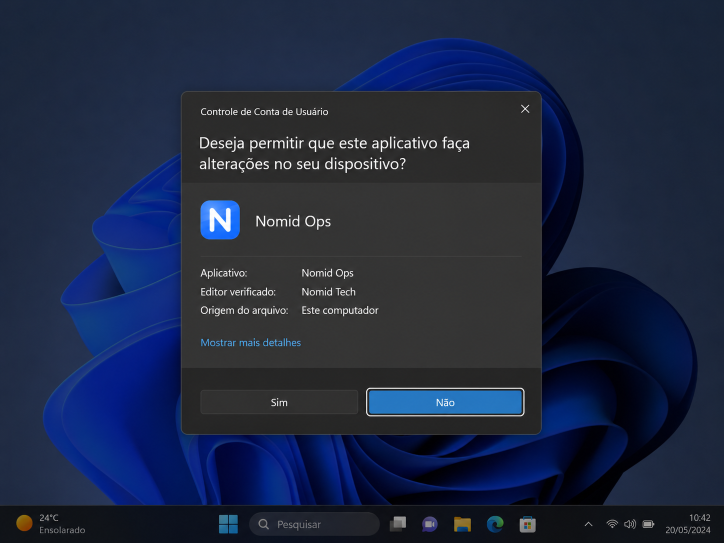
On Windows, User Account Control may request permission for the app to make local changes. Confirm only when the displayed app is Nomid Ops and the verified publisher is Nomid Tech.
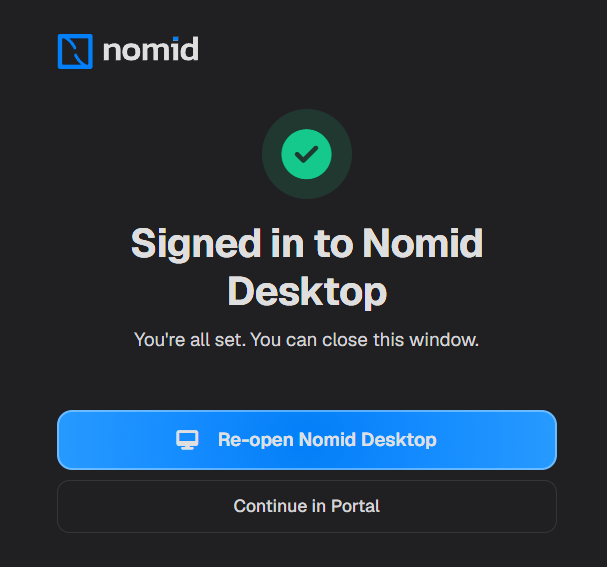
Use the application signature as an origin check. If the publisher name or app name differs from the expected value, stop the execution and validate with Nomid support before continuing.
1.3 User Menu

The top menu gives access to global application options. Use it to confirm context, preferences, and session state before running operations on devices.
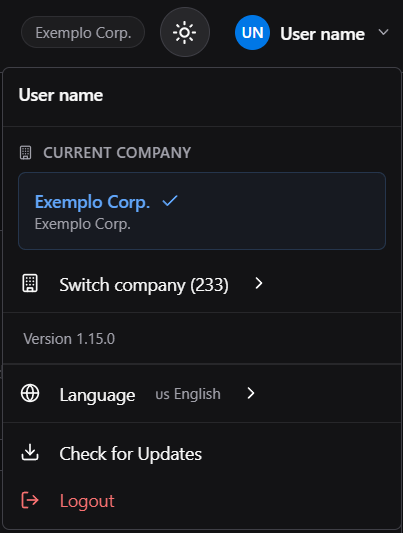
In the user menu, confirm the current company, access preferences, and use Logout when the operation is complete. Switching companies changes the displayed policies, devices, and content, so validate the context before downloading apps or starting provisioning.
2. Devices

The Devices tab is the operational center of the Nomid Ops App. Use it to identify connected devices, validate ADB, start provisioning, run support actions, and inspect details for the selected device.
2.1 Device Dashboard
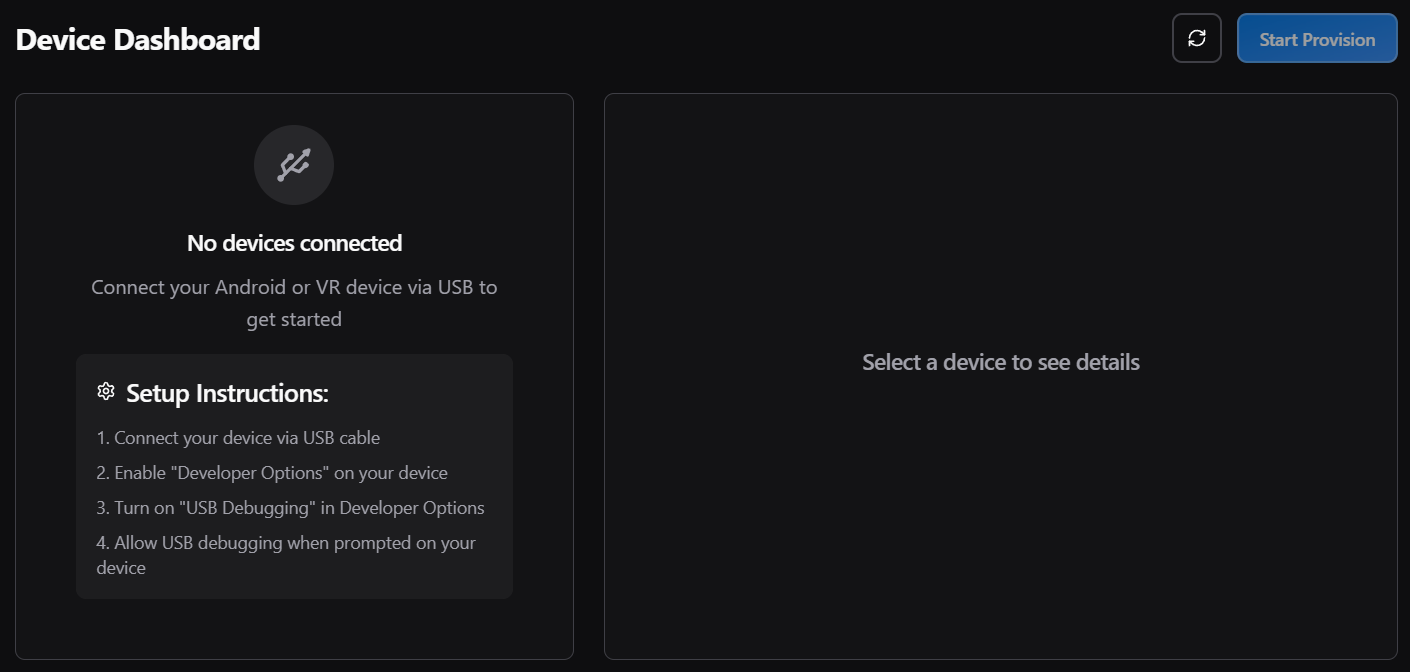
The dashboard summarizes the fleet connected to the computer. Use Refresh to update the list and Start Provision to start configuration for the selected devices.
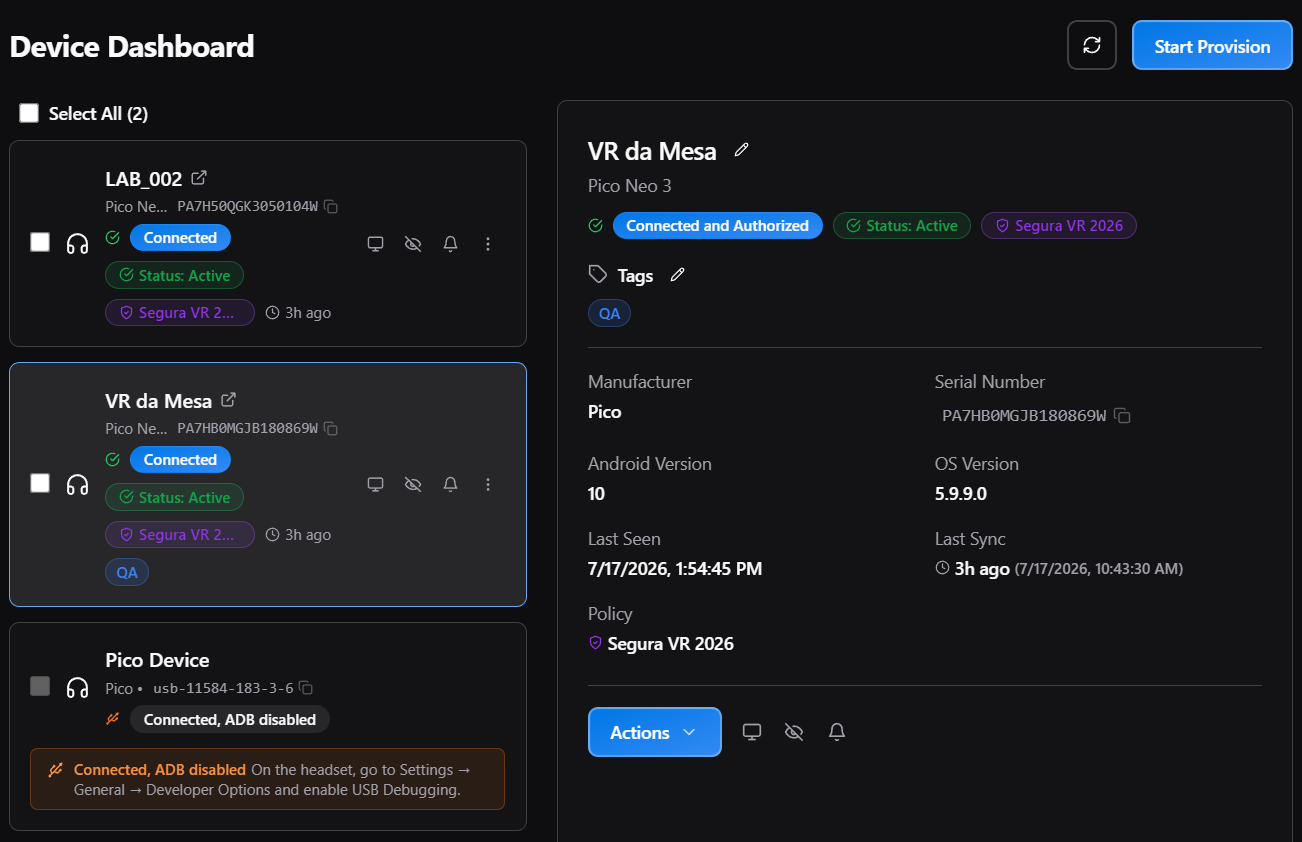
When you select a device, the details panel shows manufacturer, model, serial number, Android version, operating system version, last seen, last sync, applied policy, and tags. These details help confirm that the correct device will be provisioned.
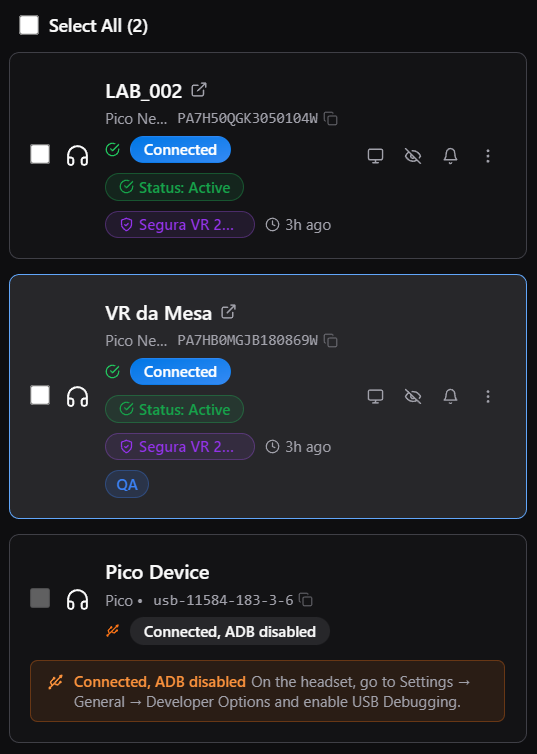
The list allows you to select one or more devices. Use multi-selection for bulk provisioning and pay attention to connection states before starting the session.
2.2 Connection States
The states indicate whether the device is ready for operation.
| State | What it means | What to do |
|---|---|---|
| Connected | The device was detected by the computer. | Verify that it is also authorized before provisioning. |
| Connected and Authorized | The device is detected and ADB was authorized. | You can proceed with actions and provisioning. |
| Connected, ADB disabled | The device appears, but USB debugging is not active. | On the headset, enable USB Debugging in Developer Options. |
| Unauthorized | The computer has not yet been accepted on the device. | Accept the USB debugging prompt on the device screen. |
| Offline | The device is not available for commands. | Reconnect the cable, change the USB port, or restart ADB. |
| Provisioned | The device already has management applied. | Reprovision only with authorization and factory reset when required. |
2.3 Device Card and Actions
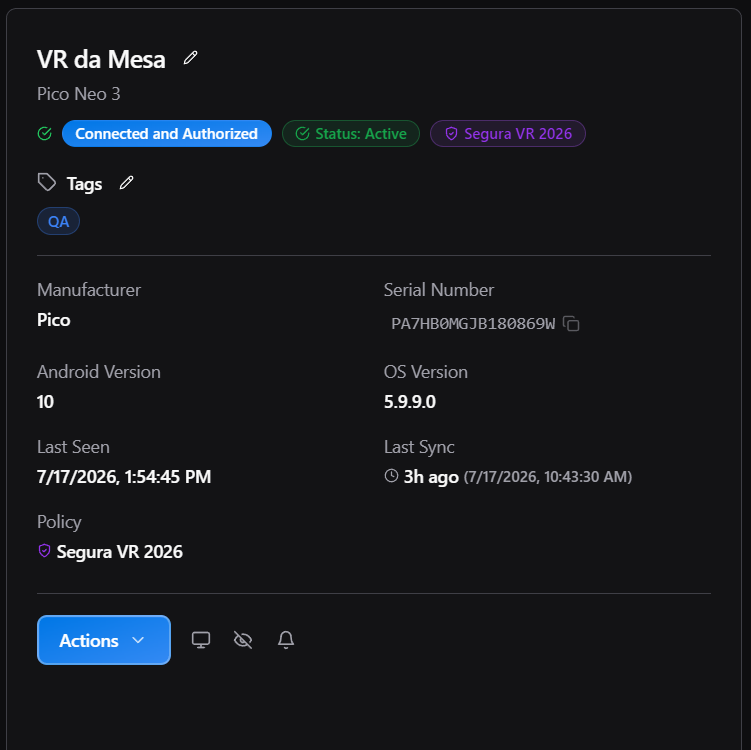
The card shows the device operational state and quick shortcuts. Use it to open actions, start casting, identify the equipment, or review alerts such as ADB disabled.
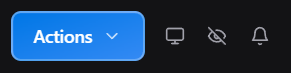
Quick action icons run common commands without opening the full menu. They are used for actions such as screen mirroring, audible identification, and support options for the selected device.
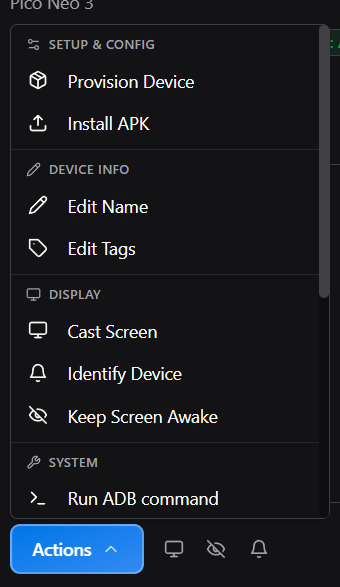
In Setup & Config, use Provision Device to open the provisioning flow and Install APK to manually install an APK through ADB. In Device Info, use Edit Name to adjust the displayed name and Edit Tags to organize the device with operational labels. In Display, use Cast Screen to mirror the screen, Identify Device to send an identification signal, and Keep Screen Awake to prevent the screen from sleeping during the operation.
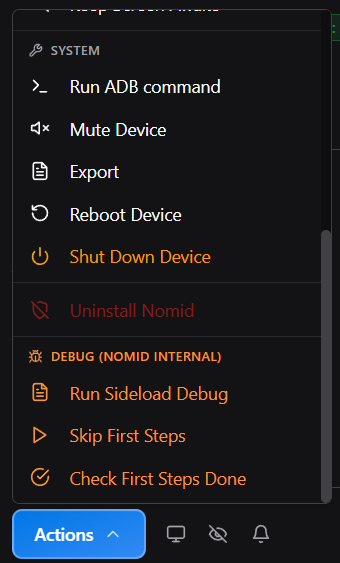
In System, use Run ADB command only with technical guidance, because it runs support ADB commands that can change the device state. Mute Device mutes audio streams, Export captures logs, Reboot Device restarts the device, Shut Down Device powers it off, and Uninstall Nomid removes Nomid control from the device when this action is allowed.
Options under DEBUG (NOMID INTERNAL) exist for internal diagnostics and Nomid support. They may appear for some users, but their operational details are not part of the standard procedure. Use them only with guidance from the responsible team.
3. Provisioning
3.1 Start Provisioning
Click Start Provision or Provision Device after selecting the correct devices. The wizard opens the session configuration and lets you define policy, content, Wi-Fi, OS update, naming, and performance.
3.2 Policy

In Policy Configuration, select the policy that will be applied to the devices. The policy defines apps, settings, networks, rules, and parameters the device receives during provisioning.
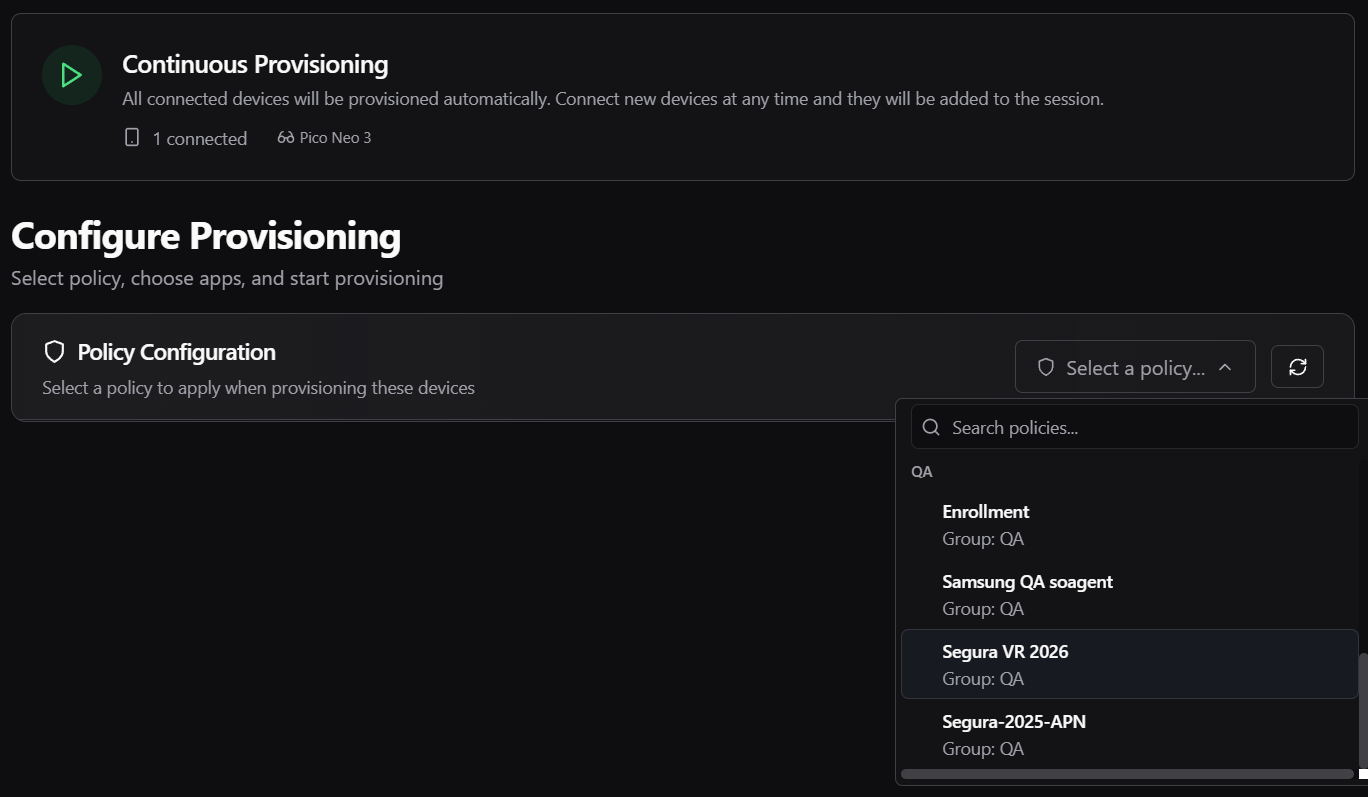
Use the list to choose the correct policy. Only active policies should be used for provisioning. If the expected policy does not appear, refresh the list or review the portal configuration before continuing.
3.3 Policy Content

In Content Selection, the app shows the apps and links associated with the policy. The counter indicates how many items are selected, the total size, and how many still need download.
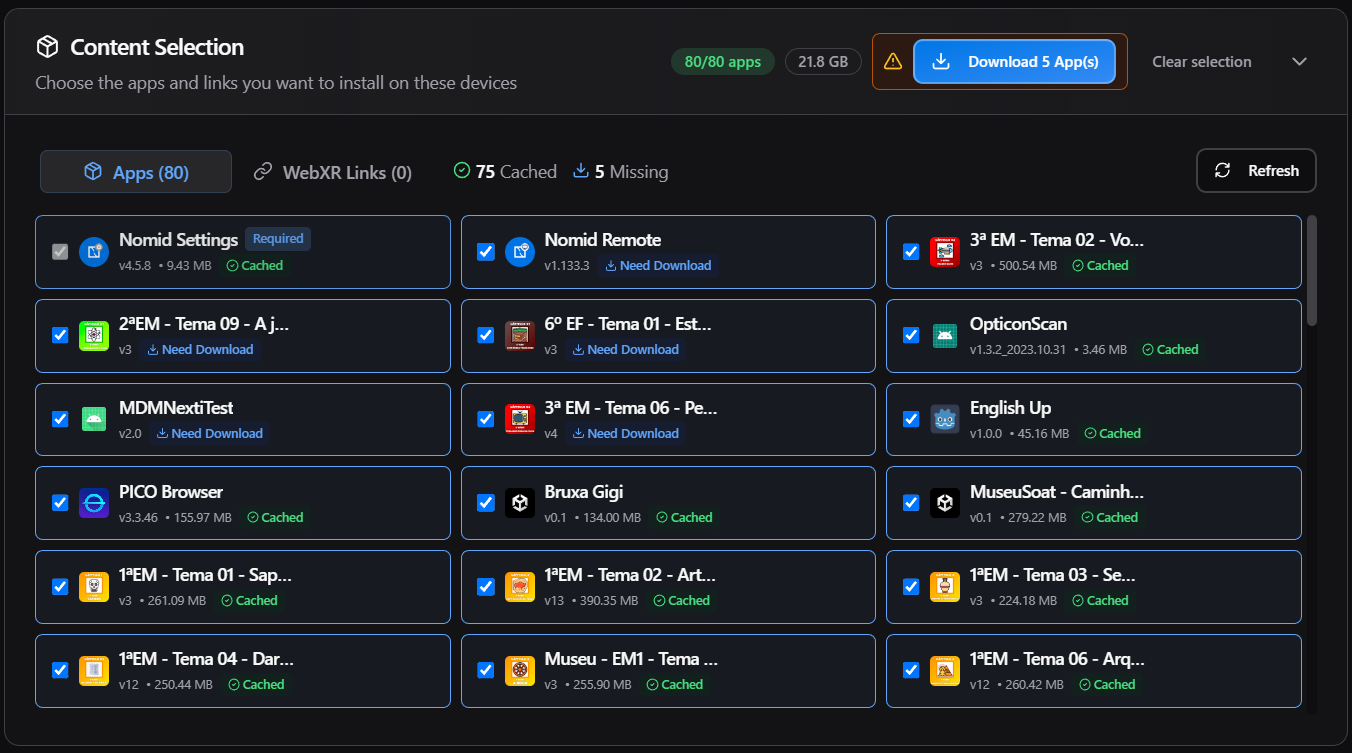
In the Apps tab, each card shows name, version, size, and cache state. Cached means the APK is already available locally. Need Download or Missing means the content must be downloaded before the session. Nomid Settings is required because it is the app that completes management configuration on the device. Use Download App(s) to download missing content, Refresh to reload the list, and Clear selection to remove optional selections.
Downloading content before starting reduces network-related failures and speeds up bulk provisioning, because APKs are reused from the local cache.
3.4 Wi-Fi

In Wi-Fi networks, confirm the network the device will use during provisioning. The network can come from the policy or be added manually.
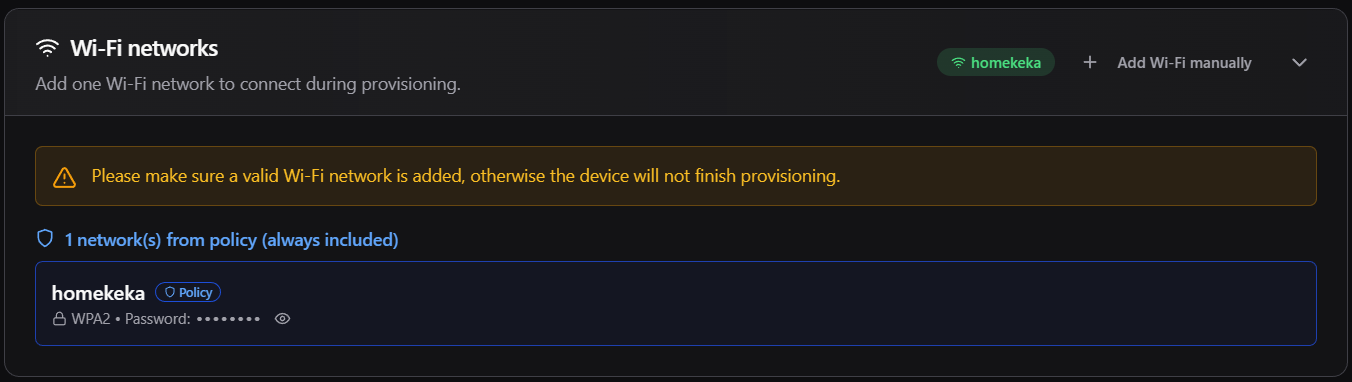
When selecting Wi-Fi from the policy, the app loads the networks configured in the portal. Networks from the policy are always included in the provisioning flow and should not be removed without reviewing the policy.
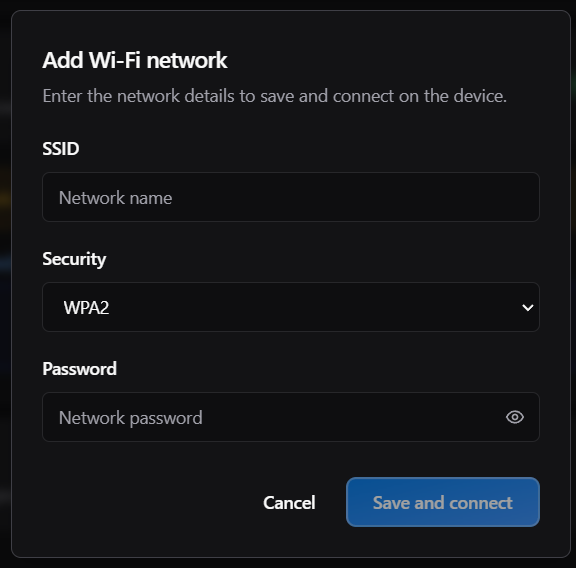
Use Add Wi-Fi manually when the required network is not in the policy. Enter SSID, security type, and password when applicable. Open networks do not require a password, but should be used only when they are part of the approved procedure.
Attention: if Wi-Fi is missing, incorrect, or blocked by firewall, the device may not complete enrollment, sync, policy application, or app download.
3.5 OS Update

Use Enable OS update to update the device operating system before provisioning. This option depends on the OS file being cached and should be used when the operation requires a specific supported version.
When enabled, the update runs before the main provisioning steps. If it fails, validate cable, file cache, model compatibility, and device state before trying again.
3.6 Naming and Tags

In Device Naming, enable automatic naming when devices need standardized names during the session.
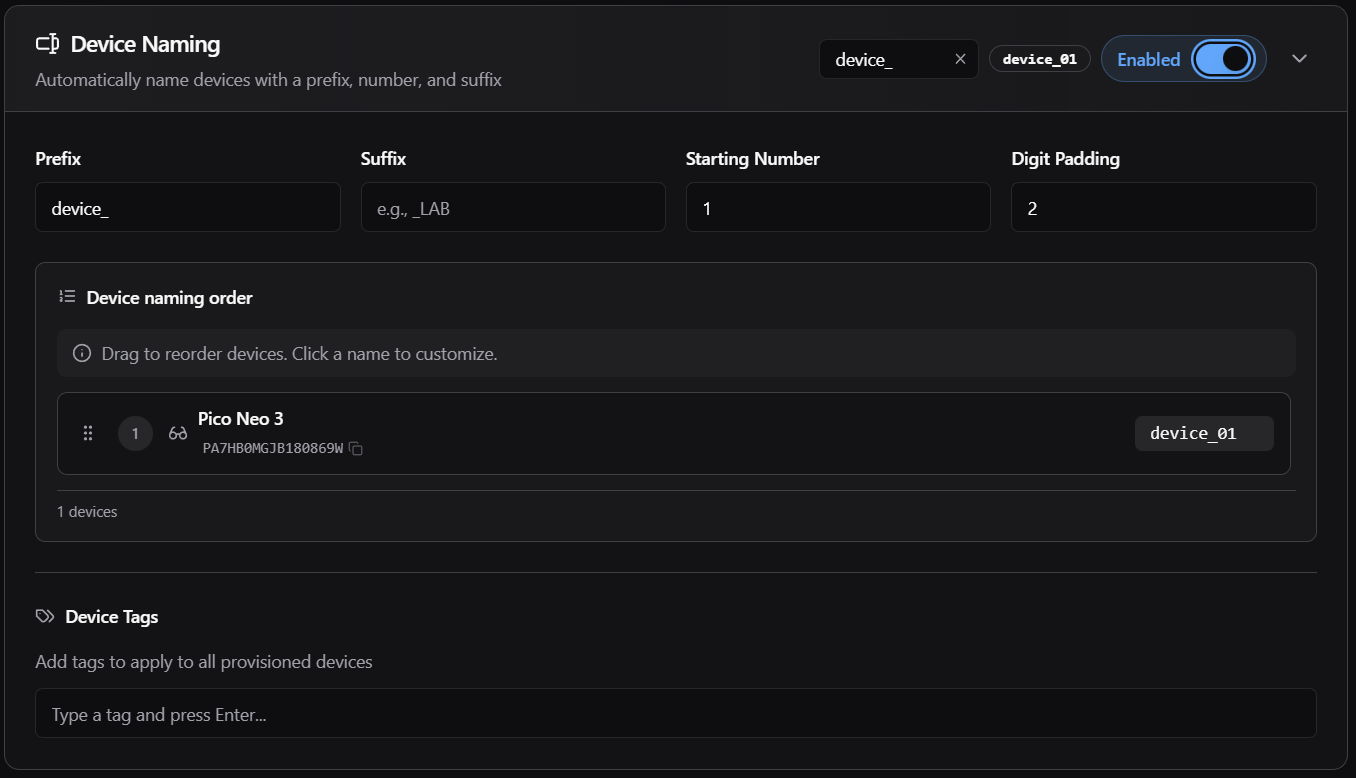
Use Prefix to define the beginning of the name, Suffix to add the ending, Starting Number to choose the first number, and Digit Padding to standardize the number of digits. The preview shows the result before starting. The order list allows you to drag devices and control which equipment receives each name. In Device Tags, add tags that will be applied to provisioned devices.
3.7 Performance

In Performance Settings, adjust session speed according to the capacity of the computer, cables, and USB hubs.
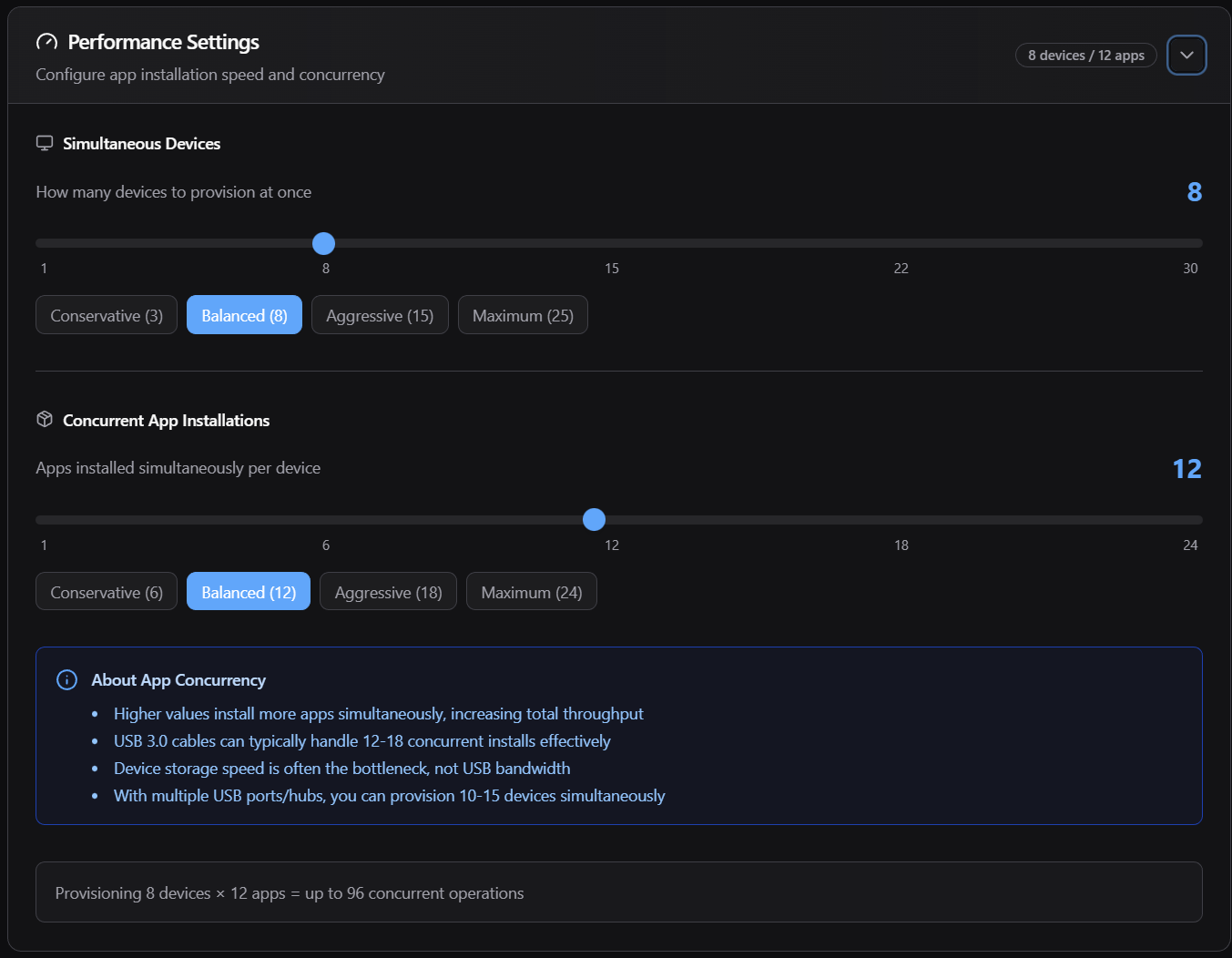
Simultaneous Devices defines how many devices will be provisioned at the same time. Concurrent App Installations defines how many apps can be installed simultaneously per device. The Conservative, Balanced, Aggressive, and Maximum presets change these limits. Start with Balanced and increase only if the workstation, USB hub, and devices support the load.
High values increase throughput, but can also cause instability, disconnections, or installation failures. For large batches, use powered USB 3.0 hubs and good-quality cables.
3.8 Ready to Provision

The Ready to Provision block summarizes policy, app count, links, and the overall session state. Click Start Session only after reviewing policy, content, Wi-Fi, OS, names, and performance.
4. Session Console
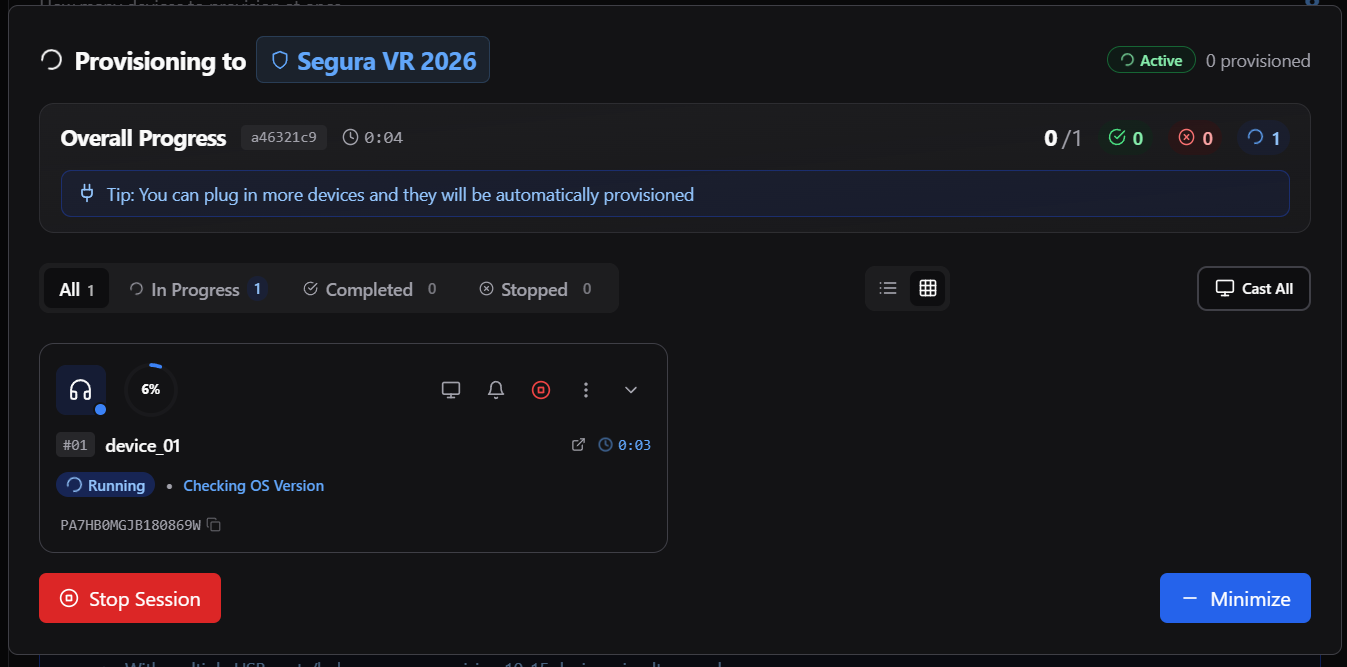
The console monitors the active session. It shows overall progress, devices in progress, completed devices, stopped devices, and errors. The auto-provisioning notice means that new devices plugged in during the session can be automatically added to the flow when the configuration is active.
4.1 Summary and States

The summary shows total provisioned devices, success, failure and running counters, and session duration. Use these data points to monitor the batch without opening each device individually.
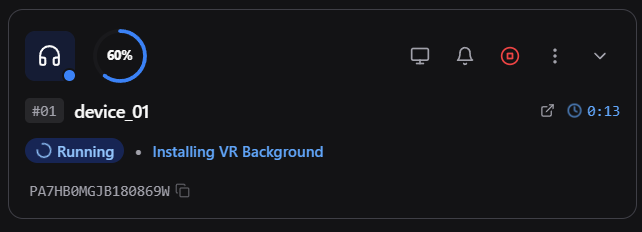
Each device card shows status, percentage, current step, serial, and elapsed time. The filters have the following effects:
- All: shows every job in the current session, regardless of its result.
- In Progress: shows queued, running, or interrupted jobs, as well as jobs that finished locally but whose asset is not yet shown as Active in the portal.
- Completed: shows only jobs that succeeded in the app and whose asset has already been confirmed as Active in the portal.
- Stopped: shows jobs that failed or were canceled. This state does not mean successful completion.
The percentage and step indicate local job progress. A card may reach 100% and remain In Progress while the portal waits for the asset to be confirmed as Active; use Completed as the final confirmation. Elapsed time measures the execution tracked by the app, not the device's subsequent full synchronization time.
4.2 Device Steps
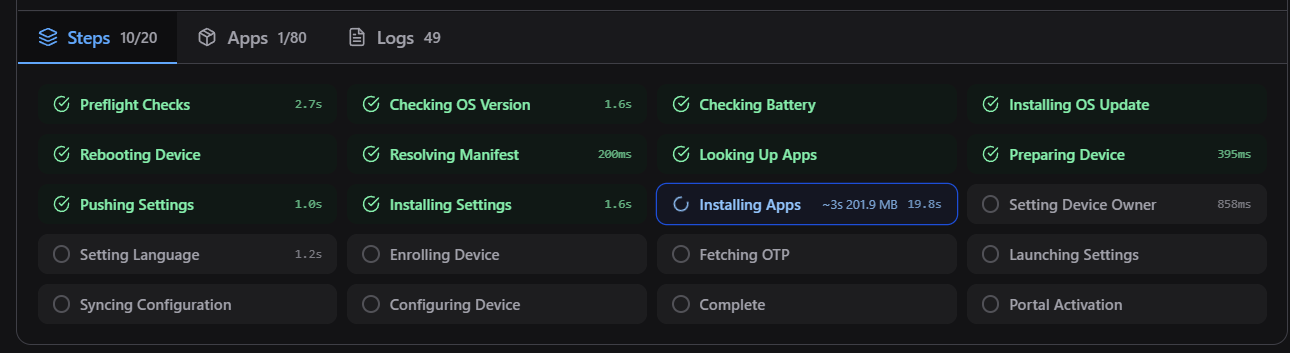
The steps show where the device is in the flow. Operationally, the app checks connection, verifies cache, prepares directories, transfers apps, installs Nomid Settings, installs Nomid apps, configures device management, registers with the backend, fetches the security token, starts the local wizard, and waits for sync.
If a step fails, use the displayed error and logs to decide whether the issue is cable, ADB, cache, policy, Wi-Fi, Device Owner, or backend.
4.3 Apps and Logs
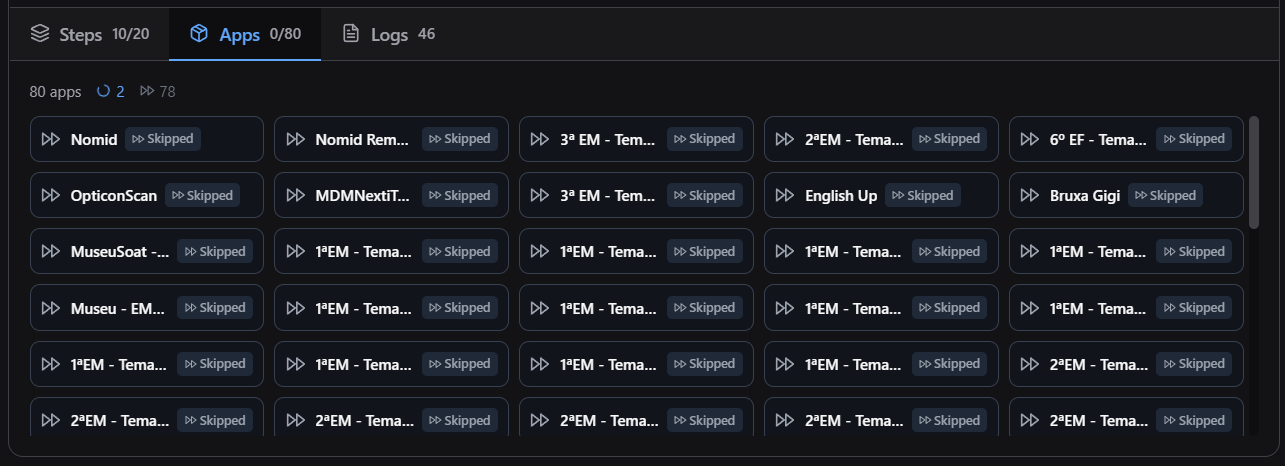
The apps area shows the result of each package processed in that step:
- Pending: the package is waiting for the installation attempt to start.
- Installing: installation is running on the device.
- Success: the app confirmed that installation finished in this run.
- Failed: the attempt did not finish successfully; review the error, version, cache, available storage, and installation permissions.
- Skipped: the package was intentionally bypassed by this step and was not installed by it. This state is not equivalent to success.
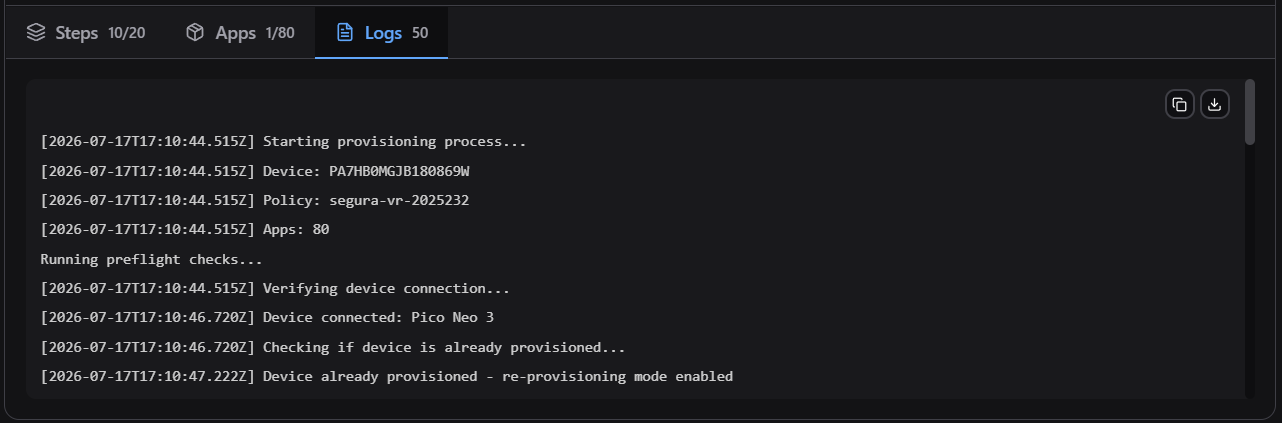
The log records session events. Use it to review errors, copy evidence, and export information for support. Logs may contain technical device data and should be shared only through approved channels.
4.4 Actions During the Session
During the session, card controls allow you to act on a specific device without stopping the entire batch.
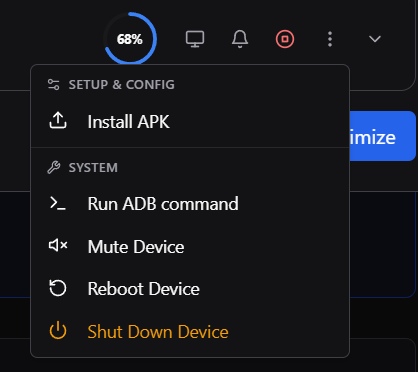
Use the available actions to identify, monitor, or stop a device. Stop only the problematic device when the others can continue.
Use Cast to mirror the device screen and visually confirm what is happening on the headset.
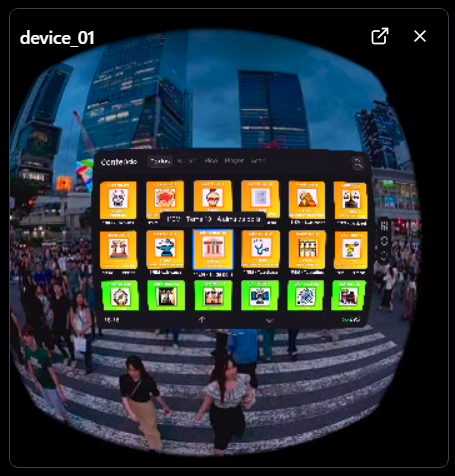
The cast card shows the screen mirroring session linked to the device. Use it to validate permission screens, the initial wizard, network errors, or visible progress on the device.
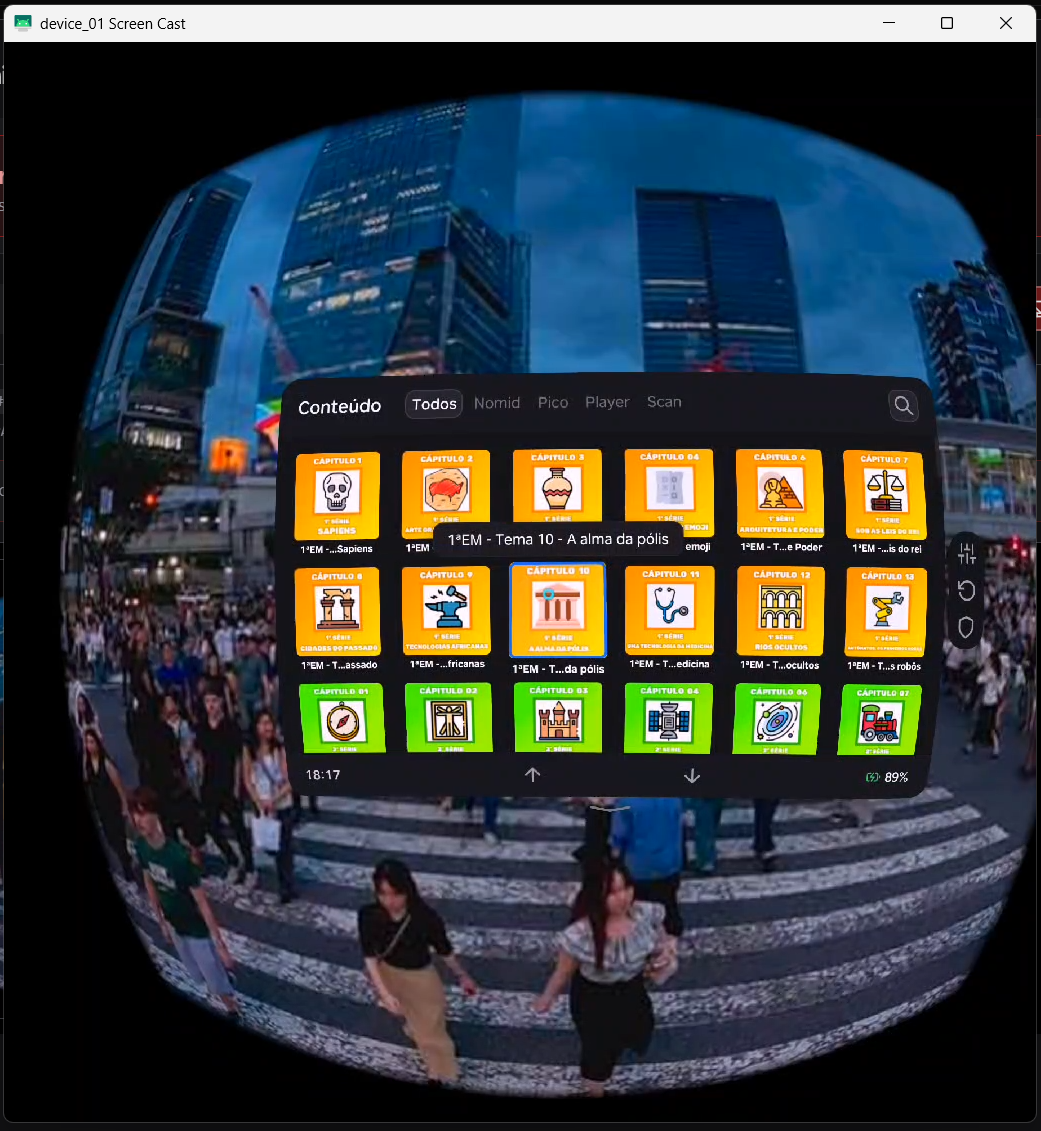
The cast window allows you to monitor the device on a larger screen. If casting fails, validate ADB, USB cable, permissions, and device state.
4.5 Minimize, Restore, and Stop
Use Minimize to collapse the console without interrupting provisioning. The session continues running.

When minimized, the session remains available for restore. Return to the console to review progress, errors, or logs.
Use Stop Session to interrupt the session. This action should be used when the configuration is incorrect, there is a systemic failure, or devices need to be reorganized before a new attempt.
5. Content

The Content tab manages the local cache used to speed up provisioning. It shows what has already been downloaded for the selected company and allows you to clear content that will no longer be used.
5.1 Downloaded Content Indicators
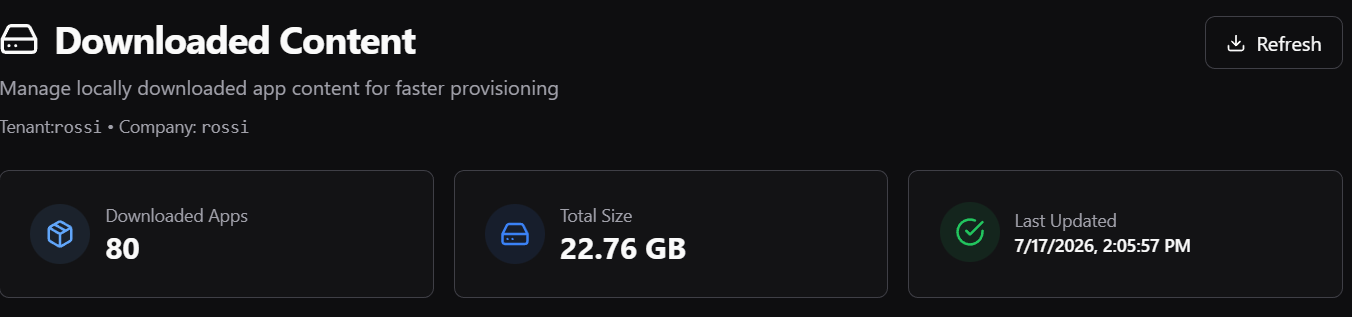
The indicators show the number of downloaded apps, total occupied size, and last update date. Use Refresh to update the view after downloads or cache cleanup.
5.2 Downloaded Apps List
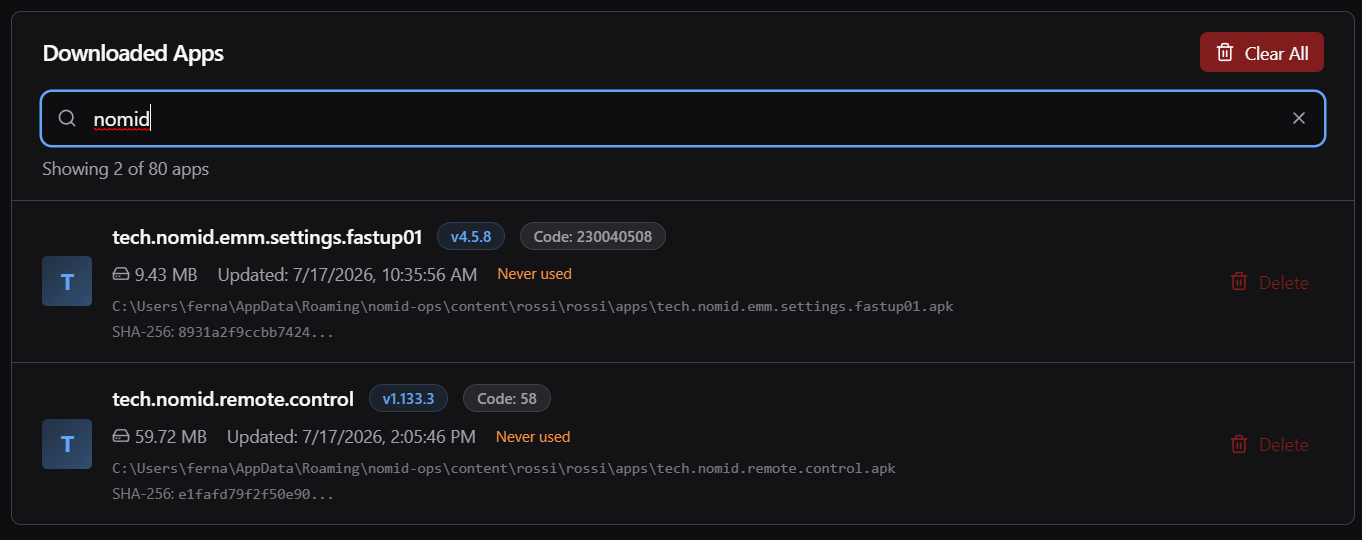
The list allows you to search by package or version, view size, update date, recent usage, version, version code, local path, and SHA-256 hash. Use Delete to remove a specific item and Clear All to clear the entire cache for the current company. When content is deleted, it must be downloaded again before the next provisioning.
6. History

The History tab will be used to review provisioning history. This section is reserved for future clarification because the area will still change and new images will be added before detailed documentation.
7. Troubleshooting

The Troubleshooting tab helps diagnose network problems that prevent enrollment, check-in, app delivery, push, time sync, or communication with services required for provisioning. It combines two complementary approaches: first testing the network from the computer and, when needed, recording the device's own DNS/TLS metadata through the hotspot.

Use this area before repeating provisioning attempts that fail without a clear message. Network preflight does not capture traffic and does not change the device; it only probes endpoints from the computer. Device traffic recording requires a device connected to the hotspot, explicit consent, and permission to read the network interface because it records which servers the device tried to reach and whether those connections progressed.
7.1 Network Preflight

Network preflight tests, from the computer, whether the network allows access to endpoints required for Android Enterprise enrollment, check-in, app delivery, push notifications, and time synchronization.
- Run check starts DNS, TCP/TLS, HTTP, and NTP probes against the required endpoints.
- Cancel stops the current run. Use it when you realize the computer is on the wrong network or you need to fix connectivity before continuing.
- Run again repeats the test after changing networks, correcting firewall/proxy rules, or changing DNS.
- Export report appears after completion and saves a local Markdown or JSON report. The report can include public internet address, network name, router, DNS, and the marked device.

When an endpoint appears as Reachable, the local network allows the communication required for that service. Other statuses show where communication broke:
- DNS blocked means name resolution failed, such as NXDOMAIN, SERVFAIL, or timeout.
- TCP blocked means the service port refused the connection or timed out.
- UDP blocked means no response was received for UDP checks, especially NTP.
- TLS blocked means the TLS handshake failed or the connection reset during negotiation.
- TLS intercepted means an Android Enterprise endpoint served a certificate not issued by Google; this usually points to corporate SSL/TLS inspection and can break GMS/enrollment even when a browser appears to work.
- Clock skew means the computer clock differs enough from network time to invalidate certificates.
- Service error means TLS connectivity worked, but the endpoint returned an unexpected HTTP response.
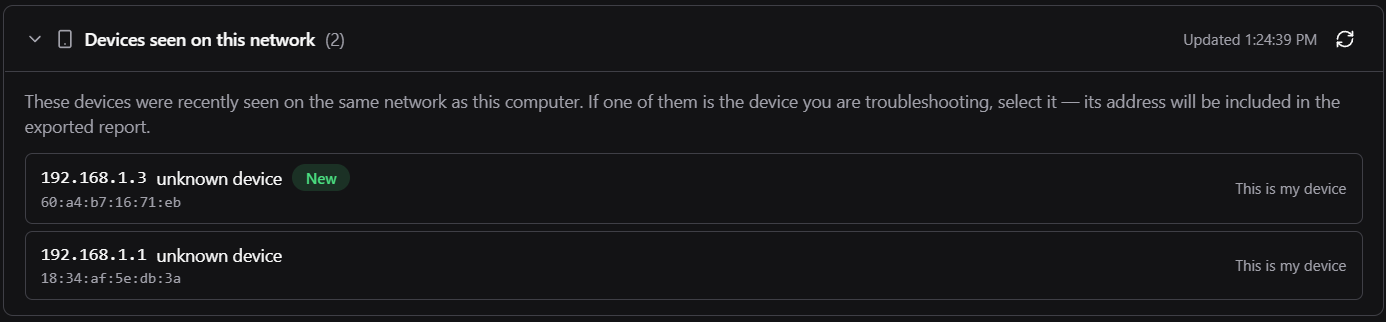
The current network block confirms where the test ran: connection, router, computer IP, public internet address as seen by Google, and DNS. Use it to compare environments such as corporate network, lab, hotspot, and customer network. If the screen says the network path is the same as the previous check, the comparison does not represent an independent network; if it says the path is different, the new run validates another route to the internet.
If Devices seen on this network appears, it lists devices recently seen on the same network. Selecting This is my device only marks that device in the exported report; it does not provision, capture traffic, or change any device setting.
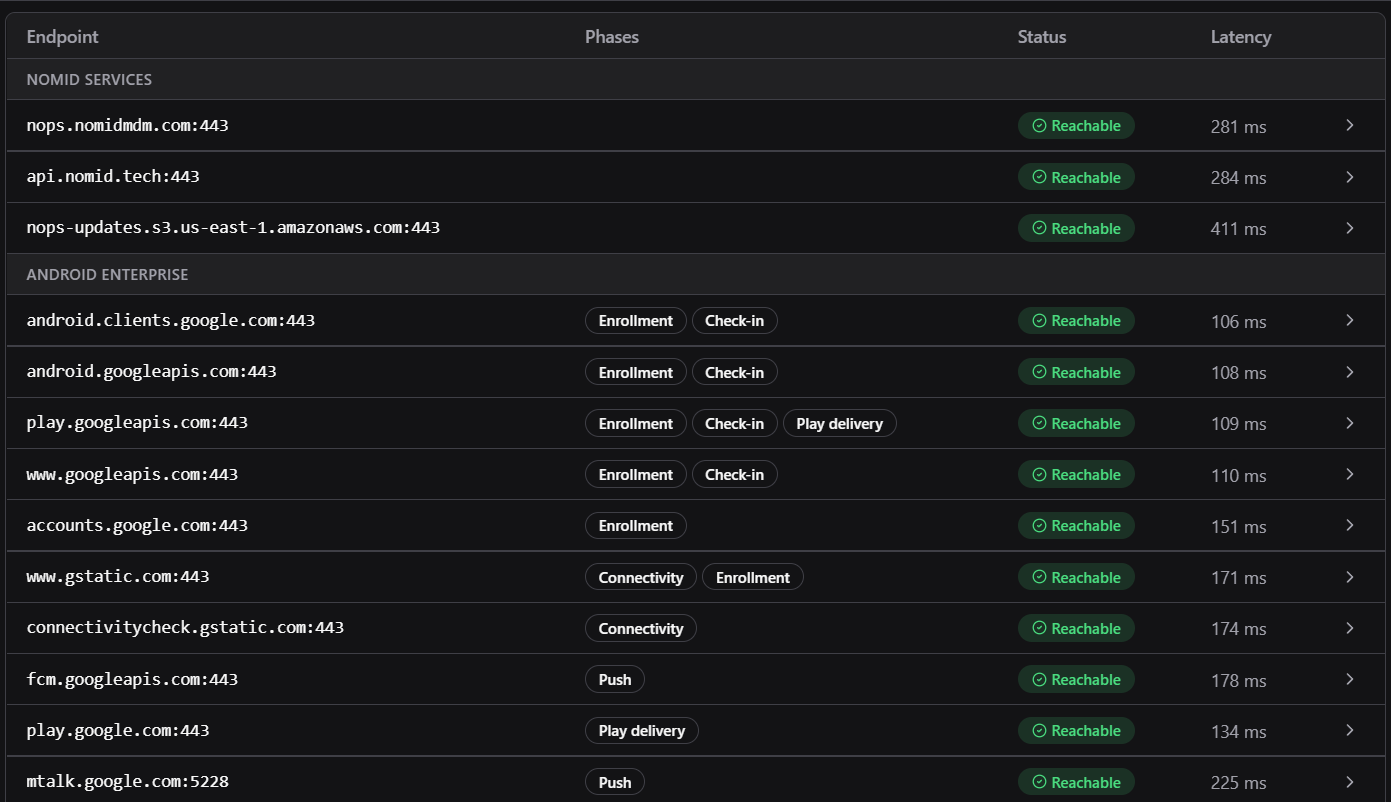
The endpoint list shows which domains were tested, which phase uses them, and the measured latency. Groups separate Nomid services from Android Enterprise. Expanding a row may show resolved IPs, certificate issuer/subject, clock offset, and DNS/TCP/TLS timings. Recurring failures on Google, Android, or Nomid domains indicate that DNS, firewall, proxy, TLS inspection, or time synchronization should be reviewed.
7.2 Device Traffic Recording
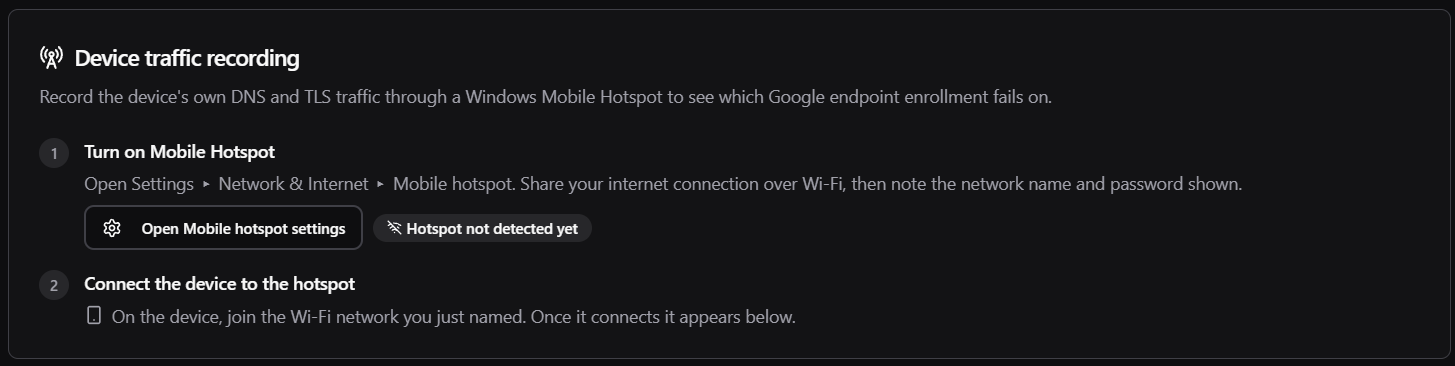
Device traffic recording records DNS and TLS metadata from the device itself through the Windows Mobile Hotspot. Use this feature when computer preflight is successful but the device still fails enrollment. The recording shows which servers were contacted and whether connections progressed; it does not record traffic contents.
Use traffic recording only for authorized diagnostics. The report may contain server names, IPs, ports, protocols, timestamps, operator, and device identifiers; export or upload it only through approved channels and keep the file only as long as needed for the support case.
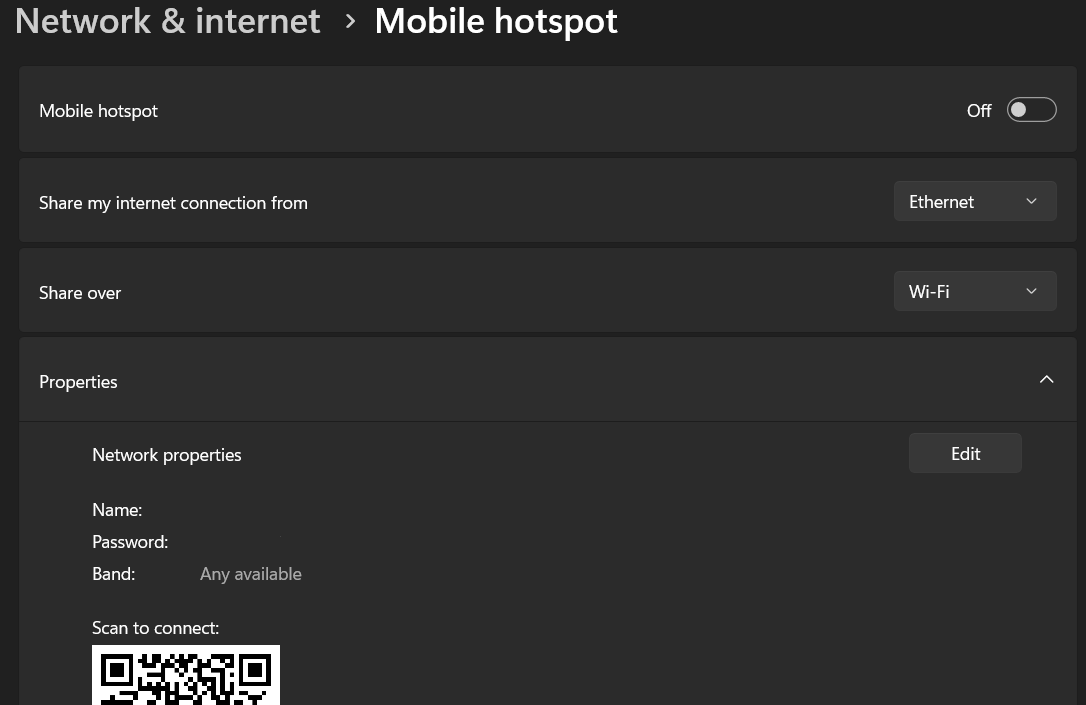
Click Open Mobile hotspot settings to open Windows settings. Enable the hotspot, share the internet connection over Wi-Fi, and note the network name and password. The button only opens the operating system settings; the operator still defines the hotspot name, password, and activation in Windows.

When the hotspot is detected, connect the device to the created network. The app identifies the hotspot interface and uses that path to observe traffic from the selected device. If the capture permission warning appears, on Windows reopen Nomid Ops App as administrator and use Recheck administrator access; without enough access, recording may fail to start.

The list shows hotspot devices found from DHCP/ARP and validates reachability by ping. The states help triage:
- checking... means the app is still checking whether the client responds.
- online or latency in ms means the device responded.
- not responding means the device appeared in the list but did not respond at that moment.
- Refresh device status updates the list and checks reachability again.
- randomized hardware address means a randomized MAC address, common on phones and tablets.
Use Record this device on the target device. The selection defines the IP/MAC used as the capture target and avoids mixing events from another device. It does not change any device setting. Use Start recording only after the hotspot is active and the correct device is selected.
Click Start recording to open the consent confirmation and start the capture session. If Keep uplink awake (keep-alive) is enabled, the app sends low-rate pings to keep the hotspot uplink awake; this helps when the shared internet comes from a phone that may suspend the hotspot because of inactivity. During recording, the indicator can show Keep-alive active, Keep-alive inactive, or Uplink not responding.
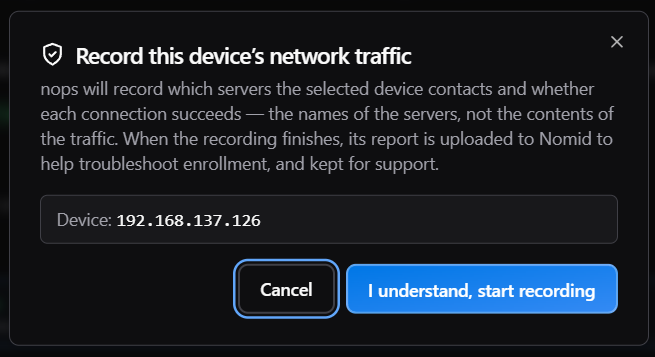
Read the warning before continuing. The recording stores server names and connection success/failure, not traffic contents. Cancel closes the warning without starting capture. I understand, start recording records consent, starts the session, and, when finished, allows the report to be uploaded to Nomid for troubleshooting support.

During recording, keep the device connected to the hotspot and reproduce the issue. The header shows the captured IP, elapsed time, and device state. connected or latency in ms means active presence; device quiet... means the app temporarily has no signal from the device; Paused - device disconnected freezes the timer and waits for reconnection. If the device returns with a different IP, the app reports the change and follows the new address automatically. In the disconnect dialog, Wait for reconnect keeps the session paused and End & export ends with what has been captured.

Use Add note to mark relevant events, such as enrollment start, displayed error, screen change, or sync attempt. The button stays disabled until text is entered. Each note becomes a timestamped marker in the session and later appears in Notes taken while recording, helping correlate traffic and device behavior.
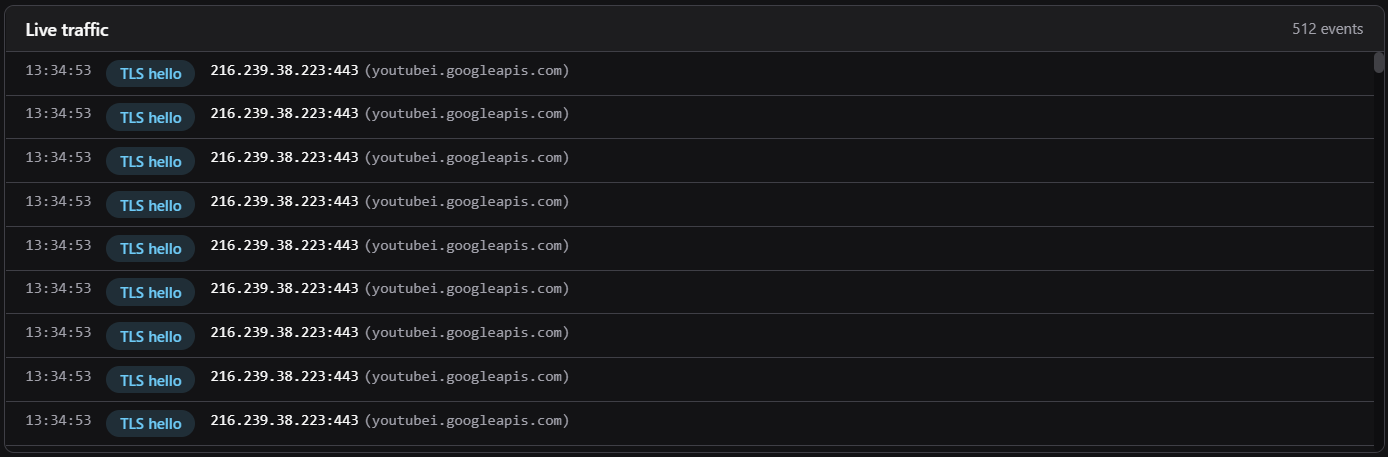
The live traffic panel shows captured events in real time, including DNS queries, DNS answers, NXDOMAIN, TLS ClientHello, TLS alerts, TCP resets, QUIC, and manual markers. Watch for DNS failures, resets right after ClientHello, TLS alerts, or absence of contact with expected endpoints. The panel shows diagnostic metadata such as host, remote IP, port, and protocol without displaying communication contents.
Click Stop recording once the issue has been reproduced. The app ends capture, stops keep-alive, processes events, and generates a summary with endpoint verdicts. If recent recordings exist, Recent recordings can reopen previous sessions for comparison without running a new capture.
7.3 Recording Results
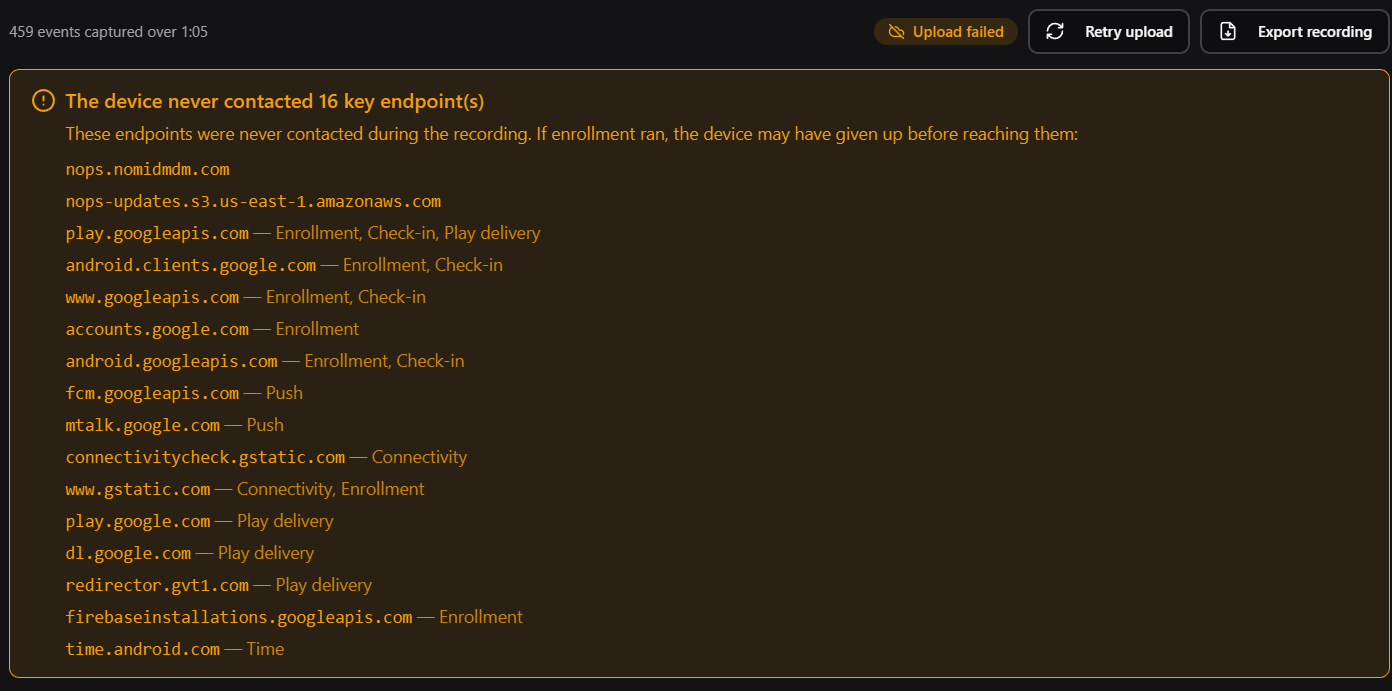
The results show how many events were captured, session duration, who recorded it, evaluated endpoints, and other servers contacted. Verdicts mean:
- Reached means the endpoint was reached or the handshake/query progressed as expected.
- DNS blocked means name resolution failed or returned a block.
- TLS blocked means a reset or fatal alert happened right after ClientHello.
- Not attempted means the device did not try to access that endpoint during the session.
- Attempted means traffic was seen, but the outcome was inconclusive.
If endpoint(s) blocked appears, the network likely explains the enrollment failure. If All required endpoints reached appears, the issue is probably not on this network and investigation should move to credentials, policy, device state, or provisioning flow.

Use result actions to confirm upload and prepare evidence. Uploaded to Nomid means the JSON report was sent to Nomid storage. Upload failed means automatic upload failed; Retry upload tries to send the same session again. If authentication expires, the app may ask the user to sign in again and then resume upload. Retry upload only when the recording is relevant to the support case.
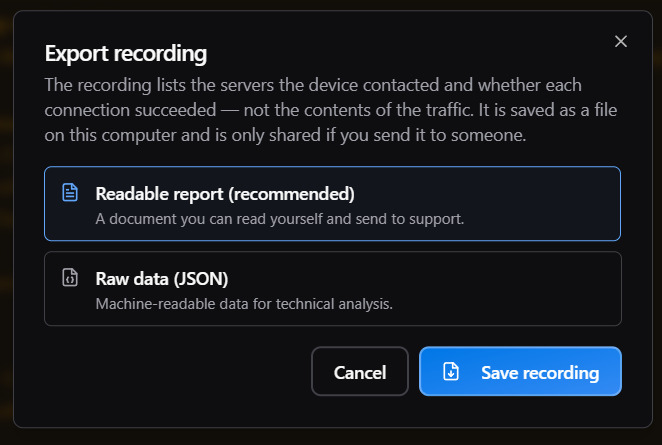
Use Export recording to generate a local diagnostic file. Readable report (recommended) creates a Markdown report for support and human review. Raw data (JSON) creates structured data for technical analysis or automation. Cancel closes the dialog without saving; Save recording saves the recording in the chosen format. Share the file only through channels defined by Nomid, because it may contain technical network and device information.
Validation After Provisioning
After the session completes, confirm:
- The device appears as active in the portal.
- The correct policy is associated.
- The device synced after first boot.
- Required apps were installed.
- The configured Wi-Fi allows communication with required services.
- The user or owner received the device with the correct name and tags.
Common Issues
| Symptom | Likely cause | Recommended action |
|---|---|---|
| Device does not appear | Cable without data, unstable USB port, or missing driver. | Change cable/port, validate driver, and reconnect the device. |
| ADB disabled | USB debugging disabled on the headset. | Enable USB Debugging in Developer Options. |
| Unauthorized | Computer not yet authorized on the device. | Accept the USB debugging prompt on the device. |
| Missing content | Apps not downloaded yet or cache was cleared. | Use Download App(s) before starting the session. |
| Device Owner configuration fails | Device already has an account, owner, or is not eligible. | Factory reset when the procedure requires it and validate that no other management exists. |
| Provisioning does not sync | Incorrect Wi-Fi, network block, or unreachable endpoints. | Review Wi-Fi and use Troubleshooting to test endpoints. |
| Cast fails | Unstable ADB, missing permission, or disconnected device. | Reconnect and confirm ADB authorization before trying again. |