 Nomid
NomidAccess: view — Admin Editor; Custom / company role*. Permission: view the Library.
Reading access labels: tags identify standard roles whose definitions include the stated permission. Each action’s availability depends on the user’s effective permissions, company, groups, enabled features and policy restrictions. Custom and company roles depend on assigned permissions. If access is unavailable, ask an administrator to check Settings > Platform Users. A section’s label covers its controls unless an action has its own condition. Viewing does not authorize changes or execution; a label does not guarantee that a command will be accepted or completed.
The Library centralizes reusable portal resources, such as applications, contacts, and links. These items are reused in policies, launchers, and distribution flows.
Important: Changing a library item may impact policies and devices that depend on it. Review links before replacing or removing a resource.
Resources registered here are mainly consumed by Policies. For per-device parameters, see dynamic variables in managed configurations; for web shortcuts distributed as applications, see Web apps in Managed Google Play.
Overview
Access: view — Admin Editor; Custom / company role*. Permission: view the Library.
Library Tabs
Access: view — Admin Editor; Custom / company role*. Permission: view the Library.
 The tabs organize Library resources; Links is selected in this view.
Select the tab for the resource you need. Contact Lists requires viewing access; Links, Videos, Files and VR Environments depend on the company's enabled VR features. The presence of the Videos and Files tabs does not guarantee upload or management tools.
Screen elements
- Apps: centralizes reusable applications into policies.
- Contact Lists: organizes corporate contact lists.
- Links: maintains web shortcuts that can be published in the launcher or in policies.
- Search and filters: help you find resources before creating duplicates.
- Creation actions: allow you to add new items to the library as per permission.
Application in operation
- Click on the tab for the type of resource you want to manage. Register first in the Library and then link in Policies, avoiding repeating the same configuration in several policies.
VR environments
Access: view — Admin Editor; Custom / company role*. Permission: view the Library; VR enabled; editing depends on the action’s permissions.
VR environments are reusable environments available to the company. To select an environment in a VR/Pico policy, see 4.1 VR/Pico Policies; selection happens in the policy editor.
Applications
Access: view — Admin Editor; Custom / company role*. Permission: view the Library.
Application list
Access: view — Admin Editor; Custom / company role*. Permission: view the Library.
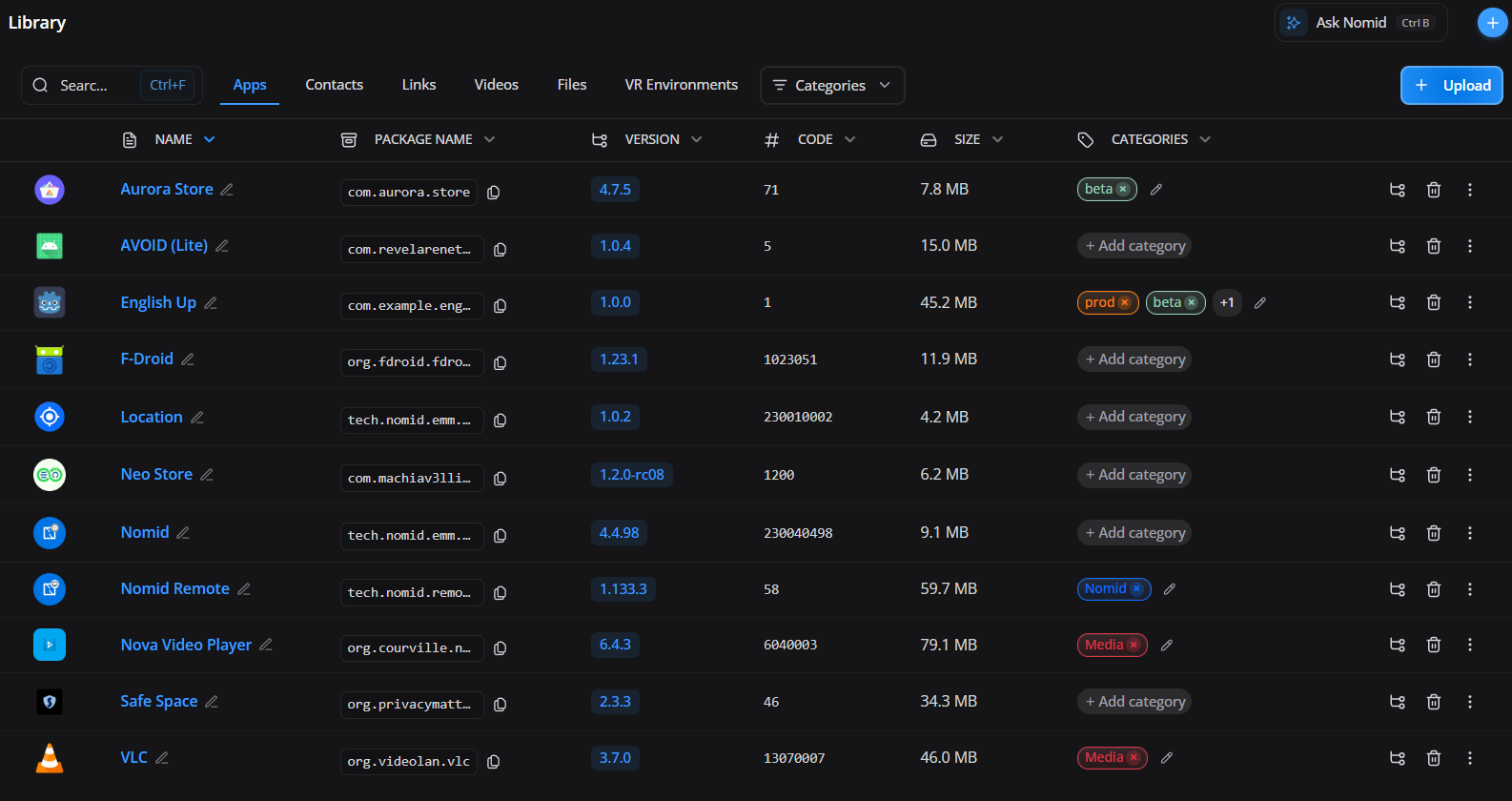
The list of applications registered in the Library.
This area is used to query apps available for use in policies, including public, private, managed, or manually added apps.
Screen elements
- App list: shows apps available for reuse.
- Name and package: avoid confusion between similar apps.
- Version/status: indicates availability and update.
- Actions: allow you to edit, remove or review app details.
- Use in policies: The library app can be included in one or more policies.
Application in operation
- Use search to locate the app, review name/package and click actions to edit. When creating policies, select apps from this library to control installation and permissions.
Customize the app name and icon
Access: edit — Admin Editor; Custom / company role*. Permission: view and edit Library apps.
In the list or detail page of a Nomid Store app, presentation editing defines how users recognize it in the device launcher.
- Custom display name: replaces the user-facing name without changing the package name, signature, or original APK name.
- Custom icon: replaces the launcher icon without modifying the app file.
- Remove custom icon: returns to the APK/store icon; a pending name change can still be saved separately.
- Save: stores the new presentation and adds it to the next rollout batch. The result does not reach every device immediately.
Name, icon, and new-version changes are grouped into a rollout:
- Start now: ends the wait and requests that the batch start immediately. The action disappears after processing starts.
- Extend: postpones the start when the server allows it, normally near the end of the countdown. A disabled button means the batch cannot be extended yet.
- View job: opens the matching process for monitoring without changing the rollout.
- Starting: means the batch was claimed for execution and can no longer be started sooner or extended from the notice.
- Upload processing: means files are still being processed. View jobs opens monitoring but does not speed up or repeat the upload.
After completion, validate name, icon, and version on a pilot device that has synchronized its policy. The package name remains the app's technical identity.
Add application
Access: edit — Admin Editor; Custom / company role*. Permission: view and edit Library apps.
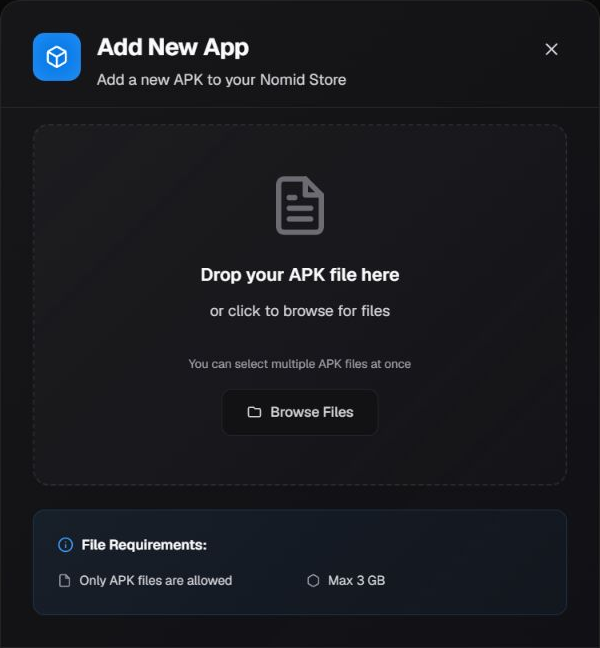
In the Library application list, select Upload to open the APK upload modal. This modal accepts files; it does not offer a Managed Google Play source selector or fields for manually registering an app name, package, and version.
Upload an approved APK
- Confirm the APK's origin and your authorization to distribute it. Check its signature, version, and compatibility before uploading.
- Select the file, or files in batch mode, and review the selection. Choosing a file is not the same as confirming the upload.
- Select Upload App when the selection is correct. Each APK is uploaded and processed; check the result for every file, including batch uploads.
- Verify the app and its metadata in the list before including it in a policy. If an upload fails, check what has already completed before repeating it.
Use Browse Files or the drop area only when you are ready to choose an APK. Cancel closes the dialog without a selection; Upload App requires a selected file. This image shows only the upper portion of Add New App; the lower action row is not shown. The displayed size guidance is an observed Portal label, not a compatibility or upload-acceptance guarantee. Cancel does not undo an upload that has already run.
Use the application in a policy
Access: edit — Admin Editor; Custom / company role*. Permission: edit the policy.
Registration in Library does not prove installation on a device. To select apps from Library or Managed Google Play during creation, continue in New policy. For an existing policy, use Android policies or VR/Pico policies, according to the equipment, and confirm installation and launch on a pilot device.
Contacts
Access: view — Admin Editor; Custom / company role*. Permission: view contact lists.
Contact list
Access: view — Admin Editor; Custom / company role*. Permission: view contact lists.
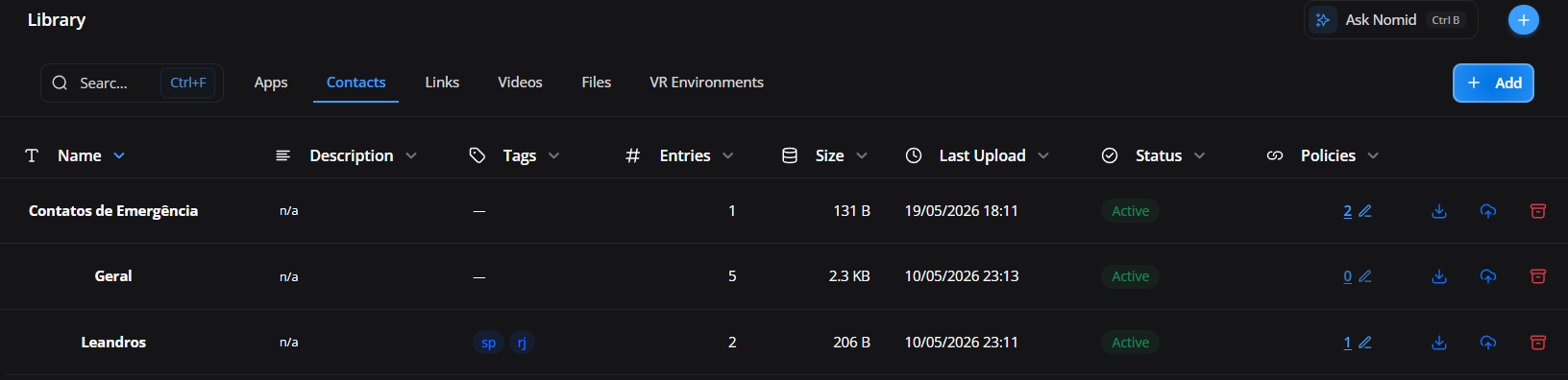
The Contacts tab stores reusable lists that can be assigned to policies. Register only information required by the operation, record its purpose, and limit distribution to policies that actually need it.
The table and its controls have the following effects:
- Search: filters by name, description, or tag without modifying lists.
Access:Based on permissions. Permission: view contact lists; filtering, sorting or reading does not authorize changes to the lists. - Active: shows lists that can be edited and assigned to policies.
Access:Based on permissions. Permission: view contact lists; filtering, sorting or reading does not authorize changes to the lists. - Archived: shows lists removed from active use; archiving does not immediately erase content already synchronized to devices.
Access:Based on permissions. Permission: view contact lists; filtering, sorting or reading does not authorize changes to the lists. - Name: identifies and sorts the list; when inline editing is available, saving changes only this metadata.
Access:Based on permissions. Permission: view access to read the field; changing metadata requires authorization to edit the list. - Description: records purpose and audience and can be changed without replacing contacts.
Access:Based on permissions. Permission: view access to read the field; changing metadata requires authorization to edit the list. - Tags: classify customer, branch, department, or use and are not delivered as contacts to devices.
Access:Based on permissions. Permission: view access to read the field; changing metadata requires authorization to edit the list. - Status: indicates whether the list is active or archived.
Access:Based on permissions. Permission: view contact lists; filtering, sorting or reading does not authorize changes to the lists. - Entries: shows how many contacts were recognized in the current version.
Access:Based on permissions. Permission: view contact lists; filtering, sorting or reading does not authorize changes to the lists. - Policies: shows how many policies use the list; opening the number lets an authorized role review assignments.
Access:Based on permissions. Permission: view associations and authorized policies; reading the count does not permit changing distribution. - Updated: shows when content was last updated.
Access:Based on permissions. Permission: view contact lists; filtering, sorting or reading does not authorize changes to the lists. - Edit contacts: opens the wizard to review, append, replace, or edit contacts.
Access:Based on permissions. Permission: change the contents of the contact list; view access does not authorize appending, replacing or editing contacts. - Edit policies: assigns or removes the list from selected policies; this changes which devices receive the content after synchronization.
Access:Based on permissions. Permission: change the list’s associations with authorized policies; viewing the list or editing its contacts does not establish access to every policy. - Download: downloads the current file for authorized review. Treat it as personal data and do not share it in a public channel.
Access:Based on permissions. Permission: authorize downloading the list’s contents; viewing its metadata does not establish authorization to download the data. - Archive: removes the list from the active view and prevents new operational use until it is restored.
Access:Based on permissions. Permission: change the list’s state to archived; viewing archived lists does not authorize archiving an active list. - Restore: returns an archived list to the active view; it does not automatically recreate removed policy assignments.
Access:Based on permissions. Permission: restore an archived list’s state; viewing does not authorize restoration, and restoring does not authorize new policy associations.
Create a contact list
Access: edit — Admin Editor; Custom / company role*. Permission: view and edit contact lists.
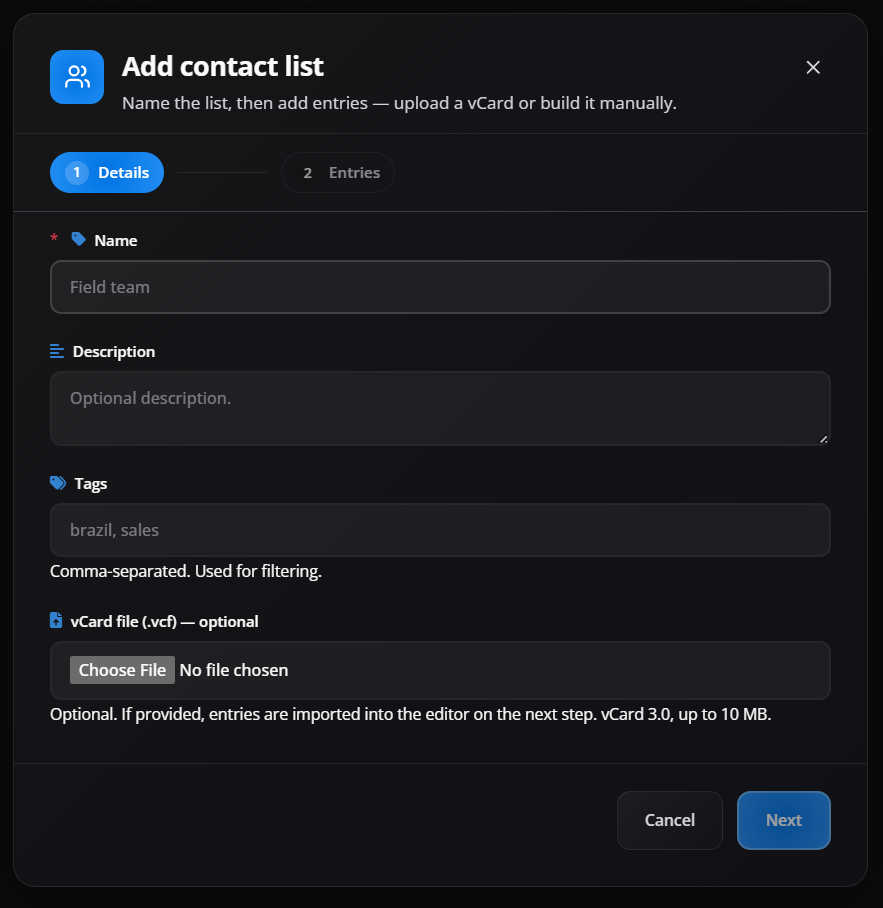
The wizard organizes creation and editing into source upload, contact review, and list details.
At the source step, choose one method:
- Drop/browse file: loads a
.csvor.vcffile for reading; the upload alone does not create the list. - Add contacts manually: opens an empty grid for individual entry and is suitable for small lists.
- Download CSV template: downloads a column template so the import structure does not have to be guessed.
- Replace file: changes the selected file before review.
- Remove file: discards the file from the current step without deleting an existing list.
- Review: processes the file and opens recognized contacts for verification.
- Cancel: closes creation without saving a new list.
Empty, unreadable, or incomplete rows may be skipped. The skipped rows warning identifies discarded rows; correct the file if any of them should have been imported.
Review contacts
Access: edit — Admin Editor; Custom / company role*. Permission: view and edit contact lists.
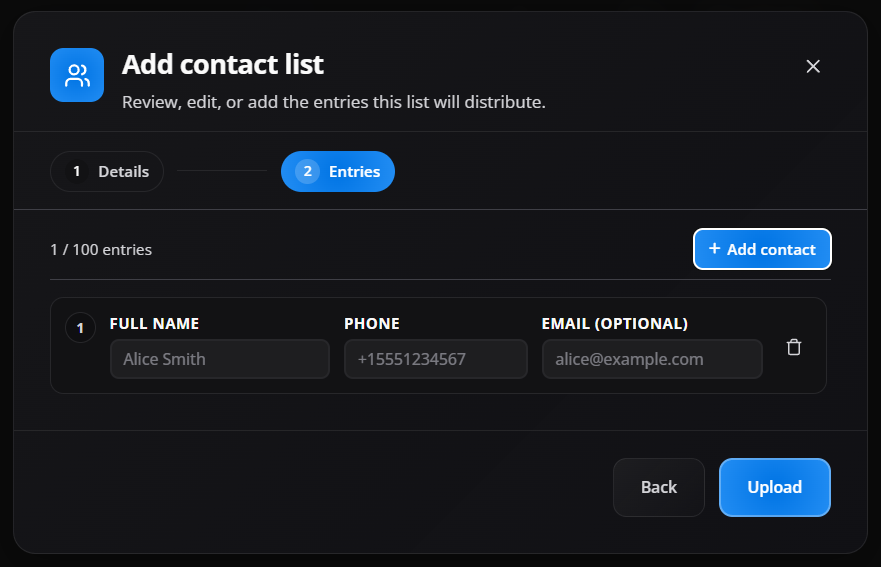
During review, check every contact before continuing:
- Add contact: creates a manual row in the reviewed set.
- Edit: unlocks compatible fields. Untouched vCard properties are preserved when possible.
- Enter/Save: confirms a valid row edit.
- Escape/Cancel: restores the previous values for that row.
- Remove: excludes the contact from the set to be saved without changing the original file on the computer.
- Append file: adds contacts from another CSV or vCard while preserving existing entries; the appended file goes through the same review.
- Replace all: replaces the entire list with the reviewed file. Check the count and keep an authorized recovery copy first.
- Retry: tries to load existing contacts again after a read failure and does not replace content.
- Back: returns to the previous step without saving the list.
- Next: opens the details only when no validation error blocks the list.
Names, phone numbers, and email addresses must comply with the displayed limits and formats. An invalid contact remains highlighted and blocks completion until corrected or removed. Compare the imported count and skipped rows before continuing.
Define details and save
Access: edit — Admin Editor; Custom / company role*. Permission: view and edit contact lists.
At the final step, review the source and number of contacts, then fill in:
- Name: required list name with up to 100 characters; use a recognizable pattern by operation or branch.
- More details: expands optional metadata without changing contacts.
- Description: records the purpose in up to 500 characters.
- Tags: adds administrative classifications for search and organization.
- Back: returns to contact review and preserves the current draft.
- Create: creates a new list with the reviewed content.
- Save: updates the existing list; assigned policies reference the new version after distribution and synchronization.
When editing a list, Append file preserves current contacts and adds new ones; Replace all replaces the full set; changing only name, description, or tags does not by itself resend a different file. Offline devices may keep the previous version until they synchronize again.
After saving, assign the list under Policies > Contact List, apply it to a pilot device, and compare Actual/Expected under Devices > System > Managed contacts.
Library links
Access: view — Admin Editor; Custom / company role*. Permission: view the Library; VR enabled; editing depends on the action’s permissions.
List of links
Access: view — Admin Editor; Custom / company role*. Permission: view the Library; VR enabled; editing depends on the action’s permissions.

The list of links registered in the Library. This tab is available only to companies with the VR library capability enabled. If the Library shows only Apps and Contacts, changing a portal role will not make Links appear.
This area is used to maintain reusable web shortcuts, such as internal portals, corporate systems, dashboards or support pages.
Screen elements
- List of links: shows registered web shortcuts.
- Name and URL: identify each resource.
- Copy URL: copies the registered address without changing the link.
- Open: opens the destination outside the list; check the domain before continuing.
- Delete: requests confirmation to remove the record. Review its VR policy associations first; deletion from Library does not prove immediate removal from headsets.
- Reuse: avoids recreating the same shortcut across multiple policies.
Application in operation
- In a VR-enabled company, register links in the Library and associate them with the VR launcher or policy when you want shortcuts on a headset.
- For an Android kiosk website shortcut, create a Web App through Managed Google Play in Policy > Apps, or add a Secure Web App when the site must run in the Nomid secure browser. Do not look for Android policy web apps in Library > Links.
Add link
Access: Based on permissions. Permission: create Library links, with VR enabled; viewing the list does not authorize creation or editing.
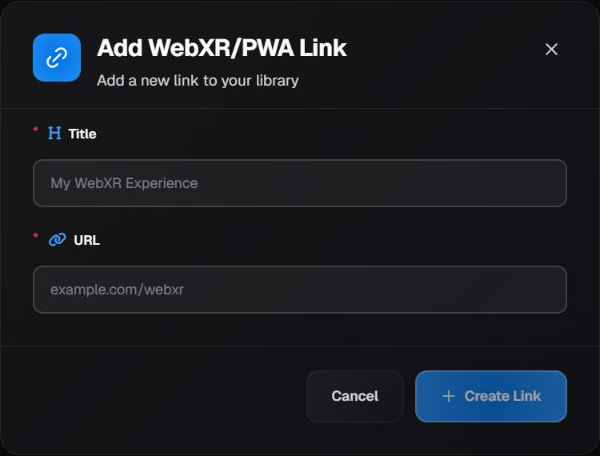 Title and URL have not been entered. The example text is not a saved value.
Open the add-link action in the Links tab. Complete the modal's two fields:
| Field | Effect and consideration |
|---|---|
| Title | Identifies the shortcut. Required, up to 100 characters; use a title that makes the destination recognizable. |
| URL | Records the required address, up to 500 characters. Check the protocol and domain; when the protocol is omitted, the form adds https://. |
Create Link registers the item in Library; Cancel closes the form without registering it. Registration does not test whether the destination is reachable from the headset's network or confirm authentication and site functionality.
Before using the shortcut, check its address in an authorized context. An internal site may require VPN, corporate Wi-Fi, or a proxy. Then associate it with the VR/Pico policy and validate opening it on a pilot headset. Do not distribute an incorrect link; review its associations before deleting a record.