 Nomid
This guide shows how to install two Zebra apps from managed Google Play on Zebra devices managed by Nomid MDM, and how to configure them with managed configurations:
- Zebra OEMConfig Powered by MX (
com.zebra.oemconfig.release) applies Zebra device settings, such as the clock, display, Wi-Fi, scanner (DataWedge), keyboard and licenses, through Zebra's MX management framework. - Zebra Enterprise Browser (
com.zebra.mdna.enterprisebrowser) runs web apps on Zebra devices with kiosk, scanning and SAP options.
You can deploy either app on its own. The steps use the Policy 2.0 editor. In the Classic editor, the same fields open from the gear on the app card; see 4.1 Tablet policies — Classic.
Risk: OEMConfig changes settings of the device itself. A wrong Wi-Fi, clock, screen lock, Google services or update value can disconnect the device from the network and from device management, lock people out or restart the device. Enterprise Browser kiosk settings can disable the HOME, BACK and RECENT keys. The device behavior in this guide comes from Zebra's documentation. Test every change on a pilot policy with one Zebra device before you link the policy to the fleet.
Before you begin
- An Android Enterprise company in Nomid MDM with fully managed Zebra devices, and the Edit policy permission for the policy you will change.
- Zebra devices with Google Play services. Managed Google Play installs both apps only on devices with Google Mobile Services (GMS). For devices without GMS, Zebra offers OEMConfig from its support portal; that installation is outside this guide.
- The right OEMConfig app for the Android version. According to Zebra, Zebra OEMConfig Powered by MX (
com.zebra.oemconfig.release) supports Android 11 and later and is not compatible with Android 10 or earlier. Legacy Zebra OEMConfig (com.zebra.oemconfig.common) supports older devices and is not compatible with Android 13 or later. For a fleet with both, use separate policies. This guide uses Powered by MX. - For Enterprise Browser managed configurations, Zebra requires Enterprise Browser 5.0 or later on Zebra devices running Android 11 or later. Enterprise Browser licensing is handled by Zebra; see Zebra's Enterprise Browser documentation.
- A pilot policy linked to a single Zebra test device, so a wrong value affects only that device.
Add the apps to the policy
- In the Nomid Portal, open Policies and select the pilot policy.
- Open the Apps & experience tab and select Apps in this policy.
- Select Add App. Choose Add via Package, type
com.zebra.oemconfig.releaseand confirm that Zebra OEMConfig Powered by MX appears under the field. Select Add. You can also choose Add via Play Store and search for the app in managed Google Play.
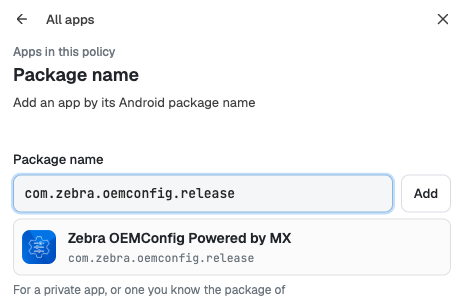
Type the package name and check that the match is the Zebra app before you add it.
- Repeat step 3 with
com.zebra.mdna.enterprisebrowserto add Zebra Enterprise Browser. - Both apps appear in the list with the Configurable badge, which means they publish managed configurations. The pane footer shows Edited. Save the policy to apply until you save. The installation choice next to each app starts as Required, which installs the app and keeps it on the device. Optional, Blocked and the other app controls are described in 4. Policies — Policy 2.0.
Open the managed configurations
Select the gear next to the app in the list. The Managed configurations editor lists every field that the current version of the app publishes. Google Play supplies this list from the app, so it changes when Zebra releases a new version; Google Play keeps only the latest schema.
- Each field shows its title, a description written by Zebra and the key name. Zebra publishes titles and descriptions in English. The button next to the key copies a link to that field.
- OEMConfig descriptions often end with Supported from: MX and a version, or Not supported on Device(s) and a list of models. A field has no effect on a device with an older MX version or on a listed model.
- Default value shows the value the app declares. It is information only: the editor does not send it.
- A choice field shows Select options... until you pick a value. While it shows that text, Nomid sends nothing for the field. Use the × in a field to clear it. Some OEMConfig choices include Do not change, which is a value Zebra defines, not an empty field.
- Groups open and close with the arrow on the right; Expand All and Collapse All do it for every group. A group that has values shows Clear configuration, which clears every value in that group.
- Lists, such as Files Configuration or Package Configuration in OEMConfig, start empty. Add New Item adds an element and shows its fields; the × on the element removes it.
- Use the filter box to find a key, and All, Filled or Not Filled to review what you have entered.
- Delete all configurations, at the end of the editor, clears every value for this app in the policy.
- Save keeps your values in the policy edit. Cancel asks Discard your changes?: Discard leaves the editor without them, and Keep editing returns to it. Neither sends anything to devices until you save the policy.
Zebra OEMConfig settings
OEMConfig Powered by MX groups its settings into nine top-level groups. On 07/11/2026 the editor showed close to 500 fields, plus the fields of each list element. The table lists the groups and what they cover, using Zebra's own descriptions. For each field, follow its description in the editor and Zebra's OEMConfig documentation.
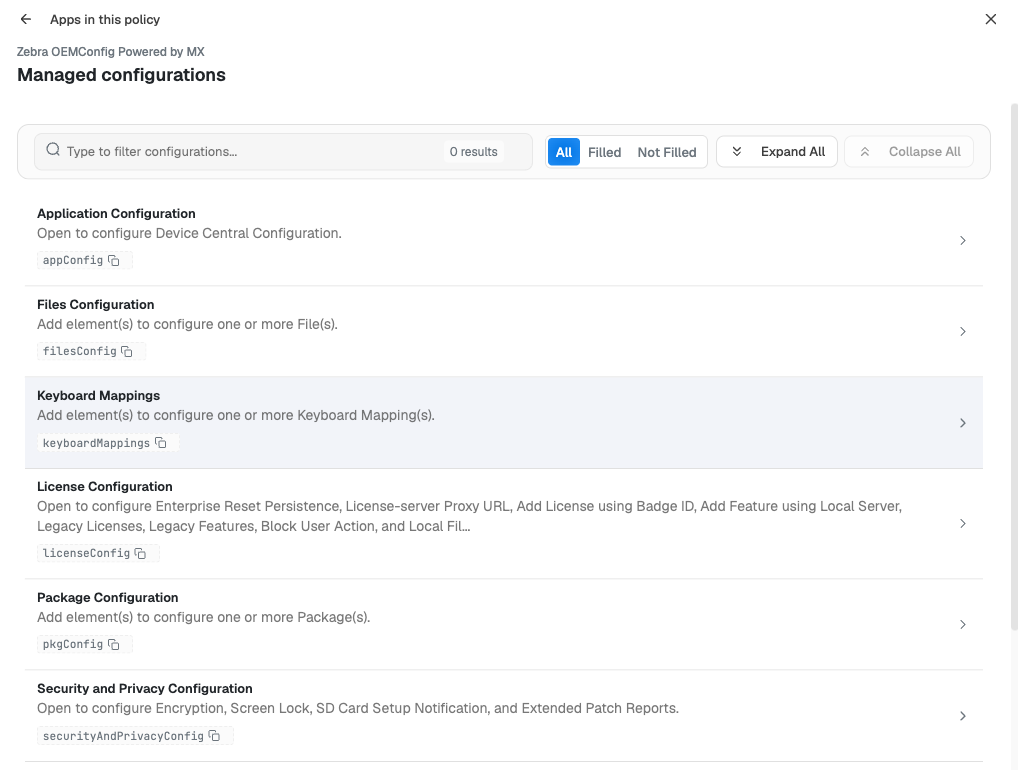
Collapse All shows the top-level groups and their keys; scroll for the rest. Open only the group you need.
| Group and key | What it covers |
|---|---|
Application Configuration (appConfig) |
Device Central: Bluetooth pairing and state controls, the firmware update button and Smart Leash. |
Files Configuration (filesConfig) |
List. Each element downloads, uploads or deletes a file on the device: device path and name, server URI and persistence. |
Keyboard Mappings (keyboardMappings) |
List. Each element remaps a hardware key: key ID, custom key name and behaviors. |
License Configuration (licenseConfig) |
Zebra software licenses: Badge ID licenses, a local license server, legacy licenses and features, persistence after an Enterprise Reset, and a proxy for license requests. |
Package Configuration (pkgConfig) |
List. Each element sets behaviors for one Android package: class name, package name and signing certificate, permissions, class and feature variances, and allowed services. |
Security and Privacy Configuration (securityAndPrivacyConfig) |
Encryption, screen lock, the SD card setup notification and extended patch reports. |
System Configuration (systemConfig) |
Analytics, clock, data wipe, GMS, Lifeguard OS updates, power and battery, remote scanners, wake-up sources, a pass-through command for MX XML, and logs. |
UI Configuration (uiConfig) |
Audio, DataWedge, display, event-triggered intents, general UI, keyboard, Settings UI, touch panel and volume UI profiles. |
Wireless and Network Configuration (wirelessAndNetworkConfig) |
Bluetooth, DHCP, Enterprise NFC, Ethernet, host name, network connection, RFID, wireless LAN, wireless WAN and GreenMode. |
Some groups need extra care:
- Wireless LAN and Network Connection change how the device connects. Nomid policies also manage Wi-Fi networks under Connectivity. Configure each network in one place only, and keep a working network on the pilot device until the change is confirmed.
- GMS Configuration can limit which Google apps and services run. Android Enterprise management and managed Google Play rely on Google Play services.
- Lifeguard Configuration controls Zebra LifeGuard OS updates, including update mode, updates over cellular data and reboot suppression. Plan it with your update windows; Nomid policies also have system update settings under System.
- Screen Lock Configuration overlaps with the password and lock settings of the Nomid policy. Set each option in one place only.
- Pass-Through Command sends MX XML directly to the device. Zebra's description says the XML must not include Batch, ConditionMgr or persist XML. Use it only for features the schema does not expose.
Sample OEMConfig values for shared frontline devices
This example keeps the clock and screen consistent on shared devices. Replace ntp.example.com with your time server.
| Group > field (key) | Value | Why |
|---|---|---|
System > Clock > Time Mode (sysClockTimeMode) |
Automatic | Devices take the time from a time server. |
System > Clock > Auto NTP Server Address (sysClockAutoNtpServer) |
ntp.example.com |
Uses your company's time server. |
System > Clock > Auto NTP Sync Interval (sysClockAutoNtpSyncInterval) |
60 minutes | Corrects drift regularly. |
System > Clock > Time Format (sysClockTimeFormat) |
24 | Same time format on every device. |
UI > Display > Power > Timeout (displayPowerTimeout) |
5 minutes | The screen turns off after five minutes without use. |
UI > Display > Power > Stay Awake (displayPowerStayAwake) |
Turn Off | The screen does not stay on while the device charges. |
Enterprise Browser keys
Zebra describes how Enterprise Browser handles managed configurations in Using Managed Configurations:
- Managed configurations and a
Config.xmlfile cannot be combined. When managed configurations arrive, Enterprise Browser writes a newConfig.xmlthat contains only those values; every other setting returns to its default. - New values take effect the next time Enterprise Browser starts. If it is running when a change arrives, it shows a message on the device.
- Enterprise Browser must be installed and opened on the device once before any configuration applies.
- Zebra states that some Enterprise Browser settings are available only in
Config.xml. If you need one of them, useConfig.xmlinstead of managed configurations.
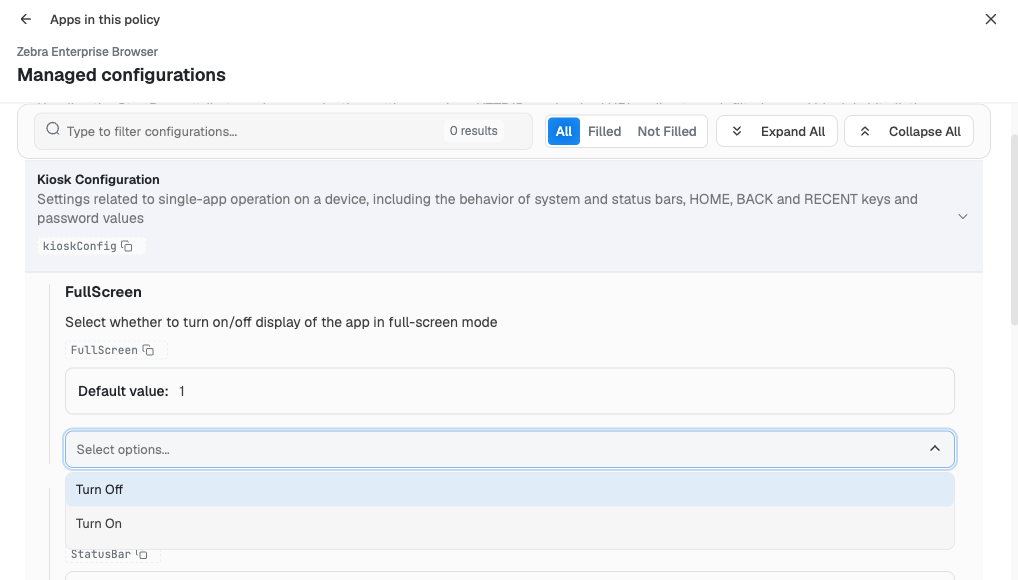
Each field shows its key and the default value Zebra declares.
The tables follow the field titles shown in the editor; when the key is different, it appears in parentheses. Most default values appear as numbers: according to Zebra, 0 is the first choice (Turn Off, Hidden or Use EMDK) and 1 is the second (Turn On, Shown or Use DataWedge). On 07/11/2026 the editor showed 67 fields and 2 lists.
Navigation Configuration (navigationConfig)
| Field (key) | Value | Effect |
|---|---|---|
| StartPage | URL or on-device page; default file://%INSTALLDIR%/menu.html |
Page Enterprise Browser opens at launch. |
| BadLinkUrl | On-device page; default file://%INSTALLDIR%/badlink.html |
Page shown when a page cannot be displayed. |
| NavigationTimeout | Milliseconds; default 45000 | How long Enterprise Browser waits for the server before it shows the bad-link page. |
| WebsiteFiltering | Turn Off, Turn On; default 0 | Turns on filtering with the two lists below. In the editor it sits under webUrlFilteringConfig. |
| UrlWhitelist | Websites separated by semicolons | Websites Enterprise Browser may open while filtering is on. |
| UrlBlacklist | Websites separated by semicolons | Websites Enterprise Browser blocks while filtering is on. |
| HttpProxy | URL and port | HTTP proxy. Leave it empty for no proxy. |
| HttpsProxy | URL and port | HTTPS proxy. Leave it empty for no proxy. |
Kiosk Configuration (kioskConfig)
| Field (key) | Value | Effect |
|---|---|---|
| FullScreen | Turn Off, Turn On; default 1 | Shows Enterprise Browser in full screen. |
| StatusBar | Hidden, Shown; default 1 | Hidden removes the status bar, which could otherwise let people open other apps. |
| NavigationBar | Hidden, Shown; default 1 | Shows or hides the system navigation bar inside Enterprise Browser. |
| HomeButtonAction | Turn Off, Turn On; default 1 | Turn Off disables the HOME key. |
| BackButtonAction | Turn Off, Turn On; default 1 | Turn Off disables the BACK key. |
| RecentButtonAction | Turn Off, Turn On; default 1 | Turn Off stops the Recent apps list from opening. |
| VolumeButtonAction | Turn Off, Turn On; default 1 | Turn Off disables the volume keys. |
| ExitPassword | Turn Off, Turn On; default 0 | Turn On asks for a password before Enterprise Browser closes. |
| ExitPasswordValue | Letters and digits | Password used with ExitPassword. Anyone who can view the policy in the Portal can read it. |
Barcode Scanning Configuration (barcodeScanningConfig)
| Field (key) | Value | Effect |
|---|---|---|
ScanApiToggle (scanApiToggle) |
Use EMDK, Use DataWedge; default 0 | Scans with Enterprise Browser's barcode APIs (EMDK) or with DataWedge. |
ScannerOnNav (scannerOnNav) |
Turn Off, Turn On; default 0 | Controls whether the scanner is turned off when the app leaves a page that enabled it. |
ExistingAudioFile (DecodeSuccessSound) |
On-device path of a .wav file | Sound played after a successful scan. It overrides the three beeper fields. |
| DecodeVolume | 0–5 | Beeper volume after a scan; 0 is off. |
| DecodeFrequency | 0 to 0xFFFF | Beeper frequency after a successful scan. |
| DecodeDuration | 0–5000 milliseconds | Beeper duration after a scan. |
ScannerOnNav and ExistingAudioFile sit under EMDKBarcodeConfiguration; the three beeper fields sit under UseEBGeneratedAudio inside it. Zebra requires all three beeper fields to be set together.
Application UI Configuration (appUiConfig)
| Field (key) | Value | Effect |
|---|---|---|
| AutoRotate | Turn Off, Turn On; default 1 | Rotates the screen when the device turns. |
| LockOrientation | Auto, Portrait, Landscape | Locks the orientation at launch. |
| SplashScreenImage | On-device path of a .bmp, .gif, .jpg or .png image; default file://%INSTALLDIR%/rho/apps/app/loading.png |
Image shown at launch. |
| SplashScreenDuration | Milliseconds; default 0 | How long the image is shown. Zebra recommends more than 3000. |
Broadcast Receiver Configuration (broadcastReceiverConfig)
| Field (key) | Value | Effect |
|---|---|---|
| IntentReceiver | Turn Off, Turn On; default 0 | Lets other apps send intent actions to Enterprise Browser, for example to start a scan. |
IntentActionList (IntentActionArray) |
List of intent actions | Actions the receiver registers. Zebra requires at least one. |
IntentCategoryList (IntentCategoryArray) |
List of intent categories | Categories the receiver registers. |
DOM Custom Configuration (domCustomConfiguration)
| Field (key) | Value | Effect |
|---|---|---|
| EBLibraryInjection | Turn Off, Turn On; default 0 | Injects Enterprise Browser's JavaScript libraries into every page. |
| DomInjectionFilePath | On-device file path | File with JavaScript, CSS or meta tags to inject into pages. |
| ButtonFilePath | On-device file path | File that defines on-screen buttons. |
| KeycodeMapperFilePath | On-device file path | File with custom key mappings. |
| PageActionFilePath | On-device file path | File with page-based actions. |
| CustomScriptFilePath | On-device file path | File with custom JavaScript snippets. |
License, keyboard and WebView
| Field (key) | Value | Effect |
|---|---|---|
LicenseDialogAtLaunch (licenseConfig) |
Turn Off, Turn On; default 1 | Shows or hides the "Licensed to…" dialog at launch on licensed devices. It does not license a device. |
KbPopup (softwareKbConfig) |
Turn Off, Turn On; default 0 | Enables or disables soft keyboards in Enterprise Browser. |
KbEb (softwareKbConfig > KbPreferences) |
Keyboard name | Keyboard shown when Enterprise Browser opens or comes to the foreground. |
KbNonEb (softwareKbConfig > KbPreferences) |
Keyboard name | Keyboard shown when Enterprise Browser closes or goes to the background. |
UserAgent (userAgent) |
Text | User agent sent to websites. |
PageZoom (pageZoom) |
Zoom factor | Page zoom. |
PinchZoom (pinchZoom) |
Turn Off, Turn On; default 1 | Allows pinch-to-zoom. |
ZoomControls (zoomControls) |
Turn Off, Turn On; default 0 | Shows on-screen zoom controls. |
ZoomInKey (zoomInKey) |
Hexadecimal keycode | Function key that zooms in. |
ZoomOutKey (zoomOutKey) |
Hexadecimal keycode | Function key that zooms out. |
Viewport (viewPortVP) |
Turn Off, Turn On; default 0 | Applies viewport meta tags at launch. |
ViewportWidth (viewPortWidth) |
Width | Viewport width at launch when the page has no meta tags. |
InitialScale (initialScale) |
Scale | Magnification at launch. |
The zoom fields sit under webViewConfig > webUiConfig > zoomConfig, and the viewport fields under viewPortConfig beside it.
SAP ITS and ZPP
These groups apply only to SAP apps. SAP ITS Configuration (sapItsConfig) is for SAP ITSmobile apps, and ZPP Configuration (zppConfig) is for Zebra Picking Plus, Zebra's Enterprise Browser app for SAP Extended Warehouse Management (EWM).
| Field (key) | Value | Effect |
|---|---|---|
KeyboardType (keyboardType) |
ButtonBar, EnterpriseKeyBoard; default EnterpriseKeyBoard | Keyboard used with SAP ITS apps. |
KeyboardDisplay (keyboardDisplay) |
Shown Always, Shown OnDemand; default onDemand | When the keyboard appears. |
KbOnKeypress (kbOnKeyPress) |
Turn Off, Turn On; default 1 | With Shown OnDemand, shows the keyboard when the KbKeycode key is pressed. |
| KbKeycode | Keycode; default 140 | Hardware key that shows the keyboard. |
| KbOnFieldFocus | Turn Off, Turn On; default 1 | With Shown OnDemand, shows the keyboard when an input field is selected. |
WebViewResizeOnButtonBar (webViewResize) |
Turn Off, Turn On; default 0 | Resizes the page when the keyboard appears. |
ButtonBarMaxHeight (btnBarMaxHeight) |
Pixels | Maximum height of the button bar shown with a soft keyboard. |
SapButtonHeight (sapBtnHeight) |
Height | Height of SAP buttons. |
SapButtonFontSize (sapBtnFont) |
Font size | Label size of SAP buttons. |
MobileEditDisabledWidth (mobEditDisabledWidth) |
Width in pixels; default auto | Width of read-only text fields. |
CssInjectionFilePath (cssInjectFP) |
On-device file path; default file://%INSTALLDIR%/android_sap/sapstyle.txt |
Custom CSS file for SAP pages. |
SapUrl (sapUrl) |
URL | Start page of the SAP EWM app. |
SapWarehouse (sapWarehouse) |
Text | SAP warehouse. |
SapWarehouseResource (sapWarehouseRes) |
Text | SAP warehouse resource. |
SapPlant (sapPlant) |
Text | SAP plant. |
DataWedgeIntentProfile (dwIntentProfile) |
Profile name | DataWedge intent profile that delivers scans to the app. |
InactivityTimeoutInterval (inactivityTimeOutInterval) |
Minutes | Idle time before the user is logged off. |
AppPermissionLevel (appPermission) |
Text | Access level in the SAP EWM app. |
PartyEntitledToDispose (partyEntitled) |
Text | Party entitled to dispose of the goods. |
PreferredLanguage (prefLang) |
English, German; default English | Language loaded at startup. |
The first eleven rows belong to SAP ITS and the rest to ZPP.
Names in Zebra's documentation
Zebra's managed configurations page lists most settings by the titles above, not by their keys, and a few names differ from the editor: it uses BadLinkUri for BadLinkUrl, EbKb for KbEb and IntentCategrory for the intent category list, and it does not list AutoRotate. The editor shows what the app publishes, and Nomid sends the keys it shows.
Sample Enterprise Browser policy for shared frontline devices
This example opens a warehouse web app in full screen and keeps the browser on company sites. Replace the addresses with your own.
| Field | Value | Why |
|---|---|---|
| StartPage | https://wms.example.com/mobile/ |
Opens your web app at launch. |
| WebsiteFiltering | Turn On | Applies the list below. |
| UrlWhitelist | https://wms.example.com;https://help.example.com |
Allows only your web app and help site. |
| FullScreen | Turn On | Gives the web app the whole screen. |
| StatusBar | Hidden | People cannot use the status bar to open other apps. |
| LockOrientation | Portrait | The layout does not turn when the device does. |
| PinchZoom | Turn Off | Prevents accidental zoom on shared devices. |
Check every address your web app loads, including sign-in pages, on the pilot device: an address missing from UrlWhitelist is blocked.
To keep people inside Enterprise Browser, prefer Nomid's single-app kiosk: under Launcher mode, choose Nomid Kiosk, Single-app and Enterprise Browser as the Kiosk app, as described in 4. Policies — Policy 2.0. It keeps a maintenance exit protected by a password. If you turn off the HOME, BACK and RECENT keys in Enterprise Browser instead, check on the pilot device that you can still leave the app for maintenance.
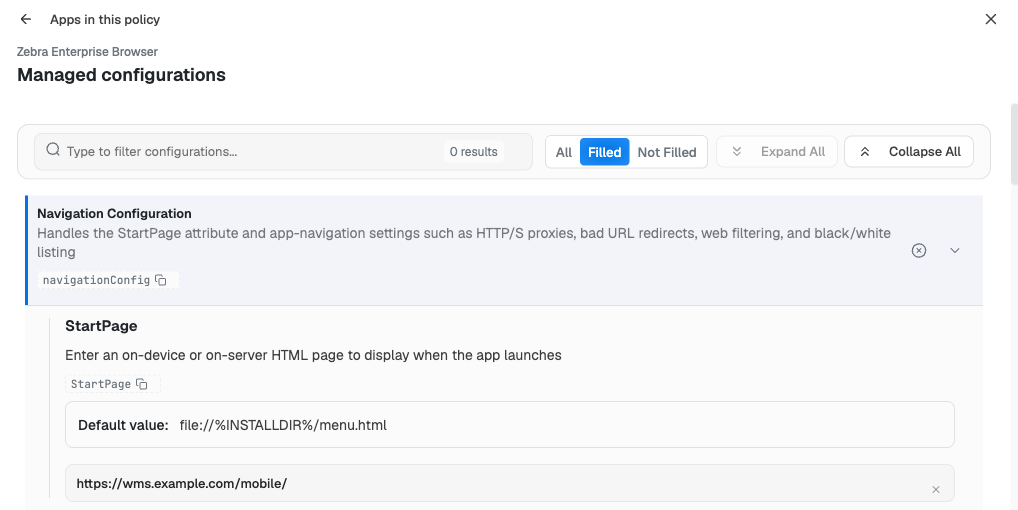
Use Filled to review every value before you save.
Save and apply the policy
- In the managed configurations editor, select Save, then Done in the apps pane.
- Select Save in the policy header, review the list of changes and confirm.
- Linked devices receive the policy when they synchronize. OEMConfig applies the values it receives; Enterprise Browser applies them the next time it starts.
Verify on the device
- In Devices, open the pilot device, run a synchronization and confirm that both apps are installed.
- Check each OEMConfig setting on the device itself. With the sample values, the Android date and time settings should show automatic time and the 24-hour format, and the screen should turn off after five minutes. Zebra's release notes say OEMConfig 10.0 and later show a SUCCESS or FAILURE result for managed configuration actions. The Nomid Portal does not show these results.
- Open Enterprise Browser once. If it was already open, close it and open it again. The start page opens in full screen, the status bar is hidden, and an address outside UrlWhitelist is blocked.
Troubleshooting
| Problem | Likely cause | What to do |
|---|---|---|
| No Configurable badge or no fields in the editor | The package was not resolved from Google Play, or the list has not loaded. | Remove the app, add it again by package name and check that the Zebra app appears as the match. |
| OEMConfig does not install or apply on older devices | Powered by MX does not support Android 10 or earlier. | Use Legacy Zebra OEMConfig (com.zebra.oemconfig.common) in a separate policy for those devices. |
| An OEMConfig field has no effect | The device's MX version is older than the field's Supported from: MX version, or the model is listed under Not supported on Device(s). | Read the field description. Update the device OS, or leave the field empty for those models. |
| Values do not reach the apps | The policy was not saved, the device has not synchronized, or the device has no Google Play services. | Save the policy and synchronize the device in Devices. For devices without GMS, follow Zebra's installation instructions. |
| The device lost its network after an OEMConfig change | A Wireless LAN or network value is wrong. | Connect the device to a working network on site, correct or clear the values and save the policy. |
| Enterprise Browser ignores the values | Enterprise Browser is older than 5.0, Android is older than 11, or the app has never been opened. | Update Enterprise Browser from Google Play and open it once. |
| New values apply only after reopening Enterprise Browser | Zebra's documented behavior. | Close and reopen Enterprise Browser. |
Enterprise Browser lost settings deployed with Config.xml |
Managed configurations replace Config.xml, and other settings return to their defaults. |
Configure everything you need through managed configurations, or use only Config.xml. |
| Enterprise Browser shows the bad-link page or blocks your app | StartPage is unreachable, NavigationTimeout is too short, or an address is missing from UrlWhitelist. | Check the address from the device, raise NavigationTimeout or add the address to the list. |
Undo the configuration
- To stop sending a value, clear the field with its ×, then save the policy. Clearing a field does not necessarily restore the device's earlier setting; to change a device setting back, choose the value you want and save.
- Clear configuration clears one group, and Delete all configurations clears every value of the app in this policy after you save.
- To remove an app, change its installation to Blocked, as described in 4. Policies — Policy 2.0, and save.