 Nomid
This guide shows how to install Zscaler Client Connector for Android (zscaler.com.zscaler) on company devices managed by Nomid MDM and how to configure it with managed configurations. Zscaler calls these values install options or parameters. With them, the app can skip the enrollment page and the cloud choice, enroll devices without a sign-in, link each device to its record in the Zscaler Admin Console, and apply your security options.
Zscaler supports these values only when the app is deployed from Google Play to Android Enterprise devices, which is how Nomid MDM installs it. A copy installed from an APK file cannot be preconfigured.
The steps use the Policy 2.0 editor. In the Classic editor, the same fields open from the gear on the app card; see 4.1 Tablet policies — Classic.
Risk: Zscaler Client Connector sends the device's traffic through Zscaler. A wrong domain, cloud name or DNS server, a certificate setting that does not match your SSL inspection, or an always-on VPN that blocks other traffic can cut access to company apps and to device management. Test every change on a pilot policy with one device before you link the policy to the fleet.
Before you begin
- An Android Enterprise company in Nomid MDM with fully managed or work profile devices, and the Edit policy permission for the policy you will change.
- Devices on Android 8.0 or later, the minimum that Zscaler sets in its Android deployment guides.
- A Zscaler organization and access to the Zscaler Admin Console.
- The values you plan to use: your organization's domain as it appears in the SAML NameID, your Zscaler cloud name if your organization is provisioned on more than one cloud, and a device token if you will use the Zscaler Admin Console as the identity provider.
- VPN settings set to Allowed under Connectivity in the policy, or Zscaler Client Connector chosen as the always-on VPN app. A VPN app needs VPN access from Android; on our pilot device for another VPN app, Blocked stopped the app from getting it. Allowed also lets people on the device add, edit or remove VPNs.
- A pilot policy linked to a single test device, so a wrong value affects only that device.
Add Zscaler Client Connector to the policy
- In the Nomid Portal, open Policies and select the pilot policy.
- Open the Apps & experience tab and select Apps in this policy.
- Select Add App. Choose Add via Package, type
zscaler.com.zscalerand confirm that Zscaler Client Connector appears under the field. Select Add. You can also choose Add via Play Store and search for Zscaler Client Connector in managed Google Play.
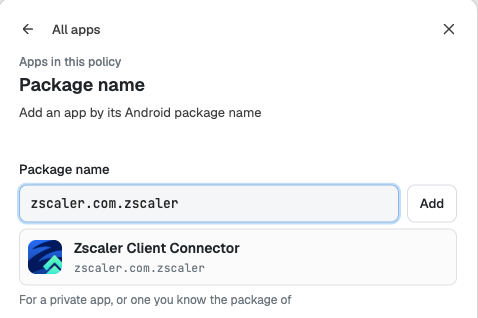
Type the package name and check that the match is Zscaler Client Connector before you add it.
- Zscaler Client Connector now appears in the list with the New and Configurable badges. Configurable means the app publishes managed configurations. The pane footer shows Edited. Save the policy to apply until you save. The installation choice next to the app starts as Required, which installs the app and keeps it on the device. Optional, Blocked and the other app controls are described in 4. Policies — Policy 2.0.
Open the managed configurations
Select the gear next to Zscaler Client Connector in the list. The Managed configurations editor lists every field that the installed Zscaler version publishes. Google Play supplies this list from the app, so it can change when Zscaler releases a new version.
- Each field shows its title and the key name. In Zscaler's app, the title is the key name itself, and only some fields carry a description. The button next to the key copies a link to that field.
- Every Zscaler field is a text box, including the ones that take
0or1: type the number. - Default value shows the value the app declares. It is information only: the editor does not send it.
- A field you leave empty sends nothing, so the app keeps its own behavior. The clear button on a filled field removes its value.
- Use the filter box to find a key, and All, Filled or Not Filled to review what you have entered. Expand All and Collapse All open or close every field.
- Delete all configurations clears every Zscaler value in this policy.
- Save keeps your values in the policy edit; Cancel asks you to confirm and then leaves the editor without them. Neither sends anything to devices until you save the policy.
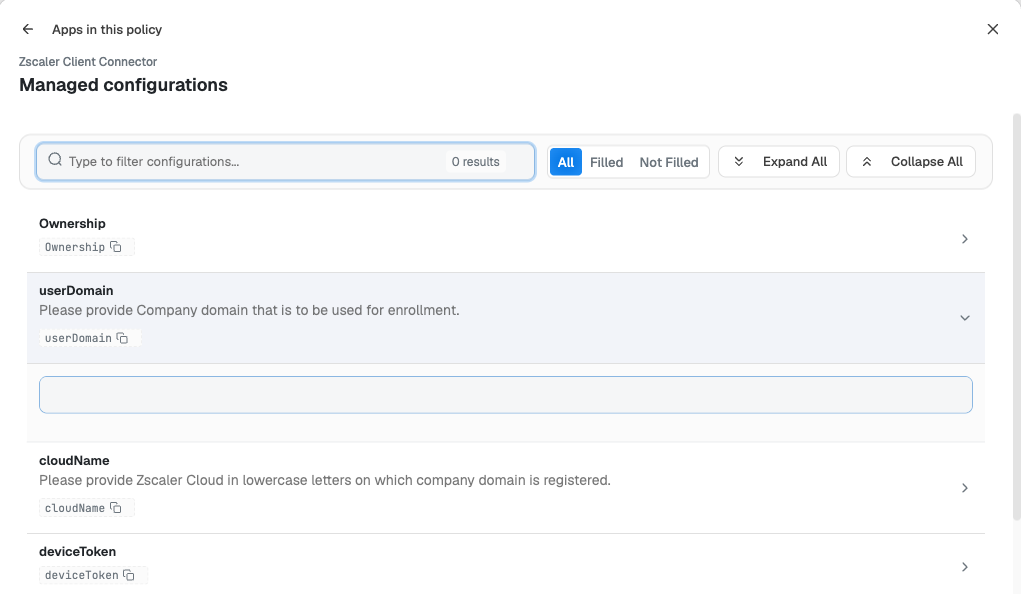
Each field shows the key name Zscaler documents. Leave a field empty unless you need it.
Managed configuration keys
The editor shows 15 fields. The tables group them by purpose. The value formats and version numbers come from Zscaler's Supported Parameters for Zscaler Client Connector for Android, except where a row says otherwise.
Enrollment and sign-in
| Key | Value | Effect |
|---|---|---|
userDomain |
Domain, for example example.com |
Your organization's domain, exactly as it appears in the SAML NameID: for john.doe@corp.example.com, enter corp.example.com. People skip the enrollment page, and with single sign-on they go straight to your identity provider. If one identity provider serves several domains, enter the primary domain. |
cloudName |
Cloud name without .net, in lowercase, for example zscalertwo |
Sends traffic to that Zscaler cloud and skips the cloud choice during enrollment. Leave it empty if your organization is provisioned on one cloud; the app finds it. Automatic enrollment needs it. |
userName |
User name without the domain, up to 255 characters, for example j.doe |
Fills in the user name for enrollment. Needs userDomain. You can use a Nomid dynamic variable; see Using dynamic variables in managed configurations. |
deviceToken |
Device token from the Zscaler Admin Console | Uses the Zscaler Admin Console as the identity provider, so Zscaler provisions and signs in users without an identity provider of your own. Applies only to Internet & SaaS; Private Access does not support it. Create the token and finish the identity provider setup in the Zscaler Admin Console first. See the warning below. |
autoEnrollWithMDM |
0, 1 or 2 |
Enrolls the device without user interaction when the Zscaler Admin Console is the identity provider. 0 turns it off, 1 enrolls every time, even after someone logs out, and 2 enrolls once. With 1 or 2, also set deviceToken, cloudName and userDomain. Without userName, the app asks for access to contacts so it can read the Google account name. |
Device token warning: anyone who can view the policy in the Portal can read the token, and the policy sends the same token to every device in it. Treat it as a credential: never show it in screenshots or support tickets, and give Edit policy and policy view access only to the people who need it.
Device identity and posture
| Key | Value | Effect |
|---|---|---|
externalDeviceId |
Text, for example %serial_number%; 0 turns it off (Zscaler's default) |
Links the device in Nomid MDM with the same device in the Zscaler Admin Console. A Nomid dynamic variable such as %serial_number% or %imei% gives each device its own value. Zscaler Client Connector 3.7 or later. |
Ownership |
Up to 32 letters and numbers, for example examplecorp |
The value that a Zscaler device posture profile of the Ownership Variable type checks. Set it only if you use that posture type. |
Security and network
| Key | Value | Effect |
|---|---|---|
enableFips |
1 or 0 (default 0) |
1 makes the app use FIPS-compliant libraries to talk to Zscaler. Use it only if your organization requires FIPS. |
allowRunningOnRootedDevice |
1 or 0 (default 0) |
1 lets the app run on a rooted device; 0 blocks it. Zscaler Client Connector 3.7 or later. Zscaler's earlier name for this key was allowZccOnRootedDevice. |
allowRunningOnEmulator |
1 or 0 (default 0) |
1 lets the app run on an emulator; 0 blocks it. Zscaler's earlier name for this key was allowZccOnEmulator. |
customDNS |
IP address, for example 192.0.2.53 |
The app uses this DNS server instead of the device's own. |
httpAuthAllowedHosts |
Comma-separated host names, for example proxy.example.com,idp.example.com |
Only these hosts may ask for HTTP Basic authentication or a client certificate on the sign-in page; the app cancels such requests from other hosts. Enter host names without https:// or a path, and no *. A name also covers its subdomains. Zscaler Client Connector 4.2 or later. |
trustUserCACerts |
1 or 0 (default 1) |
From the app's own description: 0 limits the app's calls to Zscaler to the certificate authorities preinstalled on the device; 1 also trusts certificates the user or MDM installed, which you need when your SSL inspection root certificate is installed that way. Zscaler's parameters page does not list this key. |
Fields Zscaler does not document for Android
The editor also shows enableUiSwitch (default 1) and mdmPreLoginDefaultUi (default 1). The Android app publishes them without a description, and Zscaler's parameters page does not list them. Leave them empty unless Zscaler support confirms what they do in your version.
Sample policy for shared frontline devices
This example enrolls shared devices without a sign-in, using the Zscaler Admin Console as the identity provider. It covers Internet & SaaS only: for Private Access, set userDomain and let staff sign in with your single sign-on instead. Replace the domain, cloud name and token with your own values.
| Key | Value | Why |
|---|---|---|
userDomain |
example.com |
Skips the enrollment page. |
cloudName |
zscalertwo |
Required for automatic enrollment. |
deviceToken |
Your device token | Lets Zscaler provision and sign in the device on its own. |
userName |
%serial_number% |
Gives each device its own user name, so the app does not ask staff for access to contacts. |
autoEnrollWithMDM |
1 |
The device enrolls again if someone logs out. |
externalDeviceId |
%serial_number% |
Matches the device in the Zscaler Admin Console with the one in Nomid MDM. |
Nomid MDM replaces %serial_number% on the device, as described in Using dynamic variables in managed configurations. On the pilot device, check that Zscaler shows the serial number and not the text %serial_number%.
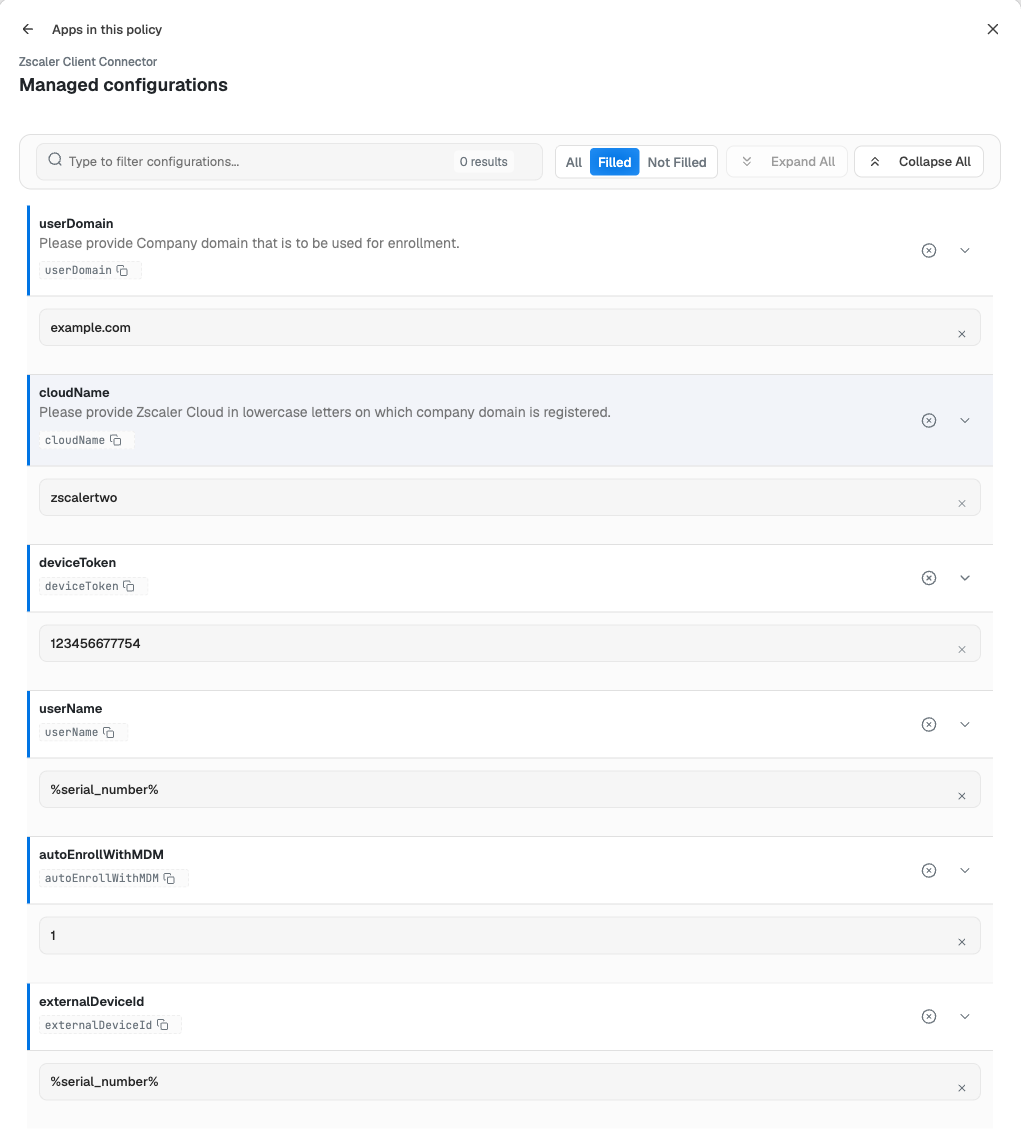
Use Filled to review every value before you save. The token shown is Zscaler's documentation example.
Save and apply the policy
- In the managed configurations editor, select Save, then Done in the apps pane.
- Select Save in the policy header, review the list of changes and confirm.
- Linked devices receive the policy when they synchronize. Without automatic enrollment, people then open the app and sign in to enroll, as Zscaler's deployment guides describe.
Optional: always-on VPN
Zscaler states that, when the app is the always-on VPN, it can secure the device's traffic before enrollment. To set it, choose Zscaler Client Connector as the VPN app under Connectivity > Traffic routing > Always-on VPN, as described in 4. Policies — Policy 2.0. Leave Block connections without the VPN off until the pilot device enrolls and reconnects reliably. With it on, a device that is not connected to Zscaler has no network, which can also stop policy updates.
Verify on the device
- In Devices, open the pilot device, run a synchronization and confirm that Zscaler Client Connector is installed.
- On the device, open Zscaler Client Connector. With
userDomainset, the enrollment page does not appear: the app opens your identity provider's sign-in, or enrolls on its own with automatic enrollment. WithcloudNameset, the app does not ask you to choose a cloud. - In the Zscaler Admin Console, find the device and confirm the user name and, if you set it, the external device ID.
- From the device, open a site that your Zscaler policy blocks or inspects, and an internal app, to confirm that traffic goes through Zscaler and company apps still work.
Troubleshooting
| Problem | Likely cause | What to do |
|---|---|---|
| No Configurable badge or no fields in the editor | The package was not resolved from Google Play, or the list has not loaded. | Remove the app, add it again with zscaler.com.zscaler and check that Zscaler Client Connector appears as the match. |
| Values do not reach the app | The policy was not saved or the device has not synchronized. | Save the policy and synchronize the device in Devices. |
| The enrollment page still appears | userDomain is empty or does not match the domain in the SAML NameID. |
Enter the exact domain, for example corp.example.com for john.doe@corp.example.com. |
| The app asks to choose a cloud | Your organization is on more than one cloud and cloudName is empty or wrong. |
Enter the cloud name in lowercase without .net, for example zscalertwo. |
| Automatic enrollment does not start | deviceToken, cloudName or userDomain is missing, the token's identity provider setup is incomplete, or you use Private Access only. |
Fill in all three keys and finish the Zscaler Admin Console identity provider setup. Use single sign-on for Private Access. |
| The app asks for access to contacts | Automatic enrollment is on and userName is empty. |
Set userName. |
Zscaler shows %serial_number% as text |
Nomid MDM has not replaced the variable on the device yet. | Synchronize the device and see Using dynamic variables in managed configurations. |
| The app cannot get VPN access | VPN settings is Blocked in the policy, or another VPN is running. | Set VPN settings to Allowed under Connectivity and save the policy. Disconnect any other VPN, then reopen the app. |
| The sign-in page fails behind a proxy or with a client certificate | The host is missing from httpAuthAllowedHosts. |
Add the host name, without https://, and save the policy. |
| The app cannot reach Zscaler on devices where your SSL inspection root certificate is installed by MDM | trustUserCACerts is 0. |
Clear the field or set it to 1. |
| The app does not start on a test device | The device is rooted or an emulator. | Use a supported device, or set allowRunningOnRootedDevice or allowRunningOnEmulator to 1 only for testing. |
| The device has no internet after enabling always-on VPN | Block connections without the VPN is on and Zscaler is not enrolled or connected. | Turn the block off in the policy, save, and enroll the app again. |
Undo the configuration
- To stop sending one value, clear the field, then save the policy.
- Delete all configurations removes every Zscaler value from this policy after you save it.
- To remove the app, change its installation to Blocked, as described in 4. Policies — Policy 2.0, and save.
See also
- 4. Policies — Policy 2.0: apps and traffic routing
- 4.1 Tablet policies — Classic: app managed configuration
- 3. Devices: synchronization and installed apps
- Using dynamic variables in managed configurations
- Zscaler: Supported Parameters for Zscaler Client Connector for Android
- Zscaler: Customizing Zscaler Client Connector with Install Options for Android