 Nomid
NomidThis guide describes the complete process for restoring data to a corporate device managed by Nomid MDM using Samsung SmartSwitch.
The steps have been adapted for the corporate environment and take into account permissions and restrictions that may exist on devices under EMM/MDM management.
Important: This procedure is intended for Android Enterprise Fully Managed devices. SmartSwitch is not supported on company-owned devices with a work profile (COPE/DO+PO). Test the model, Android version, and policy on a pilot device before restoring corporate data.
Why use SmartSwitch when migrating devices?
Samsung SmartSwitch is useful when migrating from one device to another because it simplifies data transfer and reduces manual reconfiguration. In the corporate context, use SmartSwitch only to restore company-approved data. The tool can transfer personal and corporate categories, so selection must be as restrictive as possible and recorded as part of the support case.
What it makes easier:
- Reduces the time needed to set up the new device.
- Prevents human errors when copying data manually.
- Provides a simple and secure interface for restoring information.
- Can be enabled on Fully Managed devices when the policy and Samsung model support it.
Information that can be transferred:
- Contacts, messages, and call history.
- Compatible apps (no need for manual reinstallation).
- System settings (Wi-Fi, accounts, preferences).
- Approved files such as photos, videos, and documents when they are part of the approved scope.
Prerequisites
Before you start, check the following points:
- The backup of the source device must be saved on a trusted flash drive or USB drive.
- The target device must be under Nomid MDM Fully Managed administration.
- The SmartSwitch app (com.sec.android.easyMover) must be available and authorized in the MDM environment.
- A USB OTG adapter may be required to connect the flash drive to the device.
- 🔋 Devices must have enough battery charge to complete the migration process.
- The restore scope must be approved: backup source, allowed categories, asset owner, and the window during which USB/external-media access will remain enabled.
Step by step
0. Initial backup
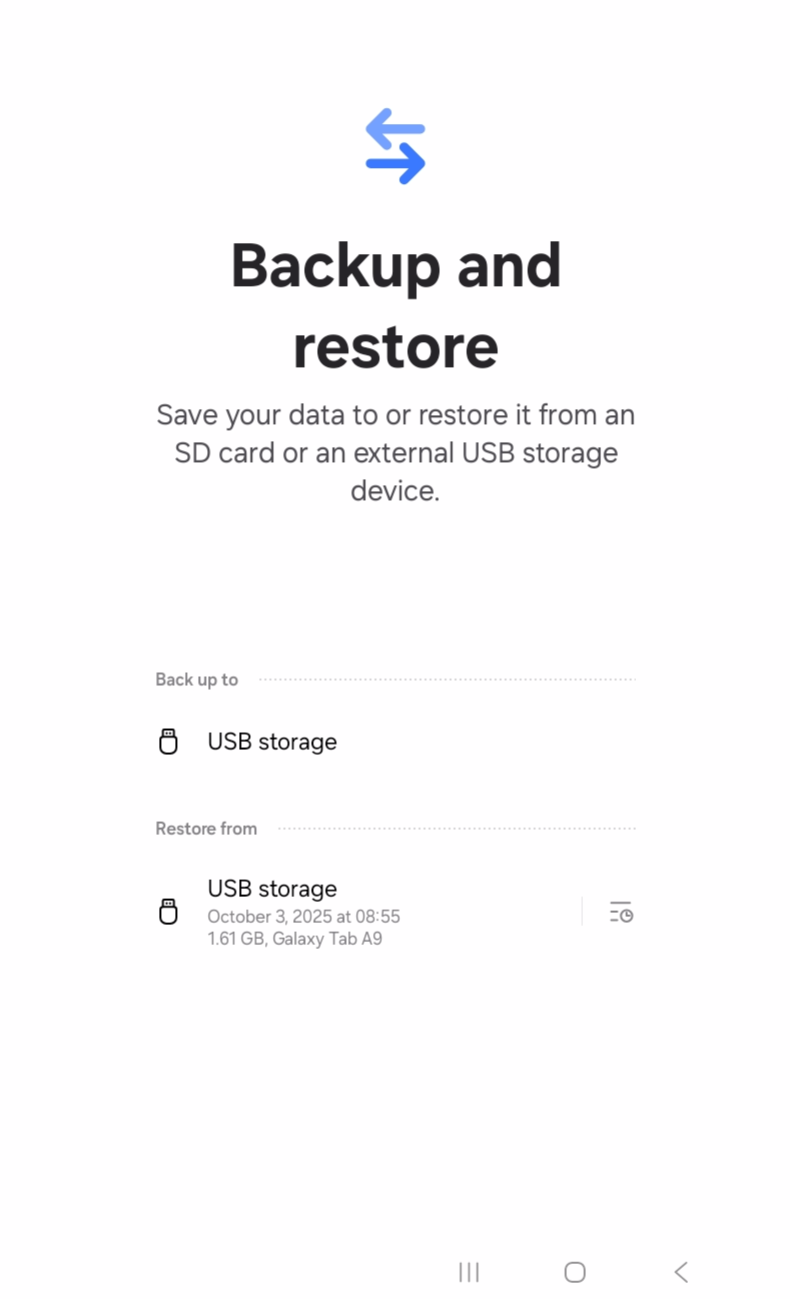
Make sure the device backup has been created and saved to a USB flash drive. This will be the restore point.
If the backup contains personal content, app data outside the scope, or non-corporate accounts, do not restore everything. Record the backup source and agree with the user or asset owner which categories will be recovered.
1. Authorize USB interactions
On the target device, you must enable three specific permissions in the Nomid MDM console so that SmartSwitch can properly recognize and interact with external media (USB drive/storage):
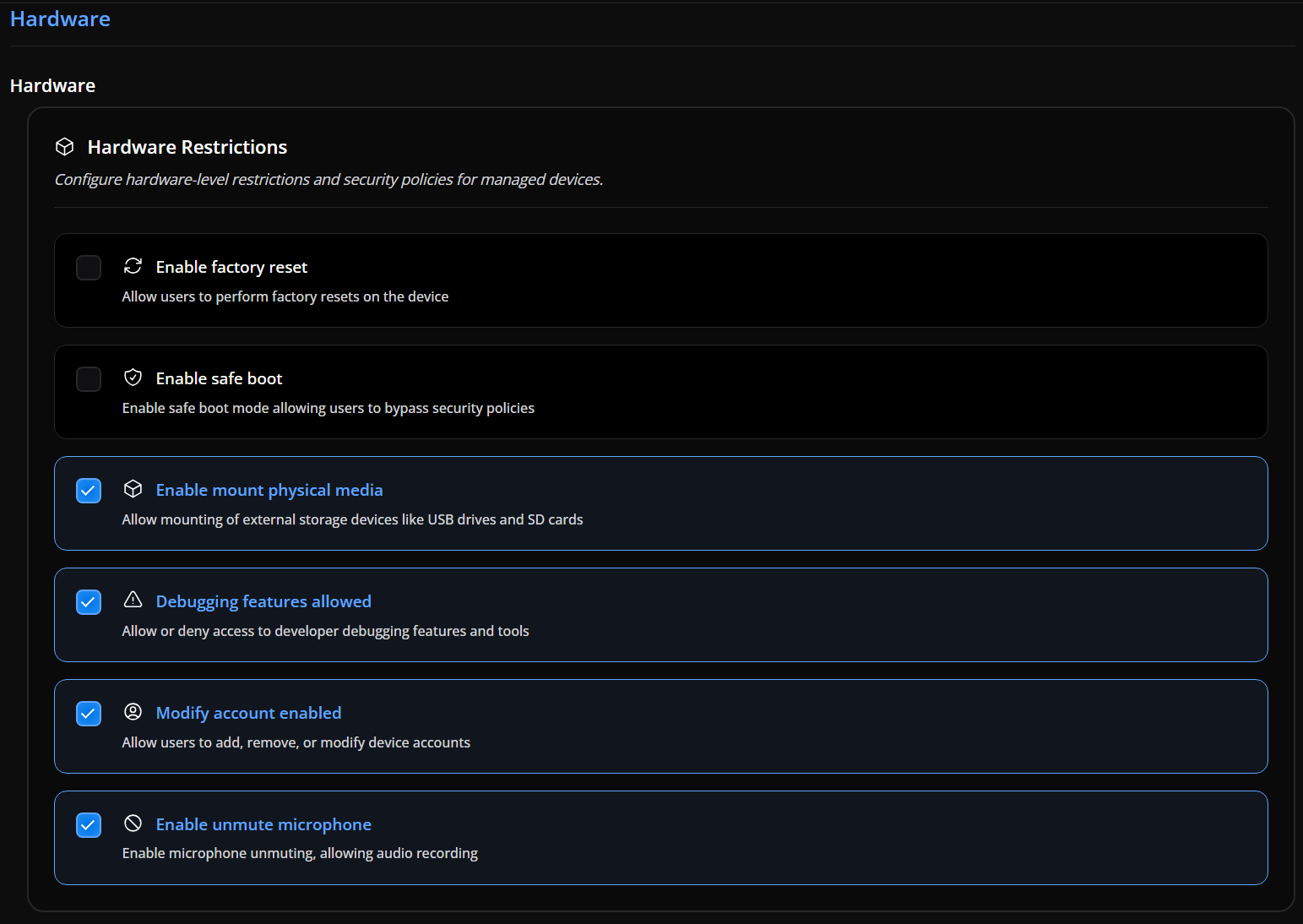
- Enable mount physical media
- Allows the device to mount and access external storage units such as USB drives and SD cards.
- Without this permission, the system cannot identify the backup content.
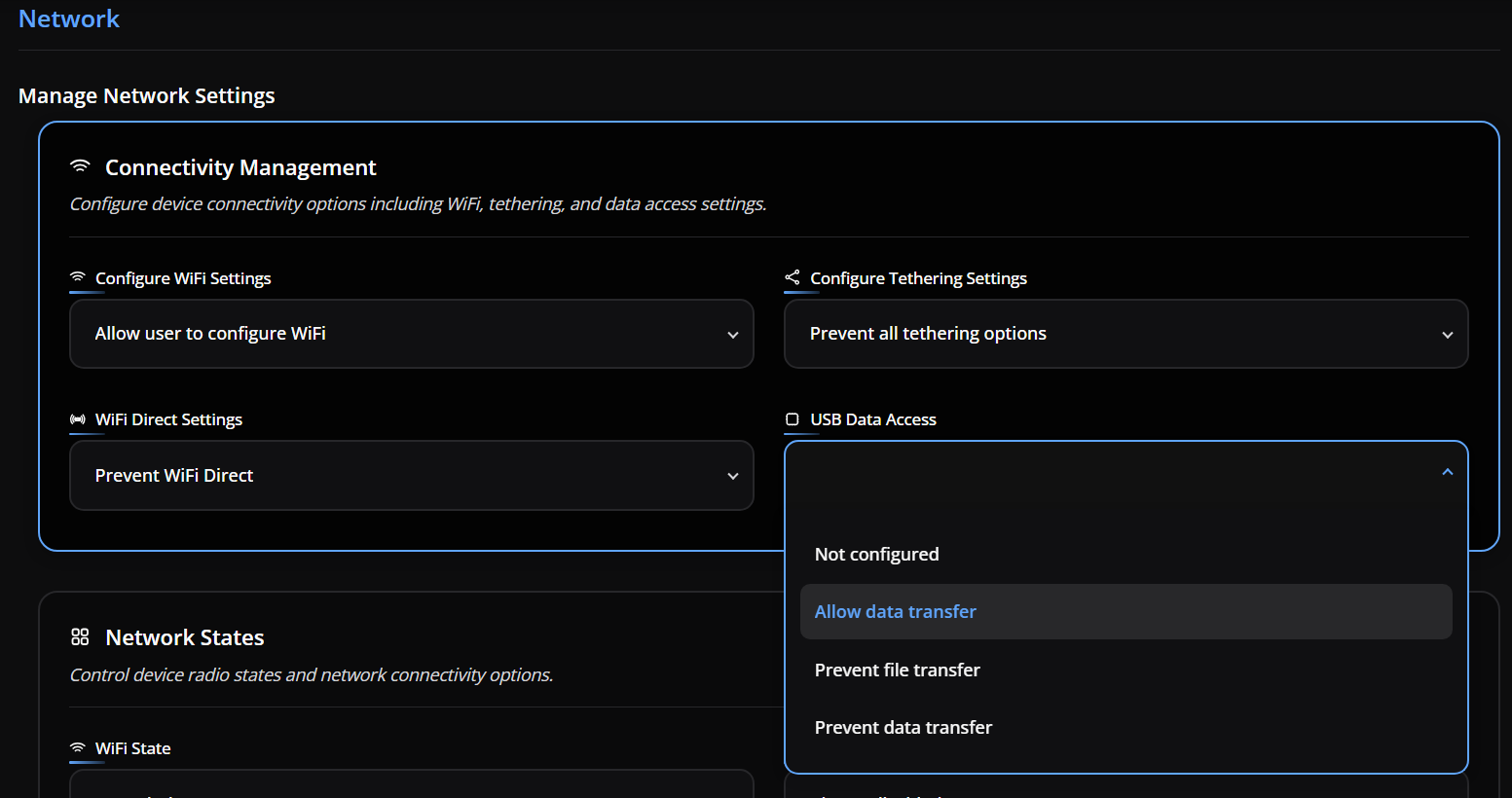
- USB Data Access → Allow data transfer
- Allows data transfer between the device and the connected USB media.
- Without this permission, the device detects the USB drive but does not allow reading/writing data.
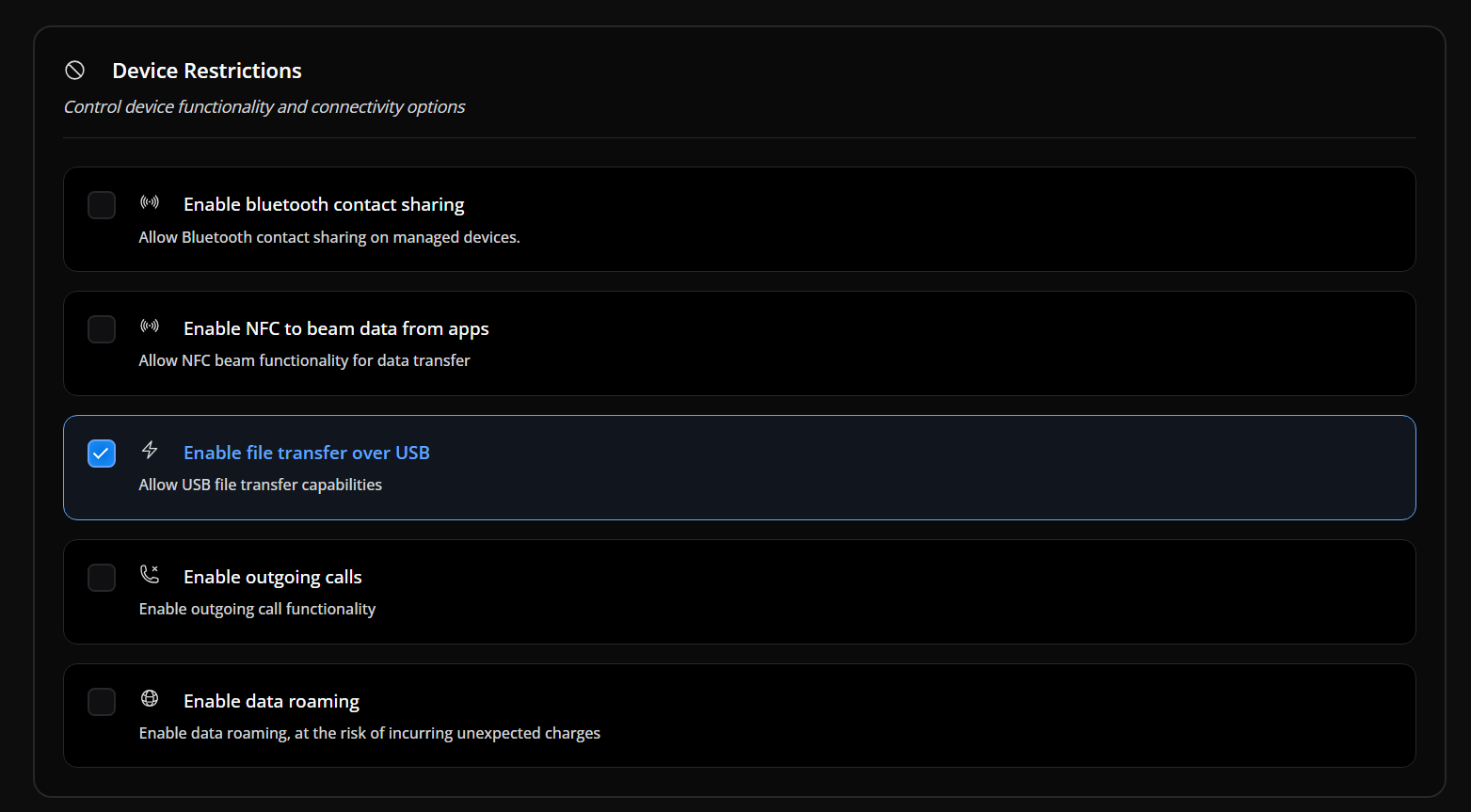
- Enable file transfer over USB
- Ensures the ability to copy/restore files via the USB interface.
- Required for SmartSwitch to access the backup packages.
All three permissions must be enabled simultaneously during restoration. After the procedure, revert temporary USB and external-media access.
2. Authorize SmartSwitch execution
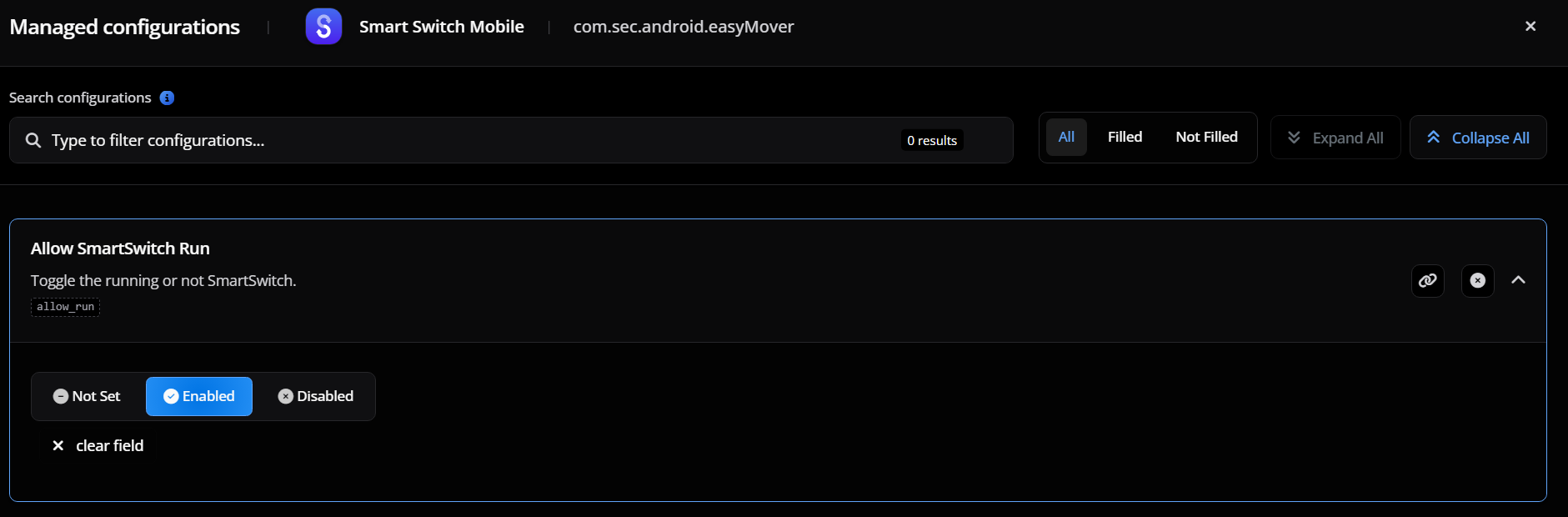
In the Nomid MDM console, navigate to the policy applied to the device and authorize the SmartSwitch app (com.sec.android.easyMover) to run in a managed environment. This ensures the app has the necessary permissions to run and access the USB drive.
3. Restore from USB drive
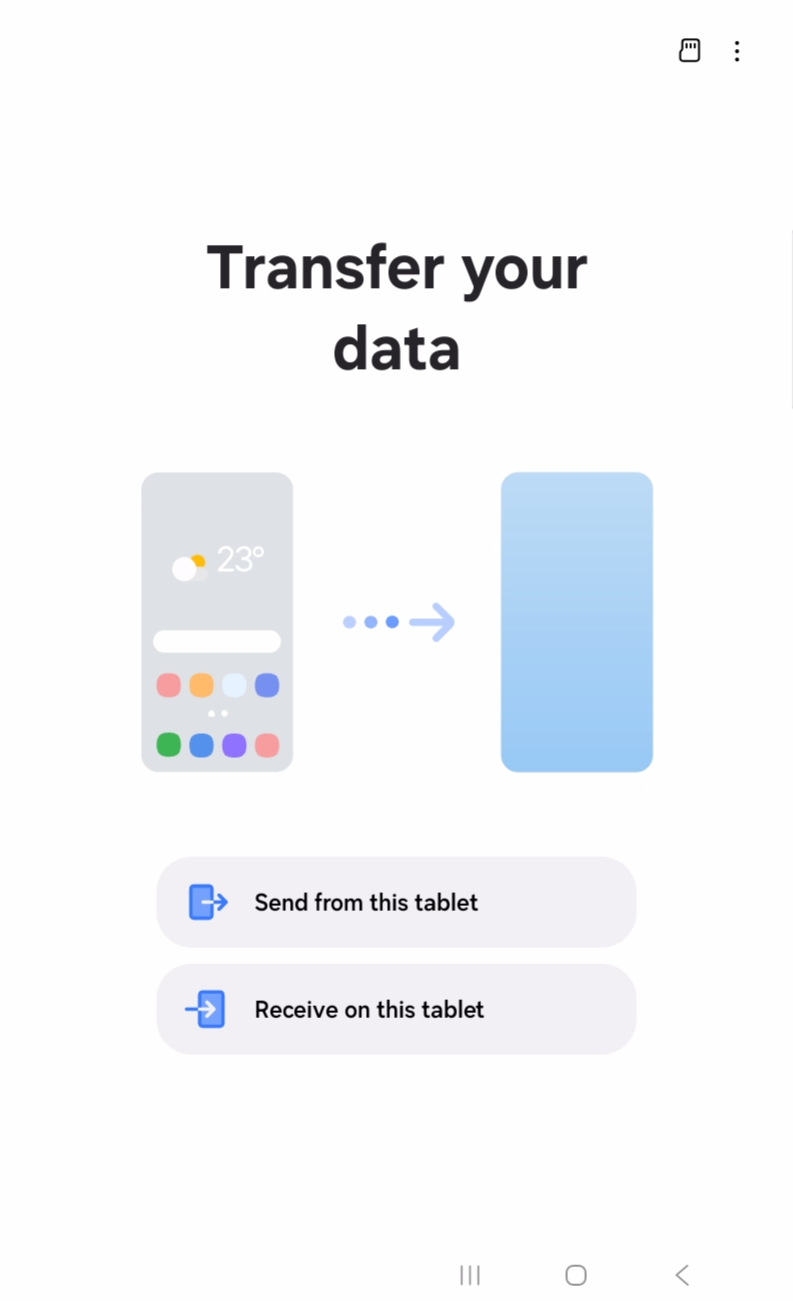
Open SmartSwitch and select Restore. The system will identify the backup stored on the connected USB flash drive.
4. Select the restore scope
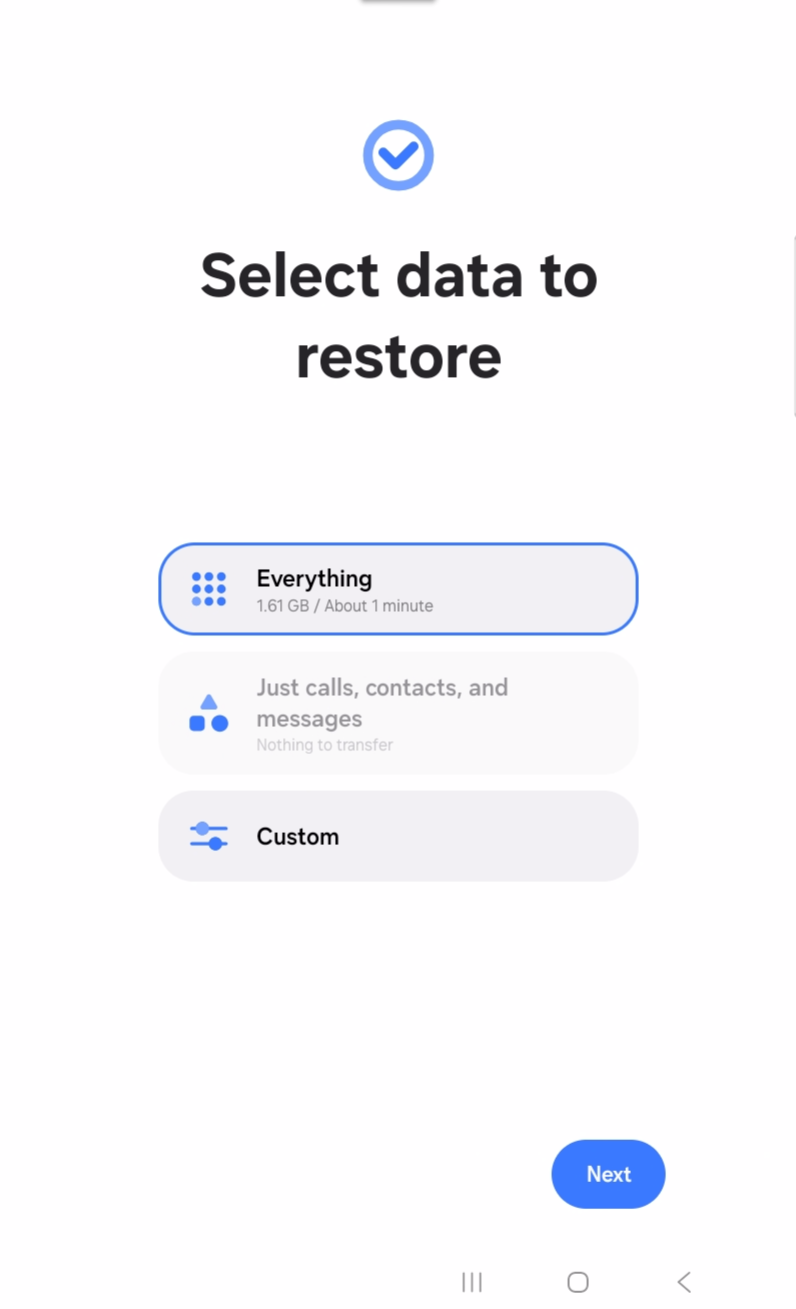
Choose which data to restore:
- Applications: restores compatible apps and data supported by SmartSwitch; use only when the policy allows the app and the data is needed.
- Contacts: recovers contacts from the backup; validate that the list belongs to corporate use before moving it to the managed device.
- Messages: restores messages available in the backup; use only when authorized, because they may contain personal or sensitive data.
- System Settings: may restore Wi-Fi, preferences, and compatible settings; confirm afterward that the Nomid policy reapplied corporate restrictions.
- Other available data: includes additional files and categories shown by SmartSwitch; select only approved items.
Prefer custom selection. Restore everything only when the complete backup scope is approved by the company.
5. Wait for completion
After confirming your options, wait for the restore to complete. The time may vary depending on the size of the backup and the speed of the USB device.
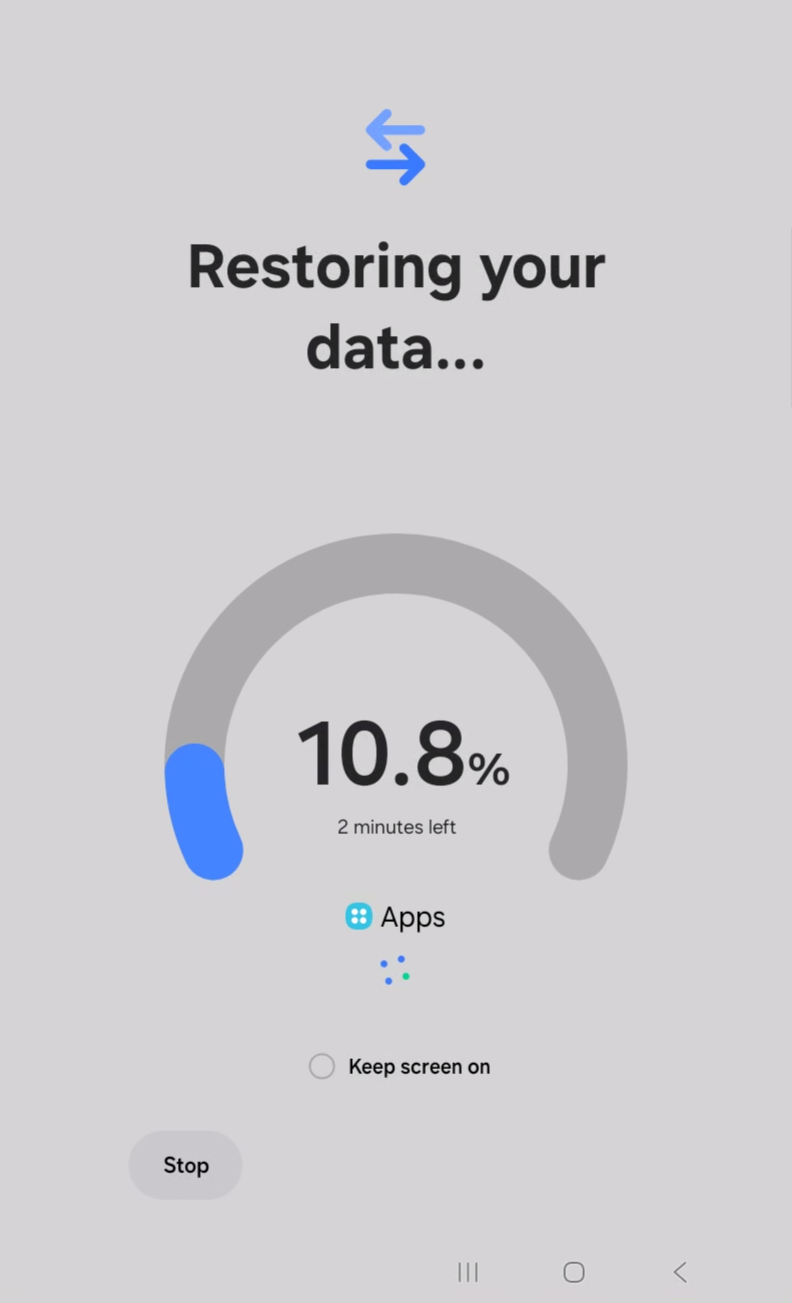
Once completed, the device will be ready to use with the recovered data.

After confirming the result, remove temporary USB/external-media allowances, publish or sync the policy, confirm in Devices that the equipment returned to the expected state, and record restore evidence.
Security best practices
- Never use personal backups on corporate devices. Always maintain separation between personal and corporate data.
- Ensure the USB drive used is malware-free before performing the operation.
- After restoration, perform a synchronization in Nomid MDM to ensure all security policies are reapplied.
- ⚠️ Keeping USB access enabled is a security risk — disable these permissions when not in use.
- If SmartSwitch was allowed only for a migration window, remove the policy exception after validation.
Final validation
Confirm that the required data was restored, run a synchronization in Devices, and verify that the policy has restored the organization's USB and external-media restrictions.