Nomid
NomidAfter Quest for Business: How to Move a VR Training Fleet to PICO
Meta stopped selling Horizon managed services and commercial Quest headsets in February 2026, with support committed until 4 January 2030. Here is how to decide whether to stay or move, inventory your apps and content, and pilot PICO headsets with evidence your directors can check.
Table of Contents
If your organisation bought Meta Quest headsets through Quest for Business or Meta Horizon managed services (HMS), you are probably being asked one question: what happens to our VR training programme now? The answer does not need to be dramatic. Your headsets still work, your subscriptions still run, and you have time to plan.
Your 2027 hardware refresh is still a decision you will have to make and defend to directors. This tutorial walks you through it in six steps:
- Confirm the real timeline.
- Weigh staying on Quest against moving.
- Inventory your fleet and content.
- Move apps and content.
- Enrol PICO headsets in bulk.
- Run a two-week pilot that produces evidence you can present.
Each step ends with an expected result, so you know when to move on.
Before You Start
Steps 1 to 3 need only your own records. From Step 4 on, you will need:
- A PICO test headset of a model Nomid supports: PICO 4 Enterprise or PICO Neo 3. Check the model before you buy test units.
- A Nomid account with a pilot policy. Nomid's free plan covers up to 10 devices with no time limit. It excludes remote access and the API, so confirm it covers what your pilot needs.
- A computer for the desktop USB provisioning tool, and data-capable USB cables.
Step 1: Confirm What Changed and the Real Timeline
Before you plan anything, align your team on the facts. Rumours spread quickly in training departments, and a wrong date can push you into a rushed purchase.
Here is what Meta has announced:
- In January 2026, Meta announced it would stop selling Horizon managed services and its commercial Quest headsets.
- Sales ended on 20 February 2026.
- Existing HMS subscriptions dropped to zero cost.
- Meta committed to support and bug fixes for HMS until 4 January 2030.
Note: Public sources describe what happens after 4 January 2030 in different ways. In internal documents, write "support is committed until 4 January 2030". Do not write that HMS shuts down on that date. If the post-2030 position matters to your plan, ask Meta directly and keep the written answer with your decision record.
In practice, you can keep running your current fleet for several years. What you cannot do is buy new commercial Quest headsets through those programmes to replace broken units or expand to new sites.
Expected result: You have a one-paragraph summary of the Meta timeline. Your IT, L&D and procurement contacts agree on it, and it contains no dates or claims beyond those listed above.
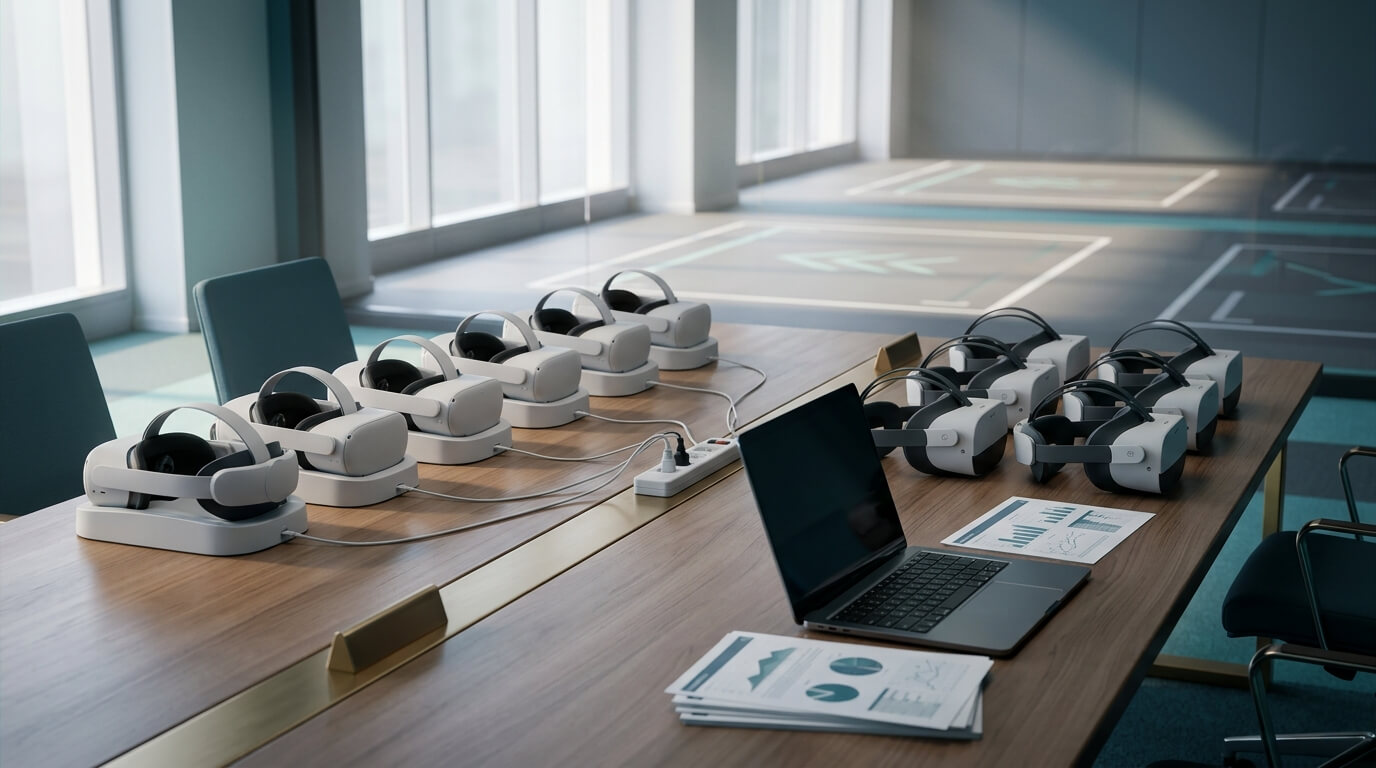
Step 2: Decide Whether to Stay on Quest Until 2030 or Move Now
Staying on Quest is a legitimate choice for some fleets. Moving is a legitimate choice for others. Your job is to pick the option that fits your situation and explain why.
When staying on Quest makes sense
- Your headsets are relatively new and in good condition.
- Your fleet is small, stable and concentrated at one or two sites.
- Your training content is mature and you do not plan major changes.
- The zero-cost HMS subscription removes a line item your budget holders will notice.
The risks of staying
- No new commercial hardware. Every broken or lost headset shrinks your fleet. Expanding to a new site means buying a different device anyway.
- A fixed support end date. Your planning horizon is capped at 4 January 2030, and your content vendors will make their own platform decisions in the meantime.
- A second console. If your phones, tablets and kiosks are managed in another tool, your team keeps maintaining two consoles, two sets of policies and two sets of admin skills.
A middle path: phased migration
A third option sits in between: keep the existing Quest fleet in service, pilot an alternative before the 2027 budget is set, and plan the replacement around the 2027 refresh. That way the move happens on your schedule, not on the schedule set by device failures.
Expected result: You have a written position: "stay", "move now" or "phased migration". It includes two or three reasons tied to your fleet age, content and support model.
Step 3: Build Your Inventory Before You Decide
You cannot cost a migration you cannot see. Build one inventory document and work through these items in order.
- Headsets and their age. Record the model, purchase date, site, assigned team and condition for each unit. Flag units with battery, strap or controller problems, because they are the likeliest to need replacing soon.
- Apps: your own APKs versus store apps. List every app in use. Mark each one as built in-house, built by a contracted vendor, or bought from a store. For each, note whether a PICO build already exists, is planned, or is unknown.
- WebXR links. List any browser-based experiences, with their exact URLs and who owns them.
- Video and 360 content. Record the file formats, resolutions, total storage size and where the master files are stored. Check whether any originals exist only on the headsets.
- Accounts and sign-in. Note how each app authenticates users and whether anything depends on a Meta account. Ask each vendor how sign-in will work on a new platform.
- Who supports the fleet. Name the people who charge, clean, reset and troubleshoot headsets at each site. Estimate the hours they spend in a typical week, and count the support requests per training session over a few weeks. These two numbers are your Quest baseline for the pilot in Step 6.
Warning: Back up master copies of every video, 360 file and in-house APK before you change anything on the headsets. If content exists only on devices, a factory reset or hardware failure can lose it permanently.
Expected result: You have one inventory document that lists every headset, app, link and content file. Each app is marked "PICO build available", "requested" or "unknown", and you have a baseline for support hours and requests per session.

Step 4: Move Content and Apps
Content can take longer than the hardware, so start early. Nothing converts automatically. Each app, link and video needs its own check.
The tests in this step run on a PICO test headset enrolled in your pilot policy. Enrol one first with the desktop tool, as described in Step 5, so it receives what you assign.
4.1 Request PICO builds from your app vendors
- Send each vendor a short written request. Ask whether a PICO build of their APK exists, which PICO models it supports, and what licensing terms apply.
- For in-house apps, ask your developers to estimate the work needed to produce and test a PICO build.
- Record each response and its delivery date in your inventory.
- When a PICO build arrives, add the APK to the pilot policy and check that it installs and runs on the test headset. Then update its status in your inventory.
4.2 Test WebXR links in the PICO browser
- Open each WebXR URL in the browser on a PICO test headset.
- Check loading time, controller input, audio and whether the immersive mode starts.
- Mark each link "works", "works with issues" or "fails", and send failures to the content owner.
4.3 Prepare videos, files and WebXR links for the Library
In Nomid, the Library holds apps, videos, WebXR links and files, and you assign them to headsets per policy.
- Group content by audience, for example by course, site or role.
- Create one policy per group.
- Upload videos and files to the Library, add the WebXR links that passed in 4.2, and assign them to the matching policy.
- Test playback of each video on the test headset before the pilot.
4.4 Re-create the home experience
Trainees notice when the first screen they see changes. You can reduce that friction by rebuilding a familiar home experience per policy.
- Configure the launcher settings so trainees see only what they need.
- Add app shortcuts for the courses assigned to that group.
- Set a VR environment, a panorama-based background, that matches your organisation's training spaces or branding.
You can see how these launcher and Library settings look for PICO headsets on the Nomid VR page.
Expected result: Every app has a PICO build, a delivery date or a documented gap. Every WebXR link has a test status. Your pilot policy includes the content, shortcuts and VR environment the pilot group needs.
Step 5: Enrol PICO Headsets in Bulk Over USB
Setting up headsets one at a time takes up the hours you saved for the pilot. Nomid's desktop USB provisioning tool sets up several PICO headsets at once, including Wi-Fi, device naming, apps and content.
- Finalise the pilot policy. Confirm that apps, Library content, launcher settings and the VR environment are assigned before you connect any headset.
- Prepare the Wi-Fi details. Use the network the headsets will actually run on at the pilot site, not your office guest network.
- Define a naming convention. Use a predictable pattern such as site-room-number, for example lisbon-trainingA-01. You need this so you can match physical units to inventory records.
- Charge the headsets. Start provisioning with charged units so a setup run is not interrupted.
- Provision one headset first. Connect a single headset over USB, start the desktop tool and apply Wi-Fi, name, apps and content. Put it on and check everything end to end. If the policy has an error, you find it on one unit instead of every unit.
- Run the batch. Connect the remaining headsets with data-capable cables, apply Wi-Fi, names, apps and content in one session, and keep them connected until the tool reports completion.
- Label each unit physically. Use the same name the tool assigned.
- Verify in the inventory. Open the Nomid console and confirm each headset appears with its device info, headset battery and controller status where the device reports it.
Expected result: Every pilot headset carries a name label that matches the console. Each one appears in the inventory and shows the assigned apps, content and home experience when a trainee puts it on.
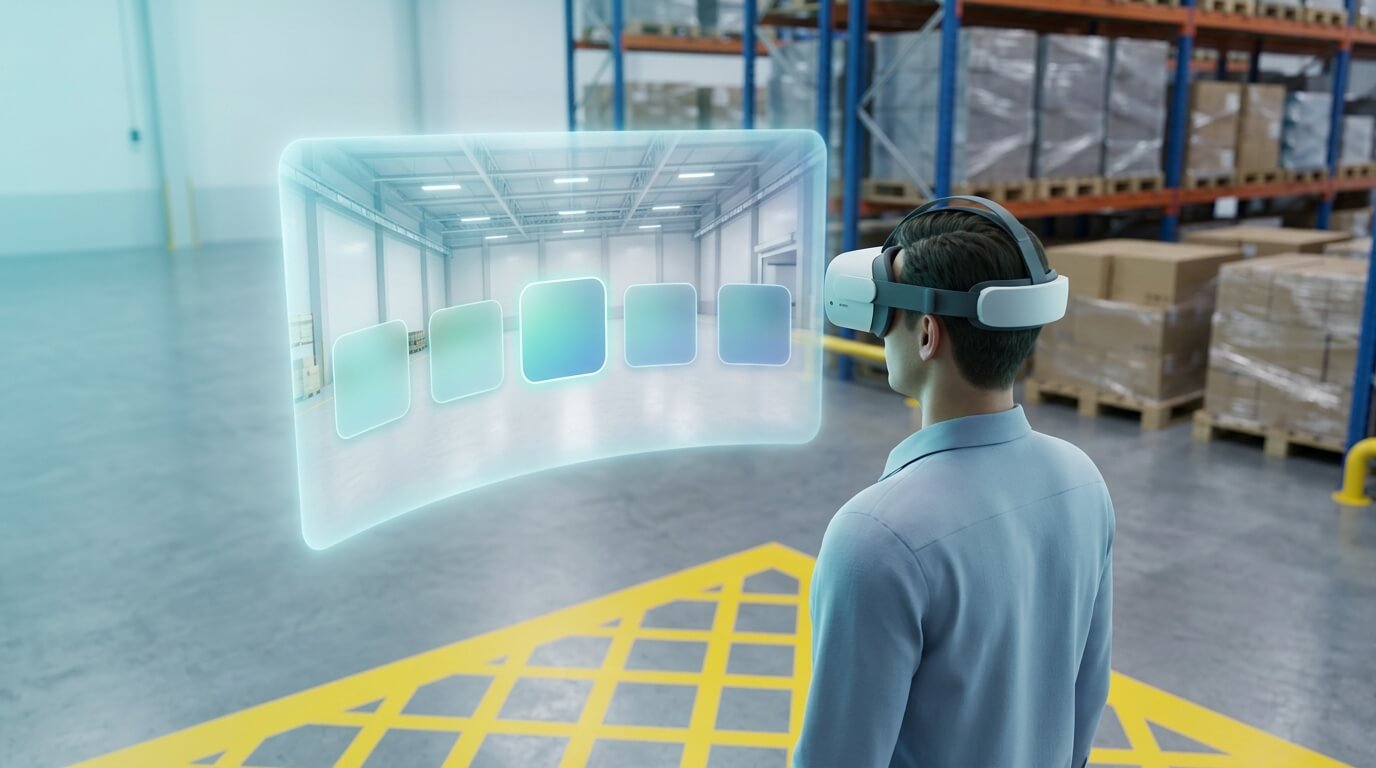
Step 6: Run a Two-Week Pilot and Report to Directors
A pilot turns opinions into evidence. Keep it small: one class, one team or one site.
Set success criteria before you start
- All courses in scope run end to end on PICO.
- Support requests per session and weekly support hours are at or below your Quest baseline from Step 3.
- Policy changes reach headsets without manual work on each device.
- Trainers can run a session without IT on site.
Week 1: Run normal sessions
- Run your normal training schedule on PICO headsets with real trainees.
- Log every support request: what happened, how long it took to fix, and who fixed it.
- Note any content that did not load, play or score correctly.
Week 2: Test a site-staff day
- Fix the issues from week 1 by updating the policy, not by touching each headset.
- Run at least one full day where on-site staff handle charging, start-up and basic support without IT present.
- Collect short written feedback from trainers and a sample of trainees.
What to report to directors
- Cost per headset over three years. Add hardware, accessories, management licences, content rework and estimated staff time. Divide the total by the number of headsets. Use the quotes you received; do not use list prices you found online.
- Support load. Compare the pilot's support hours and request counts with your Quest baseline.
- Content readiness. Report the share of your inventory that works on PICO today, what has a delivery date, and what has no path yet.
- One console. State whether managing headsets alongside your Android phones, tablets and kiosks in a single console reduces tools, admin training and duplicated policies for your team.
Expected result: You have a short pilot report covering three-year cost per headset, support load, content readiness and console consolidation, with a clear recommendation: proceed, extend the pilot, or stay on Quest for now.
Troubleshooting FAQ
Can Nomid manage our existing Quest headsets during the transition?
No. Nomid manages Android devices and supported PICO headsets (PICO 4 Enterprise and PICO Neo 3). Keep managing your Quest fleet with HMS until you retire it, and run the two fleets side by side during a phased migration.
Is HMS shutting down in 2030?
Meta has committed to support and bug fixes for HMS until 4 January 2030. Sources describe the period after that date differently, so ask Meta directly if it affects your plan.
A vendor says there is no PICO build of their app. What now?
Ask whether one is planned and when, and whether a WebXR version exists. If neither is available, record the gap in your pilot report. Leave that course on Quest while you look for an alternative.
A WebXR link loads but behaves differently in the PICO browser.
Record what differs, such as input, audio or immersive mode. Send the details to the content owner along with the headset model. Mark the link "works with issues" until it is fixed.
A headset did not appear in the console after USB provisioning.
Work through these checks in order:
- Check that the cable carries data, not just charge, and try another USB port.
- Confirm the headset is charged and the Wi-Fi details are correct for that site.
- Re-run provisioning for that single unit and watch for errors in the tool.
Assigned content does not appear on a headset.
Check in the console that the headset is on the pilot policy and that the content is assigned to that policy. Make sure the headset is connected to Wi-Fi and has time to download larger files. Then compare it with another headset on the same policy.
A video will not play on the PICO headset.
Ask the content owner for a version in a format and resolution PICO headsets support. Re-encoding a master copy is often enough, which is one more reason to back up masters in Step 3. Replace the file in the Library and test it again on the test headset.
Controller status is missing for some headsets.
The inventory shows controller status only where the device reports it. Check that the controllers are paired and powered on. Then compare against another headset of the same model.
Do we need to replace every headset at once?
No. A phased migration lets you replace units as they fail or as sites refresh. Your remaining Quest headsets stay in use on HMS in the meantime.
Next Steps
You do not need to make a rushed decision, but you do need a documented one. Here is the path:
- Confirm the timeline.
- Choose your position.
- Build the inventory.
- Start vendor conversations early.
- Run a pilot that produces numbers your directors can question.
If you would like your PICO headsets to sit in the same console as your Android phones, tablets and kiosks, Nomid supports PICO 4 Enterprise and PICO Neo 3. It offers policy-based app and content distribution, launcher and VR environment settings, headset inventory and a desktop USB provisioning tool. See the details and plan your pilot on the Nomid VR page.
Try it yourself — start free
Put these steps into practice on Nomid MDM's free plan for up to 10 devices.
Start for FreeRelated Articles
View all posts
Tutorial: Keeping a Work App in the Foreground on Android Without Single-App Kiosk Mode
Workers on shared Android tablets and scanners drift into other apps and leave the work app buried. Set up Nomid's App Relauncher to bring it back on a schedule, without locking devices into single-app kiosk mode.

Fewer 'My Device Isn't Working' Tickets: How to Set Up an On-Device Check-Up for Frontline Workers
Vague "my device isn't working" tickets cost frontline helpdesks time. Set up the on-device Check-up in the Nomid Settings app so workers fix simple problems themselves and send IT a clear result for the rest.