 Nomid
NomidPurpose
This article explains, in a practical and complete way, which Google Workspace settings affect the integration with Nomid MDM and what the effects of each choice are during and after provisioning Android devices in fully managed mode.
This document is intended to answer the most common questions from customers who:
- want to integrate Nomid MDM with Google Workspace;
- want to provision corporate Android devices as
fully managed; - use or plan to use
Zero-touch Enrollment,KME, orQR Code; - need to understand the impact of each setting on Android Enterprise, apps, identity, organizational unit scope, and the provisioning experience.
Important: Since 2024, new Android Enterprise customers have been directed to the Managed Google Domain model. Google Workspace is one way to maintain that domain; organizations without Workspace can use Cloud Identity.
Relationship to the getting started article
This article complements the getting started guide already published in the Nomid wiki:
Whenever the question is how to perform the integration in the portal, use the article above as the main reference. This document focuses on the meaning of each setting, the practical effects, and the impacts during and after provisioning, without repeating the step-by-step flow already covered in the wiki.
To locate these fields in the portal, also see Integrations.
Scope of this article
This content only considers the standard scenario adopted for Nomid MDM customers:
corporate Androiddevices;- provisioning with
fully manageddevice management; - use of an
automated provisioning method, such asZero-touch EnrollmentorKME, or provisioning throughQR Code.
The following scenarios are out of scope for this article:
- BYOD;
- work profile;
- iOS and iPadOS;
- partial device management flows.
Quick overview
In the Nomid scenario, Google Workspace mainly participates in the architecture as:
- An identity and administration platform, using the Admin Console to define scope, authentication, and integrations.
- A platform that delivers the correct Android Enterprise binding to the EMM configured for each OU.
When the customer decides to use Nomid MDM as the EMM/MDM for Android Enterprise, Google Workspace remains an important part of the architecture, but it stops being the main Android management provider for the organizational units assigned to Nomid.
In other words:
Google Workspacecontrols identity, users, organizational units, and integrations;Nomid MDMcontrols Android Enterprise management for the devices linked to the selected EMM provider.
Important concepts before you start
1. Google Endpoint Management is not the same as Android Enterprise
These terms are often confused.
Android Enterpriseis the technology foundation used by EMM providers to manage corporate Android.Google Endpoint Management (GEM)is Google's native EMM.Nomid MDMis also an EMM that uses Android Enterprise.
So choosing Nomid does not mean leaving the Google ecosystem. It only means replacing Google as the Android management provider for the defined scope.
2. Scope in Google Workspace is defined by Organizational Unit
In the Google Admin Console, third-party Android EMM integration is applied by Organizational Unit (OU).
That means:
- different OUs can behave differently;
- the decision to use Nomid or keep Google-only management can be segmented;
- it is possible to use multiple EMM bindings in the same Google company, as long as each OU points to the correct provider.
3. Adding a third-party EMM changes who manages Android
When Enable third-party Android mobile management is enabled and the provider is assigned to the OU:
- Android management for that OU is handled by the selected EMM;
- the Google Admin Console stops being the main place to manage Android apps for that OU;
- the provisioning and compliance lifecycle starts depending on the selected provider, in this case
Nomid MDM.
In the recommended design:
- Google Workspace remains relevant for identity and scope;
Nomid MDMbecomes the central administration point for provisioned Android devices;- the provisioning method must be
Zero-touch,KME, orQR Code, always infully managedmode.
Available Google Workspace settings and the effect of each one
1. Google Endpoint Management: Advanced mobile management
What it is
This is Google Workspace's advanced native management mode.
According to Google's documentation, this mode enables:
- stronger security policies;
- more password control;
- full device wipe;
- more advanced management by Google itself.
Practical effect
- Google acts as the effective EMM for that scope;
- there is more intervention from the Google ecosystem in the management lifecycle.
Effect on Nomid integration
This is the main conflict point with third-party EMMs.
Advanced mobile managementshould not coexist with Nomid as the Android EMM for the same OU;- if the customer plans to use Nomid, the recommendation is to avoid keeping
Advancedin the scope that will be assigned to Nomid; - in migrations, leaving
Advancedenabled often creates operational confusion, wrong expectations about who manages the device, and limitations when changing providers.
During provisioning
- if the device is provisioned expecting Google's advanced management, the flow tends to follow Google's logic;
- if the goal is to use Nomid, provisioning must be designed for
Nomid MDM, not for the advanced GEM flow.
After provisioning
- devices already enrolled under another EMM or under Google's advanced management should not be considered automatically migrated just because the company setting changed;
- in practice, provider changes usually require
re-enrollmentand, forfully manageddevices, often anew provisioningorfactory reset.
2. Third-party integrations > Android EMM
What it is
This is the Google Admin Console setting that enables the use of a third-party EMM provider for Android.
Example of the Google Admin Console screen:
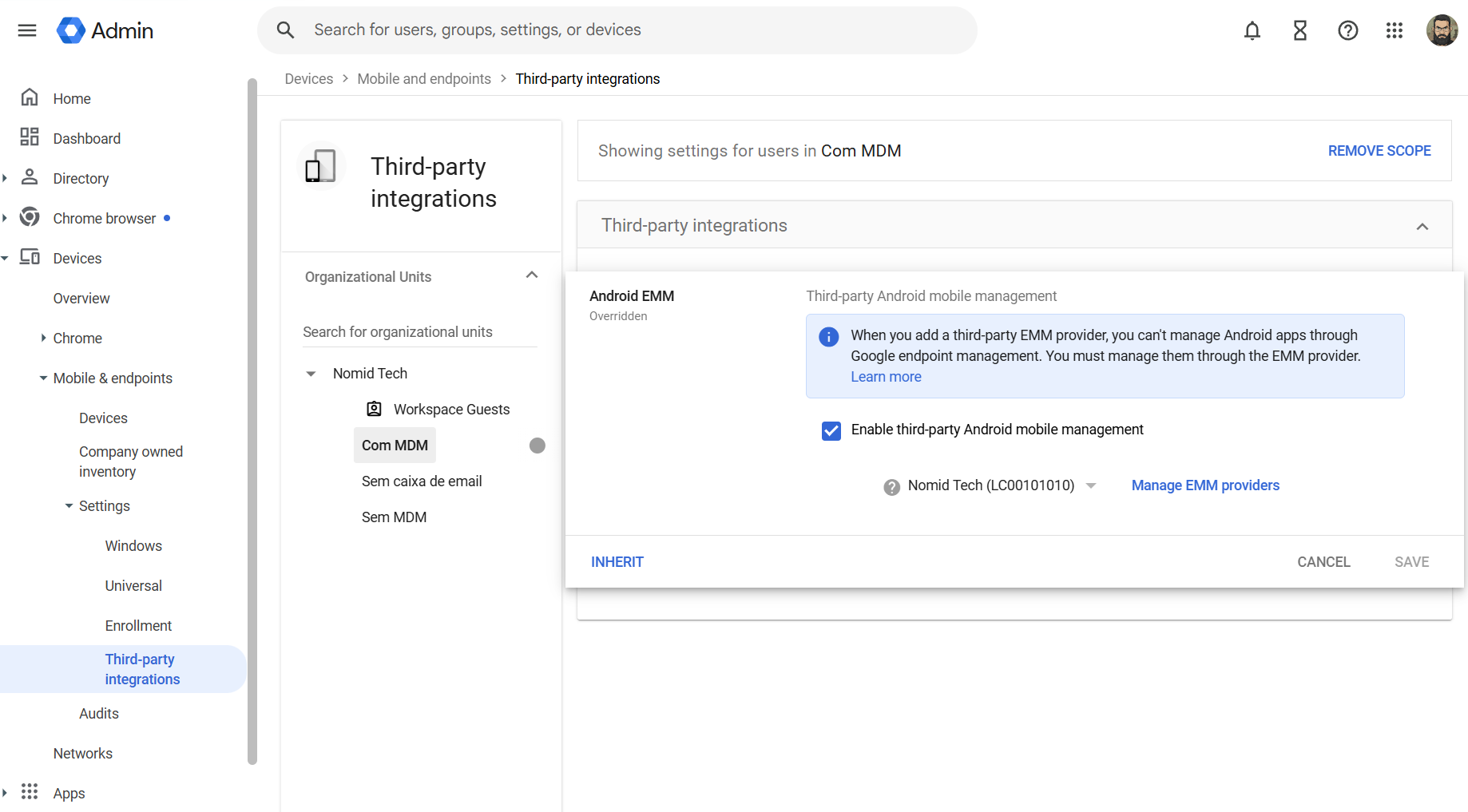
If you need the operational procedure to create the integration, validate Android Enterprise in Nomid, and complete the initial setup, follow the getting started article in the wiki:
Option: Enable third-party Android mobile management
When disabled
- Google does not hand that OU over to a third-party EMM;
- Android management continues to follow Google's native logic or the absence of management, depending on the rest of the configuration.
When enabled
- Google allows that OU to use the selected EMM;
- Android Enterprise management for that OU becomes the responsibility of the selected provider;
- the Admin Console stops being the main place to manage Android apps for that scope.
Effect during provisioning
- new devices in the OU start following the link to the configured provider;
- provisioning must match the correct Nomid binding.
Effect after provisioning
- daily operations, policies, compliance, and device management actions start depending on Nomid;
- simply enabling this option does not automatically migrate devices already managed through another flow.
3. EMM provider selection
On the same screen, the administrator chooses which EMM binding will be used by the OU.
This is especially important when there are multiple bindings in the company, for example:
- production and staging;
- different company or brand environments;
- separate bindings for separate projects.
Practical effect
- each OU must point exactly to the correct binding;
- selecting the wrong binding can send the device to the wrong environment, with wrong policies or without the expected operational continuity.
Best practice
- validate the
Enterprise IDin Nomid; - validate the legal company name;
- validate which binding was selected in Google before enabling provisioning at scale.
4. Manage EMM providers
This area lists the EMM bindings already connected to the Google company.
There it is usually possible to:
- view linked providers;
- remove bindings that will no longer be used;
- check whether Google authentication is available;
- distinguish environments when more than one provider is registered.
Practical effect
- it is not enough for the provider to exist in the list;
- it must be correctly linked and then correctly assigned to the right OU.
A common mistake is assuming that "binding created" means "integration completed". It does not. The binding only makes the provider eligible for use. The real scope still depends on the OU.
Example of the Manage EMM providers screen, where the linked providers and the Authenticate Using Google option appear:
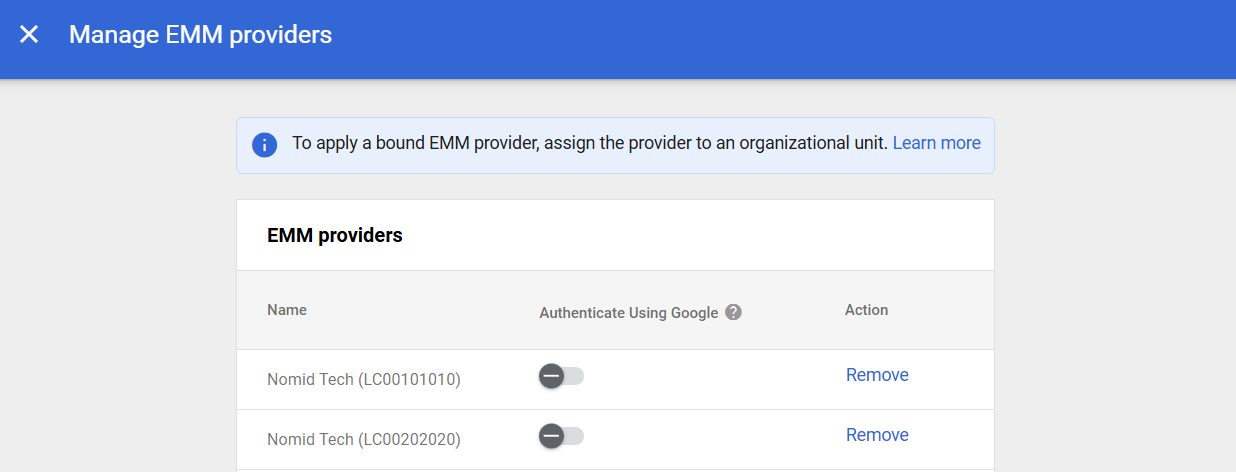
5. Authenticate Using Google
What it is
This option allows Google authentication during enrollment, as long as the EMM provider supports it.
When disabled
- enrollment relies more on the EMM's own flow;
- the login experience may be less integrated with the Google directory.
When enabled
- new users can authenticate with their Google corporate account during enrollment;
- it improves consistency between Google identity and the provisioning experience;
- it makes more sense when users are already synchronized in the managed domain.
Effect during provisioning
- it requires corporate account authentication during provisioning;
- it increases total enrollment time because it adds steps and user interaction in the middle of the setup process;
- it requires more manual actions during device delivery, which reduces the fluidity of the process compared to more direct flows;
- it increases the chance of operational error due to mistyped credentials, unknown passwords, MFA, account lockouts, or identity inconsistencies;
- it can cause failures and even block provisioning when authentication is not completed correctly or when there is an issue accessing the Google account at enrollment time.
Effect after provisioning
- it reinforces consistency between directory, user, and device;
- it simplifies auditing and support when corporate identity is the main access axis.
Recommendation
When the Nomid binding supports this feature, enabling it only makes sense in environments with mature corporate identity, users prepared to authenticate during enrollment, and well-defined support processes. In operations that prioritize speed, low friction, and lower provisioning risk, it is important to carefully evaluate whether the identity benefit outweighs the added steps and failure risk.
6. Correct or incorrect Organizational Unit
Since EMM assignment is done by OU, this is one of the most sensitive settings.
If the OU is correct
- the user enters the expected flow;
- the correct provider takes over Android Enterprise;
- policies and post-enrollment behavior remain consistent.
If the OU is wrong
- the user may fall into an unmanaged flow;
- the user may fall into Google's native management instead of Nomid;
- the user may fall into another EMM binding;
- the user may receive policies inconsistent with the project.
Real impact
In many support cases, the problem is not Nomid or Android Enterprise itself, but the wrong OU scope in the Google Admin Console.
How Nomid MDM fits into this architecture
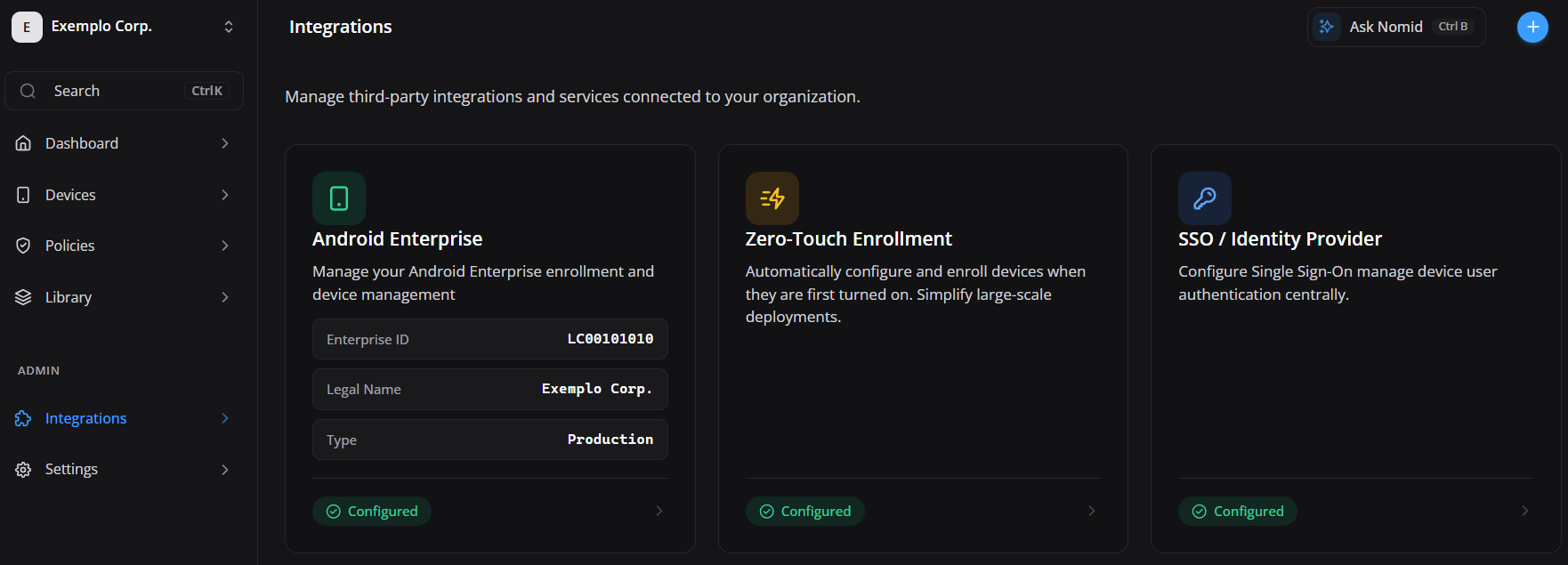
In Nomid MDM, the Android Enterprise integration appears in the Integrations module, with emphasis on:
Android Enterprise;Enterprise ID;Legal Name;Type;Zero-Touch Enrollment;SSO / Identity Provider.
These elements help confirm that the Nomid environment is ready to operate as an EMM in the Google ecosystem.
Example of the screen in the Nomid MDM portal:
What to validate in Nomid before integrating with Google Workspace
Instead of repeating the operational flow already documented, use the getting started article as the base reference to review the initial environment configuration:
From the perspective of this article, the conceptual checkpoints before moving forward are:
- Nomid's
Android Enterprisemust be active and aligned with the correct environment; - the
Enterprise IDshown in Nomid must match the binding expected in Google; - the project must make it clear whether the company is
productionorstaging; - if there is
Zero-touch Enrollment, it must be aligned with the planned provisioning method; - the identity and authentication strategy must be consistent with whether
Authenticate Using Googlewill be used.
Effects during provisioning
In this article, provisioning always means one of these three entry methods:
Zero-touch Enrollment;KME;QR Code.
In all cases, the goal is the same: place the Android device into Nomid's fully managed flow.
1. Zero-touch Enrollment
When Zero-touch is configured correctly:
- the device is already pointed to the corporate flow from the start;
- first boot already leads into managed provisioning;
- operational friction is significantly reduced in large-scale deployments;
- human error tends to be lower than in manual flows.
2. KME
When KME is configured correctly:
- the device also enters an automated provisioning flow;
- the association between hardware and the management environment happens before delivery to the user;
- the process tends to be predictable and repeatable across corporate batches.
3. QR Code
When provisioning is done through QR Code:
- the flow remains compatible with
fully managed; - it depends more on correct execution at delivery time;
- it requires more operational attention than Zero-touch or KME;
- it is useful when no automated provisioning method is available for that batch of devices.
What must be correct for provisioning to succeed
- the user's OU must be correct in Google Workspace;
- the OU must point to the correct Nomid EMM binding;
- the Nomid binding must be healthy in
Manage EMM providers; - the chosen provisioning method must match the project;
- if
Authenticate Using Googleis enabled, operations must account for the added impact on the flow.
Effects after provisioning
After the device has been provisioned in Nomid:
- Android device administration takes place primarily in
Nomid MDM; - policies, apps, and remote actions must be handled in Nomid;
- Google Workspace remains the reference for identity, organization, and scope;
- changes in Google may affect new enrollments and assignment rules, but they should not be treated as automatic migration of already enrolled devices.
Effect matrix by setting
| Google Workspace setting | During provisioning | After provisioning | Main observation |
|---|---|---|---|
Advanced mobile management |
Pushes Android into Google's advanced logic | Conflicts with third-party EMM in the same scope | Should be avoided for OUs assigned to Nomid |
Enable third-party Android mobile management = Off |
The device is not handed to Nomid through the OU | Google remains the management reference or there is no effective third-party integration | Integration does not become operational |
Enable third-party Android mobile management = On |
The device can be handed to the configured EMM | Nomid takes over Android management for the OU | Requires correct binding and correct OU |
Authenticate Using Google = Off |
Fewer steps and less enrollment friction | Less dependency on authentication during delivery | More aligned with fast provisioning operations |
Authenticate Using Google = On |
More steps, more time, and higher risk of failure or blockage | Better consistency between user, directory, and device | Should be evaluated carefully |
| Correct OU with correct binding | Expected flow | Consistent operations | Ideal state |
| Wrong OU or wrong binding | Incorrect or failed enrollment | Wrong policies and difficult support | One of the most common failures |
What happens to Android apps in the Google Admin Console
This is a common source of confusion.
After a third-party EMM is added:
- Google indicates that Android apps can no longer be managed through the Admin Console for that context in the same way as before;
- if apps were previously under Google management, they stop being managed there until the correct provider is effectively enabled for the OU;
- in practice, Android app governance moves to
Nomid MDMfor the scope managed by Nomid.
Because of that, this integration should not be treated as simply "turning on a connector". It also changes the operational point where Android apps are managed.
Common scenarios and what to expect
Scenario A: the customer only uses Google and wants to start using Nomid
Recommendation
- use Nomid's getting started article to perform the base integration;
- review the OUs that will be part of the project;
- identify whether
Advanced mobile managementexists in the scope to be migrated; - define whether the batch will use
Zero-touch,KME, orQR Code; - plan a pilot before expanding to production.
Correct expectation
- new devices enter through the Nomid flow;
- old devices may require re-enrollment;
- for
fully manageddevices, migration often requires a new provisioning; - Android app management is no longer centralized in Google for that scope.
Scenario B: the customer already uses Google Advanced and wants to migrate
Main risk
Treating the change as just an administrative screen update.
Correct expectation
- the change is architectural;
- already provisioned devices should not be considered automatically migrated;
- in many cases a
factory resetand a new enrollment cycle will be required.
Main questions from Nomid customers
“If I integrate Nomid with Google Workspace, does Google stop being important?”
No. Google remains fundamental for identity, users, organizational structure, and integration scope. What changes is who manages Android Enterprise for the configured OU.
“Does enabling the provider in Google already migrate all devices?”
No. It prepares the scope for the correct provider, but it does not automatically replace the state of devices already provisioned.
“Can I keep Google Advanced and Nomid for the same scope?”
That is not the recommended design. Google states that Advanced mode does not coexist with third-party EMM in the same Android context.
“Which provisioning method should I use?”
For Nomid customers, the standard is always fully managed, using Zero-touch Enrollment, KME, or QR Code. The best method depends on the source of the batch and the available automation, but the final goal is always the same: Android fully managed under Nomid.
“Who manages Android apps after that?”
In the scope assigned to Nomid, Android app management should move to Nomid MDM.
“Is the issue in Nomid or in Google?”
Many integration failures come from:
- wrong OU;
- wrong binding;
Advancedleft enabled by mistake;- expectation of automatic migration;
- identity not yet synchronized;
- corporate authentication not aligned with the enrollment flow.
Recommended checklist for Nomid + Google Workspace projects
- confirm the strategy: Google only or Google + Nomid;
- map the OUs that will be part of the project;
- validate whether
Advanced mobile managementis active in the scope; - perform the base integration according to Nomid's getting started article: First 3 steps
- confirm that the correct Nomid binding appears in
Manage EMM providers; - confirm that the correct OU received the correct provider;
- decide whether
Authenticate Using Googlewill be used, when supported; - validate which provisioning method will be used in the project:
Zero-touch,KME, orQR Code; - run a pilot with a small group of users;
- only then expand at scale.
Interpretation mistakes this article is meant to avoid
- confusing Android Enterprise with Google Endpoint Management;
- assuming that creating the binding already means the integration is applied;
- assuming the setting applies to the whole company without checking the OU;
- assuming Google will remain the main Android management point after assigning the OU to Nomid;
- assuming that changing the Google setting automatically migrates already provisioned devices;
- forgetting that Android apps also change their operational management point;
- forgetting that the Nomid context is
fully managed, not partial device management.
Final recommendation
For customers who want to integrate Nomid MDM with Google Workspace, the safest design is:
- use Google as the base for identity, directory, and scope;
- use Nomid as the main EMM for Android Enterprise in the defined OUs;
- avoid Google
Advanced mobile managementin the same scope; - adopt
Zero-touch,KME, orQR Codeas the provisioning path forfully managed; - treat migrations as transition projects, not as instant changes;
- carefully validate OU, binding, and provisioning method before releasing the operation.
Reference sources
- Nomid Wiki: https://wiki.nomid.tech/pt-br/home
- Nomid MDM - First 3 Steps: https://wiki.nomid.tech/en/3steps
- Google Android Enterprise Help: Sign up for Android management using managed Google domains
- Google Workspace Admin Help: About Android device management with Google endpoint management