 Nomid
This guide shows how to install Tailscale for Android (com.tailscale.ipn) on company devices managed by Nomid MDM and how to configure it with managed configurations. Tailscale calls these values system policies. With them, the app can join only your tailnet, stay connected, use your DNS and subnet routes, and show your support contact.
The steps use the Policy 2.0 editor. In the Classic editor, the same fields open from the gear on the app card; see 4.1 Tablet policies — Classic.
Risk: Tailscale settings change how the device reaches the network. A required tailnet, a forced connection, a per-app routing list, or an always-on VPN that blocks other traffic can cut access to company apps and to device management. Test every change on a pilot policy with one device before you link the policy to the fleet.
Before you begin
- An Android Enterprise company in Nomid MDM with fully managed or work profile devices, and the Edit policy permission for the policy you will change.
- Tailscale for Android 1.66 or later. Tailscale reads system policies from version 1.66. Version 1.78 and later apply changes without a restart; earlier versions apply them after the app restarts.
- A Tailscale tailnet and access to its admin console. Tailscale states that its MDM integrations are available on the Standard, Premium and Enterprise plans; confirm your plan with Tailscale.
- The values you plan to use: your tailnet ID (shown in the Tailscale admin console under Settings > General), an exit node ID if you force one, and the package names of apps you want to route through Tailscale or keep outside it.
- VPN settings set to Allowed under Connectivity in the policy. While it is Blocked, it can stop Tailscale from getting VPN access, as it did on our pilot device. Allowed also lets people on the device add, edit or remove VPNs.
- A pilot policy linked to a single test device, so a wrong value affects only that device.
Add Tailscale to the policy
- In the Nomid Portal, open Policies and select the pilot policy.
- Open the Apps & experience tab and select Apps in this policy.
- Select Add App. Choose Add via Package, type
com.tailscale.ipnand confirm that Tailscale appears under the field. Select Add. You can also choose Add via Play Store and search for Tailscale in managed Google Play.
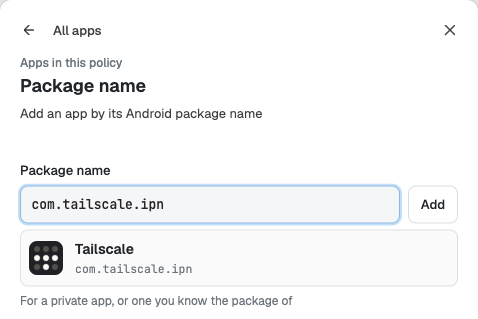
Type the package name and check that the match is Tailscale before you add it.
- Tailscale now appears in the list with the Configurable badge, which means the app publishes managed configurations. The pane footer shows Edited. Save the policy to apply until you save. The installation choice next to the app starts as Required, which installs Tailscale and keeps it on the device. Optional, Blocked and the other app controls are described in 4. Policies — Policy 2.0.
Open the managed configurations
Select the gear next to Tailscale in the list. The Managed configurations editor lists every field that the installed Tailscale version publishes. Google Play supplies this list from the app, so it can change when Tailscale releases a new version.
- Each field shows its title, a description written by Tailscale, and the key name. The button next to the key copies a link to that field.
- Default value shows the value the app declares. It is information only: the editor does not send it.
- Not Set sends nothing for that field, so the app keeps its own behavior.
- Use the filter box to find a key, and All, Filled or Not Filled to review what you have entered.
- Delete all configurations clears every Tailscale value in this policy.
- Save keeps your values in the policy edit; Cancel leaves the editor without them. Neither sends anything to devices until you save the policy.
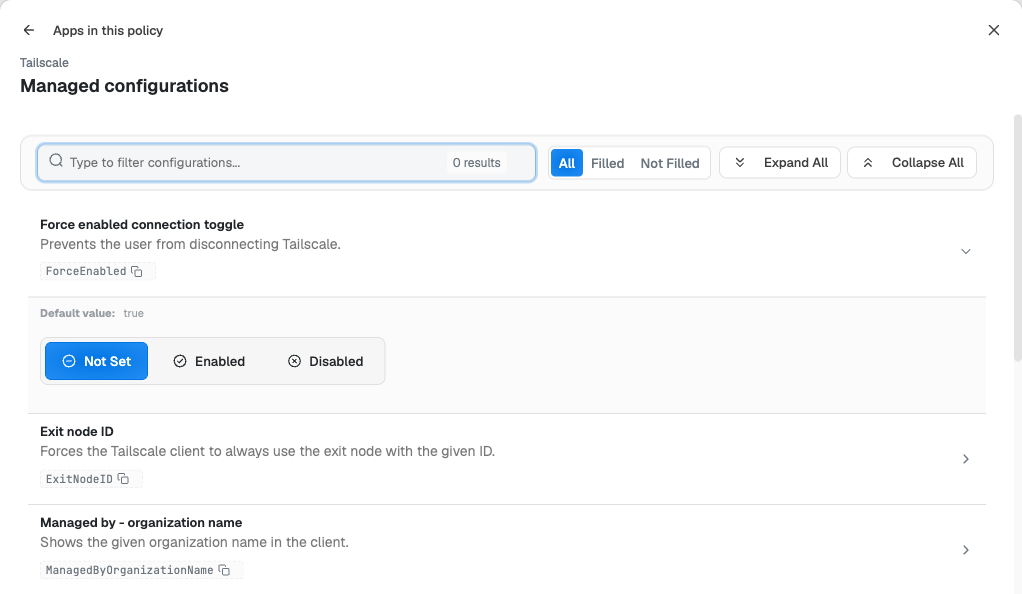
Each field shows the key name Tailscale documents. Leave a field on Not Set unless you need it.
Managed configuration keys
The tables follow the field titles shown in the editor. Values marked "choice" offer Always, Never and User Decides: Always enforces the setting, Never disables it, and User Decides lets the person choose in the app. Visibility fields offer Show and Hide. Leaving any field on Not Set keeps the Tailscale default. Version numbers are the first Tailscale release that supports the key, according to Tailscale system policies.
Tailnet and sign-in
| Field and key | Value | Effect |
|---|---|---|
Required/Suggested Tailnet (Tailnet) |
Tailnet ID or organization ID, for example T123456CNTRL; comma-separated list allowed |
Suggests the tailnet whose identity provider the sign-in page uses. With the required: prefix, for example required:T123456CNTRL, people can sign in only to that tailnet. |
Custom control server URL (LoginURL) |
URL | Points the app to a different coordination server. Leave it on Not Set when you use Tailscale's own service. |
Auth Key (AuthKey) |
Tailscale auth key | Signs the device in without user interaction when Tailscale starts and is not signed in yet. See the warning below. 1.74 or later. |
Hostname (Hostname) |
Text | Replaces the device name that Tailscale shows in the admin console. 1.80 or later. |
Auth key warning: anyone who can view the policy in the Portal can read the key, and Tailscale advises against storing auth keys in an MDM. A policy sends the same key to every device in it, and a one-off key signs in only the first device, so a pilot on one device can pass while the rest of the fleet fails. If you use a key, create it in the Tailscale admin console as reusable, pre-approved and tagged. A reusable key signs in any number of devices until it expires or is revoked, so give it the shortest expiry that covers the rollout. Revoke it and set the field back to Not Set once the devices have signed in. Never show a key in screenshots or support tickets.
Connection and routing
| Field and key | Value | Effect |
|---|---|---|
Force enabled connection toggle (ForceEnabled) |
Enabled, Disabled | Enabled keeps Tailscale connected and disables the toggle that disconnects it. Disabled leaves the toggle to the person. Tailscale marks this key as deprecated in favor of AlwaysOn.Enabled, which its documentation does not list for Android, so on Android this is the available option. |
Exit node ID (ExitNodeID) |
Exit node device ID, or auto:any |
Sends all traffic through that exit node and prevents people from turning it off or choosing another. auto:any lets Tailscale pick one (1.70 or later). If that exit node is offline or unreachable, the device has no internet access, which can also stop policy updates; test it on the pilot device first. |
Allow LAN access when using an exit node (ExitNodeAllowLANAccess) |
Choice | Controls whether the device can still reach its local network, such as printers or scanners, while it uses an exit node. |
Use Tailscale DNS settings (UseTailscaleDNSSettings) |
Choice | Controls whether the device uses the tailnet's DNS settings, including MagicDNS names, while connected. |
Use Tailscale subnets (UseTailscaleSubnets) |
Choice | Controls whether the device uses subnet routes advertised in the tailnet. On Android, routes are used when the field is not set. |
Allow incoming connections (AllowIncomingConnections) |
Choice | Never blocks every incoming connection over Tailscale, even when your access rules allow it. |
Excluded packages (ExcludedPackageNames) |
Comma-separated package names | The listed apps bypass Tailscale routes and DNS; all other apps use Tailscale. 1.70 or later. |
Included packages (IncludedPackageNames) |
Comma-separated package names | Only the listed apps use Tailscale routes and DNS; all other apps ignore Tailscale while the field has a value. 1.70 or later. |
Use either Excluded packages or Included packages, not both. Check every package name on the pilot device: a missing app in Included packages loses access to tailnet resources.
What people see in the app
| Field and key | Value | Effect |
|---|---|---|
Managed by - organization name (ManagedByOrganizationName) |
Text | Shows your organization name in the app's managed-by area. |
Managed by - caption (ManagedByCaption) |
Text | Shows a short message next to the organization name, such as who to contact. |
Managed by - URL (ManagedByURL) |
URL | Adds a support button that opens this address. |
Hidden network devices (HiddenNetworkDevices) |
Current user devices, Other users devices, Tagged devices | Hides those categories from the device list in the app. Selecting all three removes the list. |
Exit node picker visibility (ExitNodesPicker) |
Show, Hide | Hide removes the screen where people choose an exit node. |
Run as exit node visibility (RunExitNode) |
Show, Hide | Hide removes the option to make this device an exit node. |
Manage Tailnet lock visibility (ManageTailnetLock) |
Show, Hide | Hide removes the Tailnet Lock settings from the app. |
Skip the Onboarding Flow (OnboardingFlow) |
Show, Hide | Hide skips the introduction shown the first time the app opens. 1.86 or later. |
Device identity fields
The editor also shows Enable posture checking (PostureChecking), Serial number of the device that is running Tailscale (DeviceSerialNumber) and Enable hardware attestation (HardwareAttestation). The Android app publishes them, but Tailscale's system policies page does not list them for Android. Leave them on Not Set unless Tailscale support confirms how your tailnet uses them.
Some keys in Tailscale's documentation, such as AdvertiseExitNode and ReconnectAfter, do not appear in the editor because the Android app does not publish them. The editor sends only the fields the app declares.
Sample policy for shared frontline devices
This example keeps shared devices on the company tailnet with a fixed, simple app. Replace T123456CNTRL with your tailnet ID and the support details with your own values.
| Field | Value | Why |
|---|---|---|
| Required/Suggested Tailnet | required:T123456CNTRL |
People cannot sign in to another tailnet. |
| Force enabled connection toggle | Enabled | Staff cannot disconnect the VPN by mistake. |
| Use Tailscale DNS settings | Always | Internal apps resolve tailnet names. |
| Use Tailscale subnets | Always | Devices reach servers behind your subnet routers. |
| Allow incoming connections | Never | Shared devices do not accept connections from the tailnet. |
| Exit node picker visibility | Hide | Removes a choice staff do not need. |
| Run as exit node visibility | Hide | Prevents a device from becoming an exit node. |
| Manage Tailnet lock visibility | Hide | Keeps Tailnet Lock management with administrators. |
| Skip the Onboarding Flow | Hide | Opens the app straight to sign-in. |
| Managed by - organization name | Example Corp IT |
Tells staff who manages the VPN. |
| Managed by - caption | Contact the IT help desk for access |
Sets the expectation for support. |
| Managed by - URL | https://help.example.com/vpn |
Opens your help page. |
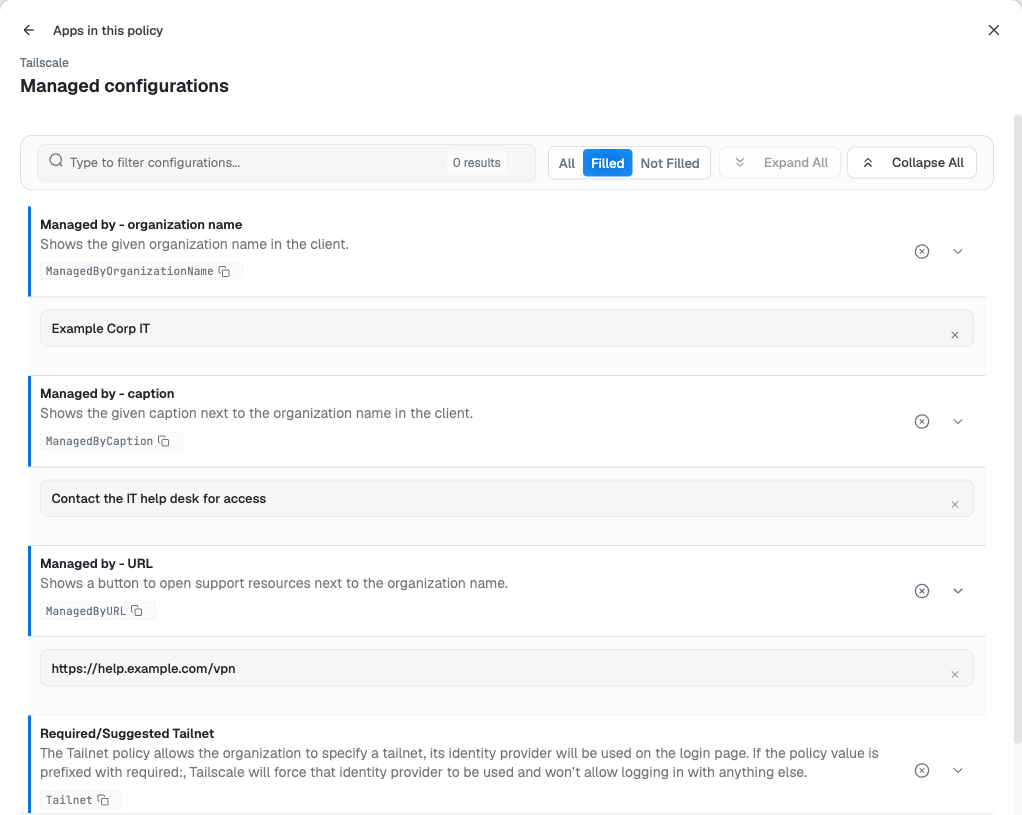
Use Filled to review every value before you save.
Save and apply the policy
- In the managed configurations editor, select Save, then Done in the apps pane.
- Select Save in the policy header, review the list of changes and confirm.
- Linked devices receive the policy when they synchronize. Tailscale 1.78 or later applies the new values on its own; on earlier versions, restart the app.
Optional: always-on VPN
To have Android start Tailscale at boot and keep it running, choose Tailscale as the VPN app under Connectivity > Traffic routing > Always-on VPN, as described in 4. Policies — Policy 2.0. Leave Block connections without the VPN off until the pilot device signs in and reconnects reliably. With it on, a device that is signed out of Tailscale has no network, which can also stop policy updates.
Verify on the device
- In Devices, open the pilot device, run a synchronization and confirm that Tailscale is installed.
- On the device, open Tailscale. The organization name, caption and support button you set appear in the app's managed-by area. With Force enabled connection toggle set to Enabled, the disconnect toggle is unavailable.
- Sign in, or let the auth key sign the device in. With a required tailnet, the sign-in page goes straight to your identity provider.
- In the Tailscale admin console, open Machines and confirm that the device appears, with the expected hostname and tags.
- From the device, open an internal address or a MagicDNS name to confirm DNS and routes work. If you set Included packages, test one listed app and one app outside the list.
Troubleshooting
| Problem | Likely cause | What to do |
|---|---|---|
| No Configurable badge or no fields in the editor | The package was not resolved from Google Play, or the list has not loaded. | Remove the app, add it again with com.tailscale.ipn and check that Tailscale appears as the match. |
| A key from Tailscale's documentation is missing | The Android app does not publish it. | Use only the fields the editor lists; check the Tailscale documentation for platform support. |
| Values do not reach the app | The policy was not saved, the device has not synchronized, or Tailscale is older than 1.66. | Save the policy, synchronize the device in Devices and update Tailscale from Google Play. |
| Changes apply only after reopening the app | Tailscale 1.76 or earlier. | Restart Tailscale or update it to 1.78 or later. |
| People can sign in to a different tailnet | Tailnet has no required: prefix. |
Add the prefix, for example required:T123456CNTRL. |
| The auth key does not sign the device in | The app is already signed in, or the key expired, was used up or was revoked. | Check the key in the Tailscale admin console and create a new one if needed. |
| Tailscale says it needs VPN access and that the device may not show VPN settings | VPN settings is Blocked in the policy, or another VPN is running. | Set VPN settings to Allowed under Connectivity and save the policy. Disconnect any other VPN, then reopen Tailscale. |
| An app cannot reach internal services | It is listed in Excluded packages, or missing from Included packages. | Correct the list and save the policy. |
| Tailnet names do not resolve | Use Tailscale DNS settings is Never, or the person turned DNS off with User Decides. | Set it to Always. |
| The device has no internet after enabling always-on VPN | Block connections without the VPN is on and Tailscale is signed out or disconnected. | Turn the block off in the policy, save, and sign Tailscale in again. |
Undo the configuration
- To stop enforcing one value, open the field and choose Not Set, or clear the text, then save the policy.
- Delete all configurations removes every Tailscale value from this policy after you save it.
- To remove the app, change its installation to Blocked, as described in 4. Policies — Policy 2.0, and save. Revoke any auth key you distributed.