How to Lock Down Retail POS Systems Using Nomid MDM and Android Enterprise Kiosk Mode
Retailers are increasingly replacing legacy, clunky POS (Point of Sale) hardware with cost-effective, versatile Android tablets. However, placing an off-the-shelf consumer tablet on a checkout counter introduces severe security and operational risks. Without proper management, cashiers can browse...
Retailers are increasingly replacing legacy, clunky POS (Point of Sale) hardware with cost-effective, versatile Android tablets. However, placing an off-the-shelf consumer tablet on a checkout counter introduces severe security and operational risks. Without proper management, cashiers can browse the web, customers can accidentally exit the transaction screen, and unverified applications can compromise sensitive payment data.
This is where dedicated device management becomes critical. As an official Android Enterprise Partner, Nomid MDM provides the ultimate retail-first solution. In this comprehensive Nomid MDM tutorial, you will learn exactly how to transform standard Android tablets into bulletproof, compliance-ready POS terminals. By leveraging Android Enterprise Kiosk Mode, you will lock down Android tablets, block unauthorized apps, and push silent updates to your frontline devices without disrupting peak retail hours.
Prerequisites for Android POS Security
Before you begin configuring your retail POS MDM environment, ensure you have the following components ready:
- Nomid MDM Administrator Access: You must have a Global Admin or Device Manager role within your Nomid MDM tenant.
- Managed Google Play Account: A corporate Google account to bind your organization to Android Enterprise.
- Compatible Hardware: Devices must be running Android 8.0 or higher. For optimal security and hardware-level restrictions, Samsung Galaxy tablets are highly recommended due to their native Samsung Knox integration with Nomid MDM.
- Your POS Application: Either published privately via Managed Google Play or available as a secure APK file.
Step 1: Bind Android Enterprise to Your Nomid MDM Tenant
To utilize Android Enterprise Kiosk Mode, you must first establish a secure connection between Google's Android Enterprise framework and your Nomid MDM console. This allows you to manage apps and push policies silently.
- Log in to your Nomid MDM Dashboard.
- In the left-hand navigation menu, click on Settings>Integrations>Android Enterprise.
- Click the Register with Google button. You will be redirected to the Google Play Managed Enterprise portal.
- Sign in using your corporate Google account (do not use a personal Gmail address).
- Click Get Started and enter your company name as the Organization Name.
- Accept the Managed Google Play agreement and click Confirm.
- Click Complete Registration. You will be automatically redirected back to the Nomid MDM console.
- Verify that the connection status now reads Active.
Expected result: Your Nomid MDM tenant is successfully bound to Android Enterprise, unlocking the ability to deploy Managed Google Play apps and enforce Dedicated Device (Kiosk) policies.
Note: If you are managing multiple retail brands or franchises under a single corporate umbrella, Nomid MDM allows you to create separate "Sites" or "Organizations," each with its own dedicated Managed Google Play binding for granular app distribution.
Step 2: Approve and Import Your POS Application
Before locking down the device, you must ensure your POS application is approved for silent distribution.
- Navigate to App Management>App Catalog in the Nomid MDM console.
- Click Add Application and select Managed Google Play Store.
- Search for your retail POS application (e.g., Square, Toast, Shopify POS, or your custom proprietary app).
- Click on the app, then click Approve.
- A prompt will appear asking how to handle future app permissions. Select Keep approved when app requests new permissions to ensure seamless silent updates.
- Click Done. The app will now appear in your Nomid MDM App Catalog.
Expected result: Your POS application is imported into Nomid MDM and authorized for zero-touch installation on your retail devices.
Step 3: Create the Android Enterprise Kiosk Mode Profile
This is the core of your Android POS security strategy. You will configure a "Dedicated Device" profile (formerly known as COSU - Corporate-Owned Single-Use) to restrict the tablet to a single application.
- Navigate to Device Management>Profiles.
- Click Create Profile>Android>Android Enterprise.
- Select Dedicated Device (Kiosk) as the deployment scenario.
- Name the profile (e.g., Retail POS Lockdown - Main Register).
- Under the Kiosk Configuration tab, select Single App Mode.
- Click Select Application and choose the POS app you approved in Step 2.
- Configure the Kiosk Exit PIN. Enter a complex, 6-digit numeric PIN.
- Under App Auto-Launch, set the toggle to TRUE. This ensures the POS app automatically restarts if it crashes or if the device reboots.
- Click Save and Continue.
Expected result: A baseline Kiosk Mode profile is created, dictating that the device will exclusively run the selected POS application and require a secure PIN to exit.
Warning: Never deploy a Kiosk profile without setting a Kiosk Exit PIN. If a network error occurs or the POS app requires manual administrative troubleshooting, local IT staff will need this PIN to temporarily bypass the lockdown. Store this PIN securely in your IT password vault.
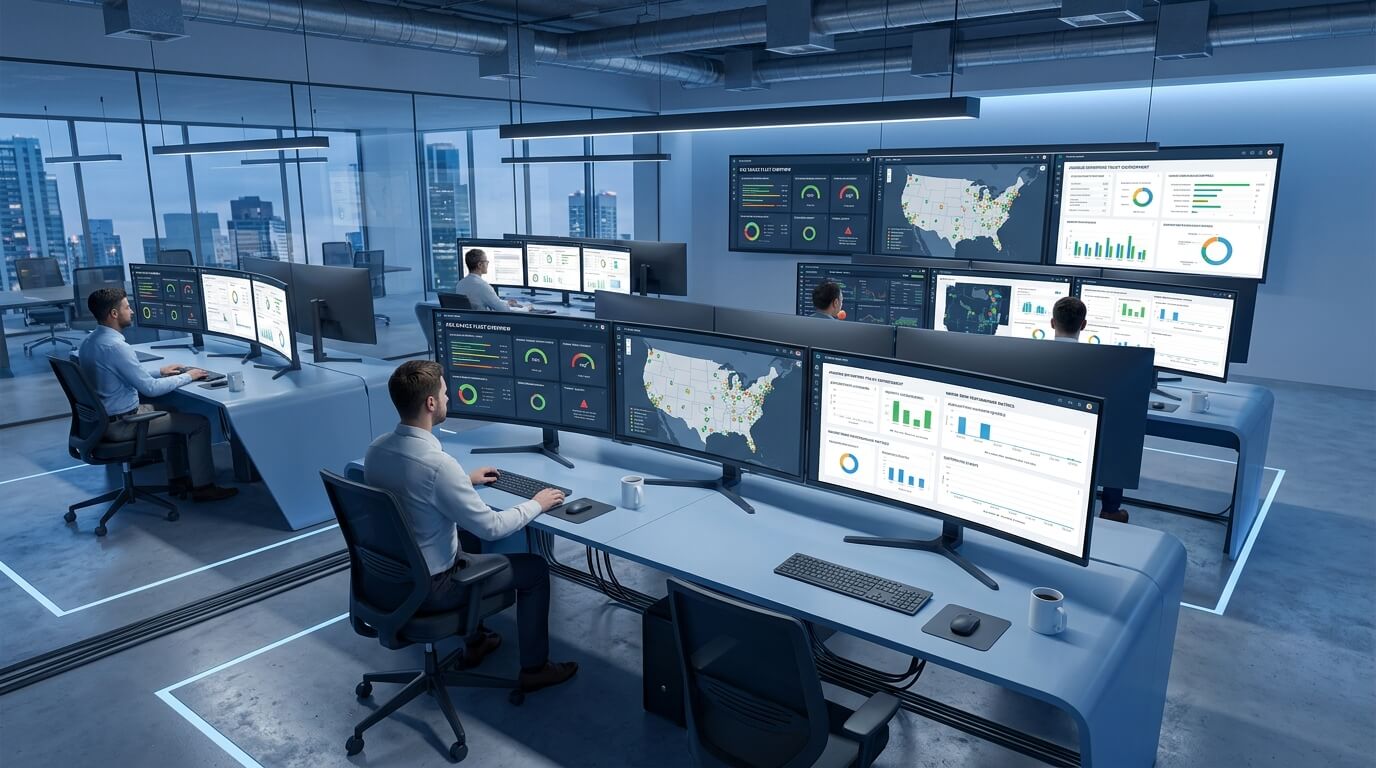
Step 4: Configure Strict Hardware and System Restrictions
Simply locking the screen to one app is not enough. Savvy users can often bypass basic kiosks using hardware buttons or system gestures. You must apply deep system restrictions to truly lock down Android tablets.
While still editing your Retail POS Lockdown profile, navigate to the Restrictions tab.Under Device Functionality, apply the following exact settings:
- Allow Factory Reset: FALSE (Prevents theft and unauthorized wiping)
- Allow Safe Mode Boot: FALSE (Prevents bypassing the MDM agent)
- Allow Screen Capture: FALSE (Protects customer credit card data)
- Allow Volume Adjustment: FALSE (Locks audio at an optimal level for POS alert chimes)
Under System UI, apply these settings:
- Disable Status Bar: TRUE (Hides the clock, battery, and prevents swipe-down access to quick settings)
- Disable Navigation Bar: TRUE (Removes the Home, Back, and Recent Apps buttons)
- Disable Lock Screen: TRUE (Ensures the tablet boots directly into the POS app without requiring a swipe)
If you are using Samsung Galaxy tablets, navigate to the Samsung Knox Integration sub-tab.Enable Knox Hardware Restrictions and set Disable Physical Power Button: TRUE. This prevents store staff from accidentally turning off the POS terminal during a transaction.Click Save and Publish.
Expected result: The device is now mathematically locked down. All escape routes via hardware buttons, swipe gestures, and system menus are completely disabled, ensuring absolute Android POS security.
Step 5: Configure Maintenance Windows for Silent Updates
In retail environments, pushing an app or OS update during business hours can freeze a transaction and cause massive customer friction. Nomid MDM allows you to schedule silent updates exclusively during non-business hours.
- Navigate to Device Management>Policies>System Updates.
- Create a new policy named Retail POS - Overnight Updates.
- Under System Update Policy, select Windowed.
- Set the Start Time to 02:00 AM and the End Time to 05:00 AM (ensure you adjust for the local time zone of your retail stores).
- Under App Update Policy, select High Priority / Windowed and apply the identical 02:00 AM to 05:00 AM timeframe.
- Assign this policy to your Retail POS Lockdown device group.
- Click Deploy.
Expected result: Both Android OS patches and updates to your POS application will now only download and install silently in the middle of the night, guaranteeing zero downtime during store hours.
Step 6: Provision Devices via Zero-Touch Enrollment (ZTE)
Manual configuration is inefficient when deploying hundreds of POS terminals across multiple retail locations. Nomid MDM specializes in lightning-fast device deployment using Android Zero-Touch Enrollment and Samsung Knox Mobile Enrollment (KME).
Log in to your Android Zero-Touch Portal (or Samsung KME portal if exclusively using Samsung hardware).Navigate to Configurations and click the + icon to add a new configuration.In the EMM DPC dropdown, select Nomid MDM.In the DPC Extras JSON field, paste your unique Nomid MDM Enrollment Token (found in your Nomid MDM console under Enrollment>Zero-Touch Tokens). It should look similar to this: {"android.app.extra.PROVISIONING_ADMIN_EXTRAS_BUNDLE": {"tenant_id": "YOUR_NOMID_TENANT_ID", "profile_id": "YOUR_RETAIL_PROFILE_ID"}}Name the configuration Nomid POS Auto-Deploy and click Apply.Navigate to the Devices tab, select your newly purchased tablets (which your hardware reseller automatically added to your portal), and assign them the Nomid POS Auto-Deploy configuration.
Expected result: When a store manager unboxes a new tablet, connects it to Wi-Fi, and turns it on, the device will automatically contact Google, download the Nomid MDM agent, apply the Kiosk profile, install the POS app, and lock itself down. No IT intervention is required on-site.
Note: Nomid MDM's integration with Samsung Knox Mobile Enrollment (KME) offers an added layer of security. If a device is stolen and factory reset by a malicious actor, KME ensures that the device will immediately re-enroll into Nomid MDM upon its next internet connection, rendering the stolen hardware useless.
Troubleshooting FAQ
1. How do I temporarily exit Kiosk Mode for on-site maintenance?
If a local store manager needs to access the Android settings to troubleshoot a Wi-Fi issue, they can tap the screen rapidly 5 times (or use the specific gesture defined in your Nomid MDM profile). This will prompt a PIN pad. Enter the Kiosk Exit PIN you configured in Step 3. The device will temporarily unlock. Once maintenance is complete, rebooting the device or tapping the Nomid MDM agent icon will instantly re-engage the lockdown.
2. The POS application keeps crashing, and the screen goes black. How do I fix this?
This usually happens if the App Auto-Launch setting was not enabled. Ensure App Auto-Launch: TRUE is set in your Kiosk profile. If the app crashes, Nomid MDM will detect the closure and relaunch the app within milliseconds. If the black screen persists, check your Nomid MDM console to ensure you haven't accidentally blocked a background service (like Google Play Services) that the POS app relies on for payment processing.
3. Devices are losing Wi-Fi connection and dropping offline in the MDM console.
Retail environments often have complex Wi-Fi networks. If you disabled access to the Android Settings app, store staff cannot easily reconnect to Wi-Fi if the router resets. To resolve this, use Nomid MDM's Network Payloads feature to push your corporate Wi-Fi SSID and password directly to the devices. Additionally, you can enable the Allow Wi-Fi Configuration in Kiosk toggle within the Nomid MDM profile, which adds a secure, floating Wi-Fi configuration button over the POS app, allowing staff to change networks without escaping kiosk mode.
4. Can I allow access to a secondary app, like a time-clock or inventory scanner?
Yes. If your cashiers need access to more than one application, you should change your profile from Single App Mode to Multi-App Kiosk Mode. Nomid MDM will replace the standard Android home screen with a custom, locked-down launcher that displays only the specific apps you have whitelisted (e.g., the POS app, a calculator, and an inventory scanner). All other system apps and settings remain completely hidden and inaccessible.
Implement Custom Retail Branding
Kiosk Mode isn't just about restricting access; it's also about visual presentation. Instead of store associates looking at a generic Android home screen with standard app icons, Kiosk Mode allows retailers to completely customize the user interface. You can replace the background with high-resolution company logos, apply brand-aligned color schemes, and create custom icon layouts. The device boots up displaying your brand front and center, creating a seamless aesthetic extension of your retail environment.
Custom branding builds immediate customer trust and elevates the perceived professionalism of your staff. When a customer is asked to tap their credit card or enter their email address on a mobile device, psychology plays a massive role. If the device looks like a personal tablet filled with consumer widgets, the customer may hesitate, fearing their data isn't secure. If the device looks like a highly specialized, proprietary, branded piece of enterprise hardware, it instills confidence and reinforces brand authority.
Leverage Remote Troubleshooting and Screen Sharing
Even with the most robust Kiosk Mode in place, technical glitches happen. An app might freeze, or an associate might get confused by a new software workflow. Nomid MDM integrates powerful remote support capabilities directly into the managed device. When an issue arises, IT administrators can initiate a remote session, viewing the device screen in real-time and, on supported devices like those utilizing Samsung Knox, taking full remote control to navigate the Kiosk interface and resolve the issue.
Conclusion
Securing retail endpoints doesn't have to be a complex, manual chore. By utilizing Nomid MDM and Android Enterprise Kiosk Mode, you can confidently deploy consumer-grade Android tablets as rugged, highly secure POS terminals. From zero-touch provisioning that gets stores up and running in minutes, to granular Samsung Knox hardware restrictions that prevent tampering, Nomid MDM provides the complete toolkit for modern retail IT management.
You have now successfully configured a fully locked-down, silently updating, and automatically provisioning retail POS fleet. Continue monitoring your devices via the Nomid MDM dashboard to ensure compliance, track device health, and push seamless updates to your frontline workers.
Try it yourself — start free
Put these steps into practice with a free Nomid MDM trial. No credit card required.
Start for FreeWritten by
David Ponces
Tags
Related Articles
View all posts guides
 What is Kiosk Mode in MDM Solutions and How to Use It?
Kiosk Mode is a key functionality for MDM solutions, as it allows transforming mobile devices into dedicated kiosks for a specific application.
 product
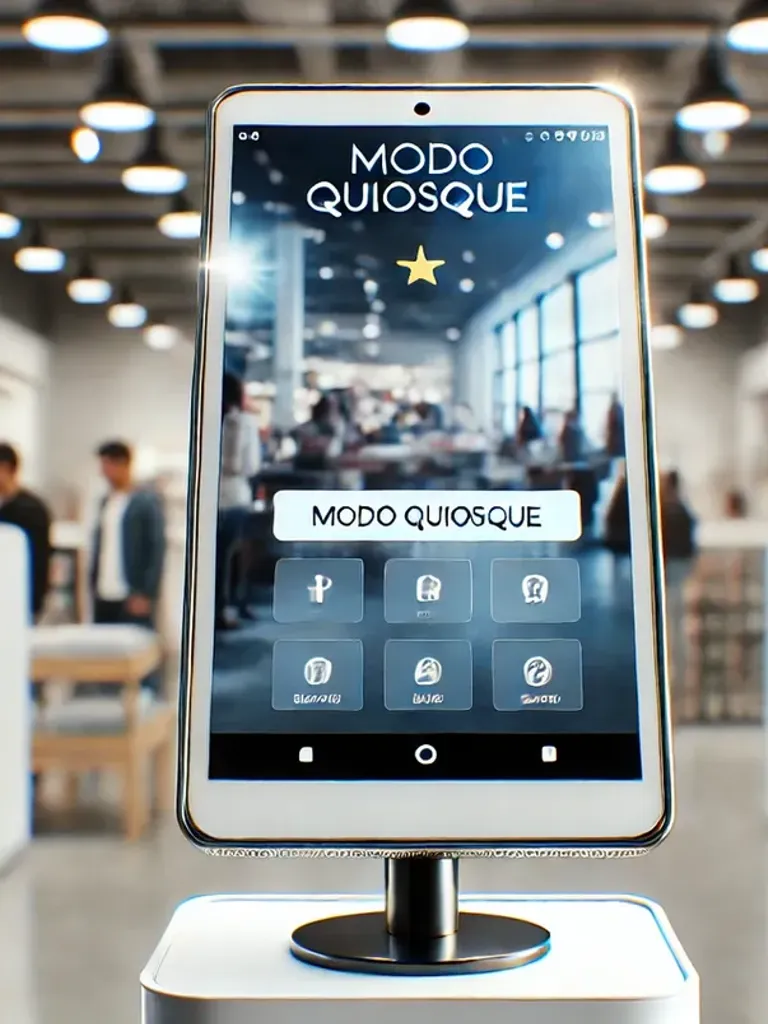
 New Feature: Android Kiosk Mode Preview
Discover our new launcher preview feature (kiosk mode) that allows you to configure and visualize the home screen of Android devices in real-time, simplifying corporate mobile device management.