Qu'est-ce qu'Android Enterprise ? Le guide ultime pour gérer Android en entreprise
Ce guide complet explore Android Enterprise, une solution robuste pour sécuriser et gérer les flottes d'appareils Android au sein des organisations modernes.
L'espace de travail moderne ne se limite plus à un bureau physique. Avec l'expansion rapide du télétravail, des services sur le terrain et des opérations de première ligne, les appareils mobiles sont devenus la principale plateforme informatique pour une vaste partie de la main-d'œuvre mondiale. Alors que les organisations déploient des flottes de smartphones, de tablettes et de scanners durcis, un défi critique apparaît : comment sécuriser les données de l'entreprise, respecter la vie privée des utilisateurs et simplifier le déploiement des appareils à grande échelle ?
La réponse est Android Enterprise.
Que vous équipiez un hôpital de tablettes pour le soin des patients, une flotte logistique de scanners de codes-barres durcis ou que vous permettiez aux employés de bureau d'accéder aux e-mails de l'entreprise sur leurs smartphones personnels, Android Enterprise fournit le cadre fondamental nécessaire pour y parvenir de manière sécurisée et efficace. En tant que partenaire officiel d'Android Enterprise, Nomid MDM se spécialise dans l'exploitation de ce cadre puissant pour offrir un déploiement d'appareils ultra-rapide et une sécurité robuste dans divers secteurs.
Ce guide complet vous plongera au cœur d'Android Enterprise. Nous explorerons son évolution, décortiquerons ses principaux modes de gestion, examinerons son architecture de sécurité multicouche et fournirons des étapes concrètes pour sa mise en œuvre au sein de votre organisation.
L'évolution : de Device Admin à Android Enterprise
Pour bien comprendre la valeur d'Android Enterprise, il est essentiel de comprendre ce qui l'a précédé. Aux débuts de la mobilité en entreprise, la gestion des appareils Android était une expérience fragmentée et souvent frustrante pour les administrateurs informatiques.
L'ère de Device Admin (DA)
Définition : Device Admin (DA) Introduite dans Android 2.2, l'API d'administration des appareils était la méthode originale utilisée par les solutions de gestion des appareils mobiles (MDM) pour contrôler les appareils Android. Elle permettait aux applications de demander des autorisations au niveau du système pour appliquer des politiques de base, telles que les exigences de mot de passe ou les capacités d'effacement à distance.
Bien que Device Admin ait rempli son rôle au début des années 2010, il a souffert de limitations sévères à mesure que le paysage mobile mûrissait :
- Autorisations tout ou rien : Device Admin accordait des autorisations vastes et générales aux applications MDM. Les administrateurs informatiques avaient une visibilité sur presque tout ce qui se trouvait sur l'appareil, ce qui créait d'importants problèmes de confidentialité pour les employés utilisant des appareils personnels pour le travail (BYOD).
- Implémentations incohérentes : Parce que l'écosystème Android se compose de milliers de modèles d'appareils provenant de dizaines de fabricants (OEM), les API Device Admin n'étaient pas implémentées de manière uniforme. Une politique MDM qui fonctionnait parfaitement sur un appareil Samsung pouvait échouer complètement sur un appareil Motorola ou LG.
- Vulnérabilités de sécurité : Les larges autorisations accordées par DA en faisaient une cible privilégiée pour les applications malveillantes. Si un utilisateur était trompé et accordait des droits DA à un logiciel malveillant, l'application malveillante obtenait un contrôle quasi total sur l'appareil.
Le passage à une gestion moderne
Reconnaissant ces failles critiques, Google a introduit Android for Work (rebaptisé plus tard Android Enterprise) dans Android 5.0 (Lollipop). Android Enterprise a été conçu dès le départ pour résoudre les problèmes de fragmentation, de sécurité et de confidentialité de l'ère Device Admin.
Au lieu de s'appuyer sur un modèle d'autorisation tout ou rien, Android Enterprise a introduit la conteneurisation et la gestion des appareils basée sur les rôles. Il a standardisé les API de gestion sur l'ensemble de l'écosystème Android, garantissant qu'une solution MDM comme Nomid MDM puisse pousser de manière fiable des politiques vers n'importe quel appareil Android certifié, quel que soit le fabricant.
Les 4 modes de gestion fondamentaux d'Android Enterprise
L'une des plus grandes forces d'Android Enterprise est sa flexibilité. Les organisations n'ont pas une approche unique de la mobilité. Un associé de vente au détail utilisant une tablette de point de vente a des besoins très différents de ceux d'un cadre consultant ses e-mails sur son téléphone personnel.
Pour répondre à ces divers cas d'utilisation, Android Enterprise propose quatre scénarios de déploiement distincts, souvent appelés « modes de gestion ».
1. Profil de travail (BYOD - Bring Your Own Device)
Définition : BYOD (Apportez votre propre appareil) Une politique d'entreprise qui permet aux employés d'utiliser leurs smartphones ou tablettes personnels pour accéder aux données et applications de l'entreprise.
Le mode Profil de travail est la solution ultime pour les environnements BYOD. Il utilise la conteneurisation au niveau de l'OS pour créer une frontière stricte et impénétrable entre les données personnelles d'un employé et les données de l'entreprise sur le même appareil.
Comment ça marche : Lorsqu'un utilisateur enregistre son appareil personnel dans Nomid MDM, un « Profil de travail » sécurisé est généré. Les applications de ce profil sont marquées d'une petite icône de mallette bleue. Le département informatique a un contrôle total sur le profil de travail -- il peut imposer des codes d'accès, restreindre le copier-coller entre les applications professionnelles et personnelles, et effacer à distance le conteneur de travail si l'employé quitte l'entreprise.
L'avantage de la confidentialité : Crucialement, l'informatique a zéro visibilité ou contrôle sur la partie personnelle de l'appareil. Ils ne peuvent pas voir les applications personnelles, lire les SMS personnels, accéder aux photos personnelles ou suivre la localisation de l'appareil en dehors des heures de travail. Cette séparation cryptographique assure la sécurité des données de l'entreprise tout en garantissant la vie privée de l'employé, augmentant ainsi considérablement l'adoption des programmes BYOD par les utilisateurs.
2. Entièrement géré (COBO - Corporate-Owned, Business-Only)
Définition : COBO (Propriété de l'entreprise, usage professionnel uniquement) Un modèle de déploiement où l'organisation achète l'appareil, le remet à un employé spécifique et restreint son utilisation uniquement à des fins professionnelles.
Pour les organisations qui exigent un contrôle strict sur leurs terminaux mobiles, le mode Entièrement géré (souvent appelé mode Device Owner) est le choix approprié. Ce mode est généralement utilisé pour les travailleurs du savoir, les techniciens de service sur le terrain ou les cadres à qui l'on remet un téléphone de fonction.
Comment ça marche : Lors de la configuration initiale de l'appareil (avant l'ajout de tout compte utilisateur), l'appareil est enregistré dans la plateforme MDM. L'application MDM devient le « Propriétaire de l'appareil » (Device Owner), accordant à l'informatique un contrôle complet sur l'ensemble de l'appareil.
Les administrateurs informatiques peuvent :
- Bloquer l'installation d'applications non approuvées.
- Désactiver des fonctionnalités matérielles comme l'appareil photo, le microphone ou le Bluetooth.
- Appliquer des politiques de sécurité complexes à l'échelle de l'appareil.
- Installer, mettre à jour et supprimer silencieusement des applications d'entreprise.
- Suivre la géolocalisation de l'appareil pour la récupération d'actifs.
3. Appareil dédié (COSU - Corporate-Owned, Single-Use)
Définition : COSU (Propriété de l'entreprise, usage unique) Appareils déployés pour un usage spécifique et restreint, interagissant souvent avec le public ou les travailleurs de première ligne, plutôt que d'être assignés à un seul travailleur du savoir.
Le mode Appareil dédié transforme un appareil Android standard en un outil à usage spécifique. C'est ce qu'on appelle communément le Mode Kiosque. Nomid MDM se spécialise dans le déploiement d'appareils dédiés à travers diverses solutions sectorielles :
- Santé : Tablettes verrouillées sur une seule application d'admission des patients, empêchant les patients d'accéder à d'autres applications ou paramètres de l'appareil.
- Vente au détail : Signalisation numérique interactive, bornes de fidélité client ou terminaux de point de vente mobiles (mPOS) utilisés par les associés du magasin.
- Logistique et entreposage : Scanners Android durcis verrouillés sur une application de gestion des stocks, garantissant que les travailleurs de l'entrepôt ne sont pas distraits par la navigation Web ou les réseaux sociaux.
En mode Appareil dédié, l'interface utilisateur est fortement restreinte. L'écran d'accueil standard est remplacé par un lanceur personnalisé (fourni par le MDM) qui n'affiche que les applications autorisées. Les boutons matériels (comme le volume ou le bouton d'alimentation) peuvent être désactivés, et l'appareil peut être configuré pour relancer automatiquement une application en cas de plantage.
4. Entièrement géré avec profil de travail (COPE - Corporate-Owned, Personally-Enabled)
Définition : COPE (Propriété de l'entreprise, usage personnel autorisé) Un modèle où l'entreprise possède et fournit l'appareil, mais permet à l'employé de l'utiliser pour des tâches personnelles parallèlement à ses fonctions professionnelles.
Le COPE est l'approche hybride. Les organisations souhaitent le haut niveau de sécurité d'un appareil appartenant à l'entreprise, mais elles veulent offrir l'appareil comme un « avantage » aux employés, en leur permettant de télécharger des applications personnelles et de l'utiliser au quotidien.
Dans les versions modernes d'Android (Android 11 et versions ultérieures), cela est géré via le Profil de travail sur les appareils appartenant à l'entreprise (WPCOD). L'appareil est enregistré comme entièrement géré, mais un profil de travail distinct est créé. L'informatique conserve le contrôle sur la sécurité de base de l'appareil (comme l'imposition d'un mot de passe d'écran de verrouillage fort et la diffusion de certificats Wi-Fi), mais elle ne peut pas voir les données à l'intérieur du profil personnel de l'utilisateur, maintenant ainsi un équilibre entre sécurité d'entreprise et vie privée.
Le cadre de sécurité d'Android Enterprise
La sécurité est le fondement d'Android Enterprise. Google a conçu Android comme une forteresse de sécurité multicouche, intégrant des protections au niveau matériel avec un sandboxing au niveau de l'OS et une intelligence sur les menaces basée sur le cloud. En tant qu'administrateur informatique, comprendre la complexité progressive de ces couches est essentiel.
Couche 1 : Sécurité assistée par le matériel
La véritable sécurité de l'appareil commence au niveau de la puce. Android Enterprise exploite des fonctionnalités matérielles pour garantir l'intégrité de l'appareil avant même le chargement du système d'exploitation.
Définition : Environnement d'exécution sécurisé (TEE) Une zone sécurisée du processeur principal qui est isolée du système d'exploitation principal. Elle garantit que le code et les données qui y sont chargés sont protégés en termes de confidentialité et d'intégrité.
- Démarrage vérifié (Verified Boot) : Lorsqu'un appareil Android s'allume, le démarrage vérifié s'assure que tout le code exécuté provient d'une source fiable (l'OEM ou Google) et n'a pas été altéré par des logiciels malveillants ou des rootkits. Si le chargeur de démarrage détecte des modifications non autorisées, l'appareil refusera de démarrer, protégeant ainsi les données de l'entreprise contre les micrologiciels compromis.
- Magasin de clés assisté par matériel : Les clés cryptographiques utilisées pour les VPN, le Wi-Fi d'entreprise et le chiffrement des données sont stockées à l'intérieur du TEE. Même si l'OS Android est totalement compromis, un attaquant ne peut pas extraire ces clés du matériel.
Contexte Nomid MDM : Pour les organisations exigeant une sécurité de niveau militaire, Nomid MDM s'intègre profondément avec Samsung Knox. Knox étend la sécurité standard d'Android Enterprise en offrant une protection du noyau en temps réel et un chiffrement matériel plus profond spécifiquement conçu pour les appareils Samsung Galaxy, ce qui en fait un choix privilégié pour les gouvernements et les environnements de santé hautement réglementés.
Couche 2 : Protections au niveau de l'OS
Une fois que l'appareil a démarré en toute sécurité, le système d'exploitation Android utilise plusieurs mécanismes pour protéger les données lors de l'utilisation quotidienne.
- Sandboxing d'applications : Android est construit sur un noyau Linux. Il utilise la protection standard basée sur l'utilisateur de Linux pour isoler les ressources des applications. Chaque application se voit attribuer un identifiant utilisateur (UID) unique et s'exécute dans son propre processus isolé (un « bac à sable »). L'application A ne peut pas lire les données de l'application B sans l'autorisation explicite de l'utilisateur et de l'OS. Cela signifie qu'une application de lampe de poche malveillante ne peut pas récupérer les données de votre application de messagerie d'entreprise.
- Chiffrement basé sur les fichiers (FBE) : Les appareils Android modernes utilisent le FBE, ce qui signifie que différents fichiers sont chiffrés avec différentes clés qui peuvent être déverrouillées indépendamment. Cela permet au profil de travail d'avoir une clé de chiffrement complètement distincte du profil personnel. Lorsque l'utilisateur désactive son profil de travail pour le week-end, les clés cryptographiques sont expulsées de la mémoire, rendant les données de l'entreprise totalement inaccessibles jusqu'à ce que l'utilisateur s'authentifie à nouveau le lundi matin.
Couche 3 : Google Play Protect et intelligence cloud
Définition : Google Play Protect La protection intégrée de Google contre les logiciels malveillants pour Android. Elle utilise des algorithmes d'apprentissage automatique avancés pour analyser des milliards d'applications quotidiennement, identifiant et neutralisant les applications potentiellement dangereuses (PHA).
Google Play Protect agit comme un antivirus permanent. Il analyse non seulement les applications avant qu'elles ne soient téléchargées depuis le Google Play Store, mais il analyse également en continu les applications déjà installées sur l'appareil, y compris les applications installées par d'autres moyens. Si une menace est détectée, Play Protect peut désactiver ou supprimer automatiquement l'application malveillante et alerter l'administrateur MDM.

Gestion des applications via Google Play géré
Déployer des appareils n'est que la moitié de la bataille ; fournir les bonnes applications aux bons utilisateurs est tout aussi critique. Dans le monde grand public, les utilisateurs parcourent le Google Play Store pour trouver des applications. Dans le monde de l'entreprise, l'informatique a besoin d'un contrôle total sur la distribution des applications. Cela est possible grâce à Google Play géré.
Google Play géré est la version entreprise du Play Store standard. Il agit comme une boutique d'applications privée et organisée pour votre organisation, directement intégrée à votre console MDM.
Distribution silencieuse d'applications
Lorsqu'un appareil est enregistré dans Android Enterprise via le mode Entièrement géré ou Appareil dédié, Nomid MDM peut exploiter Google Play géré pour installer des applications silencieusement en arrière-plan. L'utilisateur n'a pas besoin d'accepter d'invites, de saisir un identifiant Google ou d'interagir avec le processus d'installation. Les applications apparaissent simplement sur l'appareil, prêtes à l'emploi. C'est essentiel pour les déploiements « zero-touch » et le provisionnement des appareils en mode kiosque.
Listes blanches et listes noires d'applications
Les administrateurs informatiques peuvent sélectionner exactement quelles applications publiques sont visibles pour les employés. Au lieu de voir des millions d'applications grand public, un employé ouvrant le Play Store dans son profil de travail ne verra que les applications spécifiques de CRM, de communication et de productivité approuvées par le département informatique.
Configurations gérées (App Feedback)
Définition : Configurations gérées Une API standardisée qui permet aux administrateurs informatiques de pousser à distance des paramètres et des configurations directement dans une application, évitant ainsi à l'utilisateur d'avoir à configurer l'application manuellement.
Les configurations gérées représentent un bond en avant massif pour l'expérience utilisateur. Par exemple, le déploiement d'une application de messagerie d'entreprise exigeait traditionnellement que l'utilisateur saisisse manuellement l'adresse du serveur Exchange, les numéros de port et son nom d'utilisateur.
Avec les configurations gérées, l'administrateur informatique configure ces paramètres dans la console Nomid MDM. Lorsque l'application est poussée vers l'appareil, elle arrive préconfigurée. L'utilisateur ouvre simplement l'application et est immédiatement connecté au serveur de l'entreprise. Cela réduit considérablement les tickets d'assistance liés à la configuration des applications.
Hébergement d'applications d'entreprise privées
De nombreuses organisations développent des applications personnalisées et propriétaires (par exemple, une application de suivi des stocks pour la logistique ou un portail RH interne). Google Play géré permet aux organisations de télécharger ces applications privées. Ces applications sont hébergées en toute sécurité sur l'infrastructure de Google mais sont strictement invisibles pour le public ; elles ne peuvent être téléchargées que par les appareils enregistrés dans l'environnement MDM de votre organisation spécifique.
Déploiement simplifié : provisionnement des appareils Android
Historiquement, le déploiement d'appareils d'entreprise était un processus manuel et fastidieux. L'équipe informatique devait déballer chaque téléphone, le charger, le connecter au Wi-Fi, télécharger manuellement l'agent MDM, saisir les identifiants d'enregistrement, configurer les paramètres, puis remballer l'appareil pour l'expédier à l'employé. Ce processus pouvait prendre de 30 à 60 minutes par appareil.
Android Enterprise révolutionne ce processus grâce à des méthodes de provisionnement automatisées, la plus puissante étant la Configuration Zero-Touch.
Configuration Zero-Touch (ZTE)
Définition : Configuration Zero-Touch (ZTE) Une méthode de déploiement fluide qui permet aux appareils Android d'être automatiquement configurés et enregistrés dans une plateforme MDM dès la sortie de la boîte, sans aucune intervention manuelle de l'informatique.
En tant que spécialiste du déploiement ultra-rapide d'appareils, Nomid MDM utilise largement le ZTE pour faire gagner aux organisations des milliers d'heures de travail informatique. Voici comment fonctionne le flux ZTE :
- Approvisionnement : L'organisation achète des appareils Android Enterprise Recommended auprès d'un revendeur zero-touch agréé.
- Assignation : Le revendeur télécharge automatiquement les identifiants matériels de l'appareil (IMEI ou numéro de série) dans le portail Google Zero-Touch et les assigne à l'organisation.
- Configuration : Dans le portail, l'administrateur informatique lie ces appareils à son serveur Nomid MDM.
- Livraison directe : Les appareils sont expédiés directement du revendeur au domicile de l'utilisateur final ou au bureau de terrain dans leur emballage d'origine scellé. L'informatique ne touche jamais au matériel.
- Le moment magique : L'employé déballe l'appareil et l'allume. Pendant l'assistant de configuration Android standard, l'appareil se connecte à Internet (via Wi-Fi ou cellulaire). Il contacte instantanément les serveurs de Google, reconnaît qu'il appartient à votre organisation et se verrouille en mode gestion. Il télécharge automatiquement l'agent Nomid MDM, applique les politiques de l'entreprise et installe les applications requises.
Parce que l'assignation ZTE est liée à l'identifiant matériel au niveau du serveur, la gestion est persistante. Même si un utilisateur malveillant réinitialise l'appareil aux paramètres d'usine, au redémarrage, il se réenregistrera immédiatement dans Nomid MDM, rendant l'appareil inutile en cas de vol.
Samsung Knox Mobile Enrollment (KME)
Pour les organisations déployant des flottes d'appareils Samsung Galaxy, Nomid MDM s'intègre à Samsung Knox Mobile Enrollment (KME). Le KME fonctionne de manière similaire au ZTE de Google mais est adapté spécifiquement au matériel Samsung, offrant une intégration encore plus profonde avec les fonctionnalités de sécurité Knox et permettant un enregistrement de masse via Bluetooth ou NFC pour les appareils déjà sur le terrain.
Méthodes de provisionnement alternatives
Bien que le ZTE soit la référence pour les appareils appartenant à l'entreprise, Android Enterprise propose des méthodes alternatives pour les appareils non achetés via un revendeur agréé :
- Jeton EMM (afw#setup) : Lors de la configuration initiale de l'appareil, au moment de saisir un compte Google, l'administrateur tape « afw#setup ». Cela déclenche le téléchargement du contrôleur de politique d'appareil Android Enterprise. L'administrateur scanne ensuite un code QR généré par Nomid MDM pour terminer l'enregistrement.
- Provisionnement par code QR : L'administrateur appuie six fois sur l'écran d'accueil d'un appareil réinitialisé. Cela ouvre un lecteur de code QR caché. Scanner un code QR de configuration connecte l'appareil au Wi-Fi, télécharge l'application MDM et enregistre l'appareil en quelques secondes.
- NFC Bumping : À l'aide d'un appareil « maître » préconfiguré, un administrateur peut le mettre physiquement en contact avec un appareil réinitialisé pour transférer les données d'enregistrement via la technologie NFC (Near Field Communication).
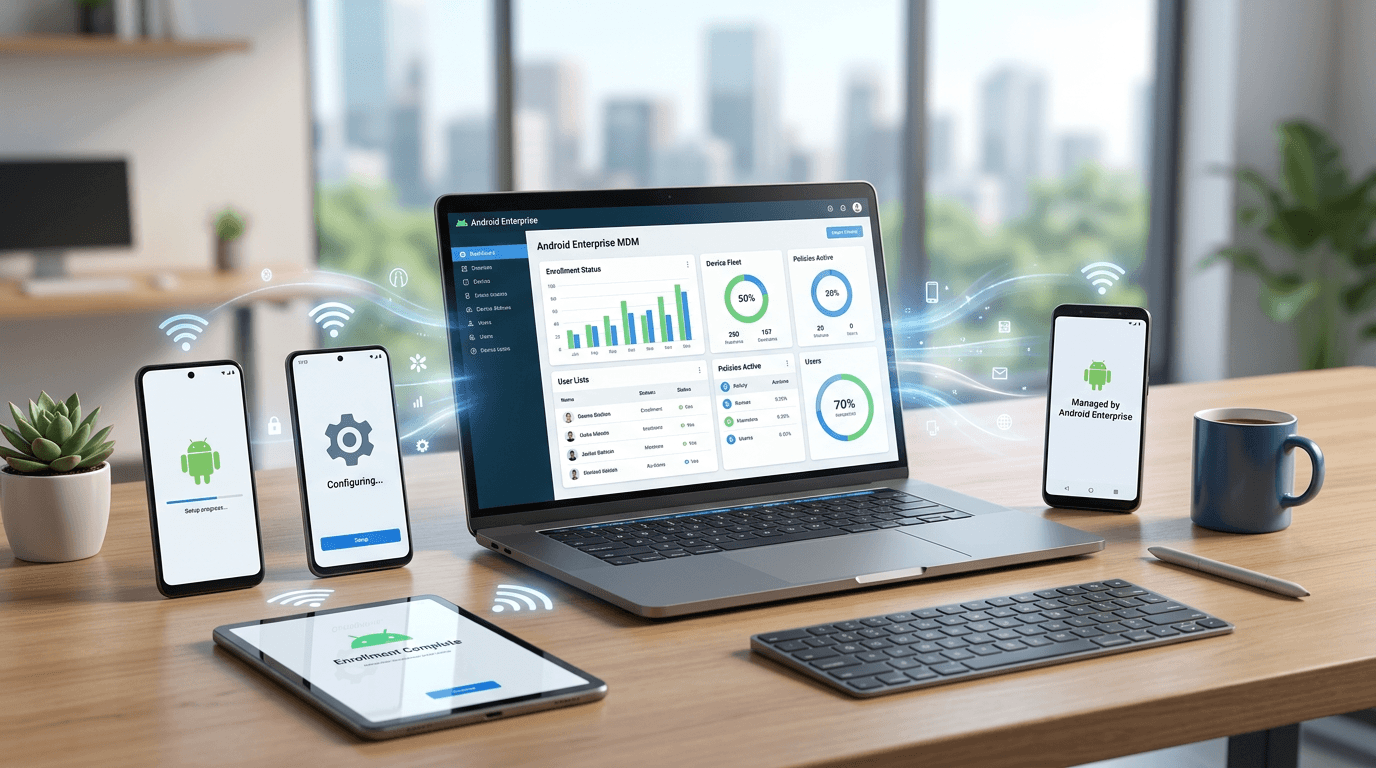
Le programme Android Enterprise Recommended (AER)
Avec des milliers d'appareils Android sur le marché, allant des téléphones d'entrée de gamme à 50 $ aux tablettes durcies à 2 000 $, comment une entreprise sait-elle quel matériel est assez fiable pour un usage professionnel ? Pour résoudre ce problème, Google a créé le programme Android Enterprise Recommended (AER).
Définition : Android Enterprise Recommended (AER) Un programme dirigé par Google qui valide des appareils spécifiques, des solutions de gestion de la mobilité en entreprise (EMM) et des fournisseurs de services gérés (MSP) qui répondent à des exigences d'entreprise strictes et élevées.
AER pour les appareils
Pour qu'un smartphone ou une tablette obtienne le badge AER, le fabricant doit garantir des normes spécifiques. Cela assure aux départements informatiques qu'ils investissent dans du matériel qui résistera à l'épreuve du temps. Les exigences AER incluent :
- Spécifications matérielles : Les appareils doivent respecter des seuils minimaux de RAM, de stockage et de vitesse de processeur pour garantir un fonctionnement fluide des applications d'entreprise.
- Mises à jour de l'OS : Le fabricant doit garantir la prise en charge d'au moins une mise à jour majeure du système d'exploitation Android.
- Correctifs de sécurité : C'est l'exigence la plus critique. Les fabricants doivent livrer les mises à jour de sécurité Android dans les 90 jours suivant leur publication par Google, pendant un minimum de trois ans (cinq ans pour les appareils durcis).
- Prise en charge Zero-Touch : Chaque appareil AER doit nativement supporter la configuration Zero-Touch.
AER pour les EMM et les partenaires
Le programme AER ne concerne pas seulement le matériel ; il valide également les plateformes de gestion. En tant que partenaire officiel d'Android Enterprise, Nomid MDM s'aligne sur ces normes rigoureuses. Pour obtenir et conserver le statut de partenaire, un MDM doit prouver une intégration avancée avec les API Android Enterprise, démontrer sa compétence dans le déploiement de fonctionnalités complexes comme Google Play géré et Zero-Touch, et disposer d'un personnel certifié qui comprend parfaitement l'architecture Android.
Comment implémenter Android Enterprise (étape par étape)
Passer à Android Enterprise ou lancer une nouvelle initiative de mobilité peut sembler intimidant. Cependant, en suivant une méthodologie structurée, les organisations peuvent exécuter un déploiement sans faille. Voici un guide étape par étape pour implémenter Android Enterprise.
Étape 1 : Évaluer les besoins et définir les cas d'utilisation
Avant d'acheter du matériel ou des logiciels, définissez clairement comment les appareils mobiles seront utilisés dans votre organisation. Identifiez vos profils d'utilisateurs :
- Les travailleurs de première ligne ont-ils besoin d'appareils durcis verrouillés sur une seule application d'inventaire ? (Choisissez Appareil dédié / COSU).
- Le personnel de bureau accédera-t-il aux e-mails de l'entreprise sur ses téléphones personnels ? (Choisissez Profil de travail / BYOD).
- Les représentants commerciaux sur le terrain ont-ils besoin de téléphones fournis par l'entreprise pour un usage professionnel et personnel ? (Choisissez COPE).
Étape 2 : Sélectionner un MDM partenaire officiel d'Android Enterprise
La plateforme MDM est le centre de commande de toute votre stratégie de mobilité. Choisissez une solution qui s'intègre profondément aux API Android. Nomid MDM offre une console intuitive, une application robuste des politiques et des modèles sectoriels spécialisés (pour la santé, la vente au détail, l'éducation et la logistique) qui simplifient la configuration des politiques complexes d'Android Enterprise.
Étape 3 : Se procurer du matériel AER via un revendeur agréé
Pour bénéficier de la configuration Zero-Touch, vous devez acheter vos appareils auprès d'un revendeur zero-touch agréé par Google. Précisez que vous achetez pour un déploiement en entreprise afin que le revendeur puisse télécharger les IMEI des appareils sur votre portail zero-touch. Recherchez toujours le badge Android Enterprise Recommended pour garantir un support de sécurité à long terme.
Étape 4 : Configurer Google Play géré et les politiques de sécurité
Dans votre console Nomid MDM, liez votre organisation à Google Play géré. Commencez à organiser votre boutique d'applications d'entreprise.
- Approuvez des applications publiques comme Microsoft Teams, Slack ou Salesforce.
- Téléchargez toutes les applications privées personnalisées.
- Configurez les configurations gérées pour pré-paramétrer les applications.
- Créez vos profils de sécurité : imposez des mots de passe forts, configurez les certificats Wi-Fi et VPN de l'entreprise, et définissez des règles de conformité (ex : « Si un appareil est rooté, effacer immédiatement les données de l'entreprise »).
Étape 5 : Exécuter un déploiement pilote
Ne déployez jamais sur toute l'entreprise d'un seul coup. Sélectionnez un petit groupe d'utilisateurs technophiles dans différents départements pour participer à un pilote. Envoyez-leur les appareils via la configuration Zero-Touch. Recueillez des commentaires sur l'expérience dès le déballage, les performances des applications et tout point de friction dans la configuration du profil de travail.
Étape 6 : Déploiement complet et gestion continue du cycle de vie
Une fois le pilote réussi, procédez au déploiement complet. Utilisez les tableaux de bord de rapport de Nomid MDM pour surveiller la santé des appareils, suivre les versions de l'OS et vous assurer que tous les appareils se connectent et reçoivent les derniers correctifs de sécurité. Lorsqu'un employé quitte l'entreprise, utilisez le MDM pour effacer à distance les données de l'entreprise et ré-attribuer l'appareil au prochain utilisateur.
Conclusion
Android Enterprise n'est pas seulement une fonctionnalité ou une application unique ; c'est un cadre complet et multicouche qui redéfinit la manière dont les organisations interagissent avec la technologie mobile. En s'éloignant du modèle obsolète Device Admin et en adoptant la conteneurisation moderne, la sécurité assistée par le matériel et la gestion pilotée par API, Android Enterprise offre l'équilibre parfait entre sécurité d'entreprise et vie privée des utilisateurs.
Que vous gériez un programme BYOD pour une centaine de télétravailleurs ou que vous déployiez des milliers de bornes dédiées dans des points de vente, la compréhension des quatre modes de gestion fondamentaux, l'utilisation de Google Play géré et l'exploitation de la configuration Zero-Touch sont les clés d'une stratégie de mobilité réussie.
Cependant, le cadre n'est puissant que si les outils utilisés pour le gérer le sont aussi. En tant que partenaire officiel d'Android Enterprise, Nomid MDM permet aux organisations de libérer tout le potentiel de leurs flottes Android. Des déploiements Zero-Touch ultra-rapides à l'intégration profonde de Samsung Knox, en passant par des solutions sur mesure pour la santé, la logistique et l'éducation, Nomid MDM simplifie les complexités de la mobilité en entreprise, permettant à votre équipe informatique de se concentrer sur l'innovation plutôt que sur l'administration.
Manage your Android devices smarter
Simplify device management with Zero-Touch Enrollment and powerful policies — free for up to 10 devices.
Start for FreeÉcrit par
David Ponces
Articles connexes
Voir tous les articles fundamentals
 Le passage à l'AMAPI : naviguer vers la fin des DPC personnalisés dans Android Enterprise
Découvrez les enjeux du passage à l'API de gestion Android (AMAPI) et comment anticiper la fin des contrôleurs de politique de dispositif (DPC) personnalisés dans l'écosystème Android Enterprise.
 fundamentals
 Au-delà de l'automatisation : comment l'IA agentique redéfinit la mobilité d'entreprise Android en 2026
Cet article explore l'évolution de la mobilité d'entreprise Android sous l'influence de l'IA agentique, dépassant la simple automatisation pour transformer la gestion des flottes mobiles d'ici 2026.